Inactive User Tracker
Auditor Inactive User Tracker standalone tool discovers inactive user and computer accounts. It performs the following tasks:
-
Checks the managed domain or specific organizational units by inquiring all domain controllers, and sends reports to managers and system administrators listing all accounts that have been inactive for the specified number of days.
-
Automatically deactivates inactive accounts by setting a random password, disabling, deleting, or moving them to a specified organizational unit.
NOTE: The generated password contains uppercase and lowercase letters, numbers, and special characters. The default password length is 15 characters. You can modify this password at any time by configuring registry keys. See the Registry Keys topic for additional information.
-
Windows Server 2025
-
Windows Server 2022
-
Windows Server 2019
-
Windows Server 2016
-
Windows Server 2012 R2
-
Windows Server 2012
Create Monitoring Plan to Audit Inactive Users
Step 1 – Navigate to Start > Netwrix Auditor > Netwrix Auditor Inactive Users Tracker.
Step 2 – On the main page, select a monitoring plan. Click Add to add a new monitoring plan.
Step 3 – Configure basic parameters as follows:
| Option | Description |
|---|---|
| Enable inactive user tracking | Select the checkbox to discover inactive users in your Active Directory domain. |
| Audited domain | Specify domain name in the FQDN format. |
| Send report to administrators | Enable this option and specify one or several email addresses for administrators to receive daily reports with a list of inactive users. Use semicolon to separate several addresses. |
Step 4 – Navigate to the General tab and complete the following fields:
| Option | Description |
|---|---|
| Specify the account to use to collect data: - User name - Password | Enter the account to use for data collection. See the Data Collecting Account topic for additional information about the full list of the rights and permissions for the account. To use a group Managed Service Account (gMSA) instead of a user account, see the Use a Group Managed Service Account (gMSA) topic. |
| Consider user inactive after | Specify the inactivity period after which Auditor considers a user inactive. |
| Customize the report template | Click Edit to edit the notification template, for example, modify the text of the message. You can use HTML tags when editing a template. |
| Attach report as a CSV files | Select this option to receive reports attached to emails as CSV files. |
You can use the following variables in the Inactive User Tracker message templates:
| mpName | Monitoring Plan Name |
| sAMAccountName | Account Name |
| sAMAccountType | Account Type |
| inactivityTime | Inactivity Time |
| accountAge | Account Age |
| performedAction | Performed Action |
Step 5 – Navigate to the Actions tab and complete the following fields:
| Option | Description |
|---|---|
| Notify manager after | Specify the inactivity period after which Auditor notifies the account owner's manager. |
| Set random password after | Specify the inactivity period after which Auditor sets a random password for this account. |
| Disable accounts after | Specify the inactivity period after which Auditor disables the account. |
| Move to a specific OU after | - Specify the inactivity period after which Auditor moves the account to a specified organizational unit. - OU name—Specify the OU name, or select an AD container using the  button. button. |
| Delete accounts after | Specify the inactivity period after which Auditor removes the account. |
| Delete account with all its subnodes | Select this checkbox to delete an account that is a container for objects. |
| Notify managers only once | If you select this checkbox, managers receive one notification on account inactivity and one on every action on accounts. Managers receive a notification on the day the account's inactivity time matches the inactivity period settings. By default, managers receive notifications every day after the time interval of inactivity specified in the Notify managers after field. |
Step 6 – Navigate to the Advanced tab and complete the following fields:
| Option | Description |
|---|---|
| Filter by account name | Specify one or several user account names (e.g., *John*). Use semicolon to separate several names. Auditor notifies and includes only user accounts that contain the selected name in the administrators and managers reports. |
| Filter by organizational unit | To audit inactive users that belong to certain organizational units within your Active Directory domain, select this option and click Select OUs. In the dialog that opens, specify the OUs that you want to audit. Auditor notifies and includes only users belonging to these OUs in the administrators and managers reports. |
| Process user accounts | Select this checkbox to audit user accounts. |
| Process computer accounts | Select this checkbox to audit computer accounts. |
Step 7 – Navigate to the Notifications tab and complete the following fields:
| Option | Description |
|---|---|
| Use Netwrix Auditor notification settings | Select this option if you want to use modern authentication. Modern authentication must already be configured in the monitoring plan you are going to use. If you select this option, the following fields aren't needed. |
| SMTP server | Enter your SMTP server address. It can be your company's Exchange server or any public mail server (e.g., Gmail, Yahoo). |
| Port number | Specify your SMTP server port number. |
| Sender address | Enter the address that appears in the From field. RECOMMENDED: click Send Test Email. The system sends a test message to the specified email address and notifies you of any problems. |
| SMTP authentication | Select this checkbox if your mail server requires the SMTP authentication. |
| User name | Enter a user name for the SMTP authentication. |
| Password | Enter a password for SMTP authentication. |
| Use Secure Sockets Layer encrypted connection (SSL) | Select this checkbox if your SMTP server requires SSL to be enabled. |
| Use implicit SSL | Select this checkbox if the implicit SSL mode is used, which means that an SSL connection is established before any meaningful data is sent. |
| Enforce certificate validation to ensure security | Select this checkbox if you want to verify security certificate on every email transmission. The option isn't available for auditing User Activity or other Netwrix Auditor tools. |
| Display the following From address in email notifications | Enter the address that appears in the "From" field in email notifications. This option doesn't affect notifications sent to users' managers and administrators. Before configuring the "From" field for user email notifications, ensure that your Exchange supports this option. |
Review your configuration and click Save.
Review Report on Inactive Users
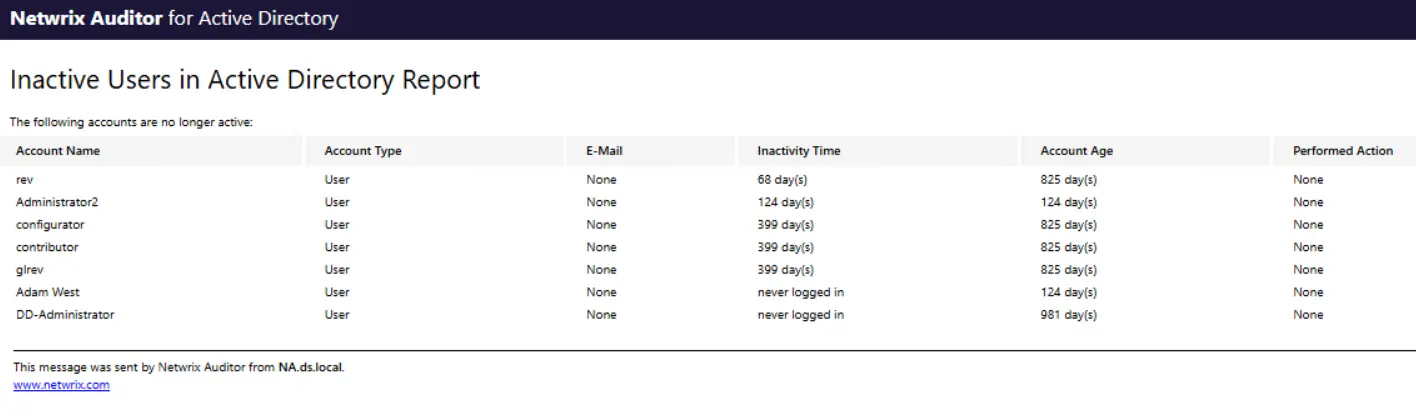
Step 1 – Click Generate next to Generate report on inactive users to view report immediately.
Registry Keys
Review the basic registry keys that you may need to configure for monitoring inactive users within your Active Directory domain with Netwrix Auditor. Navigate to Start > Run and type "regedit".
| Registry key (REG_DWORD type) | Description / Value |
|---|---|
HKEY_LOCAL_MACHINE\SOFTWARE\WOW6432Node\Netwrix Auditor\Inactive Users Tracker | |
| HideEmailAdditionalInfo | Defines whether to show or hide the header and footer in emails sent to managers (emails sent to administrators always have default header and footer): - 0—Show - Any other number—Hide |
| RandomPasswordLength | Defines the length of a random password to set for an inactive user. |
| WriteEventLog | Defines whether to write events to the Application Log: - 0—No - 1—Yes |
Monitoring Scope
You can fine-tune Netwrix Auditor by specifying data that you want to exclude from the Inactive User monitoring scope.
To exclude data from the Inactive Users monitoring scope:
Step 1 – Navigate to the %PROGRAMDATA%\Netwrix Auditor\Inactive Users Tracker folder.
NOTE: This is the default location, but users can move this folder.
Step 2 – Edit the *.txt files, based on the following guidelines:
- Each entry must be a separate line.
- A wildcard (*) is supported. You can use * for cmdlets and their parameters.
- Auditor treats lines that start with the # sign as comments and ignores them.
| File | Description | Syntax |
|---|---|---|
| filter.txt | Contains a list of accounts to exclude from processing. | Username |
| omitdclist.txt | Contains a list of domain controllers to exclude from processing. Auditor skips all automated deactivation actions for inactive accounts (disable, move, delete) even if one domain controller is unavailable during scheduled task execution. Add the unavailable domain controllers to this file to ensure Auditor functions properly. | Full DNS name or NetBIOS name IP addresses aren't supported. |
| omitoulist.txt | Contains a list of organizational units to exclude from processing. | Path *OU=OUNAME* For example: If the OU is "sampledomain.sample/sampling", the syntax should be: *OU=sampling* |