Object Restore for Active Directory
With Netwrix Auditor, you can restore deleted and modified objects using the Netwrix Auditor Object Restore for Active Directory tool shipped with the product. This tool restores AD objects without rebooting a domain controller or affecting the rest of the AD structure, and goes beyond the standard tombstone capabilities.
The following Windows Server versions are supported:
- Windows Server 2025
- Windows Server 2022
- Windows Server 2019
- Windows Server 2016
- Windows Server 2012 R2
- Windows Server 2012
Perform the following procedures:
- Modify Schema Container Settings
- Roll Back Unwanted Changes
Modify Schema Container Settings
By default, deleting a user or computer account from Active Directory discards its password and domain membership. When you restore deleted accounts with the Netwrix Auditor Object Restore for Active Directory tool, it rolls back domain membership and sets random passwords that you must change manually. To restore AD objects with their passwords preserved, modify the Schema container settings so that Active Directory retains account passwords when you delete accounts.
To perform this procedure, you will need the ADSI Edit utility.
To modify the schema container settings:
Step 1 – Navigate to Start > Windows Administrative Tools > ADSI Edit.
Step 2 – Right-click the ADSI Edit node and select Connect To. In the Connection Settings dialog, enable Select a well-known Naming Context and select Schema from the dropdown list.
Step 3 – Expand the Schema your_Root_Domain_name node. Right-click the CN=Unicode-Pwd attribute and select Properties.
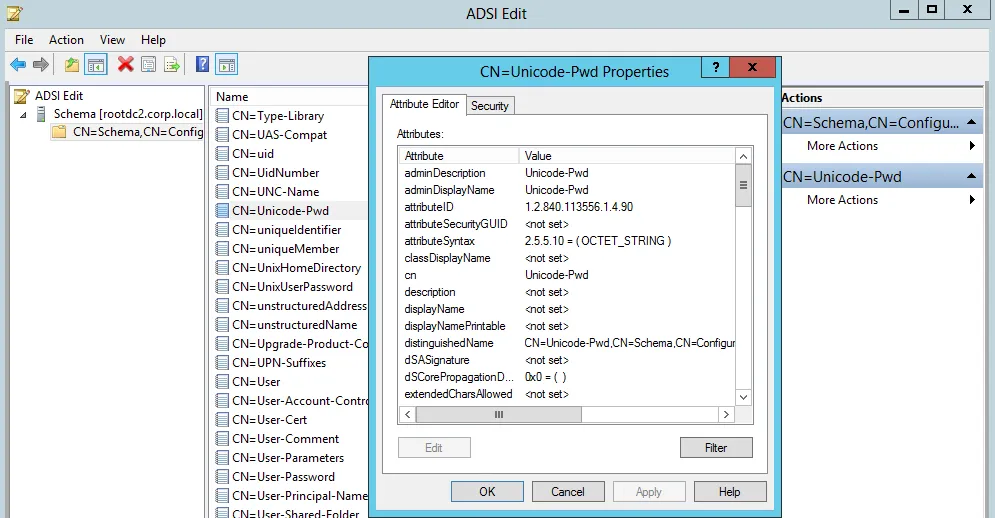
Step 4 – Double-click the searchFlags attribute and set its value to "8".
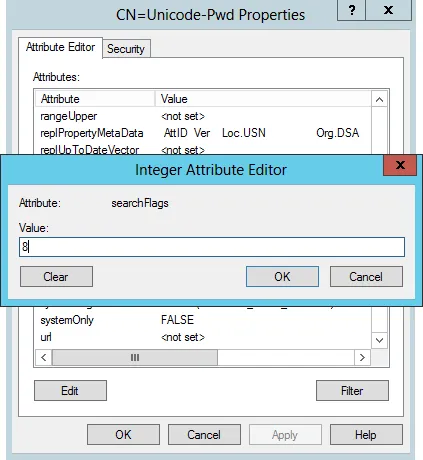
Now you can restore deleted accounts with their passwords preserved.
Roll Back Unwanted Changes
To roll back unwanted changes:
Step 1 – Navigate to Start > Netwrix Auditor > Netwrix Auditor Object Restore for Active Directory.
Step 2 – On the Select Rollback Period step, specify the period of time when the changes that you want to revert occurred. You can either select a period between a specified date and the present date, or between two specified dates.
Step 3 – On the Select Rollback Source step, specify the rollback source. The following restore options are available:
-
State-in-time snapshots — This option restores objects from configuration snapshots made by Netwrix Auditor and is preferable because it restores AD objects with all their attributes.
Complete the following fields:
Option Description Audited domain Select a domain where changes that you want to rollback occurred. Select a state-in-time snapshot Select if you want to revert to a specific snapshot. Otherwise, the program will automatically search for the most recent snapshot that will cover the selected time period. -
Active Directory tombstones — Netwrix recommends this option only when no snapshot is available. This is a last resort measure because the tombstone holds only the basic object attributes.
Step 4 – On the Analyzing Changes step, the product analyzes the changes made during the specified time period. When reverting to a snapshot, the tool reviews the changes that occurred between the specified snapshots. When restoring from a tombstone, the tool reviews all AD objects put in the tombstone during the specified period of time.
Step 5 – On the Rollback Results step, the tool displays the analysis results. Select a change to see its rollback details at the bottom of the window. Select an attribute and click Details to see what changes will be applied if this attribute is selected for rollback. Check the changes you want to roll back to their previous state.
Wait until the tool has finished restoring the selected objects. On the last step, review the results and click Finish to exit the wizard.