VMware
vSphere is VMware's virtualization platform. Change Tracker includes Center for Internet Security (CIS) certified compliance tracking templates to ensure secure configuration of vSphere clusters and their ESXi nodes.
vSphere/ESXi
Change Tracker executes compliance reports for vSphere clusters and their ESXi nodes in an agentless manner, using a proxy agent that has vSphere clusters (or individual ESXi servers) configured as proxied devices.
Requirements for the Proxy Agent's Device
- .NET 6
- PowerShell 7
- PowerShell Module VMware.PowerCLI
- Gen 7 Agent
Installation
After you install .NET 6 and the Gen 7 Agent, follow these instructions to ensure the proxy agent's device can communicate with vSphere and ESXi devices.
Open a PowerShell console as Administrator to run the following command:
Install-Module VMware.PowerCLI -Scope AllUsers
Check installation with:
Get-PowerCLIVersion
If vCenter uses self-signed certificates, the following command ignores the errors this usually raises:
Set-PowerCLIConfiguration -InvalidCertificateAction:Ignore -Scope AllUsers
To disable the customer experience program run the following command:
Set-PowerCLIConfiguration -Scope AllUsers -ParticipateInCEIP $false
Configuration
Step 1 – From the Settings menu, select Credentials and scroll down to the ESXi / vCenter Credentials section.
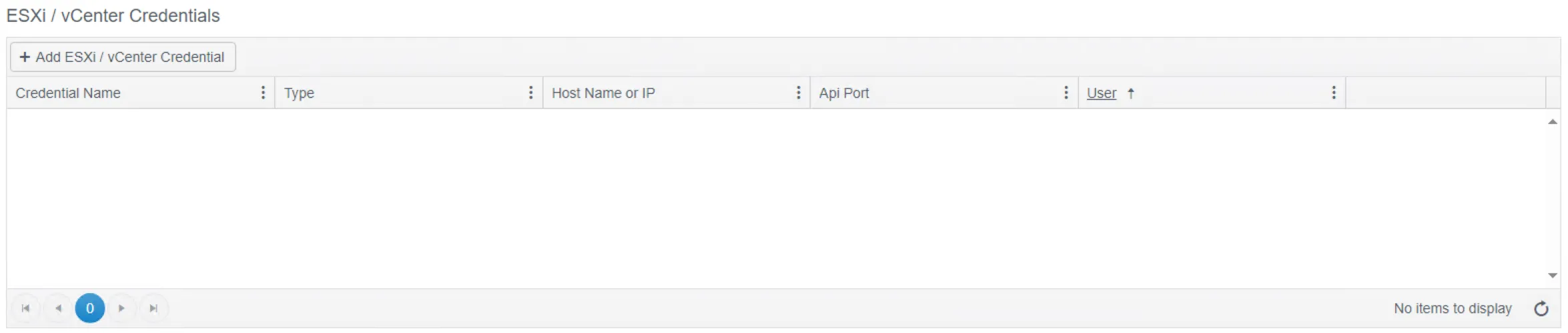
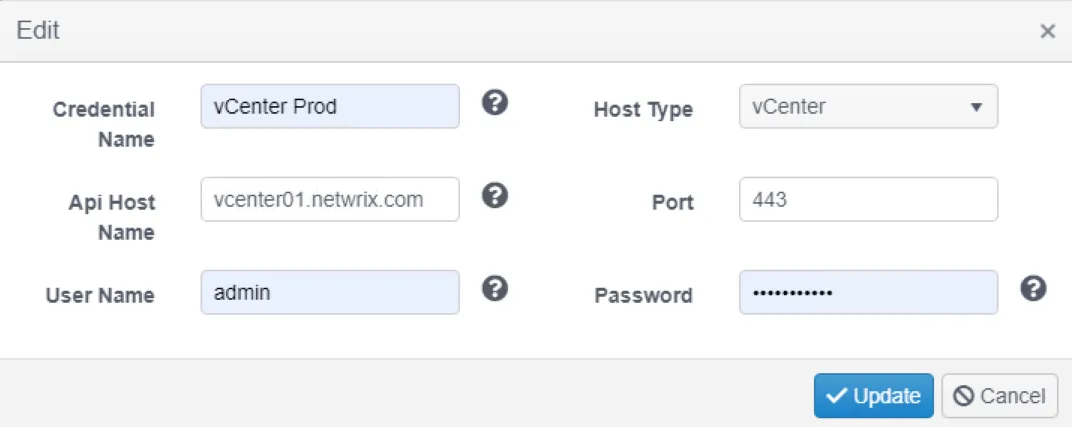
Step 2 – Click the Add button and enter the credential information. For vCenter / ESXi monitoring, use vCenter as the Host Type because it allows for ESXi node discovery. The ESXi Host Type option enables connections to standalone ESXi servers.
Device Discovery
A vSphere cluster consists of ESXi nodes. In the past, you had to add each ESXi node manually as a proxied device. You can now add the vSphere service as a proxied device and automatically discover all its ESXi nodes and add them as proxied devices. This speeds up configuration and helps you keep up with fast-changing environments where ESXi nodes are frequently created, removed, or migrated between clusters.
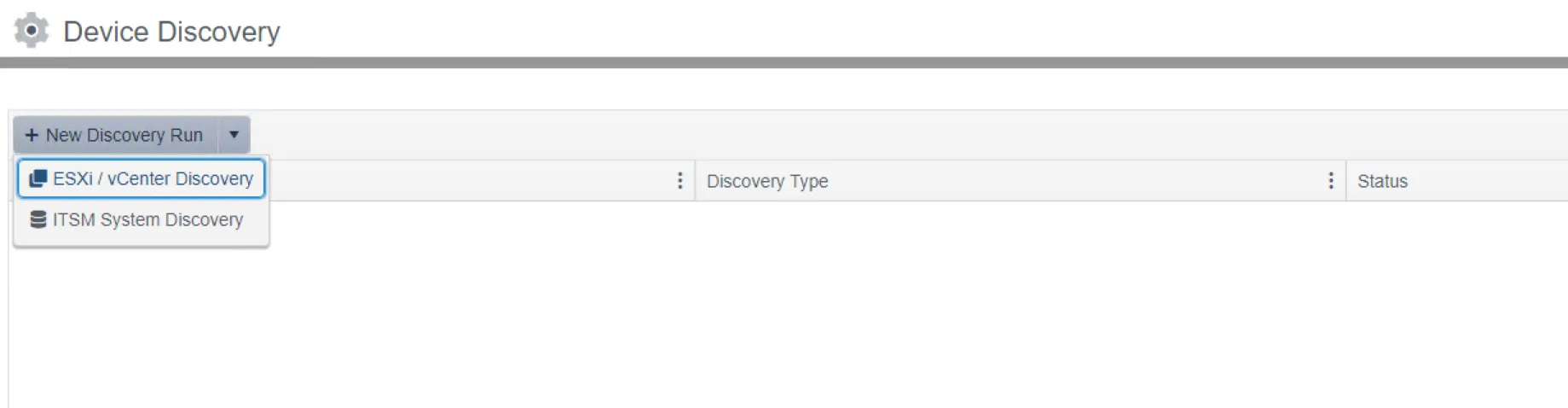
From the Settings menu, select Device Discovery. Select ESXi / vCenter Discovery from the dropdown to configure the discovery job.
Discovery Device is the device running the agent that will execute the commands to discover the ESXi nodes.
Parent Device in Hub is the proxy device under which Change Tracker registers the proxied devices that represent the ESXi nodes. Usually Discovery Device and Parent Device in Hub use the same agent, but you can configure different discovery jobs, executed by different proxy agents, to register all their discovered nodes under one proxy agent.
The "Assign to Group" dropdown is the group you assign the discovered ESXi nodes to. There is no automatic registration, so you must choose a group.
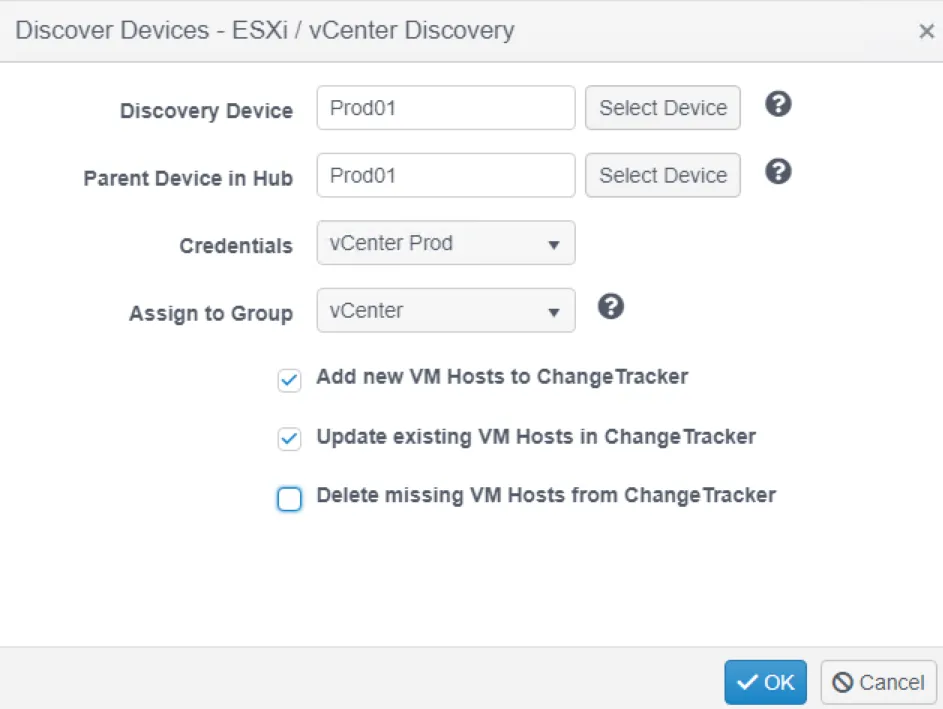
Once configured, a discovery job will automatically run, and if it succeeds, the devices will be visible in the grid.


Compliance Reporting
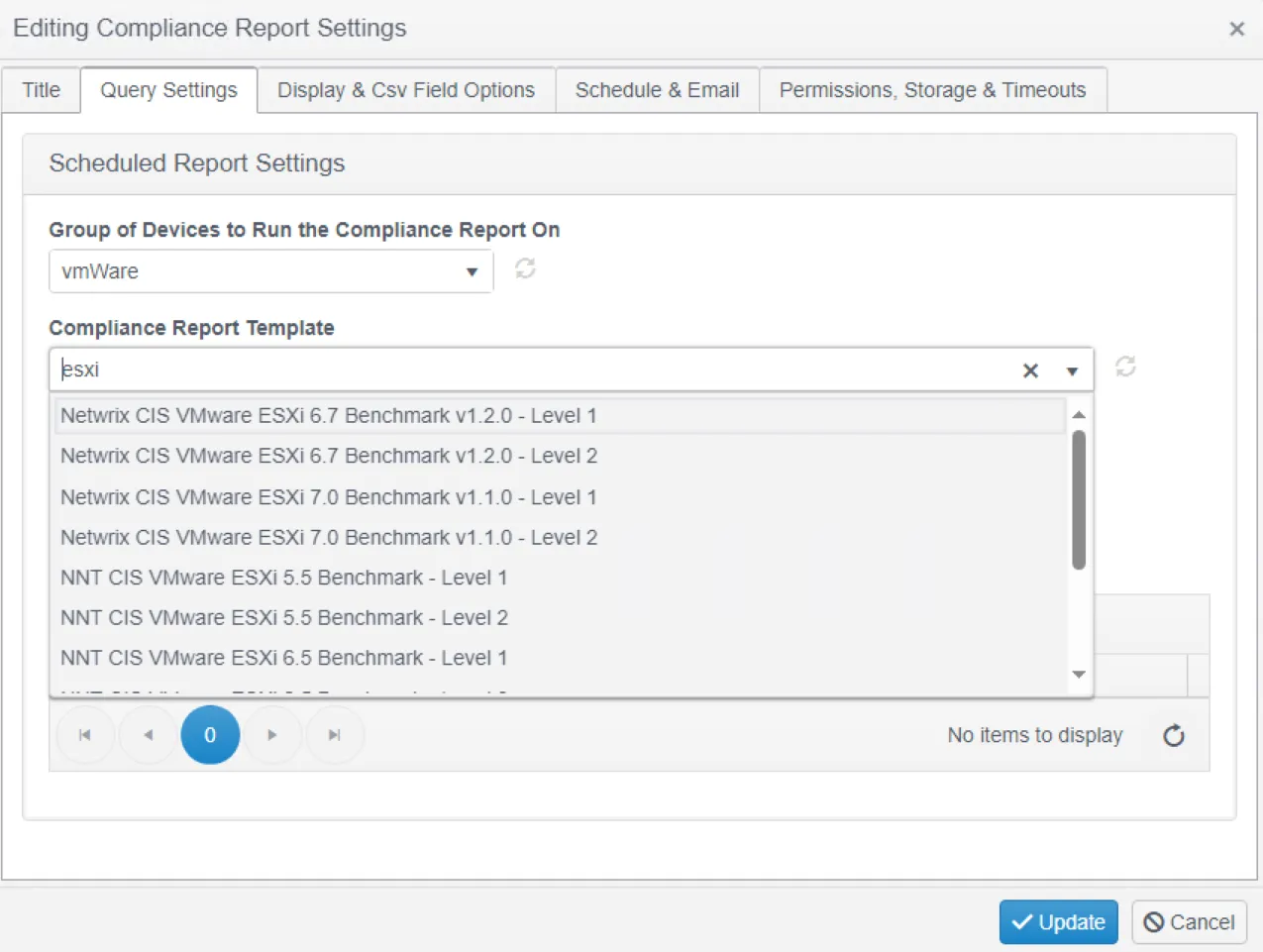
Under the Reports tab, you can now configure and run the appropriate compliance report against the group that contains the ESXi devices.