Types of Clues
The following types of clues are available, and this article describes each one in detail:
Standard Clues
A single word, multi-word concepts or phrases. Use quotes around standard clues to invoke a case-insensitive exact match on entered text, including any punctuation.
Examples:
A standard clue matched on a fuzzy basis with word stemming enabled: training will match against: train, training, trains.
A standard clue enclosed in double quotes will be matched on an exact match basis: "Train timetables in the U.K." will match only against: Train timetables in the U.K. (Case-insensitive)
Case-Sensitive Clues
A case-sensitive phrase match clue, including any punctuation. There is no need to put double quotes around the text (double quotes at the start and/or end of the text will be removed).
Phrasematch (Wildcard) Clues
A phrase match clue that supports the use of ‘*’ and ‘?’ wildcards when matching document text (see Regex Clues for full REGEX support).
Metadata Clues
A clue based on document metadata, with matching based on:
- Exact string matches – Such as: AUTHOR=JOHN SMITH
- Wildcard string matches – Such as: AUTHOR*=john sm?th*
- Full regex string matches – Such as: AUTHOR^=john.*smith
- Date Range matches – Such as: FIELD > VALUE
- Dynamic Date Range matches – Such as: FIELD>TODAY OR FIELD>TODAY-14 (Matching the last 2 weeks)
- Integer Range matches – Such as FIELD > VALUE or FIELD
Helpers are provided to format metadata clues. To activate the helper, select the appropriate
icon for your clue type (numeric, date, and basic):

The date helper supports assisting in the creation of both static and dynamic date clues:

Both field and value are case-insensitive for metadata matches. Wildcard matches must included a * character before the equals sign (as shown in the preceding example).
The following special metadata fields can be used:
CSE-CONTENTTYPE
The raw content type, for example:
text/*
text/html; charset=utf-8
application/pdf
Most applications should use the CSE-TYPE field or the FILE TYPE field (described in the following sections) rather than the CSE-CONTENTTYPE field due to the highly variable nature of the raw values.
Examples:
A clue based on PDF documents would look like this
cse-type = application/pdf
A clue based on a specific author would look like this
author=john smith
CSE-DOCTYPE
The DocType integer field
CSE-FILENAME
The document filename (e.g. “Pensions.doc”)
CSE-FILEPATH
The document path not including the filename (e.g. “http://www.bbc.co.uk/sport/”)
CSE-FOLDERS
Used to match folders including sub-folders. For example:
CSE-FOLDERS=http://www.abc.com/jobs/
matches: http://www.abc.com/jobs/123.txt
and also: http://www.abc.com/jobs/UK/123.txt
A clue based on a right truncated path would look like this
CSE-FOLDERS=c:\myfolder\subfolder\
or
CSE-FOLDERS=http://www.abc.com/jobs/
When using cse-Folders with a right-truncated path the path must always end with a slash character.
A clue based on selected folders within the path would look like this
CSE-FOLDERS=myfolder/myfolder2
When using cse-Folders with subfolder matches the value must not begin or end with a slash character.
CSE-FOLDER
Used to match folders without including sub-folders. For example:
CSE-FOLDER=http://www.abc.com/jobs/
matches: http://www.abc.com/jobs/123.txt
doesn't match: http://www.abc.com/jobs/UK/123.txt
CSE-LASTMODIFIEDDATE
The LastModifiedDate from the collected content in the format “YYYY-MM-DD HH:MM:SS”.
This field can only be matched using the greater than or less than operators, for example:
CSE-LASTMODIFIEDDATE CSE-LASTMODIFIEDDATE > 2010-01-01
Only the date can be specified, not the time.
CSE-LANG
The dominant language of the document, using ISO 639-1 two-letter codes. See Language Detection settings for more information.
CSE-METADATACOLLECTIONONLY
This value will be set to “1” if the document was too large for the NDC index (max 500MB), but was processed using metadata only.
CSE-PAGETITLE
The Title extracted from the document itself.
CSE-TEXTLENGTH
The length of the plain text extracted from the document, in characters.
This field can only be matched using the equals, greater than or less than operators, for example:
CSE-TEXTLENGTH = 50000
CSE-TEXTLENGTH > 50000
CSE-TEXTLENGTH
CSE-TITLE
The Title extracted from metadata.
CSE-URL
The document Url, including the filename (e.g. “http://www.bbc.co.uk/sport/Pensions.doc”)
FILE TYPE
The short normalised content type, always one of the following:
Adobe PDF files:
Corel WordPerfect files:
WPD
Microsoft Excel files:
XLS
XLSX
Microsoft Outlook MSG files:
MSG
Microsoft PowerPoint files:
PPT
PPTX
Microsoft Rich Text Format files:
RTF
Microsoft Word files:
DOC
DOCX
Text files (including HTML, XML, CSV, etc.):
TXT
HTML
XML
All other file types
OTHER
FILE SIZE
The length of the document, in bytes.
This field can be matched using the equal, greater than or less than operators, for example:
FILE SIZE = 10000
FILE SIZE FILE SIZE > 10000
The Modified date from the document metadata in the format “YYYY-MM-DD HH:MM:SS”.
This field can be matched using the equal, greater than or less than operators, for example:
MODIFIED = 2010-01-01
MODIFIED > 2010-01-01
Only the date can be specified, not the time.
Phonetic Clues
A case-insensitive fuzzy/phonetic phrase match clue. Phonetic clues ignore all non alphanumeric characters. Words that contain no digits are matched using a phonetic algorithm so that words that sound similar will be matched. Phonetic clues don't use word stemming in the matching process.
For example, the following clue:
Intelligence Organisations in the Middle East
Would match any of the following:
- Intelligence Organizations in the Middle East
- Intelligence Organisations in the Middle-East
- Inteligence organisations, in the “middle east”.
But not any of the following:
- Intelligence Organisations located in the Middle East
- Intelligence Organisations in the Mid-East
Regex Clues
A Regular Expression matching clue – by default this is run across all document text and metadata. Regular expression clues are run in a case-sensitive manner by default. You can optionally enable the "Case-Insensitive Regex Processing" mode; this setting is in Config -> Classifier.
Many places define the required syntax for regular expressions, including Microsoft: Regular Expression Syntax.
The following example clue matches United States Social Security Numbers found anywhere in the document text:
[/,,/.,/=,\s]((?!000)[0-6]\d{2}|7[0-6]\d|77[0-2])-((?!00)\d{2})-((?!0000)\d{4})[/,,/.,\s]
This sample clue ensures that:
- The SSN must consist of 11 characters in this format: NNN-NN-NNNN
- The SSN must be preceded by a white space or a dot or a comma or an equals sign.
- The SSN must be followed by a white space or a dot or a comma.
- The two hyphens must be present.
- None of the three sections can be equal to zero.
- The first section must be in the range 001 – 772
Any regular expression matches found will be extracted and added to the NDC index automatically. For example, if a document contains this text:
Here is one SSN: 407-54-8831
And here is another 407-54-8832 in the middle of this sentence.
Then the following metadata entries will be generated automatically:
- Regex-SSN:407-54-8831
- Regex-SSN:407-54-8832
- в
You can view these within the document “Info” popup on the “Metadata” tab (filtered to Regex values). The automatically generated metadata field name is a combination of the term name prefixed with “Regex-“.
Regular Expression Result Validation
In some cases it may be necessary to assign certain requirements on the result of the regular expression. This is particularly relevant for expressions that may include false positives such as social security numbers (simple pattern) or credit card numbers (sample data). The classification engine includes a number of post match validation steps:
-
Exclusion Patterns—Let you exclude a match based upon an exclusion pattern (exclude sample data etc). Exclusion patterns can be added by selecting the “Exclusions” link. If any exclusion rule is matched the regular expression result will be discarded.
TIP: Hit count based regular expression clue exclusions — restrict whether a regular expression clue should match based upon the number of unique matches found against the regular expression. For example, a regex to match any number against the text: "1 1 1 2 3 4" - has 4 hits, 4 unique numbers.
-
Validation Checks—Regex validation checks provide a way of reducing false positives returned by your regular expression. You can define the following check types:
- check-digit validations (suitable for credit card numbers, international bank account numbers etc),
- simple pattern-based exclusions to remove test data and values that aren't of interest,
- minimum or maximum constraints on both the number of matches and the number of unique matches.
Supported checks include: Mod 97/10, Luhn, Verhoeff
IMPORTANT! If any validation check fails, then the regular expression result will be discarded.
To add a validation check:
- Select the Validation Check link for your clue
- Click Add
- Select your check Type from the dropdown list, and specify other settings depending on the type.

- Click Save.
-
Proximity Matches—Let you include/exclude regular expression matches based upon the existence of text before or after the regular expression match. Matches can be added by selecting the “Proximity Matches” link. Matches are processed as follows:
- If any ‘Exclude’ match passes then the regular expression result will be discarded
- If no ‘Include’ matches exist – or, at least one ‘Include’ match passes then the regular expression result will be considered valid
NOTE: This functionality is only available when using classification Engine v2. The additional settings are also not available in SharePoint Term Sets (but can be linked via Term Boosts).
Required Terms clue
Use the Required Term clue type to require another class to be classified as a pre-requisite for this class. This is most often used when the children of a class require the parent to also be classified.
The valid entries for this type of clue are:
- Parent
- Grandparent
- Any specific term in any taxonomy
A tree view control makes selecting the required class easy:

For example, suppose you have a topic Pensions with two children:
-
Pensions
- USA
- Canada
The purpose of the two child classes is to identify documents that are about pensions in the USA or about pensions in Canada. Rather than add clues to identify pensions documents to the children you can require documents to be about Pensions by using a Required Class clue type.
Term Boost Clues
Use the Term Boost clue type to specify that a Class Score is to be boosted from another term. This is most often used when a complex class is implemented using several child (or even grandchild) classes. Basically, apply these clues to refer to the other term or taxonomy and review the score for each term, not exploring deeper into each term. Review the example:
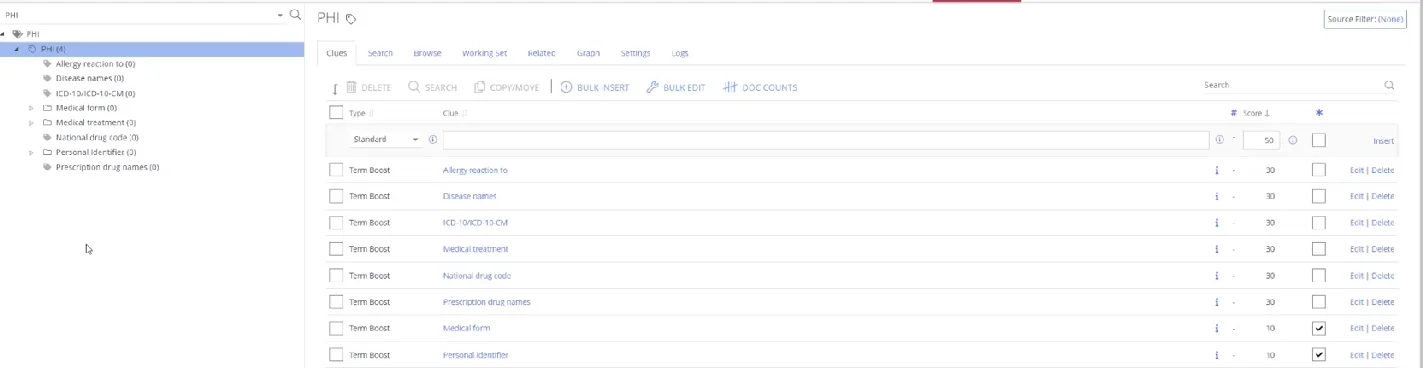
In a tree view you can find the list of terms, which are displayed in the Term boost list to the right. This way you can review or edit the average score for each term.
Use the tree view control to select boosting classes.

The score may be entered as a number (if a fixed boost is required regardless of the source term’s score) or as a percentage (if the boost score is to be calculated as a percentage of the source term’s score).
When referencing a specific node it is also possible to include all of the levels of that nodes descendants at once.
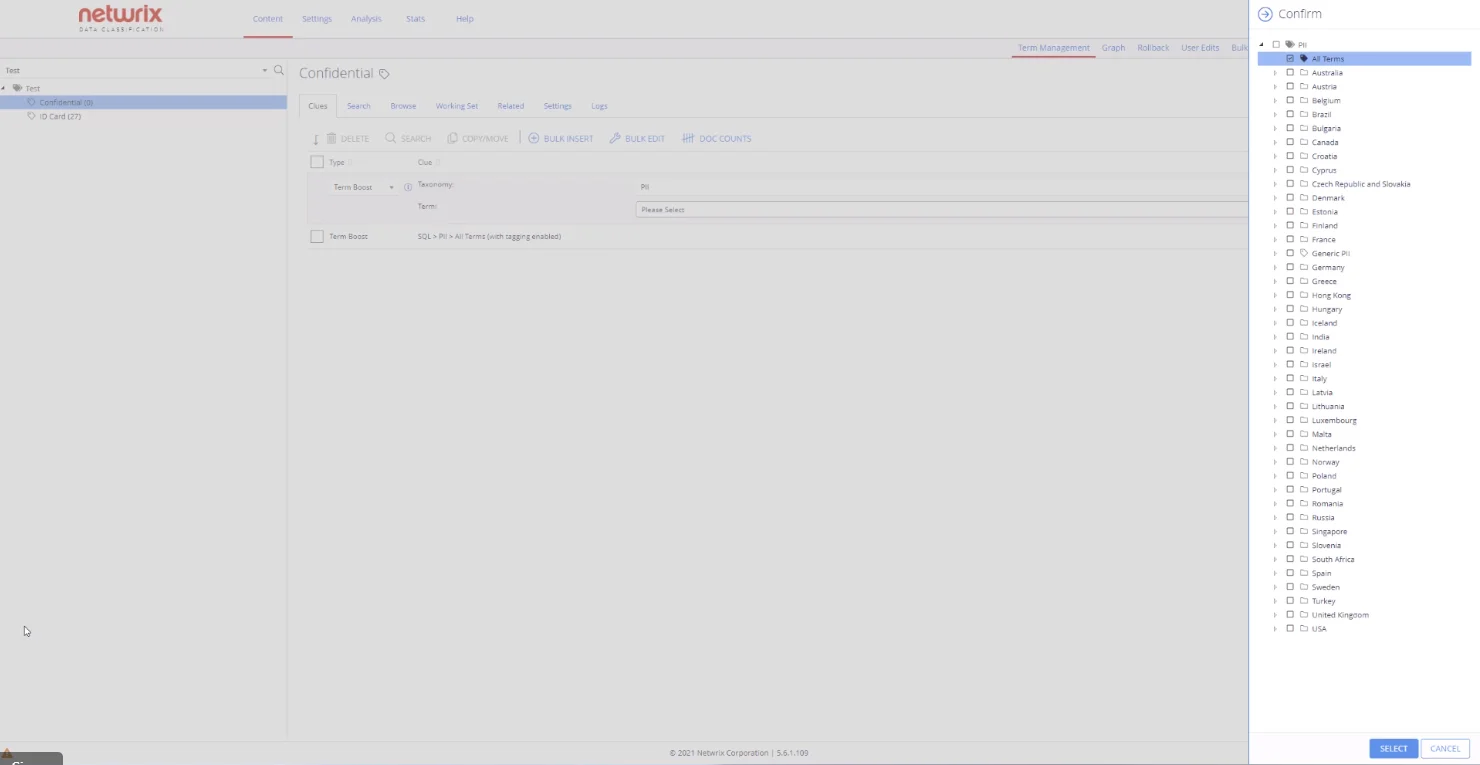
At classification time if the referenced node or any of its descendants (up to the configured level) reach their threshold then the term boost will be applied.
Select the Exclude Not Available for Tagging checkbox, if you want to exclude the terms, which are not available for tagging. This feature lets you select the grayed-out terms and exclude them for tagging for your taxonomy. For example, you have UK ZIP code, which was tagged as Available for Tagging before. It doesn't qualify as sensitive for your Confidential term. Therefore, you can apply this feature.

Language Clues
Use the language clue type to require documents to be written primarily in a specified language as a filter on classification.
For example, if you create a new class and want documents to be classified only if they are written in a Scandinavian language then you would create a Language clue, like this:

Static Clues
The static clue applies a score to the class without any pre-conditions, this can be useful when creating NOT functionality.
For example:
If you want to classify any document where a word doesn't exist (such as Pensions), you could first add a static clue with a score of 50, and then add a standard clue looking for Pensions with a negative score (-50).
Hierarchical Clues
Hierarchical clues support a parent-child clue hierarchy, if the child clues achieve the parent clue threshold then the hierarchical score will be applied.
This can be useful when you only want to apply a score if two or more conditions to match, or perhaps to only apply a small static score if a word appears X times within a document.