Migrate Document
Use this action to copy or move a document between content sources (from 'source' to 'destination'). Simple migration copies the file and any document properties and is supported by all content source types. Migration action properties specific for different content source types are listed in the following table.
| Type | As 'source' | As 'destination' | Migration Config Type | Supports structured migration? | Move? | Update source item? | Mark source 'read-only'? |
|---|---|---|---|---|---|---|---|
| Exchange | Yes | No | Yes | No | No | No | |
| File System | Yes | Yes | Custom -File Share | Yes | Yes | Yes | Yes |
| Google Drive | Yes | Yes | Source (Google Drive account) | Yes | No | No | No |
| SharePoint | Yes | Yes | Custom -SharePoint Site Collection | Yes | Yes | Yes | No |
| SQL and other databases | Yes | No | Yes | No | No | No |
IMPORTANT! Before you add the Migration action to your workflow, you should configure migration destinations. See Configuring Destinations for Migration Action.
When running the Workflow wizard and having selected Migration as action, you will be prompted to configure related settings.
To configure migration using Workflow wizard:
On the "What do you want to do?" step, select Migrate Document. Then do the following:
-
Specify migration source and folder:
-
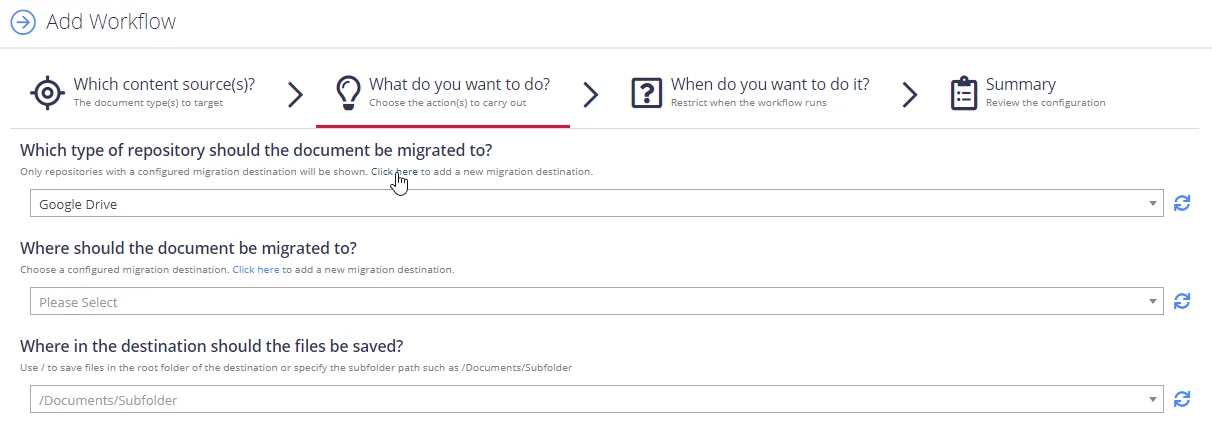
Select migration destination under Which type of repository should the document be migrated to?. You can add migration destination directly from wizard:
-
If you created several migration destinations, select one from the "Where should the document be migrated to?" list.
-
For Google Drive, you need to specify subfolder to save your files in the Where in the destination should the files be saved? field.
-
-
Configure migration options:
Option Description Replicate folder structure If supported by the source system, subfolders will be created in the migration destination to match the relative path in the source. In the case of Exchange this will also include a folder for the mailbox name (i.e., \MigrationDestination\User@domain.com\Inbox\HR). Copy or Move the document Select one of the following: - Copy - Move Mark Source as Read-only The original item can be marked as read only. What action should be taken if the document already exists at the destination Select action to perform: - Replace - Append Redact the document If update of the source item is supported by the source system, then using this option will instruct the program to apply the redaction plan to the source document after its successful migration. NOTE: This option isn't available when performing a move (deleting the original item).
To modify action settings for a workflow, select the workflow and use the Advanced UI window. See Modify Migration action settings for more information.