Exchange
For the Exchange sources, you can configure the list of folders/emails to exclude from processing. Do the following:
-
In the management console, click Sources →Exchange Mailbox (EWS) or Exchange Mailbox (Graph). The Collection Exclusion page appears.
-
To create an exclusion, click Add.
-
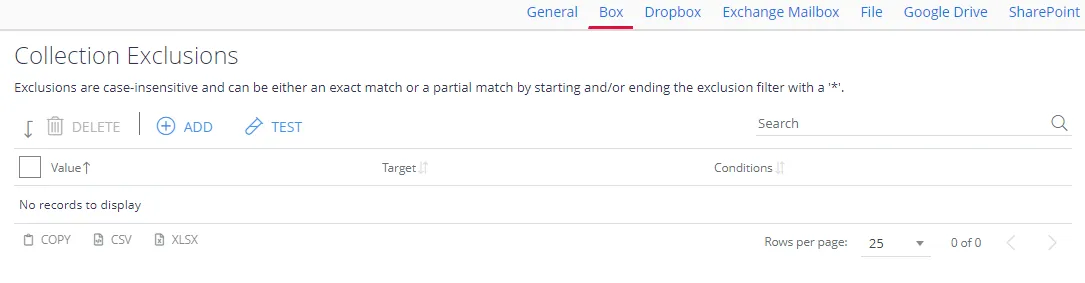
-
In the Details window, on the Filter tab enter the name of the entity to exclude. Consider the following:
- If you specify a folder name (e.g. “Drafts”) with no wildcards, then the product excludes any folders with that specific name.
noteAdding an exclusion of this type will match any folders with the name you provide in all configured sources.
- When you wrap the exclusion in wildcard indicators (e.g. “*Deleted*”), the system will match any folder/email with “Deleted” somewhere in the title.
noteYou can optionally enter an example exclusion location or path in the Test Path field to verify the new filter, and click Test.
-
If needed, you can use metadata conditions to restrict when the product applies an exclusion filter. For that, click Condition tab and click Add. Then select how the exclusion conditions will work: it can check whether the document's metadata field has any value, has no value, or matches a specific metadata value.
Criteria Condition Comparison Compare a value in the document metadata field with the value the condition sets. When you select this criteria, specify: - Field name — document metadata field to check - Comparison — operator to use (for example, "doesn't contain") - Value — value to compare against For example, to exclude documents tagged with year 2018, set the condition as follows: - Field Name — DocYear - Comparison — equals - Value — 2018 Has any value Exclude the document if its metadata field has any value. When you select this criteria, specify Field Name. Has no values Exclude the document if the metadata field has no value. When you select this criteria, specify Field Name. When finished, click Add.
-
Finally, click Save and close the window.