Managing list of exclusions
When indexing SharePoint files, you can specify the list of file locations that will be ignored. For that, in the list of sources, select SharePoint, then select Settings →SharePoint Excluded on the left, and click Add.
-
On the Filter tab, specify the objects (files or folders) to exclude:
To exclude a certain document, enter the page URL with no wildcard indicators (e.g. http://test.sharepoint.com/sites/documents/excluded%20document.docx
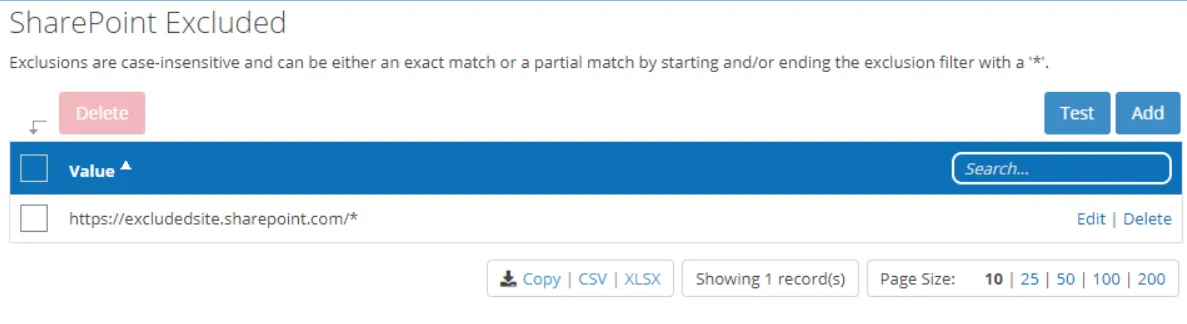
You can use wildcards anywhere in the exclusion pattern definition as follows:
- The asterisk character (*) matching any sequence of characters
- The question mark character (?) matching any single character
For example:
- http://test.sharepoint.com/sites/documents/\* will exclude all documents in the folder
- */Restricted Folder/* will exclude such folder in any site
Exclusions are case-insensitive.
-
Optionally, enter the full exclusion URL to verify the settings and click Test.
-
If needed, use metadata conditions to restrict when an exclusion filter applies. Click the Condition tab and click Add. Then select how the exclusion conditions will work: the system can check if a metadata field has any value, isn't specified, or matches a specific metadata value.
Criteria Condition Comparison Compare a value in the document metadata field with the value set by condition. With this criteria selected, you will then need to specify: - Field name — document metadata field to check - Comparison — operator to use (for example, "doesn't contain") - Value — value to compare against For example, to exclude documents tagged with year 2018, set the condition as follows: - Field Name — DocYear - Comparison — equals - Value — 2018 Has any value Exclude the document if its metadata field has any value. With this criteria selected, specify Field Name. Has no values Exclude the document if metadata field value isn't specified. With this criteria selected, specify Field Name. 
When finished, click Add.
-
Finally, click Save and close the window.