General Options
The General section contains general classification engine settings. By default, only standard options display. To view advanced options, click the wrench icon at Settings in the bottom-right corner.
Each option has an associated information popup (the “i” symbol next to the option name) which describes what the setting does and how it works.
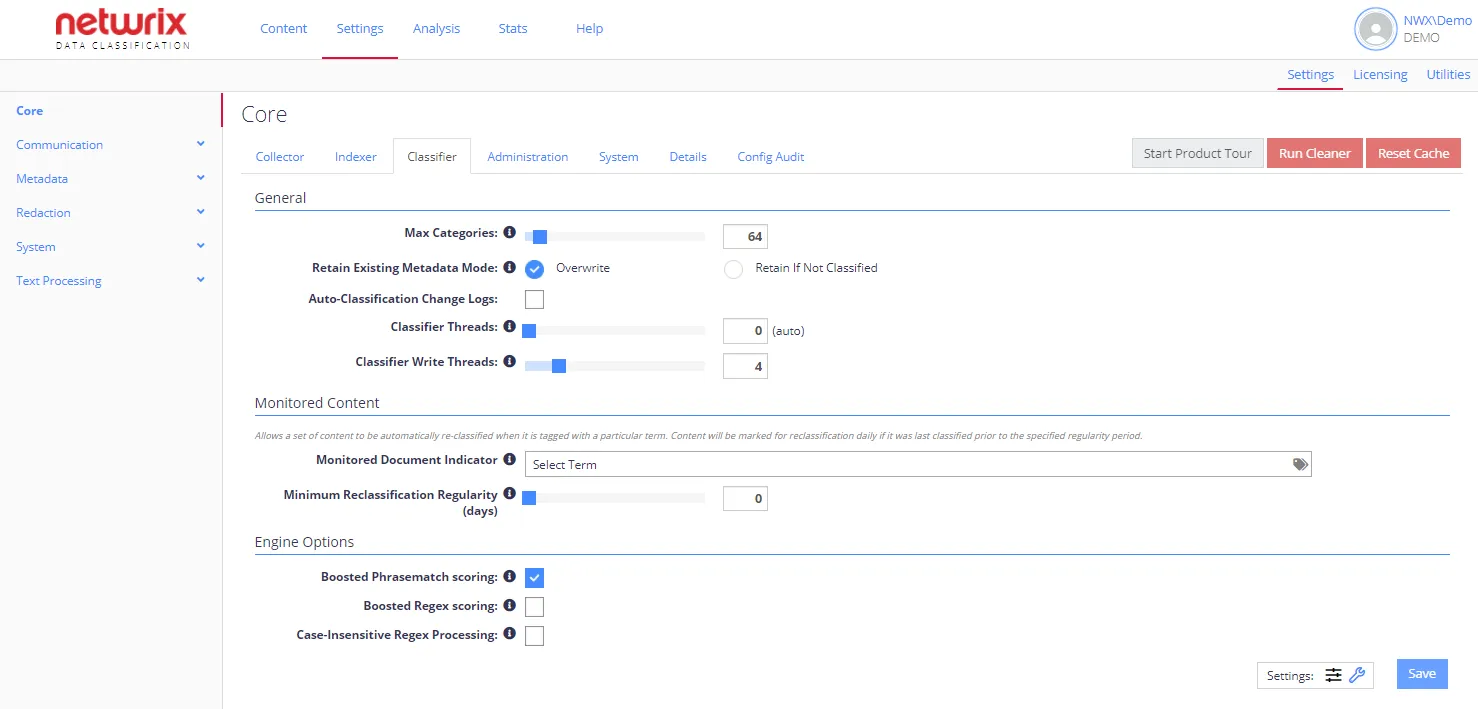
note
To view a complete list of the Config settings for your NDC instance, click the Details tab. The list indicates if a setting has been changed from the default value.
General Options
| Option | Description | Comment |
|---|---|---|
| Standard settings | ||
| Max Categories | Sets the maximum number of classifications to be allocated to each document:
| If a document matches enough categories that the specified maximum would be exceeded, then the classification service will select the required number of categories based on those that have the highest score. NOTE: Higher limits cause the classifier engine to use more RAM, so it is recommended to use the default setting (unless it is essential that more categories are allocated to each document). |
| Retain Existing Metadata Mode | Specifies how the classification engine should process documents with existing classifications (managed metadata fields). Possible options:
| Applies to SharePoint source. |
| Auto-Classification Change Logs | Enables a change log for auto-classification: each "Addition"/"Removal" of a classification against a document will be stored in the database as its classifications change. | Inactive by default. See also Manage Reports |
| Classifier Threads | The number of background threads used for classification. Default is 0 (auto). | Netwrix recommends leaving this setting on its default value. See the Knowledge Base article Classifier and Write Thread Tuning for details on tuning thread counts. |
| Classifier Write Threads | The number of threads to be used by the Classifier to update source systems during "tagging" operations (i.e. writing classifications back to source systems). | Each thread can be considered a "user" when considering load on the source system. See the Knowledge Base article Classifier and Write Thread Tuning for details on tuning write thread counts. |
| Advanced settings | ||
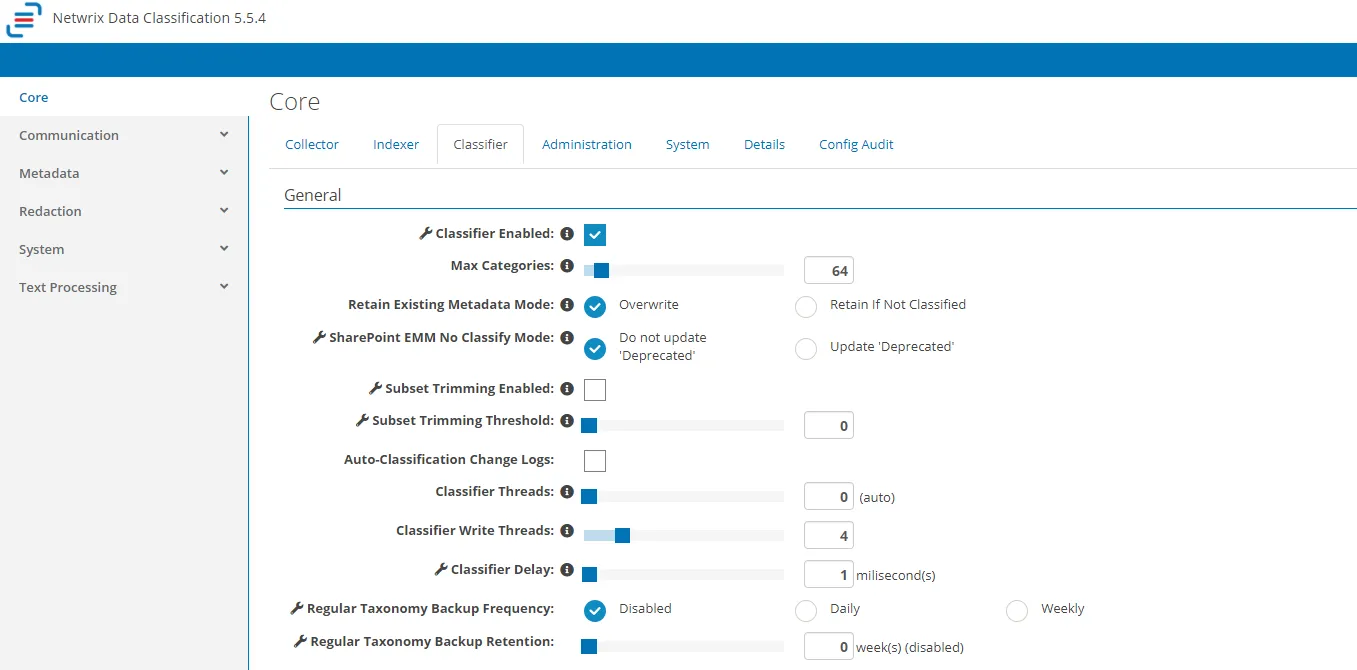 | ||
| Classifier Enabled | Enables / disables the Classifier core component. By default, it is enabled. | |
| SharePoint EMM No Classify Mode | Possible values:
| |
| Subset Trimming Enabled | This setting applies where both primary (single value) and secondary (multi value) fields are added to a document library for the same taxonomy.
| |
| Subset Trimming Threshold | If Subset Trimming Enabled option is ON, this parameter defines the minimum score required to class the highest scoring term as primary. | If no item has a score higher than this threshold, then all terms will show as secondary terms, and the primary term will be empty. |
| Classifier Delay | The sleep time (in milliseconds) between intensive operations, such as storing classification. Default is 1 ms. | |
| Regular Taxonomy Backup Frequency | Enables and specifies the frequency of an automated process to create and store a backup of the taxonomy definitions. You can specify how often the taxonomies will be backed up — daily or weekly. | By default, this option is disabled. |
| Regular Taxonomy Backup Retention | Specifies the length of time to retain automated taxonomy backups (automatic cleanup configuration). If you have selected to backup the taxonomies, you can specify backup retention (in weeks). |