Database
This section describes how to specify configuration settings for the Database source. You can specify which tables / views / queries to crawl, or set up table configuration. Also, you can use Write Configuration options to configure tagging.
Configure tagging
With tagging, write classification taxonomy attributes back to the source database.
You can map each registered taxonomy to a property in the database table’s metadata. The program updates a specific column per taxonomy within the source repository with the associated classifications for a record. You can specify how to map the classifications to the table:
- Which table to update
- Which column to update
- How to filter the table to ensure that only one row updates (the system verifies each update statement before execution).
Configure these settings in the Write Configuration window for the selected entity (table or query).
To configure tagging, do the following:
- In the Sources window, select the required source by clicking on the triple cog icon.
- Select the entity that you want to configure tagging for (table or query) and click Edit.
- Select Write Configuration on the left.
Configure the following tagging options:
| Option | Description |
|---|---|
| Table Name | Specify the name of the table to update (in most cases this is the same as the table you crawl). |
| Column Name | Specify the name of the column to update (text/varchar column). |
| Update Filter | Update filters restrict the update at the target destination. If you configure multiple filters, they all must be true. NOTE: Specify the Update Filter as: Column Name (PrimaryKeyName)=@PrimaryKeyName For example, if a column named ID is the primary key in the table, the Update Filter is: ID=@ID These values result in a query in the following format: UPDATE TABLENAME SET COLUMNNAME=@Classifications WHERE FILTERS |
Other Database Configuration settings
You can also specify the following settings:
- Source Configuration
- Primary Key Query
- Content Query
- Table Configuration
Source Configuration
Use the Source Configuration screen to define which tables / views / queries to crawl. The following options are available:
- Add Source—Add a new SQL database connection
- Edit Connection—Amend the connection details of the selected source
- Add Query—Add a custom method for crawling content (custom SELECT statements). The product provides templates for Hummingbird, Worksite, and Documentum.
You can access the Source Configuration screen by selecting the multi-cog (Advanced Configuration)
icon from the sources
grid: .
.
Selecting Edit for one of the tables / queries on the list redirects you to the entity level configuration, which identifies how the product maps content into the core index.
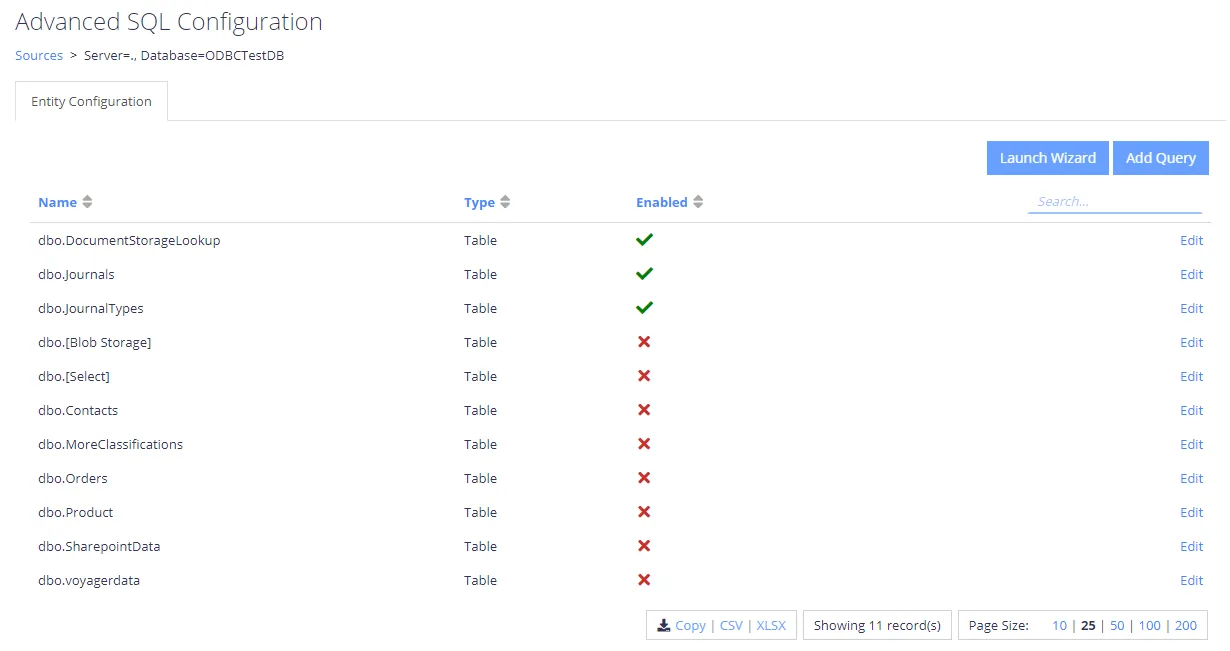
Selecting the Add Query option presents a popup where you select a unique name for the query, as well as the queries to use for crawling:

Primary Key Query
The primary key query should return a set of values that uniquely identify each row to crawl. If you use JOINs, JOIN from the largest dataset to the smallest, to ensure that each row is unique.
Example: SELECT PageID FROM Pages
Stored procedures aren't supported.
Content Query
The content query must return all fields to index and classify on, as well as the fields included in the primary key query.
Example: SELECT * FROM Pages
Stored procedures aren't supported.
Adding the query will take you to the custom query configuration. Here you can update the primary key query and the content query; the Table Configuration section describes all other configuration options:

Table Configuration
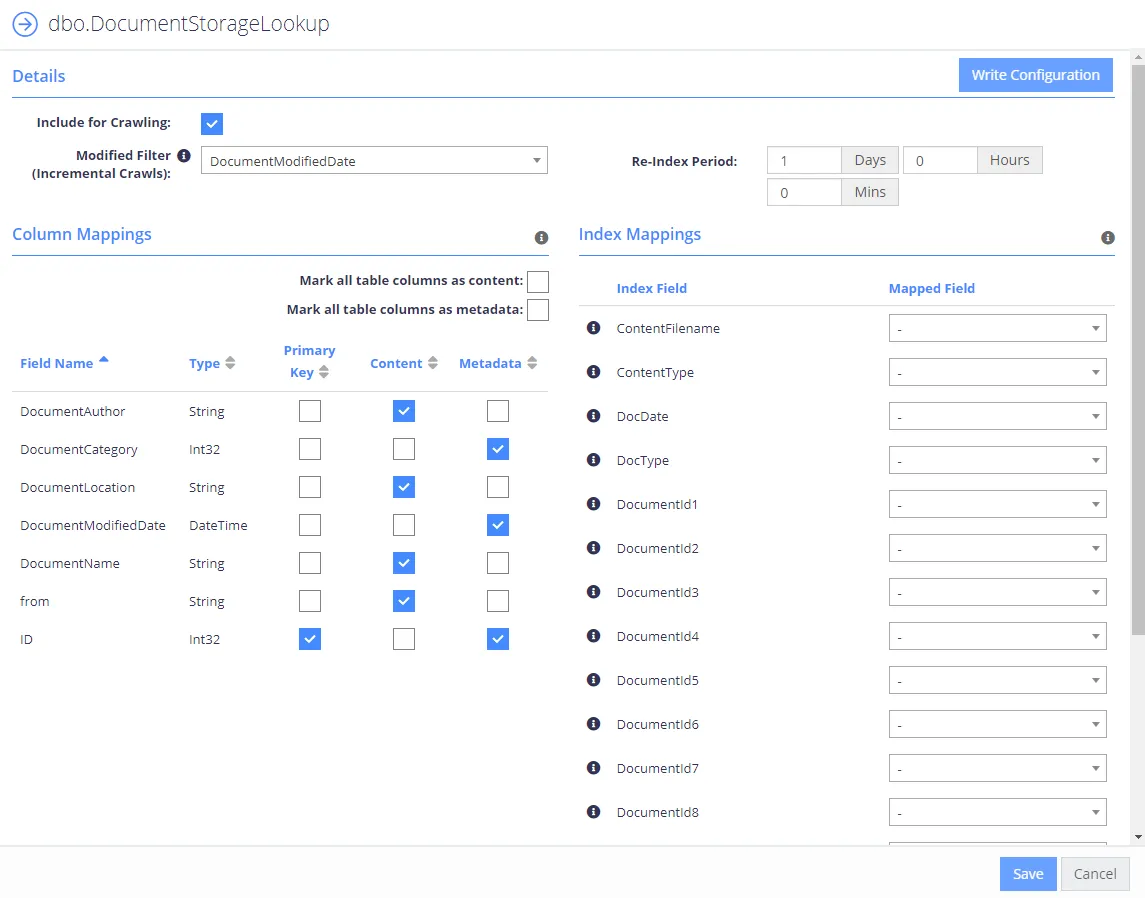
The table configuration lets you choose how to crawl each specific entity:
| Option | Description |
|---|---|
| Include for Crawling | When checked, the collection schema includes the table/entity. |
| Upload Content | When checked, the program uploads the Content fields into the SQL database. You can retrieve uploaded content after collection by passing the PageId for the record to the QS API call "GetDownload". |
PK
| Select the fields which uniquely identify the row to crawl. If the Primary Key returns multiple rows, the query aborts. Custom queries don't require you to define the primary key; the product sets it automatically from the primary key query. |
| Content | Identifies the fields that the product crawls as searchable text in the core search index. You can map multiple fields to Content; the product appends each with a line break. You can also configure a single binary field type that contains a document — the collection process loads the binary and attempts to convert and extract text from the document. When you use this functionality, set the ContentFilename or ContentType index mapping to aid the process of text extraction. |
| Metadata | Identifies the fields that the product maps as metadata values. |
| Index Mappings | Index mappings identifies mappings between the entities fields and the internal core database. Each row also contains an information icon identifying its purpose within the crawling process. |
| Modified Filter (Incremental Crawls) | Set this to a field that defines when a row has changed (the modified date for the row). When set, the collection process automatically filters the re-indexing process to rows that have a modified date larger than the last crawl time. |
| Re-Index Period | This value is the number of days/hours/minutes between re-indexing operations. The Re-Indexing process involves querying the tables to find new and changed records. |