Manage File System
This section contains information on how to include or exclude files or folders from crawling, and how to configure writing classification attributes back to the content files (i.e. "tagging").
Configure Tagging
You can instruct the program to write classification attributes back to processed files. This operation is also called "tagging". The product supports tagging for the following file types:
- DOC/DOCX
- PPT/PPTX
- XLS/XLSX
For Microsoft Office documents, the product maps each classification taxonomy to an advanced (custom) property in the document’s metadata. See this article for details.
For Adobe PDF documents, the product maps each taxonomy to custom properties in the document’s metadata. See this article for details.
You can configure related content source settings at a global level (default), or at a source level.
To configure tagging on a global level
- In the management console, click Sources →File, then in the left pane click Write Configuration.
- Select the taxonomy you need and click the Edit link for it.
- In the taxonomy properties, enable writing classification attributes (tags) and specify other settings:

| Setting | Description | Note |
|---|---|---|
| Enabled | Use this option to enable / disable tagging with attributes included in this taxonomy. | Cleared by default. |
| Field Name | Define the attribute name to use when persisting the classifications (metadata property name). | |
| Format | How to format the classifications. | You can create a custom delimited combination of the labels / GUIDs. |
| Name/ID or Class | Depending on the format, take the term labels, IDs, or a combination of both | The corresponding Delimiter must be a string or array type, with a maximum length of 3. |
| Prefix/ Suffix | The product appends this to the formatted string of classifications. |
Example
Assume you selected the Agriculture taxonomy; it has Farming (ClassID: 11) and Produce (ClassID: 32) properties.
If you configure tagging as described, the program will write the following classification attributes to the classified documents:
- Property Name: Agriculture
- Property Value: [Farming|11;Produce|32]
To configure tagging on a source level
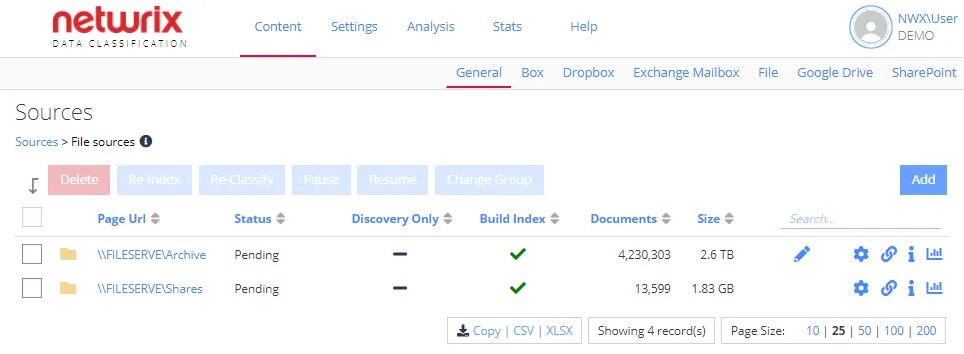
- Go to the Sources view, select the source you want to enable classifications for and click the "pencil" symbol on the right side of the table.
- The list of global taxonomy configurations appears. To use the global taxonomy writing settings, select the Use Global Configuration checkbox at the top of the page. To configure settings for the selected source specifically, clear this checkbox.
- Select the taxonomy you want and click Edit.
- In the taxonomy properties, select the Enabled checkbox and specify the settings described in the preceding table.
Configure Inclusions
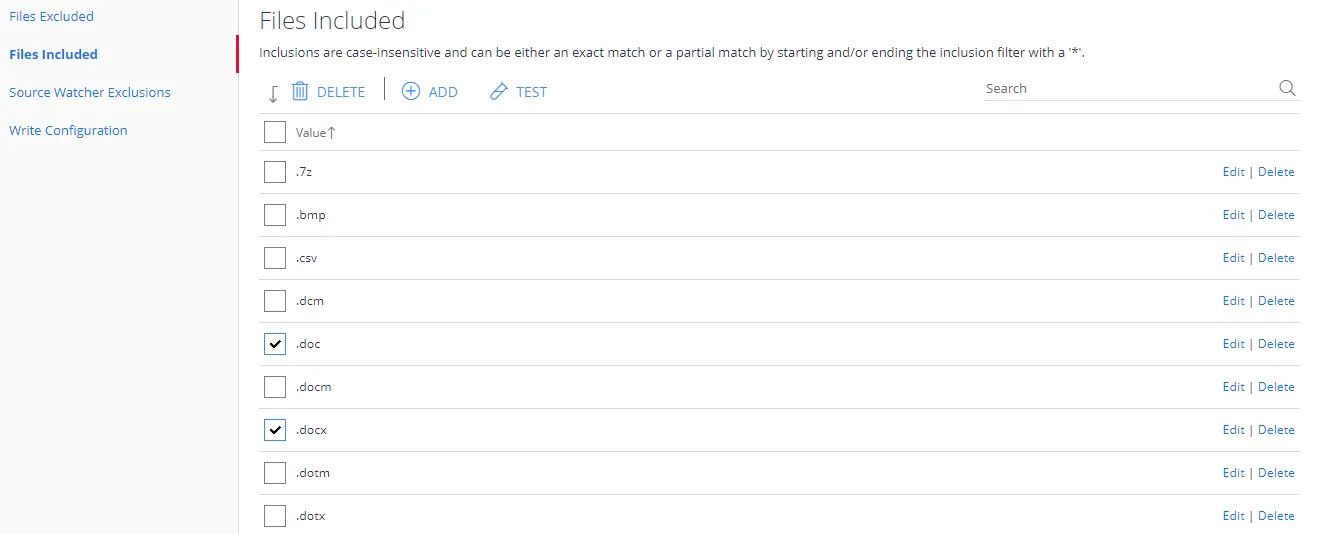
File inclusions tab contains the list of file types that the indexing process includes. The product ignores any file with a file extension not specified in this list.
You can delete, modify, or add inclusions.
To specify inclusions, do the following:
- In the management console, click Sources →File, then in the left pane click Files Included.
- Select the necessary extensions to use as an including filter when processing files.
- To modify an extension (for example, add a wildcard), click Edit. To add a new one, click Add. You can add the "*" wildcard to an inclusion filter to match one or more characters. To include files without extensions, add "." as an inclusion filter.
Inclusions are case-insensitive.
Configure Exclusions
You can also configure the list of file locations to exclude from processing.
-
In the management console, click Sources →File, then in the left pane click Files Excluded.
-
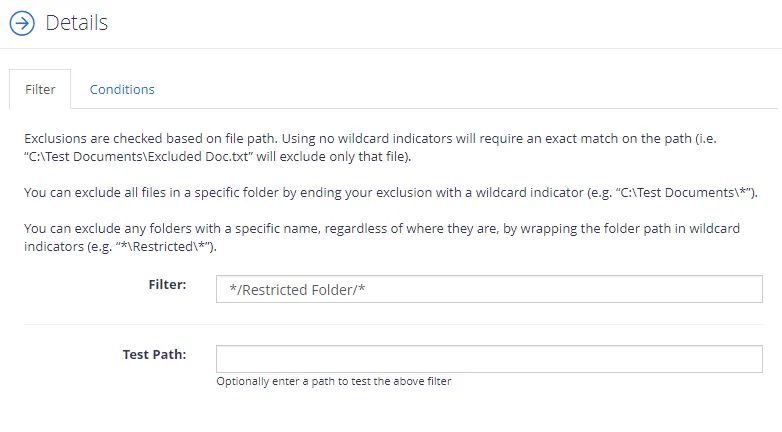
In the Details window on the Filter tab specify the objects (files or folders) to exclude.
To exclude a specific file, enter its full path. For example: C:\Test Folder\Test Document.docx
You can use wildcards anywhere in the exclusion pattern definition as follows:
- The asterisk character (*) matching any sequence of characters
- The question mark character (?) matching any single character
For example:
- */Restricted Folder/* will exclude specific folder in any File source
Exclusions are case-insensitive.
-
Optionally, enter a test path to verify the settings and click Test.
-
If needed, you can use metadata conditions to restrict when the product applies an exclusion filter. For that, click Condition tab and click Add. Then select how the exclusion conditions work: they can check whether the document's metadata field has any value, has no value, or matches a specific metadata value.
Criteria Condition Comparison Compare a value in the document metadata field with the value the condition sets. When you select this criteria, specify: - Field name — document metadata field to check - Comparison — operator to use (for example, "doesn't contain") - Value — value to compare against For example, to exclude documents tagged with year 2018, set the condition as follows: - Field Name — DocYear - Comparison — equals - Value — 2018 Has any value Exclude the document if its metadata field has any value. When you select this criteria, specify Field Name. Has no values Exclude the document if the metadata field has no value. When you select this criteria, specify Field Name. -
When finished, click Add.
-
Finally, click Save and close the window.