Email Alert
This action sends an email to the list of provided email address(es). When you run the Workflow wizard and select Email Alert as an action, the wizard prompts you to configure the related settings.
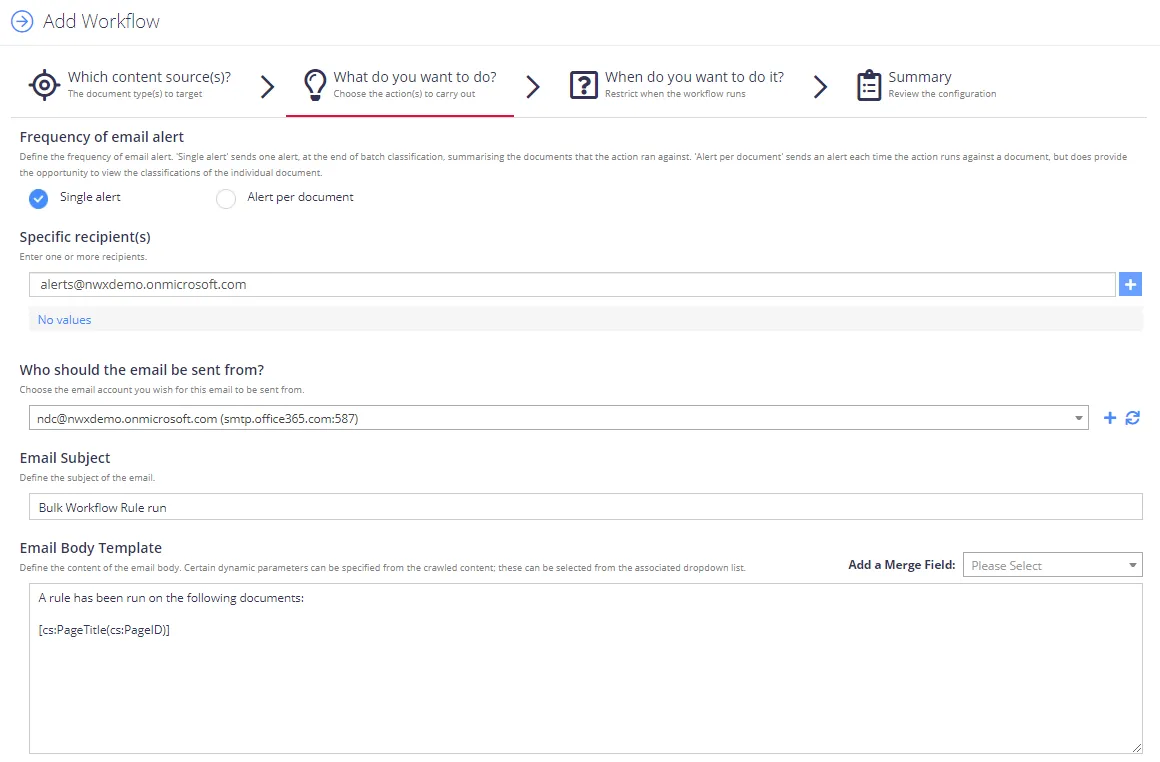
When you configure the Workflow against a SharePoint source / group (or the generic “All Sources” for SharePoint), the action optionally supports a dynamic recipient selection against either the creator or last modifier of the document (provided by the SharePoint document metadata).
Specify the following:
| Field | Settings to specify |
|---|---|
| Specific recipients | Specify email address to send the alert to. To enter multiple recipient, click + on the right. |
| Who should the email be sent from? | Specify email sender and SMTP server settings. You can select a pre-configured SMTP server (if any), or specify new connection parameters by clicking the + on the right — then in the Email Server Details dialog enter the following:
|
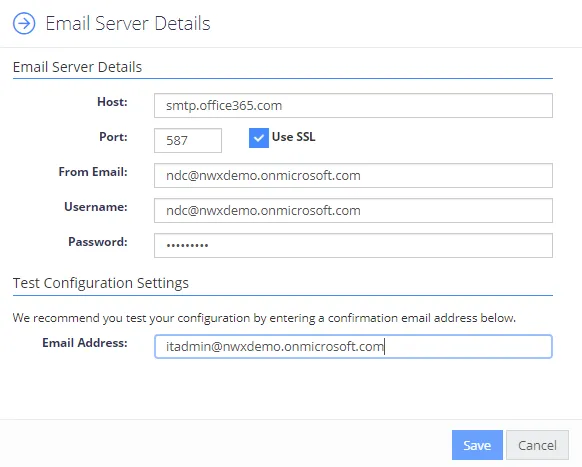
When finished, click Save to close the dialog and return to email action settings.
| Field | Settings to specify |
|---|---|
| Email Subject | Specify the template for email subject. The template can contain dynamic values from the crawled content (e.g. [cs:PageUrl]). TIP: You can select the corresponding fields from Add a Merge Field list on the right. |
| Email Body Template | Specify the template for email body. The template can contain dynamic values from the crawled content (e.g. [cs:PageUrl]). TIP: You can select the corresponding fields from Add a Merge Field list on the right. |
To modify action settings for a specific workflow, select the workflow and use the Advanced UI window, as described in the Modify Email Alert action settings section.