General Options
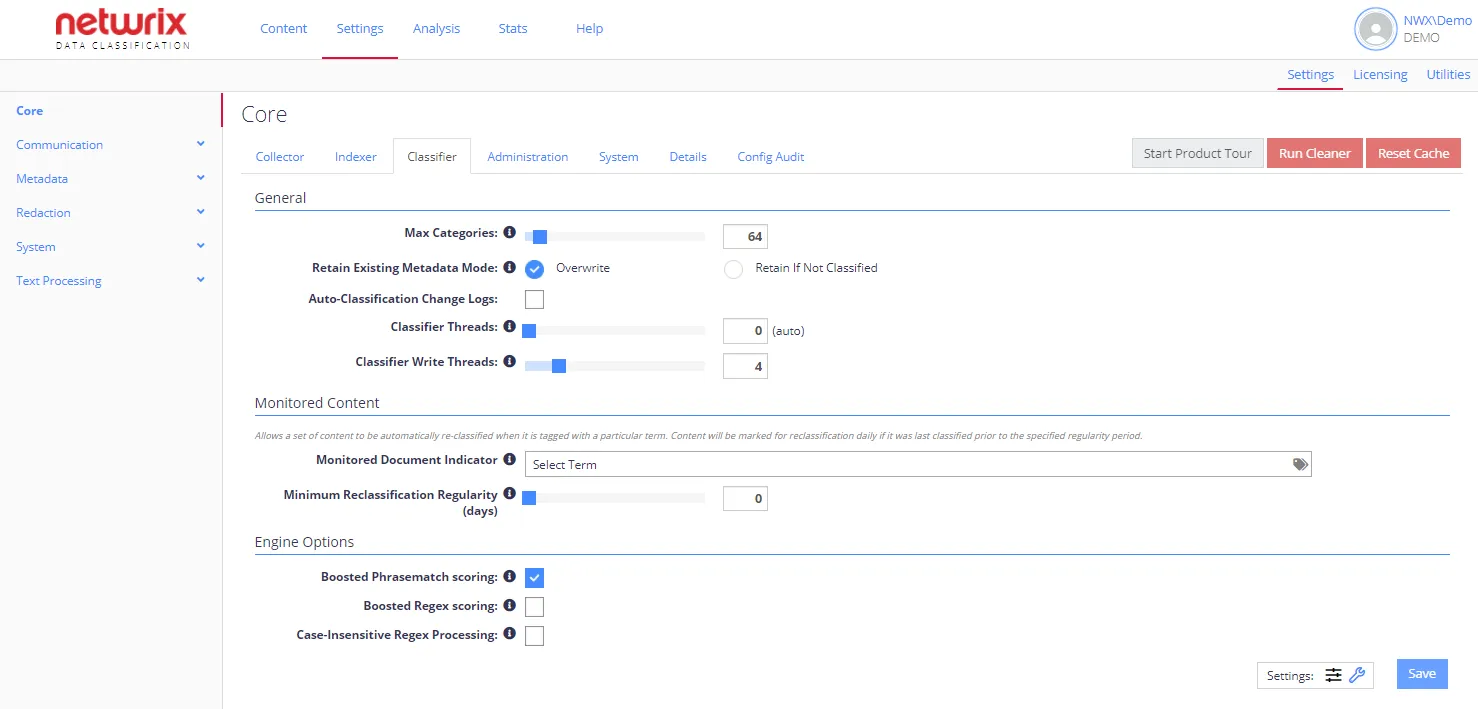
The General section contains general classification engine settings. By default, only standard options display. To view advanced options, click the wrench icon at Settings in the bottom-right corner.
Each option has an associated information popup (the “i” symbol next to the option name) which describes what the setting does and how it works.
note
To view a complete list of the Config settings for your NDC instance, click the Details tab. The list indicates whether a setting differs from the default value.
General Options
| Option | Description | Comment |
|---|---|---|
| Standard settings | ||
| Max Categories | Sets the maximum number of classifications to allocate to each document:
| If a document matches enough categories to exceed the specified maximum, the classification service selects the required number of categories based on those with the highest score. NOTE: Higher limits cause the classifier engine to use more RAM, so Netwrix recommends using the default setting (unless you must allocate more categories to each document). |
| Retain Existing Metadata Mode | Specifies how the classification engine processes documents with existing classifications (managed metadata fields). Possible options:
| Applies to SharePoint source. |
| Auto-Classification Change Logs | Enables a change log for auto-classification: the database stores each "Addition"/"Removal" of a classification against a document as its classifications change. | Inactive by default. See also Manage Reports |
| Classifier Threads | The number of background threads the Classifier uses for classification. Default is 0 (auto). | Netwrix recommends leaving this setting on its default value. See the Knowledge Base article Classifier and Write Thread Tuning for details on tuning thread counts. |
| Classifier Write Threads | The number of threads the Classifier uses to update source systems during "tagging" operations (i.e. writing classifications back to source systems). | You can consider each thread a "user" when considering load on the source system. See the Knowledge Base article Classifier and Write Thread Tuning for details on tuning write thread counts. |
| Advanced settings | ||
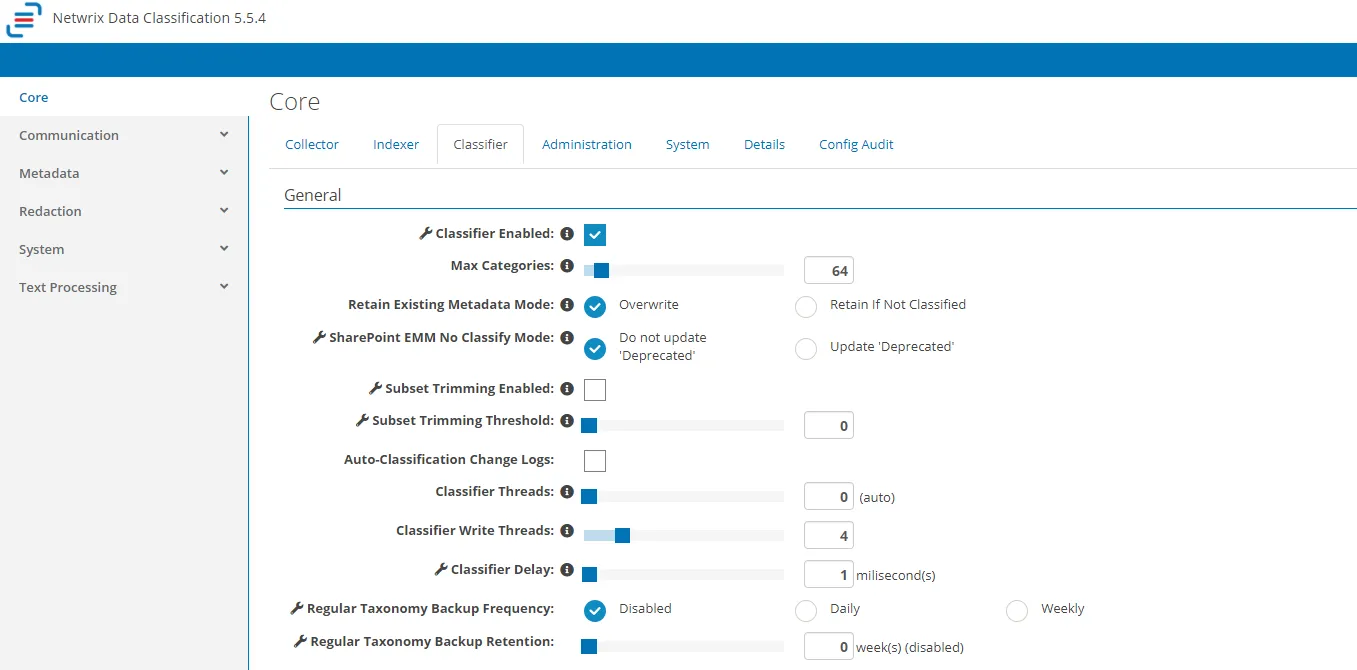 | ||
| Classifier Enabled | Enables / disables the Classifier core component. By default, it is enabled. | |
| SharePoint EMM No Classify Mode | Possible values:
| |
| Subset Trimming Enabled | This setting applies where both primary (single value) and secondary (multi value) fields are added to a document library for the same taxonomy.
| |
| Subset Trimming Threshold | If Subset Trimming Enabled option is ON, this parameter defines the minimum score required to class the highest scoring term as primary. | If no item has a score higher than this threshold, all terms show as secondary terms, and the primary term remains empty. |
| Classifier Delay | The sleep time (in milliseconds) between intensive operations, such as storing classification. Default is 1 ms. | |
| Regular Taxonomy Backup Frequency | Enables and specifies the frequency of an automated process to create and store a backup of the taxonomy definitions. You can specify how often the product backs up the taxonomies — daily or weekly. | By default, this option is disabled. |
| Regular Taxonomy Backup Retention | Specifies the length of time to retain automated taxonomy backups (automatic cleanup configuration). If you selected to back up the taxonomies, you can specify backup retention (in weeks). |