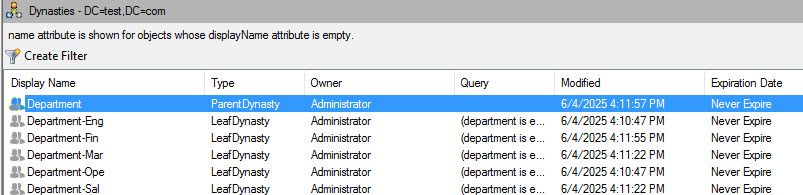
Shorten the Dynasty Naming Convention for Child Dynasties
Applies To
Directory Manager 10
Overview
This article explains how to use a CSV file and custom scripts in Netwrix Directory Manager (formerly GroupID) to shorten the naming convention for child dynasties.
Instructions
-
Create a CSV file with a column for full department names and another column for their corresponding shortened forms.
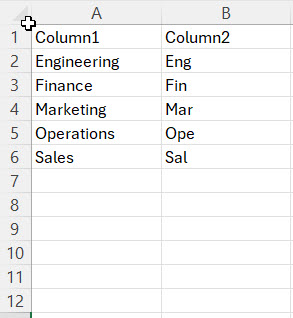
-
Name the columns exactly as
Column1andColumn2if there is only one attribute. For multiple attributes, add additional pairs of columns (e.g.,Column3/Column4for job title). -
Place the CSV file at a convenient location on the Directory Manager server.
-
Create your required dynasty using the dynasty creation wizard. The dynasties will be created with the original attribute values.
-
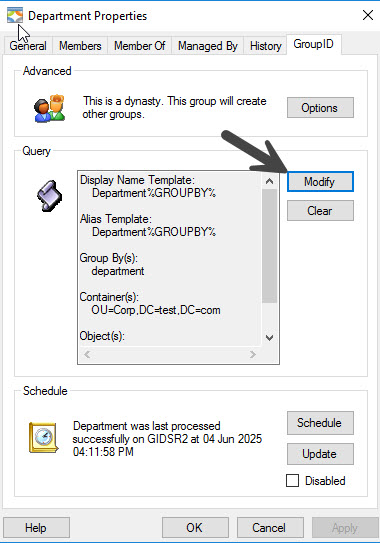
After creation, open the properties of the parent dynasty and navigate to the Directory Manager tab, then click Modify.
-
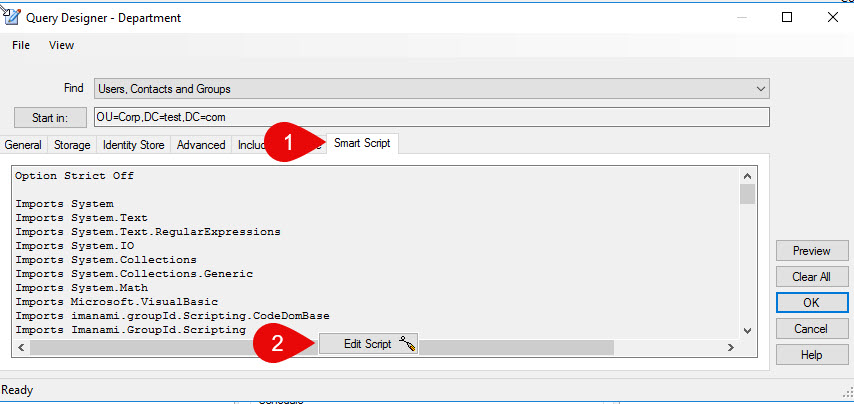
In the query designer window, navigate to the Smart script tab and click Edit script.
-
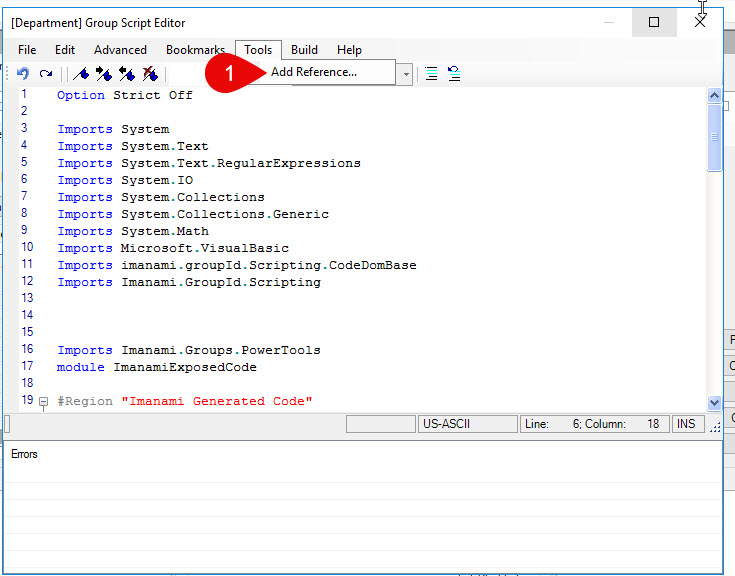
In the Group script editor, click Tools and Add reference.
-
In the Add Reference window, click Browse and select Imanami.Automate.ExcelTool.dll from
C:\Program Files\Imanami\GroupID 10.0\Automate\PowerTools.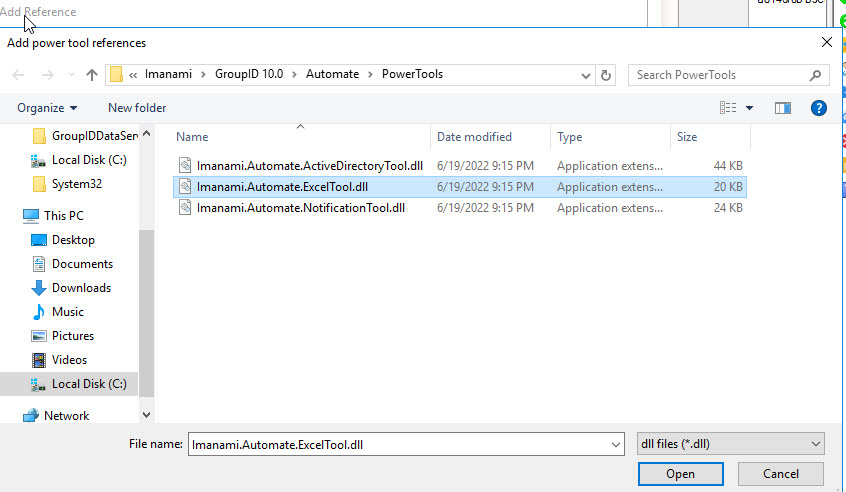
-
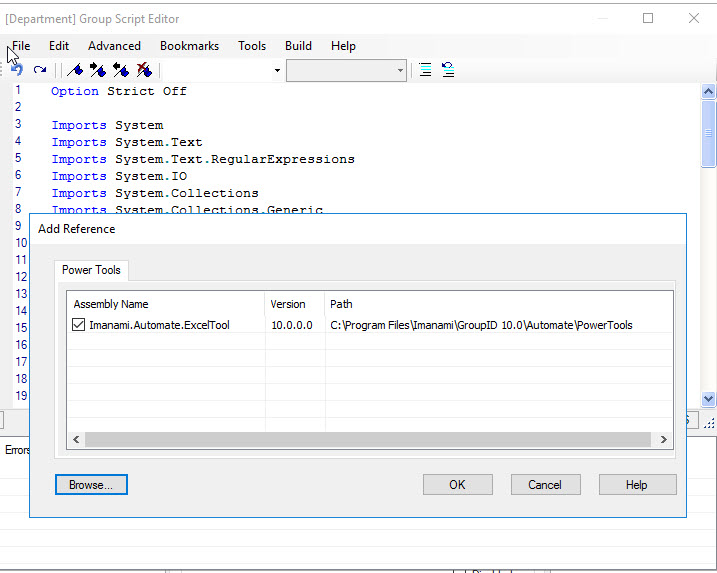
Click Open and ensure the file appears as selected in the Add Reference window.
-
Click OK. In the Script editor window, replace the code between line 28 and 33 with the following:
#Region " User-definable code "public tblData = new System.Data.DataTableSub ATM_Startup(ByVal atmsource As Object, ByVal args As EventArgs) Handles ATM.Startup' User-definable script goes here -----------------tblData = ExcelTool.ImportWorkSheet("C:\new.csv", 0)' -------------------------------------------------End Sub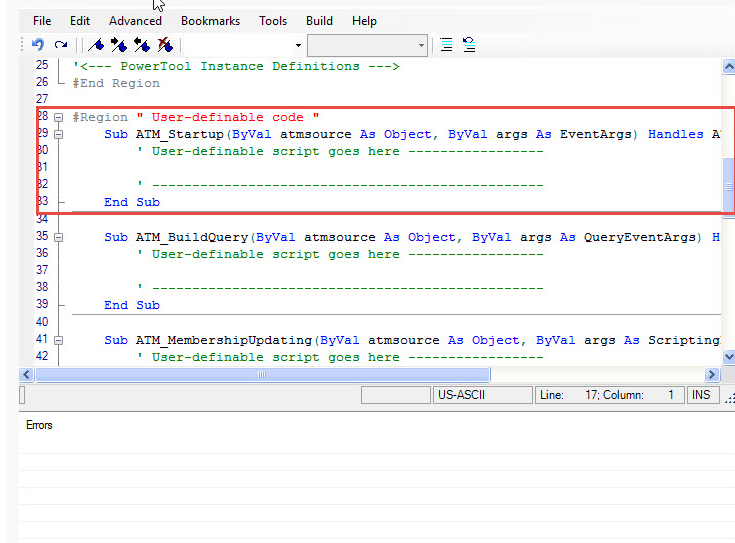
NOTE: Replace
C:\new.csvwith the actual path to your CSV file. -
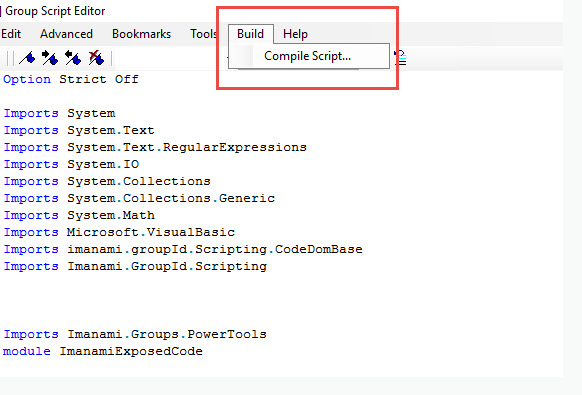
Click Compile script under the Build button at the top. Ensure compilation completes without errors.
-
Exit the Script editor and save changes.
-
Click Preview in the query designer to verify members.
-
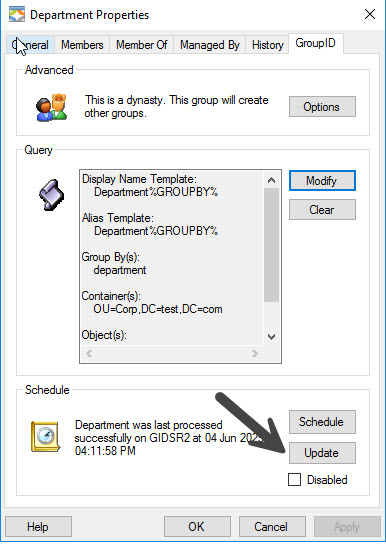
Click OK and update the Parent dynasty. Commit changes if prompted.
-
To make the CSV file readable for Directory Manager, navigate to the properties of the Parent dynasty and click on the Directory Manager tab.
-
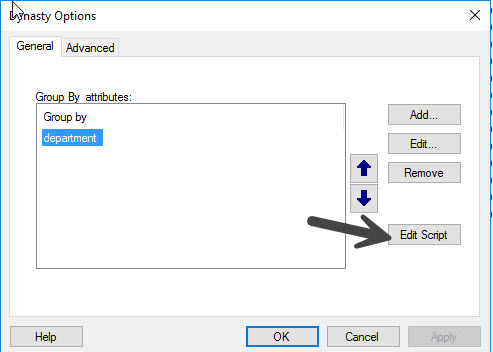
Click Options. In the options window, click Edit script.
-
The Dynasty option script editor should open and point to the first group by attribute.
-
Uncomment Line 7 by removing the single quote. Remove the code from line 11 onward and paste the following code:
'Warning: Do not alter method nameFunction GroupByFilter(Byval value as string) As stringdim rows = tblData.Select("Column1 like '" & value & "'")if rows.Length > 0 thenreturn rows(0)("Column2")elseReturn valueend ifEnd Function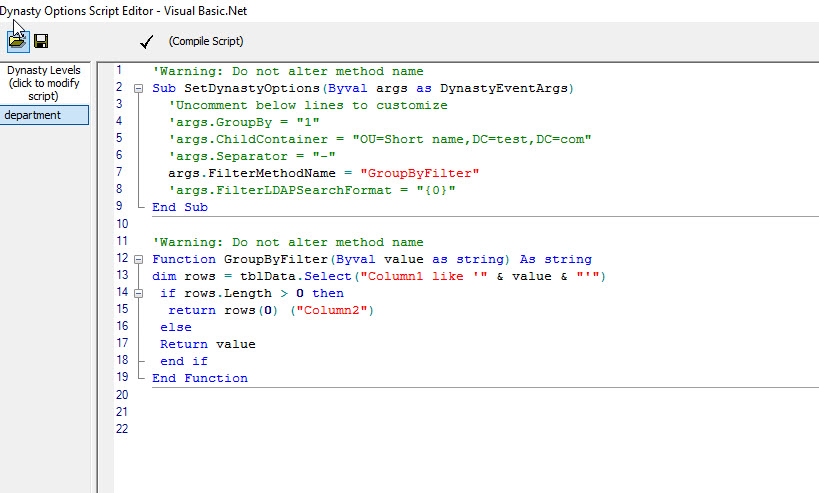
NOTE: If you are using multiple group by attributes, update the column names in the code for each attribute as needed. For example, for a title attribute, use
Column5andColumn6as appropriate. -
Click Compile script at the top and ensure it compiles without errors.
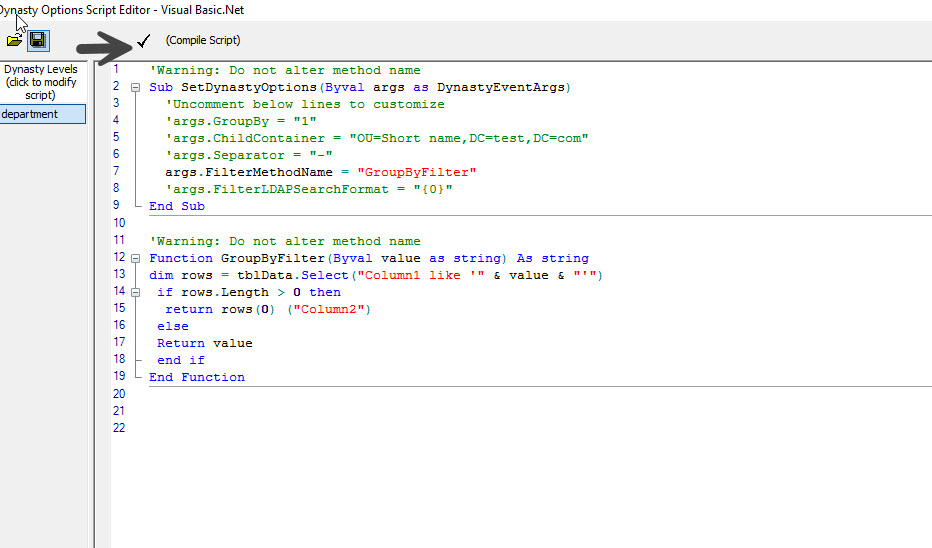
-
Exit the script editor, apply changes, and update the Parent dynasty. The child dynasties should now use the shortened names from the CSV. To add more departments, update the CSV file as needed.