Generate a Report on Groups Without Members or Owners
Applies To
Directory Manager 11
Overview
Netwrix Directory Manager (formerly GroupID) allows you to generate reports on groups that have no members and no owners or additional owners. The Reports module is a free tool for running reports on Active Directory and Microsoft Exchange/Office 365. This article explains how to generate this report using the Reports portal.
Instructions
Generate a Report on Groups Without Members or Owners
-
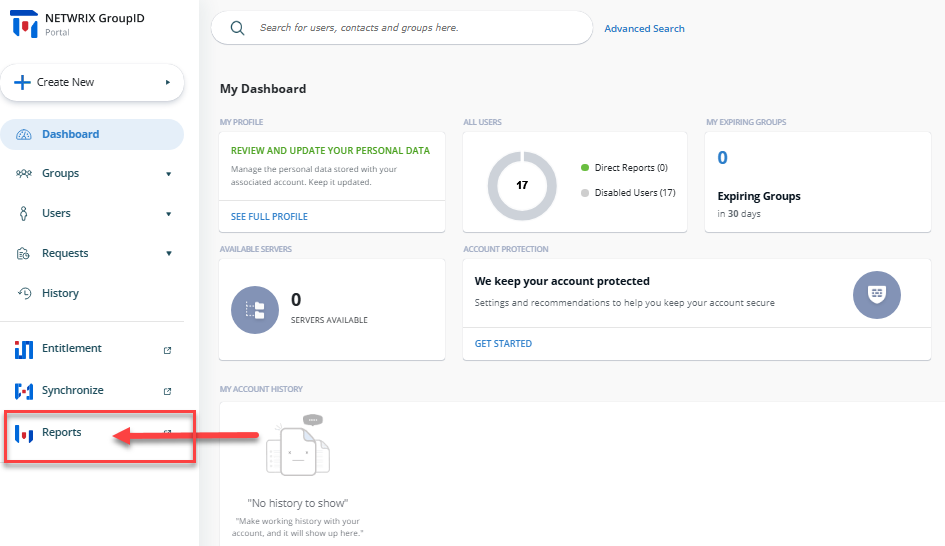
In the Directory Manager portal, select Reports from the left navigation bar. The Reports portal will open in a new browser tab.
-
Click the Group Reports button on the navigation bar.
-
In the Groups category, type Groups with no members in the search bar.
-
Select the first report template in the list.

-
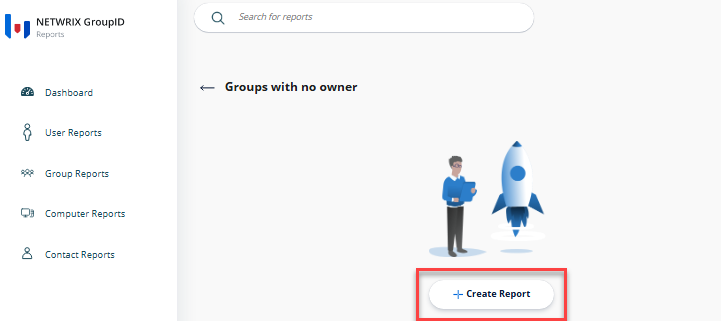
Click Create Report to start the report creation wizard.
-
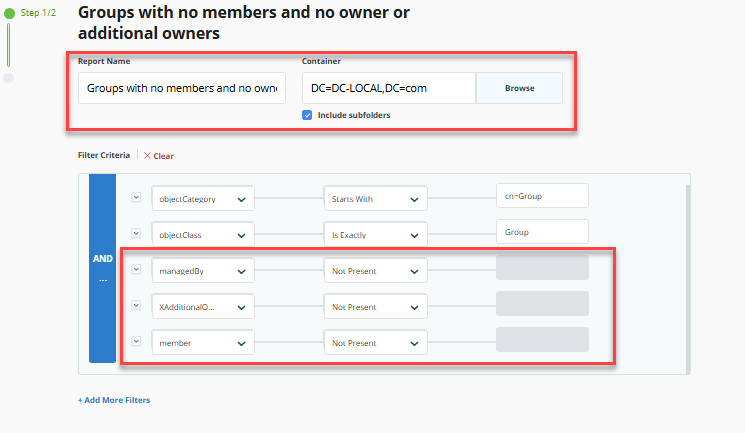
The report creation wizard prompts you to enter a name for the report. Choose the search scope within the directory and provide a filter criterion. By default, the wizard searches the Global Catalog. To limit the scope to a particular container:
- Click Browse to launch the Select Container dialog box and select the required source container.
- Select the Include sub-containers check box to include sub-containers in the report.
- In the Filter Criteria box, modify the default LDAP filter. The default filter generates a list of all groups in the domain.
- Add new clauses, XAdditionalOwner Not Present and member Not Present, to fetch a list of all groups without members and without owners or additional owners.
-
Click Next.
-
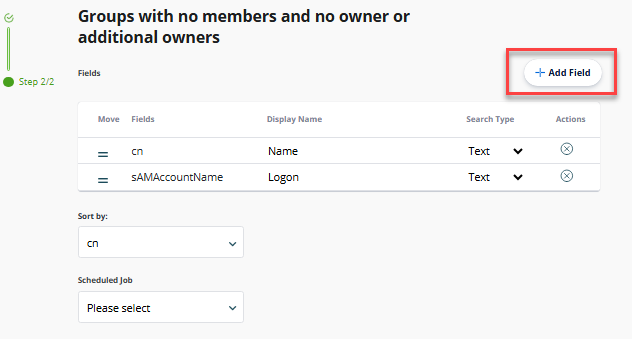
The Report Fields page displays the fields that will be included in the report. To add more fields, click Add. To remove a field, select it and click the X. You can change the order of fields using the two lined icon.
-
Click Finish to generate the report.
-
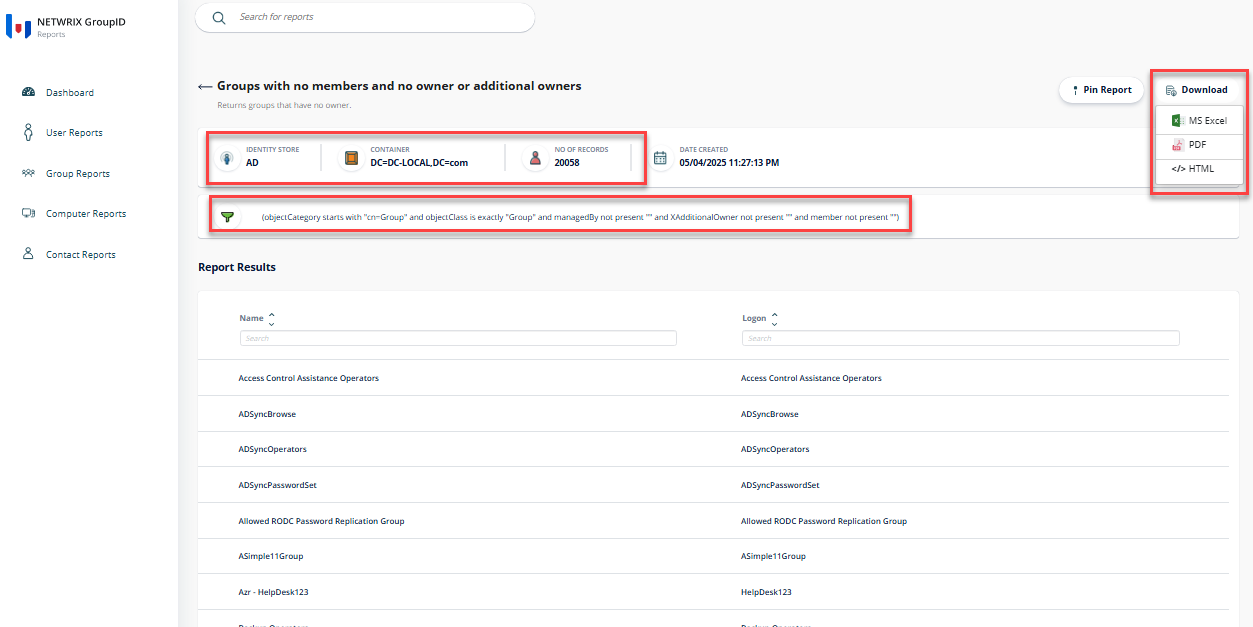
The report will be generated. You can download the report in your desired format or pin the report to the Reports portal Dashboard.