How to Generate a Report on Mail-Enabled Groups
Overview
This article explains how to generate a report in Netwrix Directory Manager (formerly GroupID) to view all mail-enabled groups and the time they were last used. The Directory Manager Reports module is a free reporting tool designed to run reports on Active Directory and Microsoft Exchange/Office 365.
Instructions
-
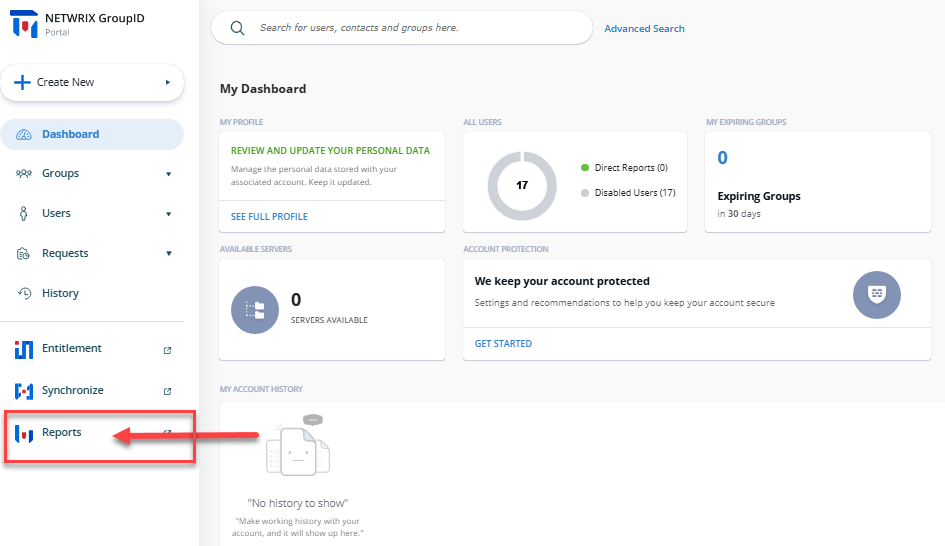
In the Directory Manager portal, select Reports from the left navigation bar. The Reports portal will open in a new browser tab.
-
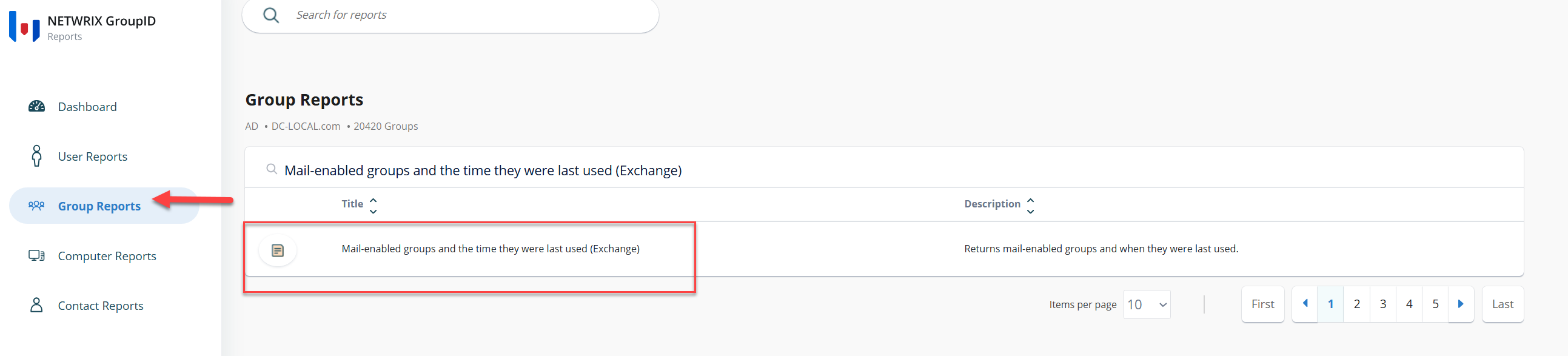
Click the Group Reports button on the navigation bar.
-
In the Groups category, type Mail-enabled groups and the time they were last used (Exchange) in the search bar.
-
Select the first report template in the list.
-
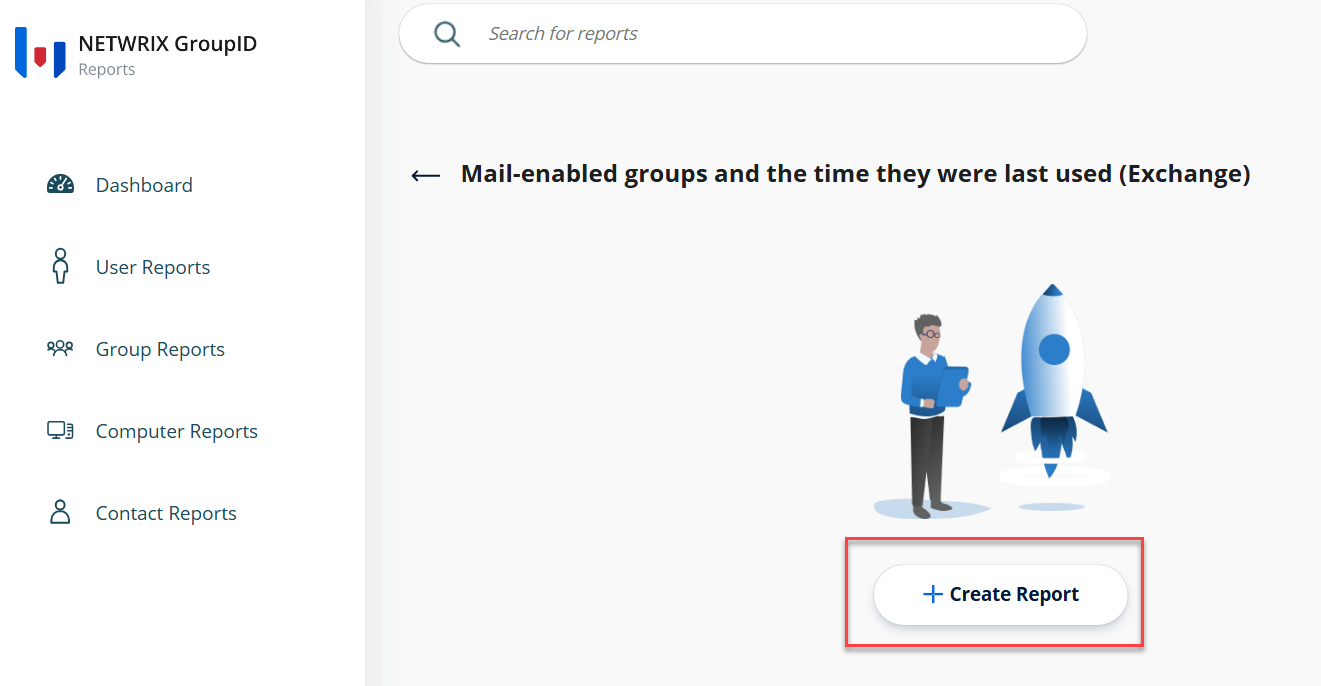
Click Create Report to initiate the report creation wizard.
-
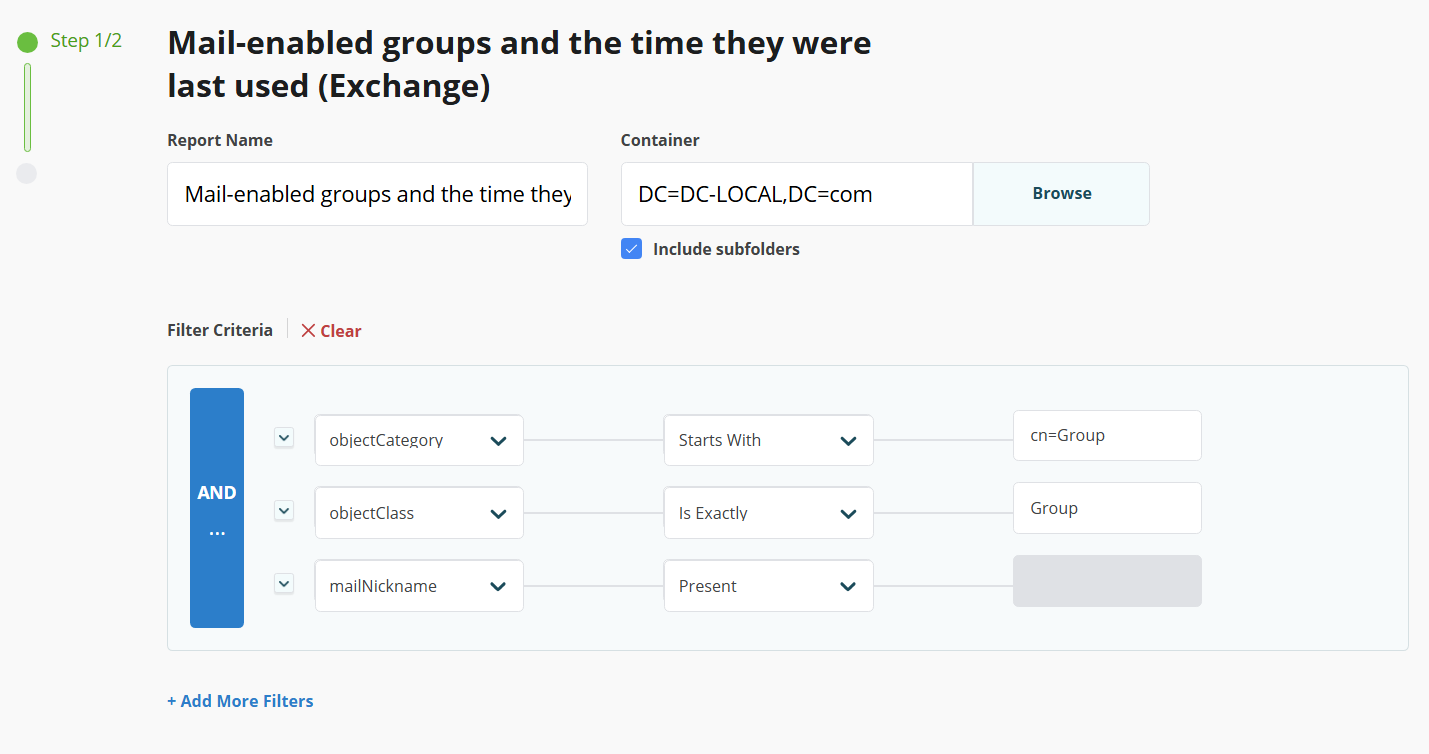
On the first page, enter a name for the report, select the search scope within the directory, and specify a filter criterion. By default, the wizard searches the Global Catalog.
To limit the scope to a particular container:
- Click Browse to launch the Select Container dialog box and select the required source container.
- Select the Include sub-containers checkbox if you want to include its sub-containers when reporting.
- In the Filter Criteria box, modify the default LDAP filter. The default filter generates a list of all mail-enabled groups along with the time they were last used.
-
Click Next.
-
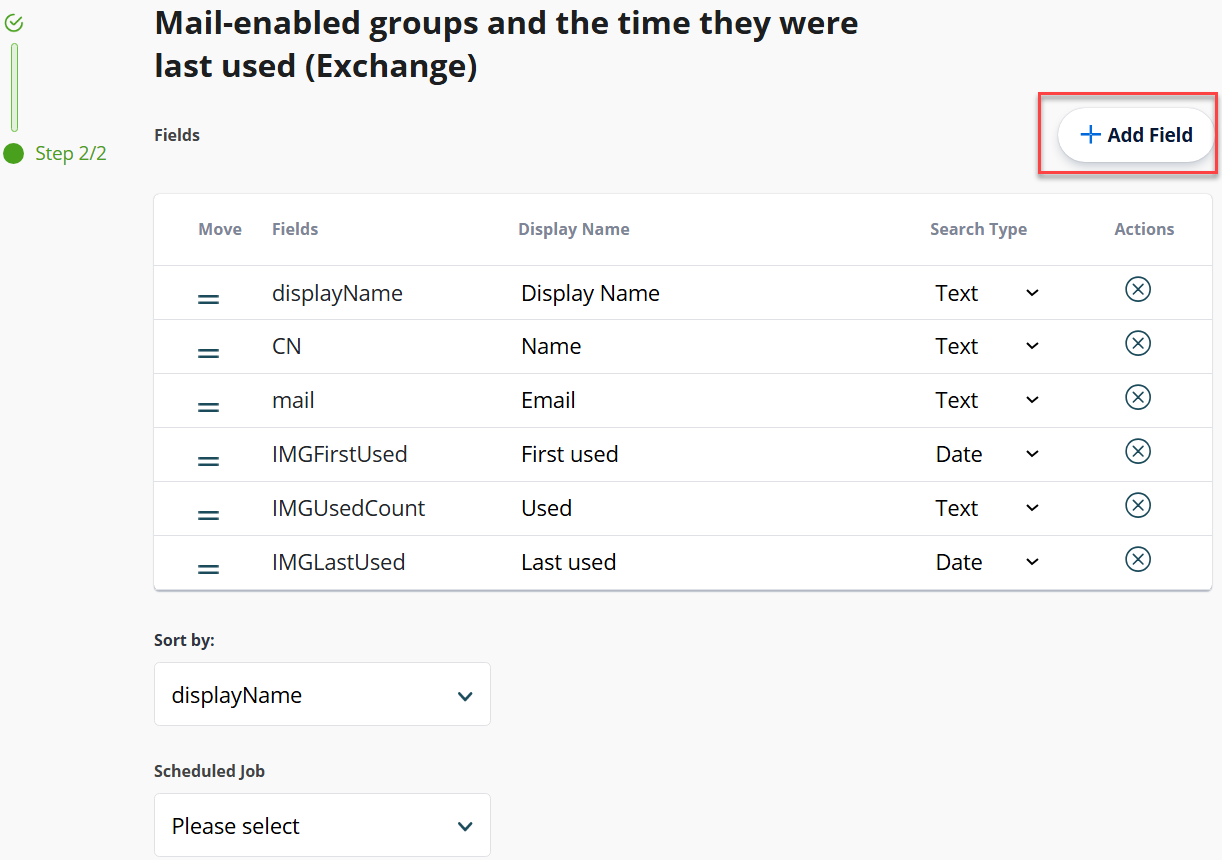
The Report Fields page displays the fields that will be included in the report. To add more fields, click Add. To remove a field, select it and click the X icon. You can change the order of these fields by using the double bar icons.
-
Click Finish.
-
The report will be generated. You can download the report in your desired format or pin the report to the Reports portal Dashboard.
