How to Generate a Report on Groups Without Members and with Owners
Applies To
Directory Manager 11
Overview
This article explains how to generate a report in Netwrix Directory Manager (formerly GroupID) to view all groups that have no members but at least one owner or additional owner. The Directory Manager Reports module is a free reporting tool designed to run reports on Active Directory and Microsoft Exchange/Office 365.
Instructions
-
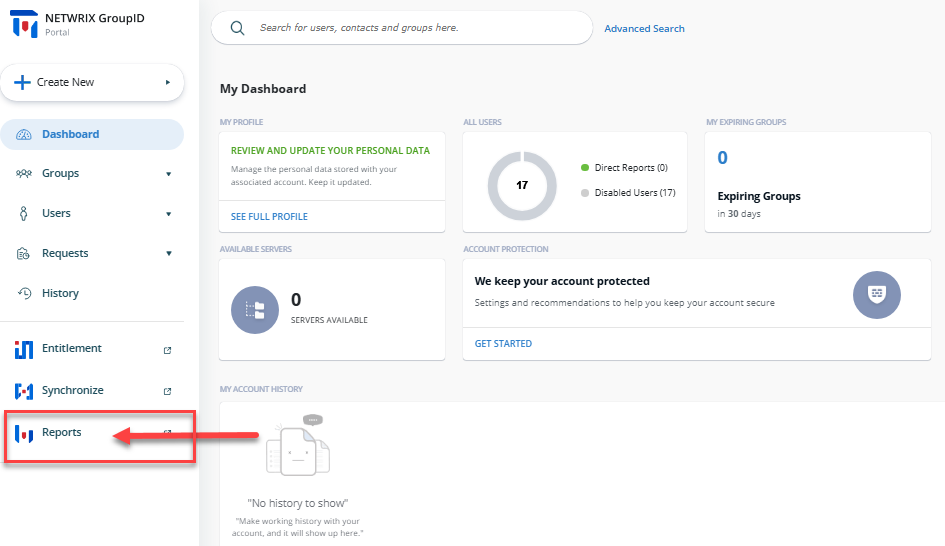
In the Directory Manager portal, select Reports from the left navigation bar. The Reports portal will open in a new browser tab.
-
Click the Group Reports button on the navigation bar.
-
In the Groups category, type Groups with no members in the search bar.
-
Select the first report template in the list.

-
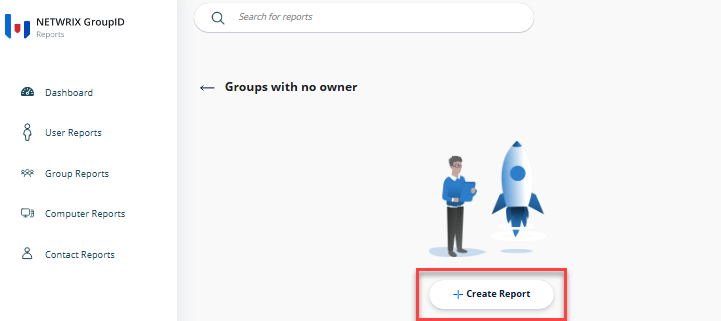
Click Create Report to initiate the report creation wizard.
-
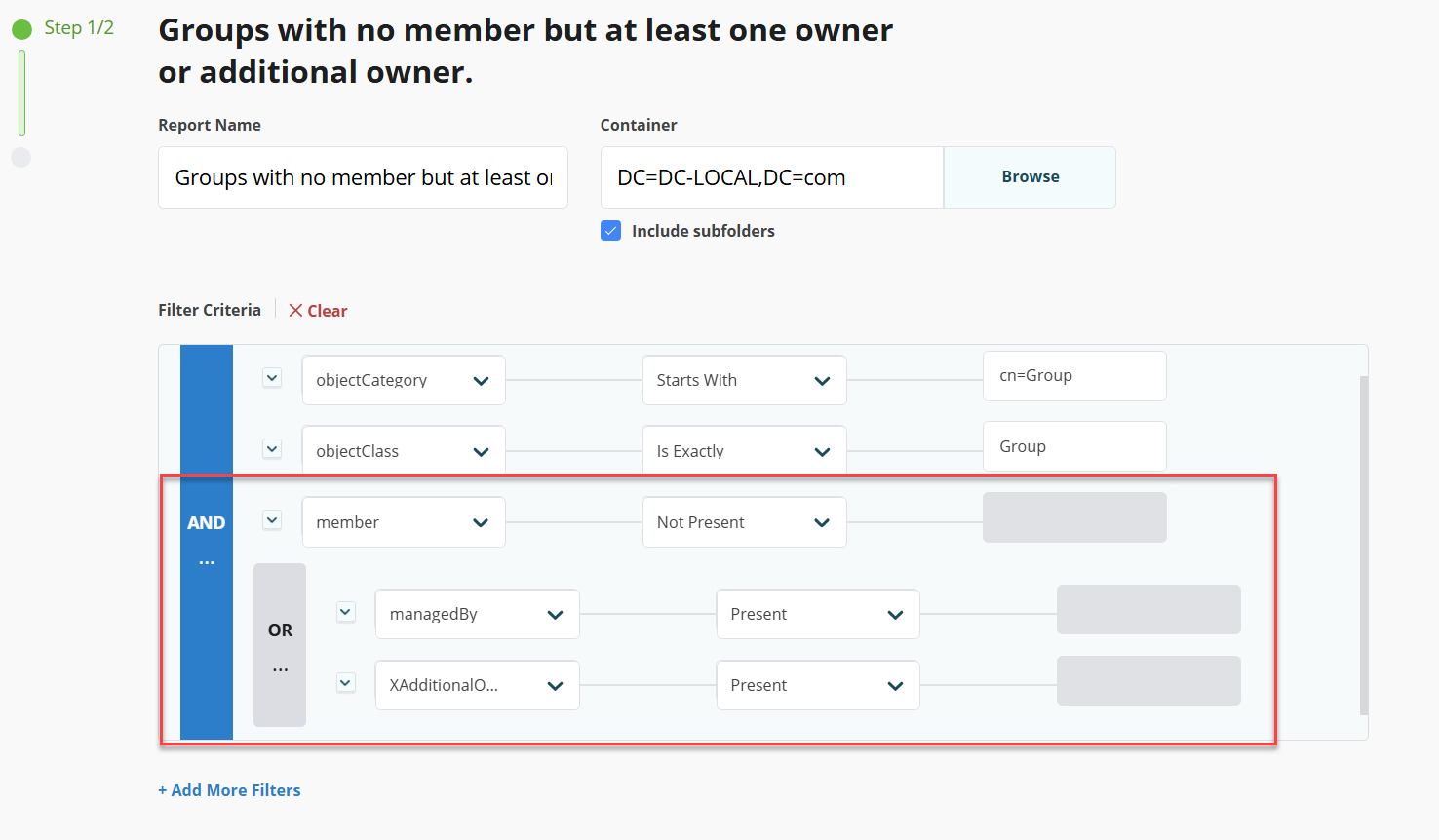
On the first page, enter a name for the report, select the search scope within the directory, and specify a filter criterion. By default, the wizard searches the Global Catalog.
To limit the scope to a particular container:
- Click Browse to launch the Select Container dialog box and select the required source container.
- Select the Include sub-containers checkbox if you want to include its sub-containers when reporting.
- In the Filter Criteria box, modify the default LDAP filter. The default filter generates a list of all users in the domain along with their group memberships.
- Add new clauses, XAdditionalOwner Present and Member Not Present, with an OR condition between XAdditionalOwner and ManagedBy clauses to fetch a list of all groups without members but at least one owner or additional owner.
-
Click Next.
-
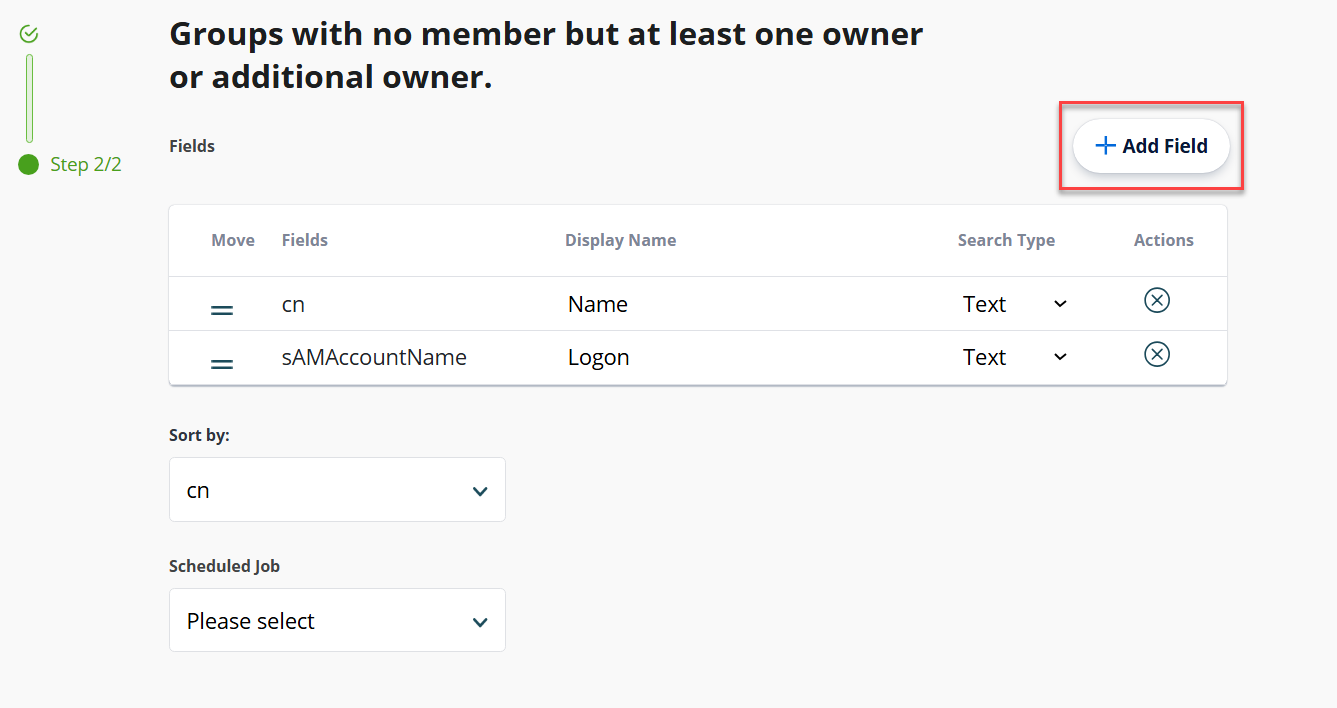
The Report Fields page displays the fields that will be included in the report. To add more fields, click Add. To remove a field, select it and click the X icon. You can change the order of these fields by using the double bar buttons.
-
Click Finish.
-
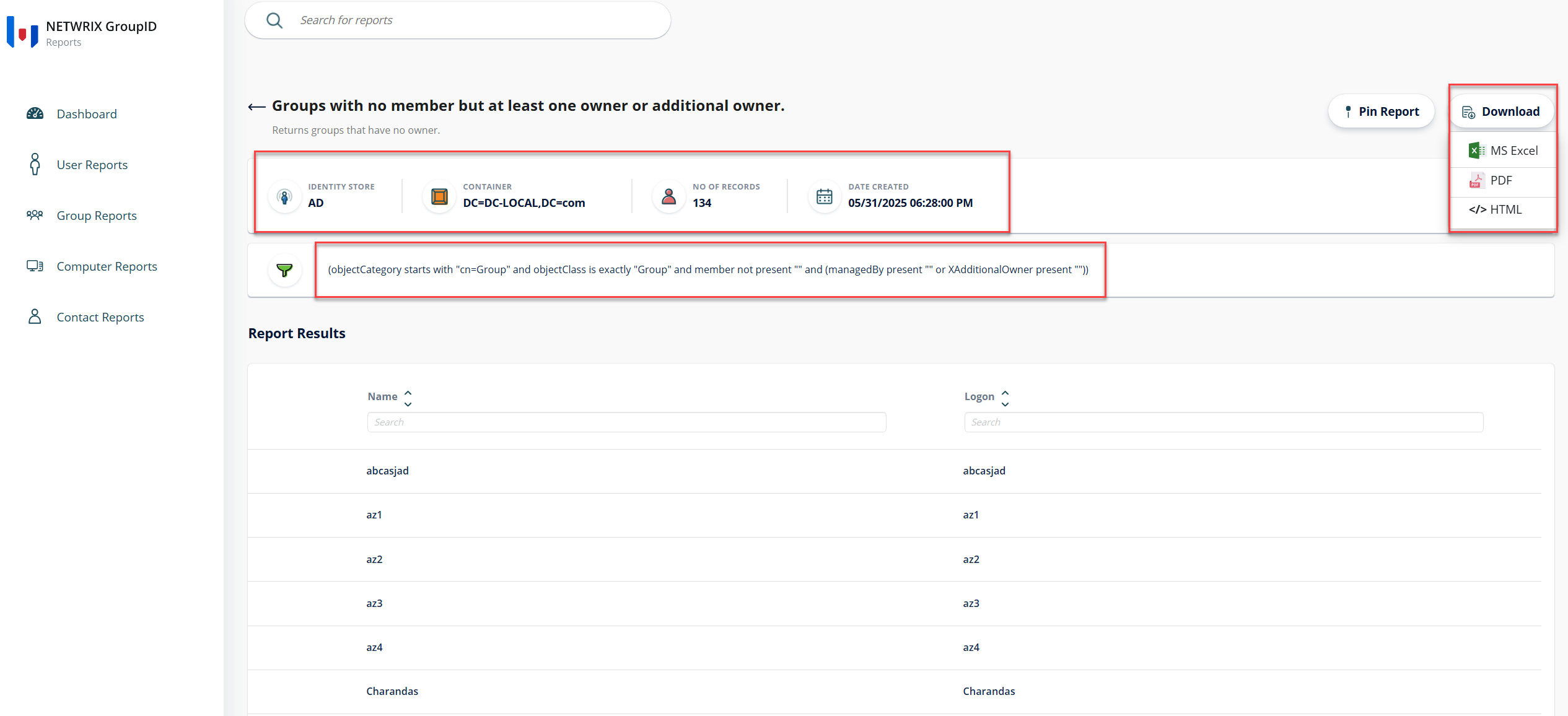
The report will be generated. You can download the report in your desired format or pin the report to the Reports portal Dashboard.