How to View a List of Objects Owned by a User in the Portal
Overview
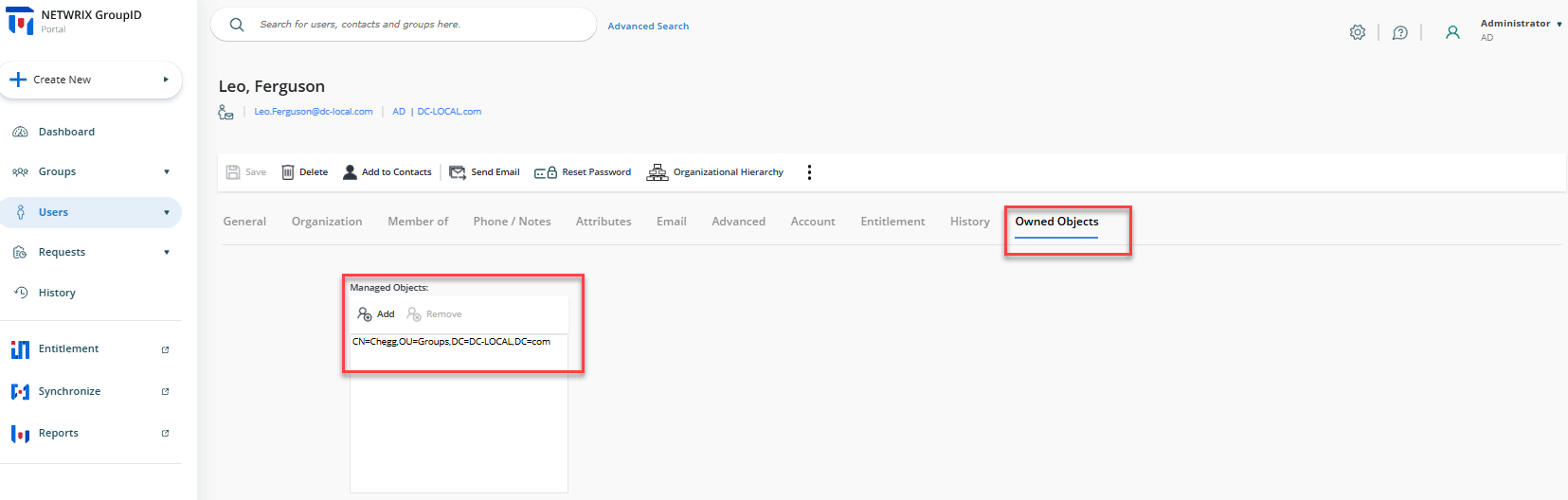
Netwrix Directory Manager (formerly GroupID) allows you to view all groups owned by a specific user in the portal. By adding a new field mapped to the managedObjects attribute in the user properties, you can display a list of groups that a user owns. This article explains how to configure the portal to show this information.
NOTE: Before making any changes to your environment, it is highly recommended to create a backup, snapshot, or checkpoint of the Directory Manager server.
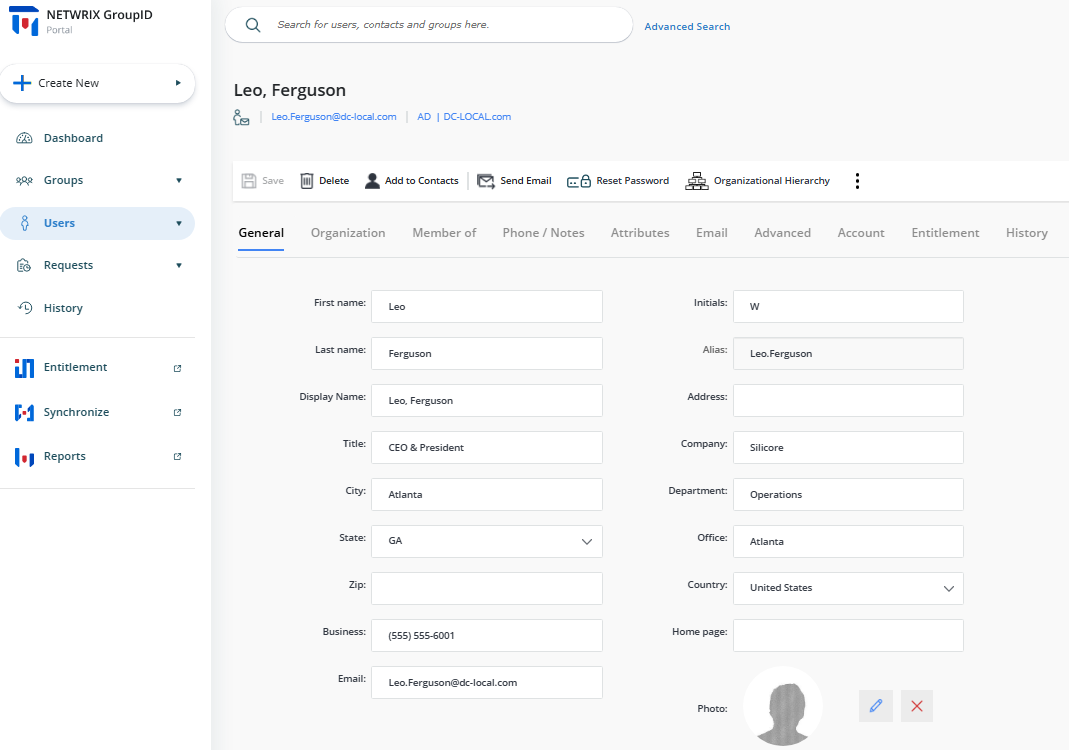
The default properties page for users does not display owned groups:
Instructions
Add the Owned Objects Field to User Properties
-
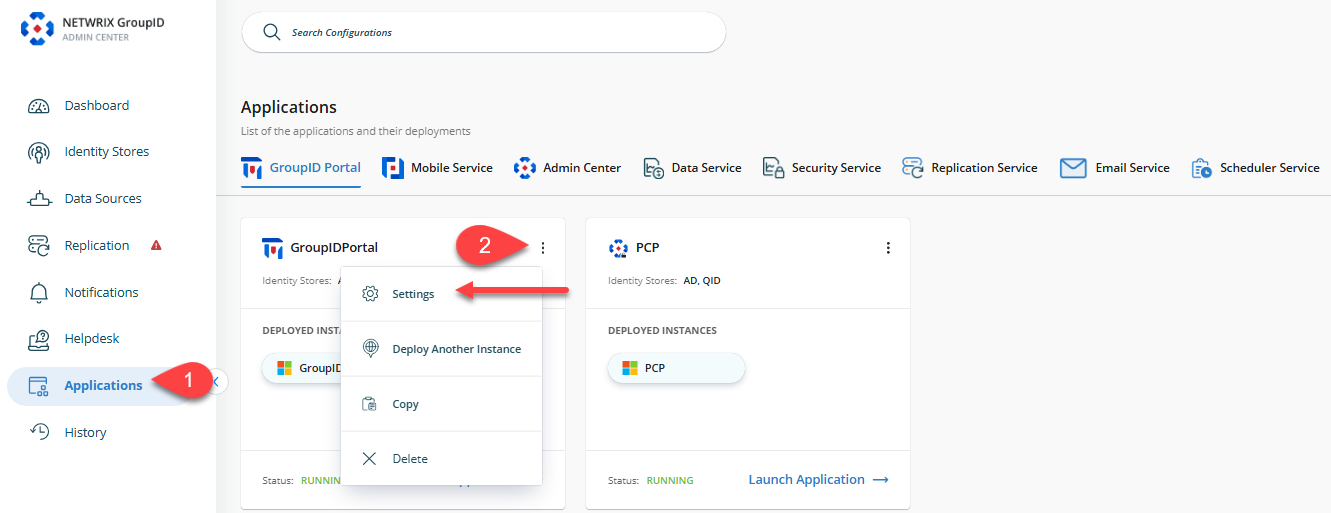
In the Directory Manager Admin Center, go to the Applications tab in the left navigation bar.
-
Click the three-dot icon for the portal you want to modify, then click Settings.
-
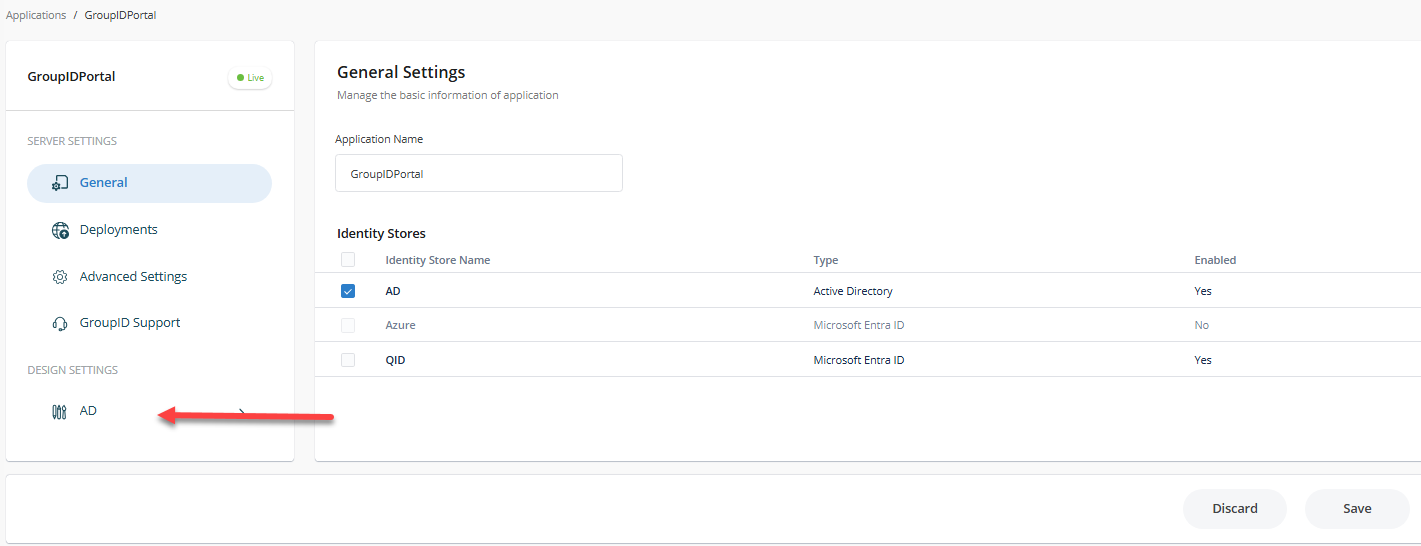
In the portal settings, click the identity store name under Design Settings for which you want to make design changes.
-
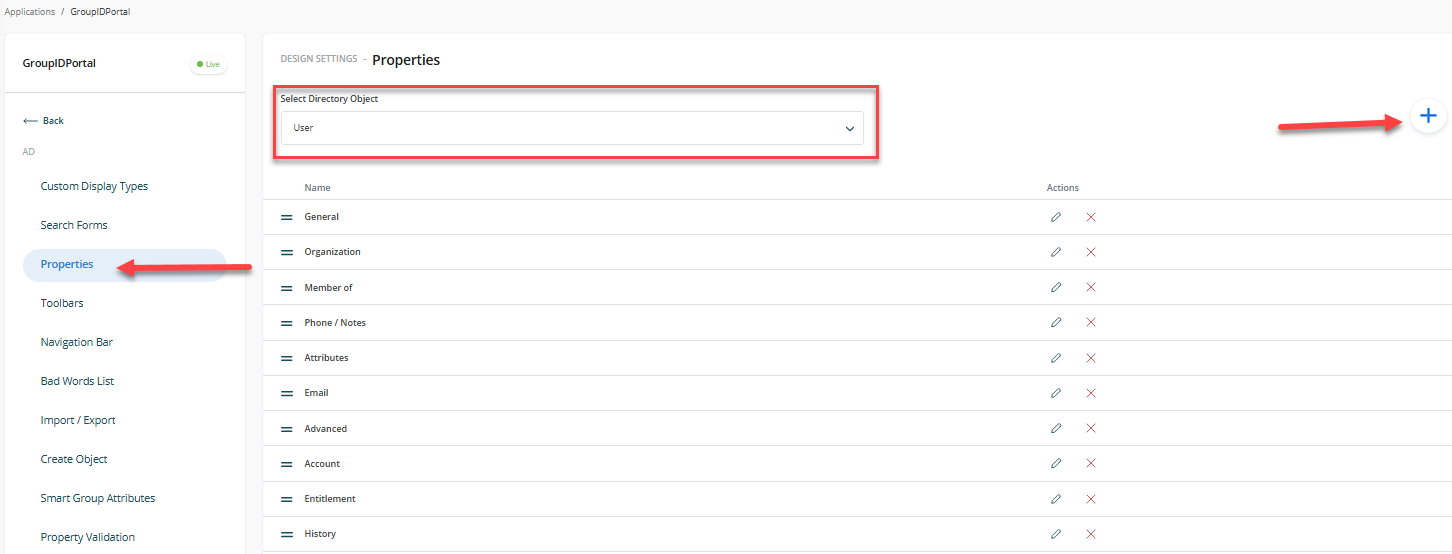
Click the Properties button and select User from the Select Directory Object drop-down list.
-
Click the Plus button to create a new category on the User Properties page.
-
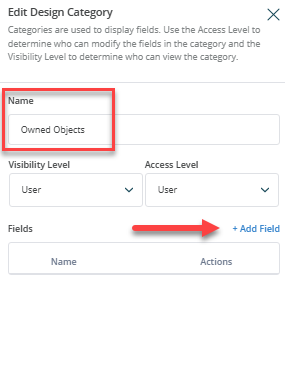
Provide a name for the new category and click Add Field.
-
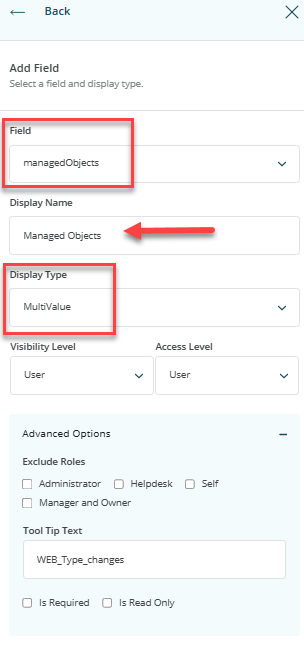
Select managedObjects from the Field drop-down list, then provide a display name for the new field and select Display Type as MultiValue.
-
Click OK to save the changes.
-
Refresh or relaunch the Directory Manager Portal. In the properties of any user, you will now see a new tab (for example, Owned Objects) listing all groups owned by the user.