Alerts
From this section, you can define email alerts for the main events Endpoint Protector detects: System Alerts, Device Control Alerts, Content Aware Alerts, Enforced Encryption Alerts, and Log Alerts.
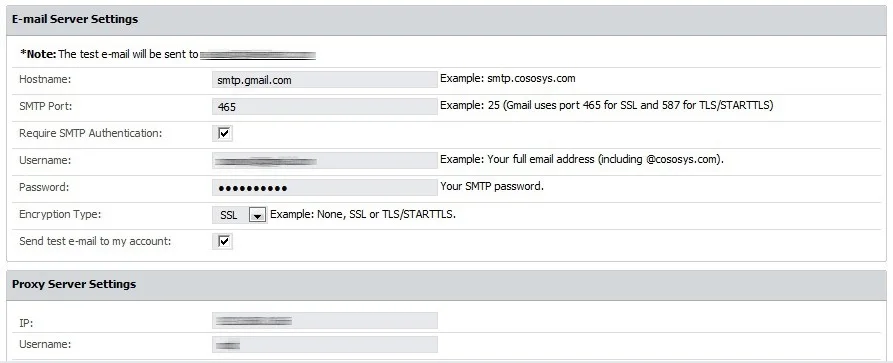
Before creating alerts, ensure you've configured the Endpoint Protector email server settings from System Configuration > System Settings. You can verify these settings by sending a test email.
For each administrator to appear in the list of recipients for alerts, you must provide an email address under the administrator details from System Configuration > System Administrators.
System alerts
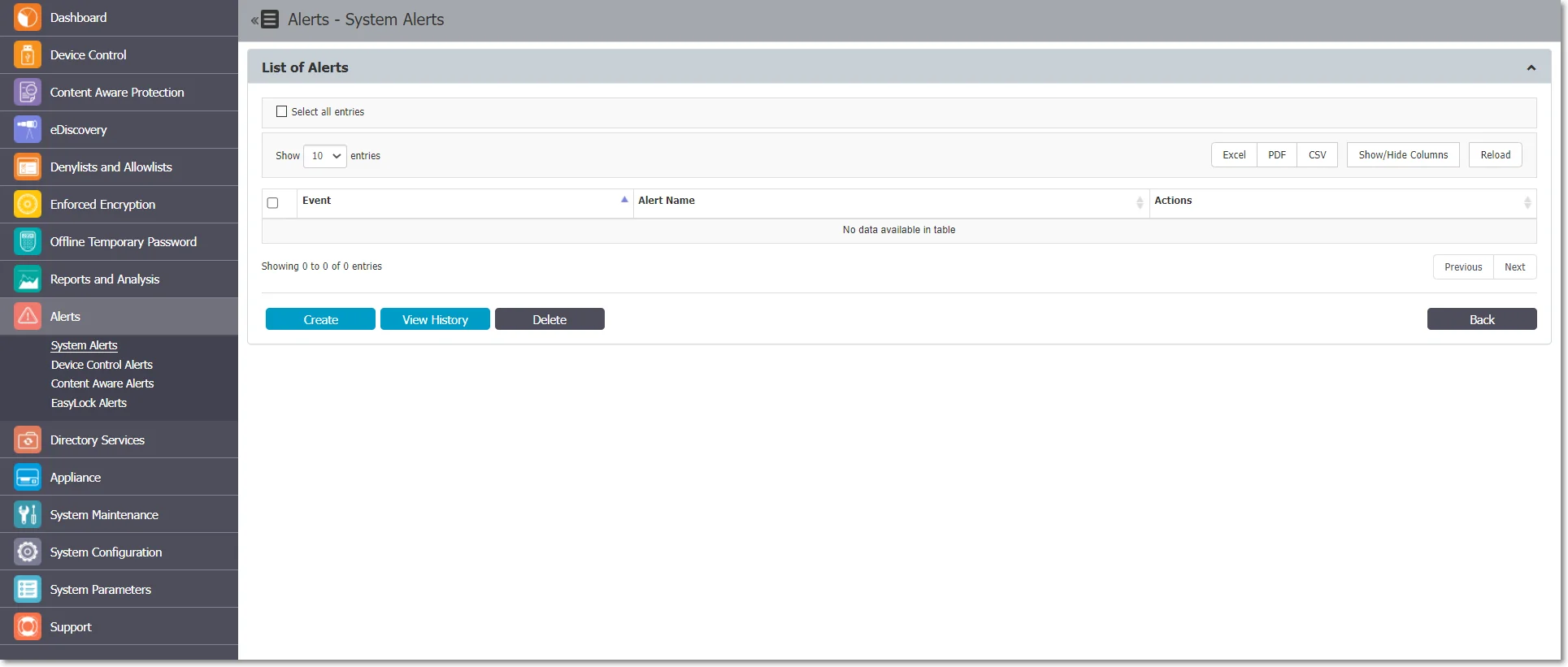
From this section, you can create system alerts, including Apple Push Notification Service (APNS) certificate expiry, updates, and support expiry, endpoint licenses used, and others.
Create a system alert
-
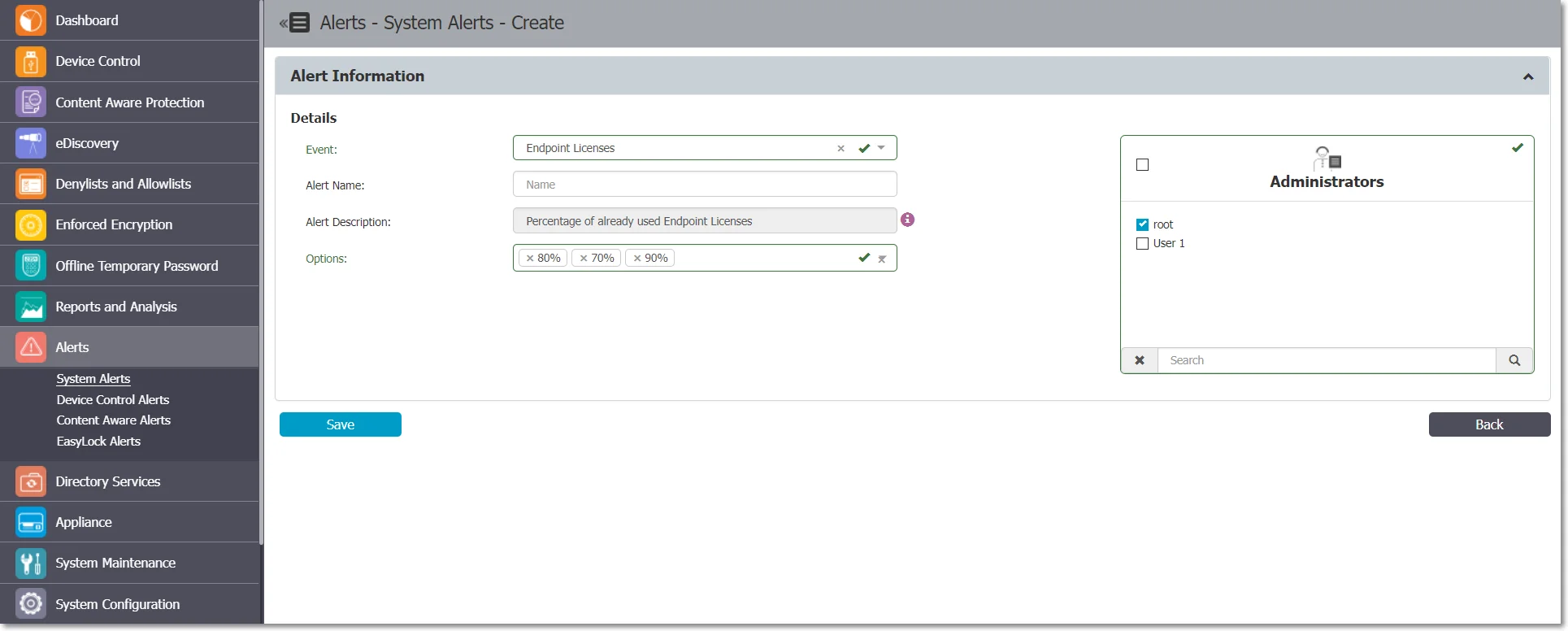
Click Create, provide the required information, and then click Save.
- Event—select the type of event that generates the alert:
- Updates and Support—set an alert regarding each module's maintenance status (Device Control, Content Aware Protection, and eDiscovery)
- Endpoint Licenses—set an alert for when the percentage of used Endpoint Licenses reaches 70%, 80%, or 90%
- Client Uninstall—set an alert each time someone uninstalls an Endpoint Protector Client
- Server Disk Space—set an alert for when disk space reaches 70%, 80%, or 90%. Select the monitored partitions from the available root, epp, and boot options
- Device Control – Logs Amount—set an alert when the number of Device Control logs stored reaches a specific amount
- Content Aware – Logs Amount—set an alert when the number of Content Aware logs stored reaches a specific amount
- Password Expiration—set an alert when a password is about to expire (10, 5, or 1 day before expiration)
- Not Seen Online—set an alert when a protected endpoint hasn't come online within the specified timeframe
- Unplanned Client Termination—set an alert when a user tries to terminate the Endpoint Protector process
noteYou can disable the Update and Support system alert from General Dashboard > System Status.
- Event—select the type of event that generates the alert:
-
Enter an Alert Name.
-
Configure the alert options based on the event type you selected.
-
Select the Administrators who will receive the alerts.
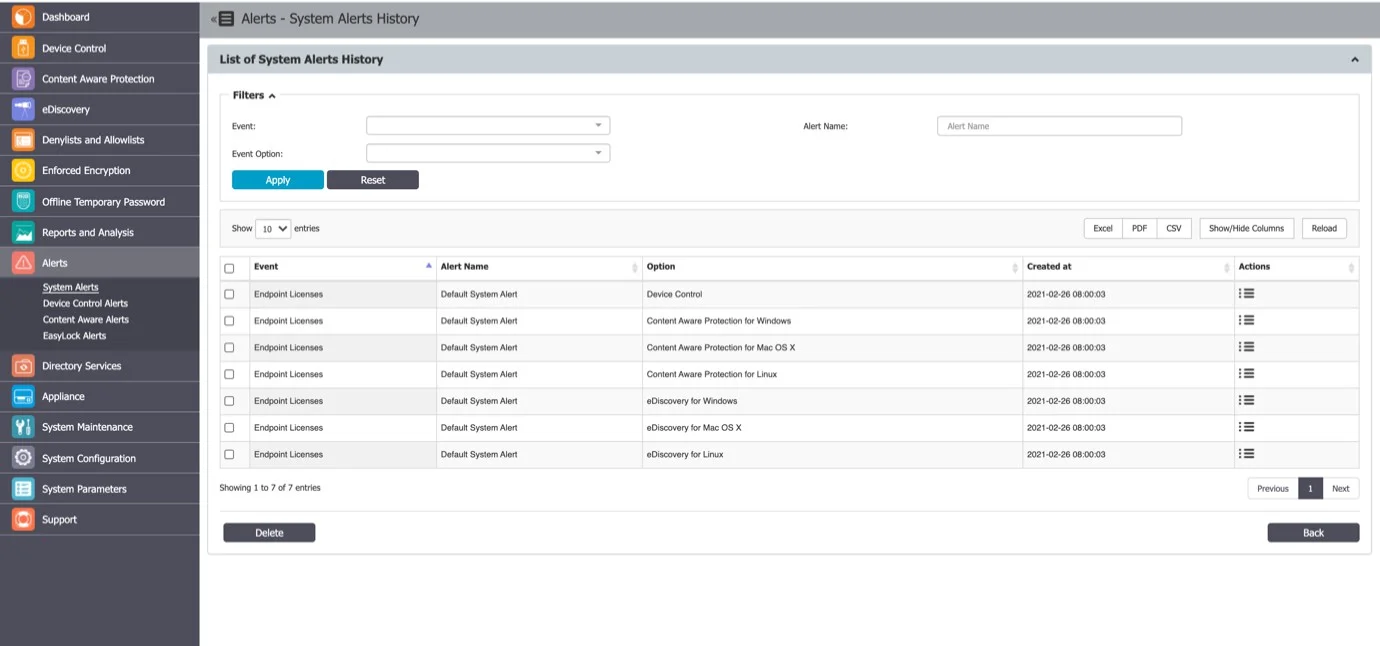
System alerts history
From this section, you can view a history of the system alerts. Delete alerts you no longer need for auditing purposes.
Device Control alerts
From this section, you can create Device Control alerts for events such as Connected, File Read, File Write, and Enforced Encryption successfully deployed.
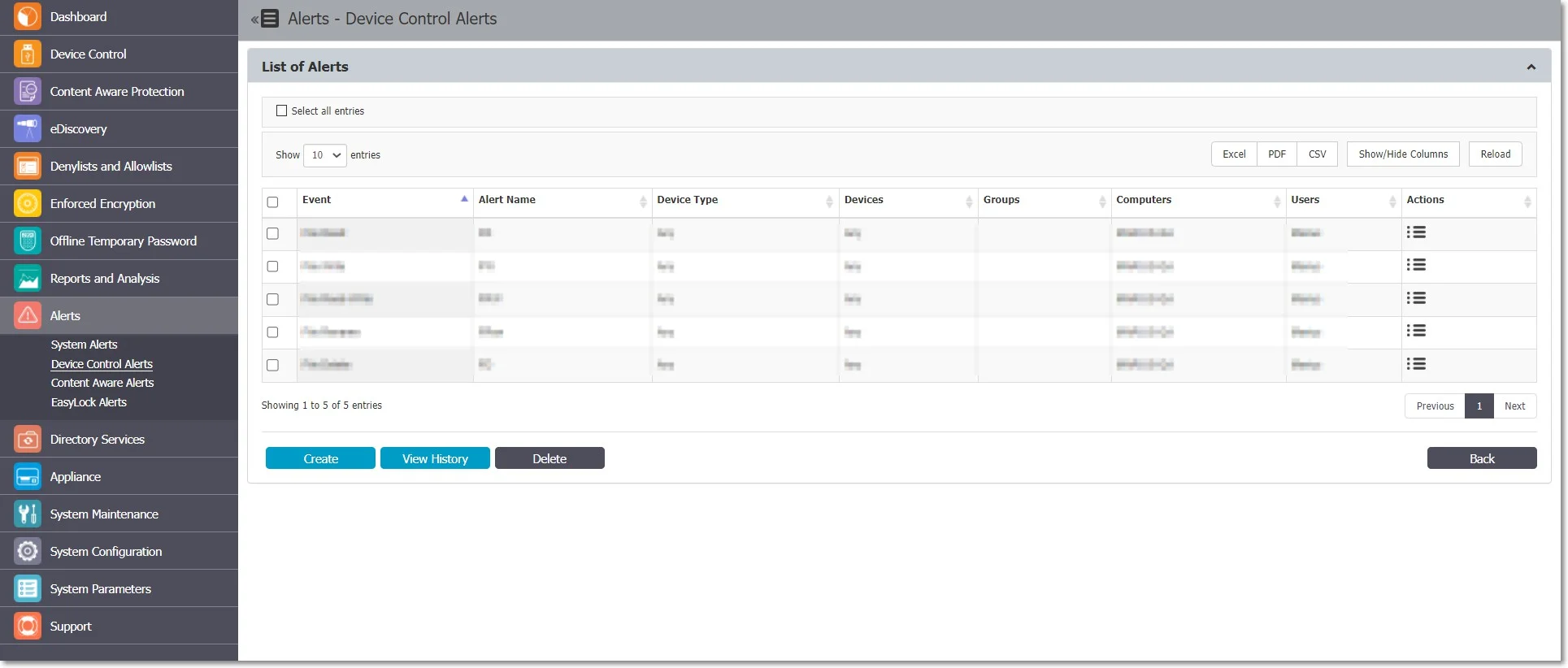
Create a Device Control alert
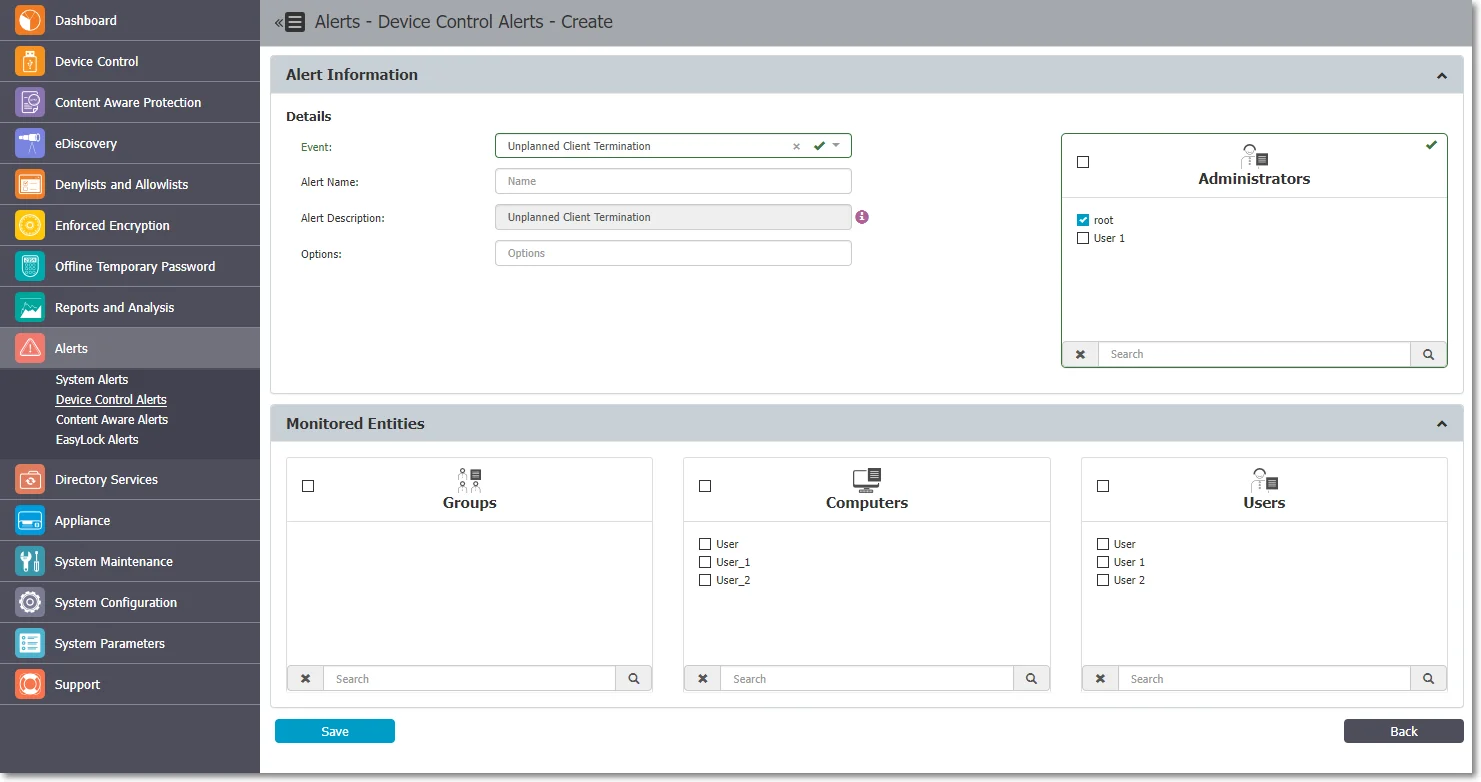
- Click Create and provide the required information:
- Event—select the event type that generates the alert
- Alert Name—enter a name for the alert
- Device Type—select the device type from the dropdown list
- Devices—select the specific device already available in the system
- Monitored Entities—select the groups, computers, or users that generate the event
- Administrators—select the administrators who will receive the alerts
- Click Save.
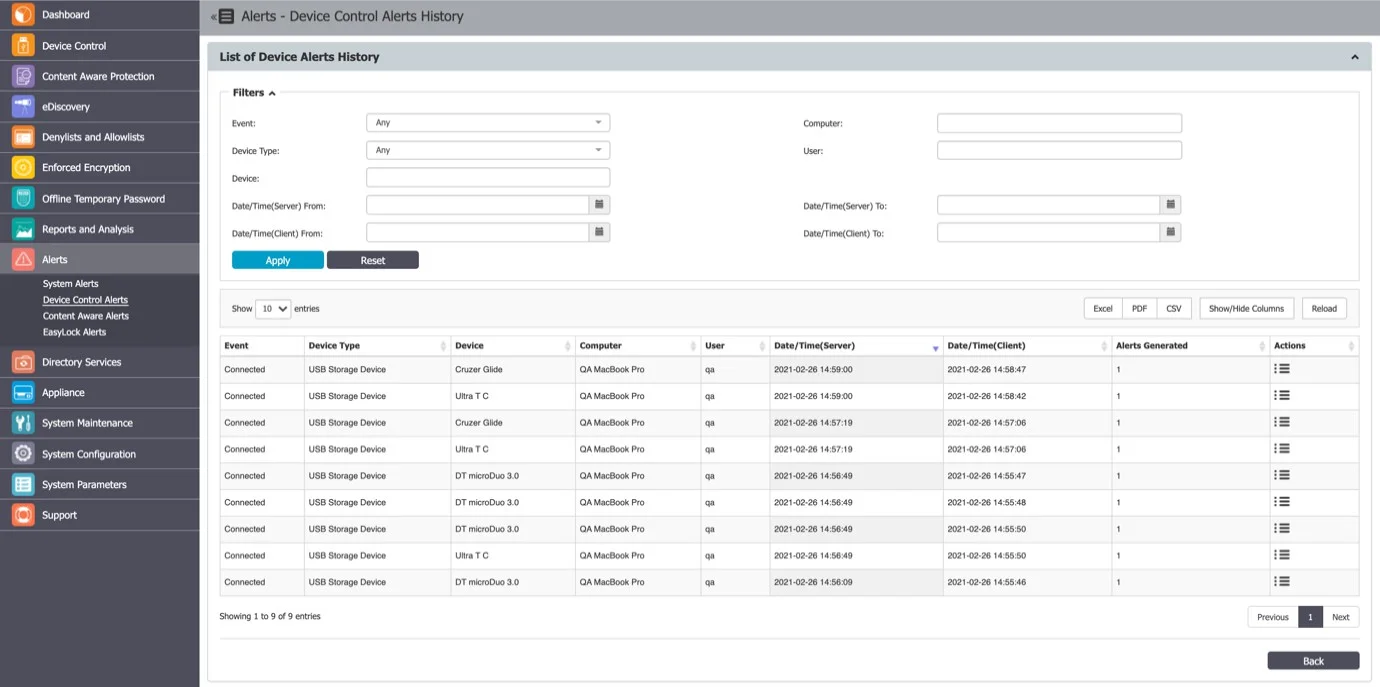
Device Control alerts history
From this section, you can view a history of the Device Control alerts. Delete alerts you no longer need for auditing purposes.
Content Aware alerts
From this section, you can create Content Aware alerts for events such as Content Threat Detected or Content Threat Blocked.
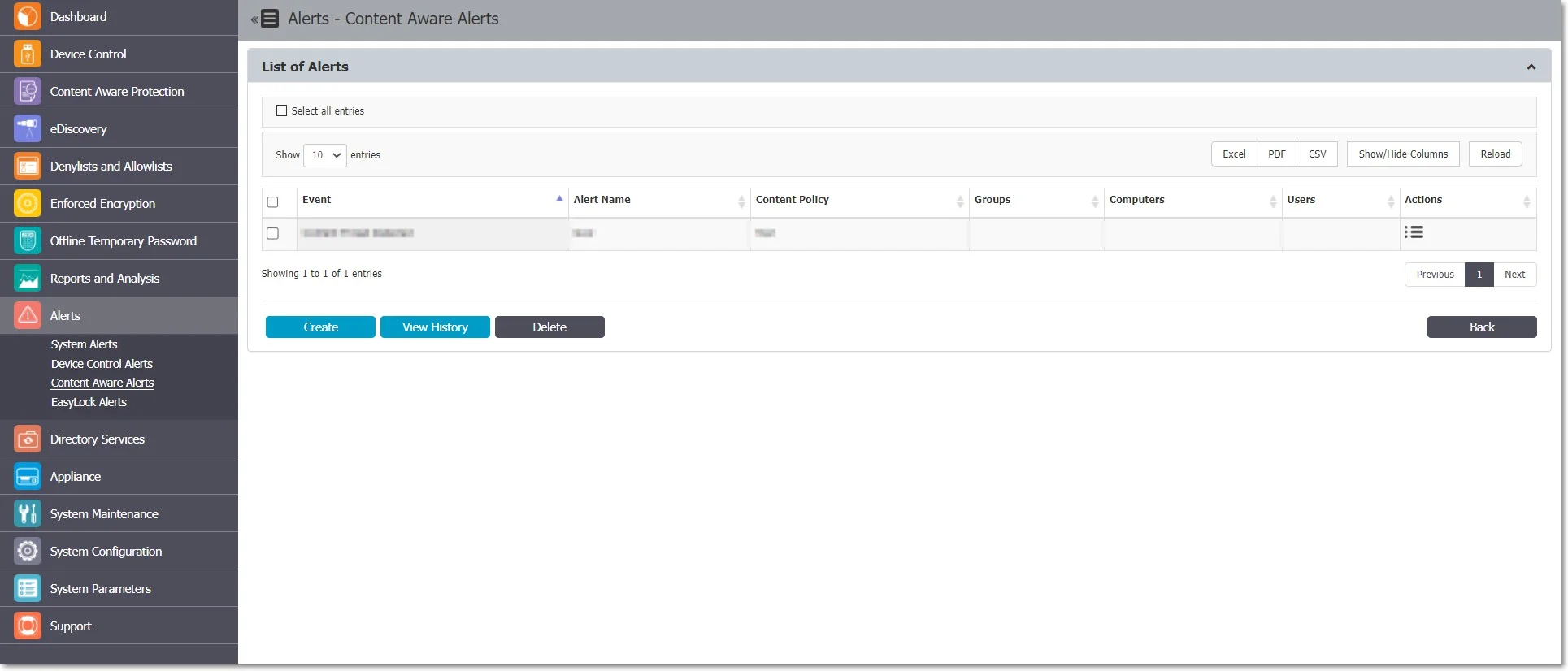
Create a Content Aware alert
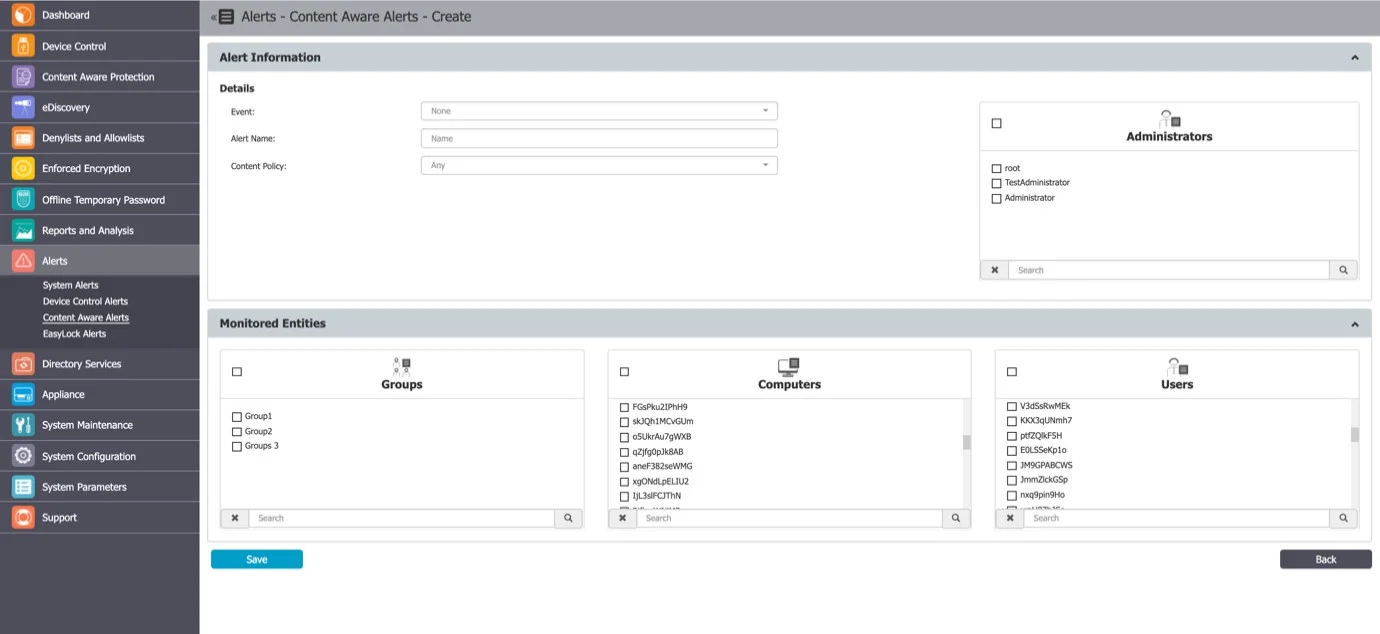
- Click Create and provide the required information:
- Event—select the event type (Content Threat Detected, Content Threat Blocked, Content Remediation Session Active, Content Remediation Request Canceled by User, or DPI Bypassed Traffic)
- Alert Name—enter a name for the alert
- Content Policy—select a policy to apply the alert (this field isn't available if you select DPI Bypass Traffic)
- Administrators—select the administrators who will receive the alerts
- Monitored Entities—select the groups, computers, or users that generate the event
- Click Save.
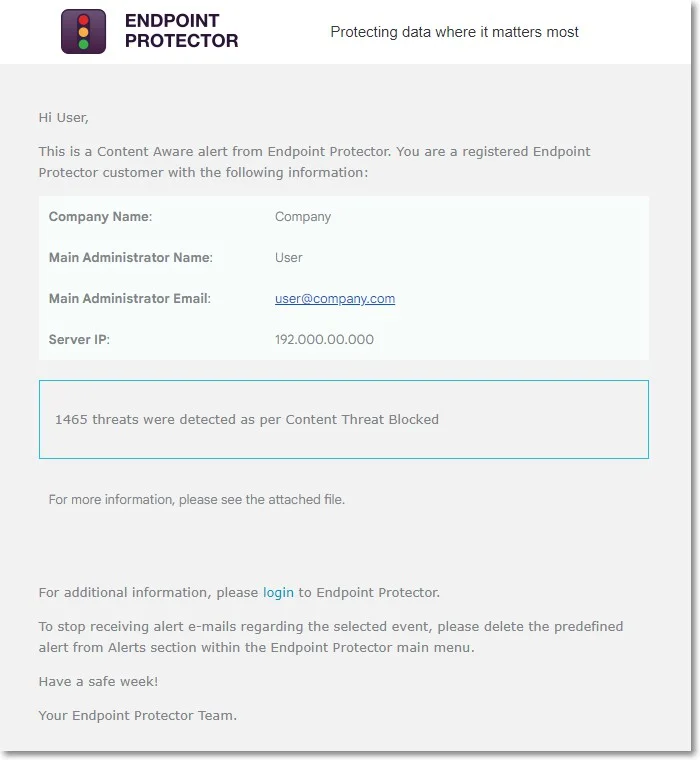
The alert email includes a CSV file with a report of the threats found.
Before creating the alert, ensure you've enabled the selected Content Aware policy on the chosen computer, user, group, or department.
Content Aware alerts history
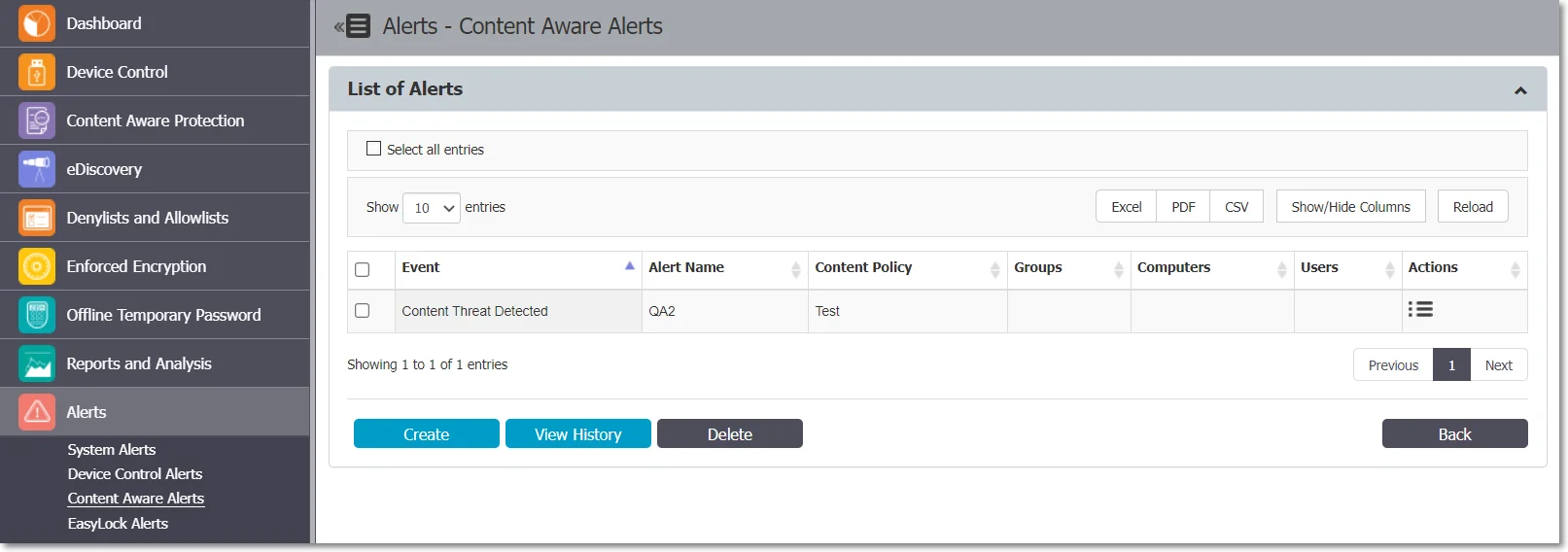
From this section, you can view a history of the Content Aware alerts. Delete alerts you no longer need for auditing purposes.
Log alerts
Log alerts provide event-driven alerting based on Device Control and Content Aware Protection logs stored in CrateDB. Log alerts replace and extend the legacy per-module alert types with a unified, priority-based alerting system. Priority applies at the event type and event level, not at the alert level. The system assigns priority automatically based on the event type.
How log alerts work
Endpoint Protector evaluates log alerts on a schedule. The evaluation frequency depends on the alert's priority, which the system assigns automatically based on the events you select in the alert — you can't set the priority manually.
| Priority | Evaluation frequency | Assigned when |
|---|---|---|
| High | Every two minutes | The alert includes the Uninstall Attempt event (Device Control alerts only) |
| Medium | Every 12 hours (00:00 and 12:00 server time) | The alert includes any other events, including every Content Aware Protection event |
| Low | Daily at midnight | Placeholder priority level, reserved for future use. No event carries Low priority. |
If an alert includes several events, the highest priority among them applies to the whole alert—for example, including the Uninstall Attempt event alongside any other event makes the entire alert High priority.
On each evaluation, if new log entries match the alert since the last notification, Endpoint Protector emails the selected administrators a ZIP attachment containing a CSV of the matching log entries. If no new entries match, the system doesn't send an email.
Priority by event type
| Log type | Event | Priority |
|---|---|---|
| Device Control | Uninstall Attempt | High |
| Device Control | All other events—for example, Connected, Disconnected, Enabled, Disabled, Blocked, Device TD, Forced Uninstall Attempt, Client Integrity Fail, Transfer Limit Reached, Offline Temporary Password Used | Medium |
| Content Aware Protection | Content Threat Detected, Content Threat Blocked, Content Remediation Session Active, Content Remediation Request Canceled by User, DPI Bypassed Traffic, Application Start | Medium |
| — | None assigned | Low (placeholder) |
Create a log alert
- Navigate to Alerts > Log Alerts.
- Click Create and provide the required information:
- Alert Name—enter a descriptive name for the alert
- Log Type—select whether the alert applies to Device Control or Content Aware Protection logs
- Monitored Entities—filter the alert by specific machine names, user names, or groups
- Administrators—select the administrators who will receive the alert notifications
- Click Save.
Filter log alerts
You can scope log alerts to specific entities:
- Machine names—alert only on events from specific computers
- User names—alert only on events generated by specific users
- Groups—alert only on events from computers or users in specific groups
Log alerts history
The Log Alerts History section provides a full audit trail of triggered alerts. From this section, you can:
- View the date and time of each triggered alert
- View the alert details and the matching log entries
- Download the alert attachment (CSV report)
- Delete alert history entries you no longer need
The system automatically cleans up alert history entries after the configured retention period (default: 29 days).
Migration from legacy alerts
When the scalability architecture is active, Endpoint Protector automatically migrates existing Device Control and Content Aware alerts to the Log Alerts framework. The migration process runs in the background and preserves the original alert configurations.
Enforced Encryption alert
From this section, you can create Enforced Encryption alerts for events such as password changes and messages sent.
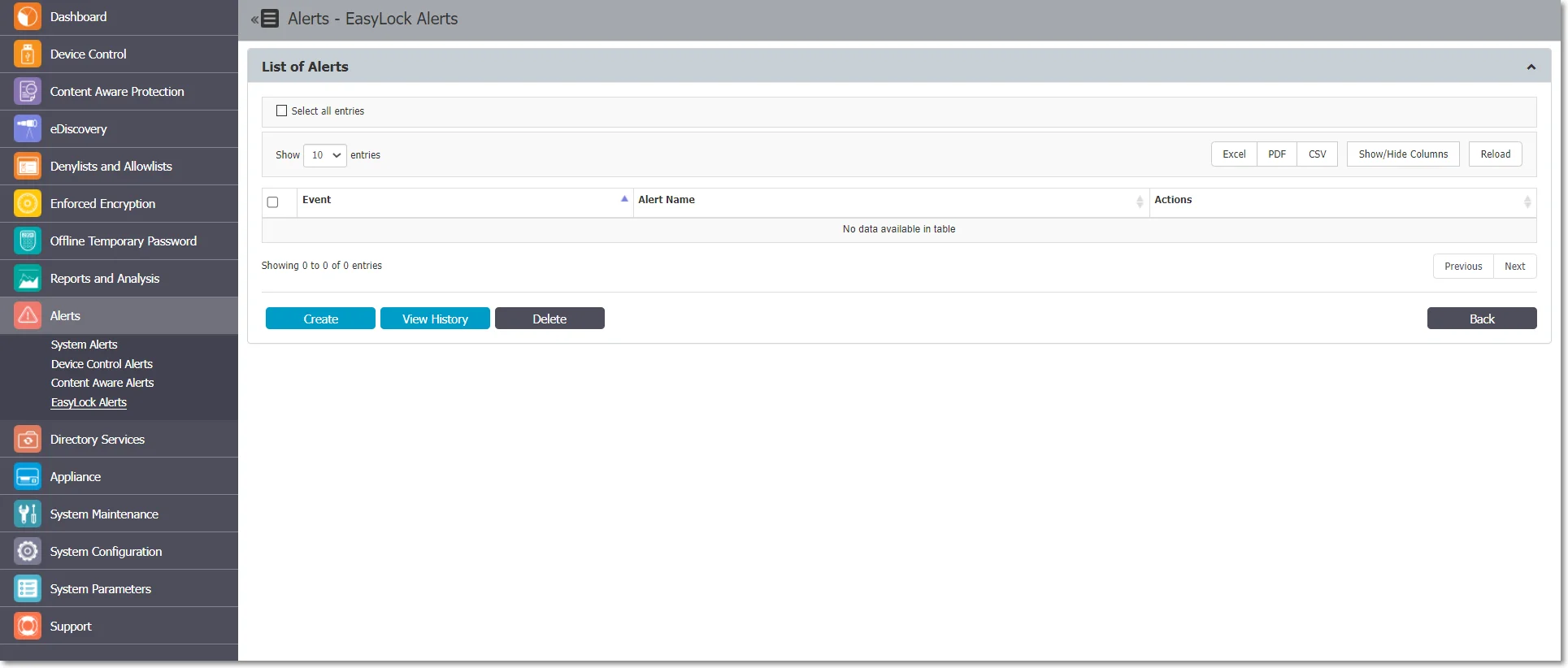
Create an Enforced Encryption alert
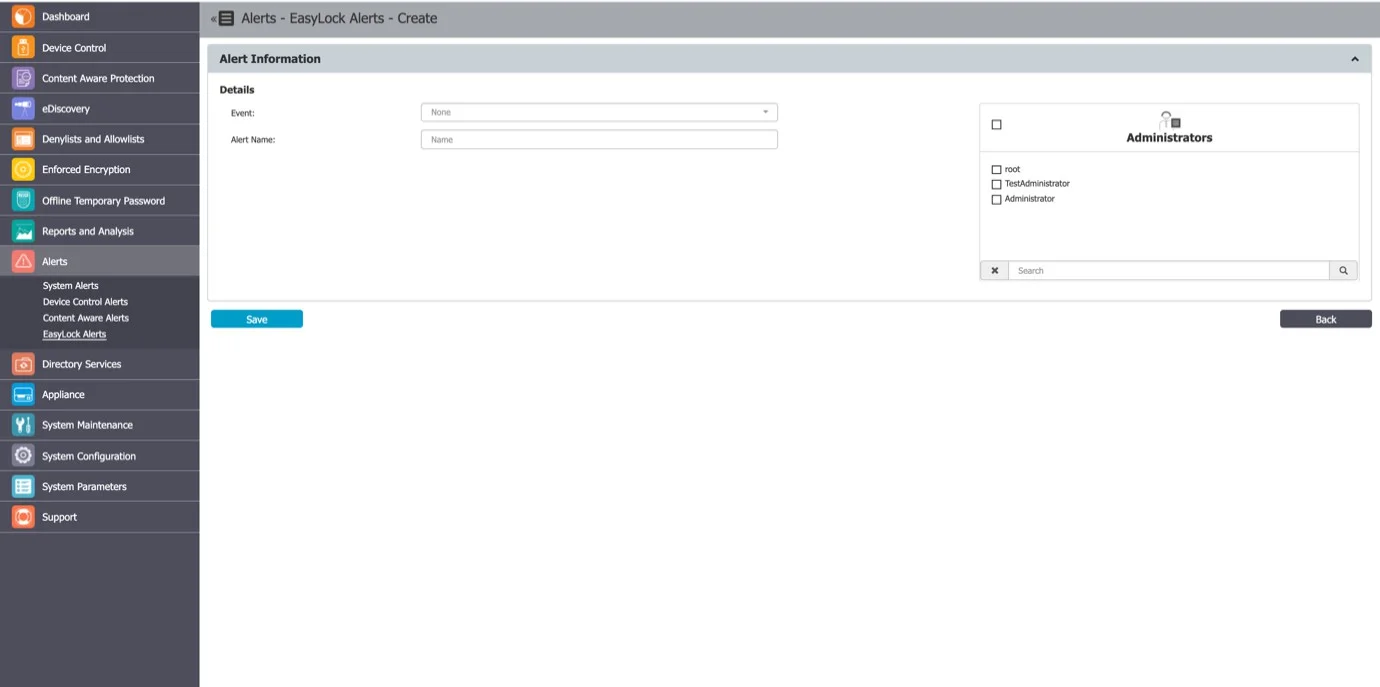
- Click Create and provide the required information:
- Event—select the type of event:
- Send Message
- Change Master Password
- Change User's Password
- Reset Device
- Change Settings – Installation and Execution
- Re-deploy Client
- Master Password Login Success
- Password Login Failure
- Password Login Exceeded
- Alert Name—enter a name for the alert
- Administrators—select the administrators who will receive the alerts
- Event—select the type of event:
- Click Save.
Enforced Encryption alert history
From this section, you can view the history of the Enforced Encryption alerts. Delete alerts you no longer need for auditing purposes.