Appliance
Server Information
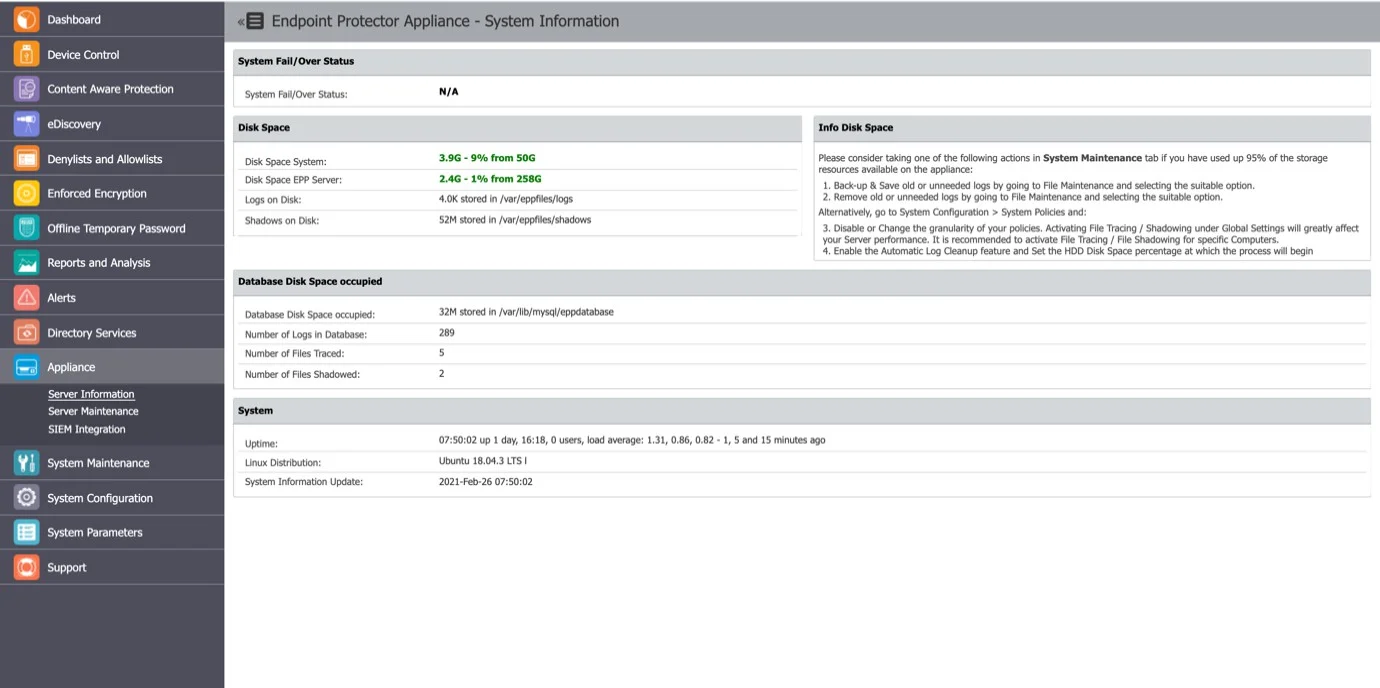
From this section you can view general information about the Server, the System Fail/Over status, information on Disk Space usage and Database, and the Server Uptime.
Server Maintenance
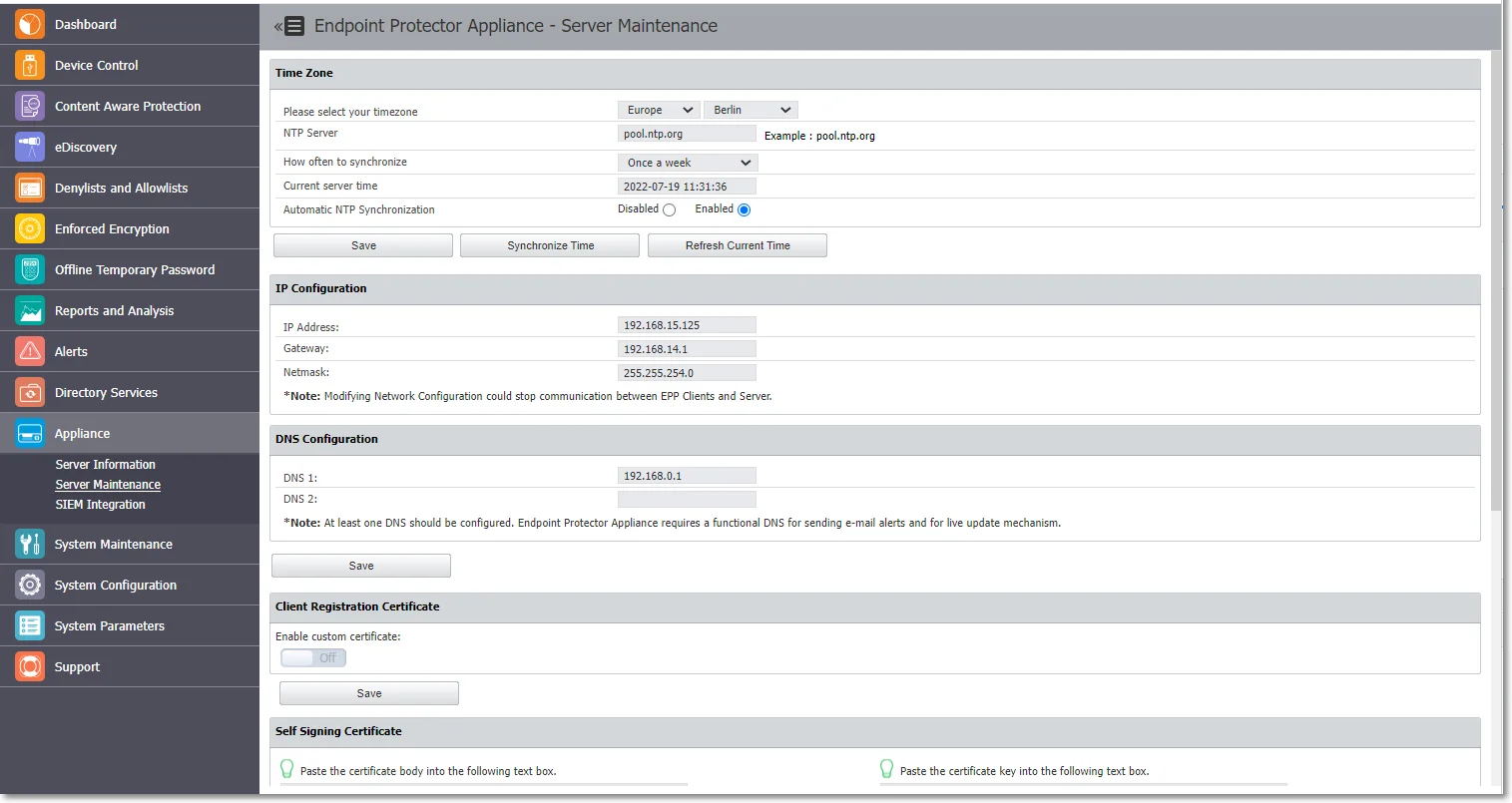
In this section, you can set up a preferential time zone and NTP synchronization server, configure the IP and DNS, register the client certificate, set up a self-signing certificate, perform routine operations and manage the SSH access.
Time Zone
In this section you can set a preferential time zone and/or sync the appliance to an NTP source.
- Time zone – select the zone and location from the dropdown lists
- NTP Server – enter the server or keep the default entry
- How often to synchronize – select a synchronization interval from the dropdown or keep the default selection
By default, the appliances sync once a week with pool.ntp.org.
- Current server time – the field displays the current server time
- Automatic NTP Synchronization – opt in or out to trigger the NTP synchronization automatically
- Click Save to keep all modifications without triggering the synchronization process
- Click Synchronize Time to trigger the synchronization, which will occur in the next 5 minutes. Endpoint Protector reports the Alerts and Logs after the 5 minutes in a format of your choice
- Click Refresh Current Time to update the Current server time field
IP Configuration
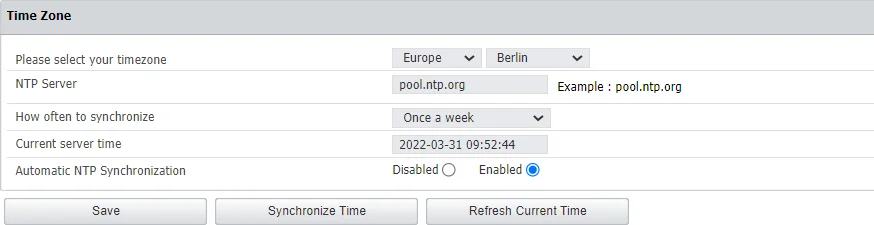
In this section you can change the network settings for the appliance to communicate correctly in your network.
Starting with the 2509 Endpoint Protector (EPP) Server release, the EPP Server no longer supports the DHCP client option, so administrators must assign a fixed IP address to the EPP Server.
After you change the IP address, close the Internet browser and open it again, then access the Endpoint Protector Administration and Reporting Tool with the new IP address.
Changing the server IP address affects every client and integration that uses the IP address to reach the server, including single sign-on (SSO) response URLs. Address the server by a fully qualified domain name (FQDN) instead, so that you update one DNS record rather than reconfigure each client and integration. See Use an FQDN Instead of an IP Address.

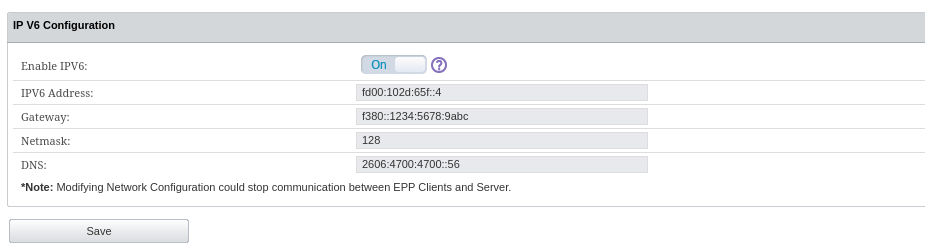
Starting with version 2512, you can switch to IPV6 exclusively by turning on the IPV6 option. Doing so will disable the IPV4 option and vice versa. Always click Save after changing from one IP version to another to apply the configuration.
For appliances hosted on the following types of images, IP change options will not be available in the UI, but only in the command line: AWS AZURE, GCP. If you are hosting EPP on one of these image types, use command line option to enter the Setup wizard and change the IP address from there.
When transitioning from IPv4 to IPv6 or vice versa, changes to the Nginx configuration may be necessary:
- If you are using IPv4 and transitioning to IPv6, update the Nginx configuration to listen on the IPv6 address.
- If you are using IPv6 and transitioning to IPv4, update the Nginx configuration to listen on the IPv4 address. For customers using the standard Nginx configuration (most users), Endpoint Protector applies these adjustments automatically. Always click Save after changing from one IP version to another to apply the configuration.
For customers with custom Nginx configurations (such as those using a different port for client communication), these changes might impact the communication between the agent and server.
In such scenarios, the documentation doesn't officially support custom configurations. However, the Netwrix support team is available to assist with manual configuration adjustments.
DNS Configuration
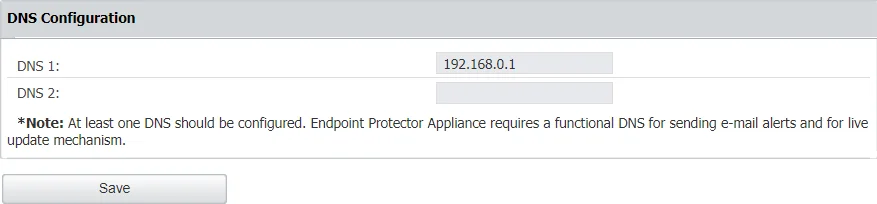
In this section you can modify or add a DNS server address and then Save your changes.
Communication Security
By default, Endpoint Protector encrypts all communication between Endpoint Protector Clients and the Endpoint Protector Server using mutual TLS (mTLS). Both sides present certificates during the TLS handshake, which protects data in transit against interception.
To further harden the registration and communication process, Endpoint Protector provides two additional, optional security features that build on this foundation: Client Registration Certificate and Server Certificate Validation. When enabled, these options introduce certificate pinning into the client lifecycle — verifying that communication is encrypted and that both endpoints are who they claim to be.
The Client Registration Certificate feature isn't available for Linux.
Client Registration Certificate
The Client Registration Certificate feature enriches the client registration process by adding a certificate verification component: the Endpoint Protector Server validates the client's certificate during the registration phase, ensuring that only clients presenting a cryptographic identity signed by a trusted CA can register. This provides an additional layer of protection in the enrollment flow — ensuring that only authorized, managed devices can register with the EPP Server, even when operating on shared or untrusted networks.
Configuration
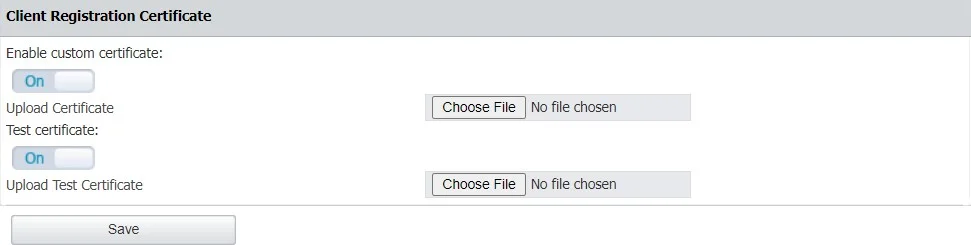
Step 1 – Enable the custom certificate setting and then upload the certificate chain, Root CA and Intermediate;
When the custom certificate is enabled then:
- Endpoint Protector Server will validate the client certificate at the registration phase
- Endpoint Protector Client will not validate the server certificate
When the custom certificate is disabled then:
- Endpoint Protector Server will not validate the client certificate at the registration phase
- Endpoint Protector Client will not validate the server certificate
Step 2 – Enable the test certificate setting and then upload a certificate signed by root CA just for testing the signature (for example the Endpoint Protector Client certificate)
Step 3 – Click Save and allow 2 minutes for Endpoint Protector to validate the information. You will view a successful message confirming that Endpoint Protector added the custom certificate and that the test certificate is valid.
Requirements
The same CA must issue the client registration authentication certificate and the Endpoint Protector server certificate.
For this feature to work, you must deploy cryptographic identities signed by the root CA on the endpoints.
- On macOS, add these identities to the System Keychain in the "My Certificates" section
- On Windows, place them in the Certificate Manager's Local Computer\Certificates\Personal section
Server Certificate Validation
While Client Registration Certificate secures the registration phase, Server Certificate Validation extends certificate verification to all ongoing communication. When you enable it, the Endpoint Protector Client validates the server's SSL certificate on every outbound request — ensuring that clients only communicate with a trusted, legitimate Endpoint Protector Server and that attackers can't redirect them to a rogue or impersonated instance. The EPP Client verifies three key properties:
- Certificate trust — a Certificate Authority that the endpoint trusts must issue the server certificate.
- Expiration date — the server certificate must be valid and not expired.
- Hostname matching — the server certificate's Common Name (CN) or Subject Alternative Name (SAN) must match the hostname the client is connecting to.
Starting with version 5.9.0.0, enabling this option activates Endpoint Protector Server Certificate Validation for all Endpoint Protector Client communication. This strengthens security by ensuring that all communication uses trusted and valid certificates.
Configuration
From this section, you can configure Server Certificate Validation, which ensures that Endpoint Protector Clients validate the certificates used for all communication requests.

Before enabling, verify that:
- The EPP Server certificate is valid and not expired.
- A CA that all managed endpoints trust issued the EPP Server certificate.
- The EPP Server hostname matches the certificate's CN or SAN exactly.
Client-Side Configuration The server-side configuration alone isn't sufficient — you must also prepare the EPP Client to participate in certificate-based registration. You do this at installation time. When you install the Endpoint Protector Client on Windows or macOS, the installer wizard includes an Increased Communication Security checkbox. Enabling this option instructs the EPP Client to use the certificate-based authentication flow during registration and all subsequent communication with the EPP Server. For detailed installation steps and a walkthrough of the installer wizard, refer to the Agent Installation section.
use this feature responsibly. Improper certificate configuration combined with enabled certificate validation may disrupt Endpoint Protector Client to Endpoint Protector Server communication. For a successful connection, you must enable both server and client certificate validation.
The Endpoint Protector Client reports all certificate validation statuses to the Endpoint Protector Server and stores them in the Endpoint Protector Client logs for debugging.
Appliance Operations
In this section you can perform appliance operations such as Reboot or Shutdown.

SSH Server
In this section you can manage user access to the Appliance through the SSH protocol.
Set this option to Enable before requesting Support access.

SIEM Integration
Security information and event management (SIEM) tools are third-party tools that log and analyze the logs generated by network devices and software. The integration with SIEM technology enables Endpoint Protector to transfer activity events to a SIEM server for analysis and reporting.
In this section, you can add, edit, or delete an existing SIEM Server integration. To edit or delete a SIEM Server, select an available SIEM server integration.
You can configure a maximum of four SIEM Server integrations.
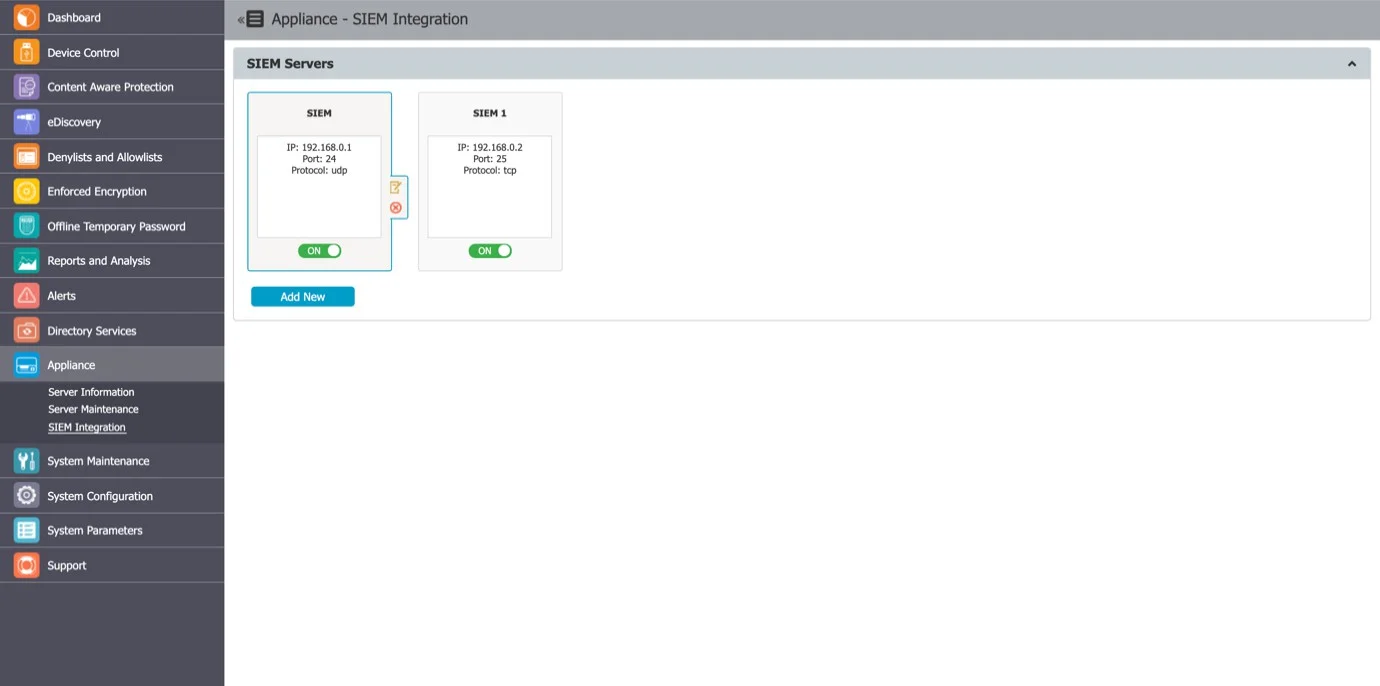
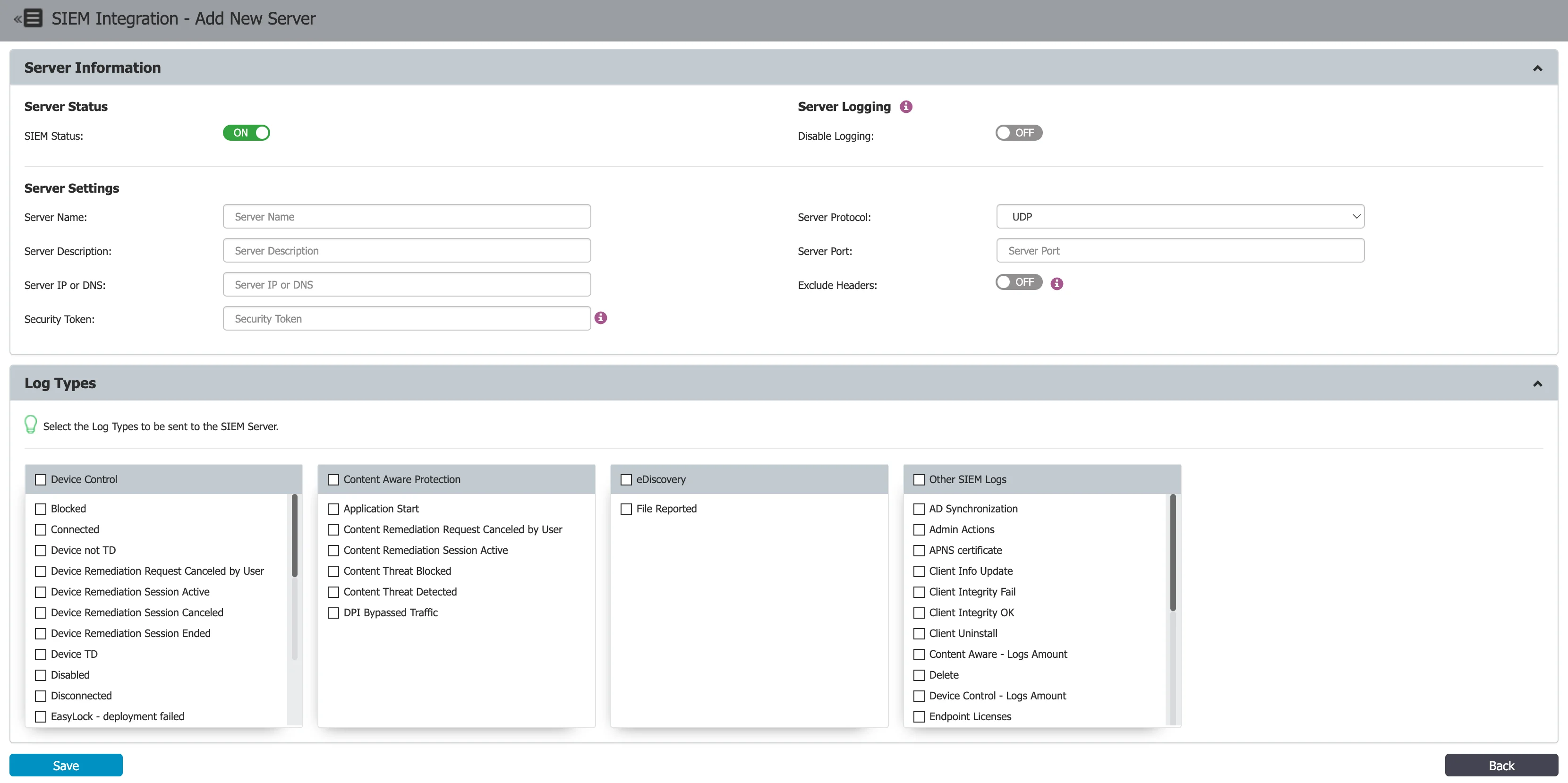
To create a SIEM Server, click Add New and provide the following information:
-
SIEM Status – toggle switch to enable/disable the SIEM server
-
Disable Logging – toggle switch to enable/disable logging
noteIf you disable logging, Endpoint Protector stores logs on the Endpoint Protector server or on the SIEM server when you install SIEM.
-
Server Name – add a server name
-
Server Description – add a description
-
Server IP or DNS – add the IP or DNS
-
Server Protocol – select the UDP or TCP server protocol
noteBased on the protocol you select you can enable SIEM Encryption.
-
Server Port – add a port
-
Exclude Headers - toggle switch to enable/disable log headers
noteIf you disable log headers, you will only export data to SIEM.
-
Log Types – select the logs to send to the SIEM Server from the available options
To use the latest SIEM integration features, you must have installed Endpoint Protector from image version 5.6.0.0 or later, and your environment must maintain an active HTTPS connection.
SIEM Encryption
When using the TCP protocol, you can encrypt communication to each SIEM server. To do so, enable the Encryption setting and then Upload the root CA used to sign the server certificate for the SIEM server in .pem format.
The same CA must sign both the certificate used on the SIEM server and the one uploaded to the Endpoint Protector Server.
Endpoint Protector will check the following:
- The CA signed the SIEM certificate, and the CN or SAN matches the name for the SIEM machine
- The Root CA has the Basic Constraint CA set to true
When Endpoint Protector validates a certificate, the entire certificate chain must be valid, including the CA certificate; if any certificate in the chain is invalid, Endpoint Protector rejects the connection.
ensure you update the certificate files when they expire.
If you applied the latest patch using the option, and can't view the SIEM encryption setting, contact Customer Support.
SIEM Export log formats
Each log entry follows this
format: log_type: [field_name] field_value | [field_name] field_value | [field_name] field_value ..
Log structure
The log_type is a combination of "Device Control" and the event name.
Example terms for log types include:
-
Device Control – Blocked
-
Device Control – Connected
-
Device Control – Device not TD
To see the supported events on the Endpoint Protector Server, navigate to Appliances > SIEM Integration > SIEM Policy.
Column header
The column header is [field_name].
Example column headers include:
- [Event Name]
- [Client Computer]
- [IP Address]
You can find the complete list of [field_name] in the
SIEM Export Log Fields section.
Contents of the column
The field_value represents the actual contents within the column.
Example field values include:
- Offline Temporary Password used
- User’s computer
- 192.168.0
SIEM Export Log Fields
This section presents the field names for the Endpoint Protector Server's "Standard format," available since the Endpoint Protector 5.9.4 release. Endpoint Protector Server exports logs to SIEM solutions with a maximum of 2,100 characters. Starting with Endpoint Protector 5.9.1, the message limit increased to 10,000 characters.
From Endpoint Protector 2608 onward, Device Control and Content Aware Protection SIEM log entries use internal database field names as keys (for example, machine_name, destination_type) instead of the readable field names listed in this section (for example, [Client Computer], [Destination Type]). This change is an unintended side effect of the underlying log platform migration to CrateDB. There is no setting to restore the readable field names. If your SIEM parser or field mappings rely on those readable names, update them using the SIEM Field Name Mapping (2608+) table.
Device Control
The standard format for the Device Control fields is as follows:
- [Log ID]
- [Event Name]
- [Client Computer]
- [IP Address]
- [MAC Address]
- [Serial Number]
- [OS]
- [Client User]
- [Device Type]
- [Device]
- [Device VID]
- [Device PID]
- [Device Serial]
- [EPP Client Version]
- [File Name]
- [File Hash]
- [File Type]
- [File Size]
- [Justification]
- [Time Interval]
- [Date/Time(Server)]
- [Date/Time(Client)]
- [Date/Time(Server UTC)]
- [Date/Time(Client UTC)]
- [Shadow Exists]
- [Repository Type]
Content Aware Protection
When you use Reporting V1, fields associated with Reporting V2 content, such as [Destination Details], [Email Sender], and [Email Subject], remain blank.
The standard format for the Content Aware Protection fields is as follows:
- [Log ID]
- [Client Computer]
- [IP Address]
- [MAC Address]
- [Serial Number]
- [OS]
- [Client User]
- [Content Policy]
- [Content Policy Type]
- [Destination Type]
- [Destination]
- [Destination Details]
- [Email Sender]
- [Email Subject]
- [Justification]
- [Device VID]
- [Device PID]
- [Device Serial]
- [File Name]
- [File Hash]
- [File Size]
- [Matched Item]
- [Item Details]
- [Date/Time(Server)]
- [Date/Time(Client)]
- [Date/Time(Server UTC)]
- [Date/Time(Client UTC)]
- [Certificate State]
- [Shadow Exists]
- [Repository Type]
E-Discovery
The standard format for the E-Discovery fields is as follows:
- [Log ID]
- [Computer]
- [IP Address]
- [MAC Address]
- [Serial Number]
- [OS]
- [Policy]
- [Matched type]
- [Matched Item]
- [Path]
- [Discovered at]
- [Discovered at (UTC)]
SIEM Field Name Mapping (2608+)
From Endpoint Protector 2608 onward, Device Control and Content Aware Protection SIEM log entries use the internal database field name as the key instead of the readable field name. Use the following tables to update your SIEM parser or field mappings.
This mapping covers the fields shared with the Reporting module's export field list. A small number of internal ID fields (for example, device_id, client_id) may also appear in the live SIEM stream. Validate the mapping against a captured log sample from your environment before finalizing your SIEM parser configuration.
Device Control field name mapping
| Readable name (pre-2608) | Database field name (2608+) |
|---|---|
| Client Computer | machine_name |
| IP Address | ip |
| Domain | domain |
| Client User | client_name |
| Department | department_name |
| Device Type | device_type_name |
| Device | device_name |
| Device VID | vid |
| Device PID | pid |
| Device Serial | serial_no |
| File Name | file_name |
| File Type | file_type |
| File Size | file_size |
| File Hash | file_hash |
| Justification | ur_justification |
| Time Interval | ur_time_interval |
| OS | os_version |
| Event Name | event_name |
| Shadow Exists | shadow_exists |
| Repository Type | repository_type |
| Date/Time(Server) | timestamp |
| Date/Time(Client) | event_time_local |
| EPP Client Version | epp_client_version |
Content Aware Protection field name mapping
| Readable name (pre-2608) | Database field name (2608+) |
|---|---|
| Content Policy | content_policy |
| Destination Type | destination_type |
| Destination | destination |
| Destination Details | destination_details |
| Email Sender | email_sender |
| Email Subject | email_subject |
| File Name | file_name |
| File Hash | file_hash |
| File Type | file_type |
| File Size | file_size |
| Matched Item | matched_item |
| Item Details | item_details |
| Client Computer | machine_name |
| Client User | client_name |
| IP Address | ip |
| OS | os_type_name |
| Event Name | event_name |
| Shadow Exists | shadow_exists |
| Repository Type | repository_type |
| Date/Time(Server) | timestamp |
| Date/Time(Client) | event_time_local |
| Date/Time(Client UTC) | client_time_utc |
| EPP Client Version | epp_client_version |
Other SIEM Logs
User Login/User Logout
The standard format for the Other SIEM Logs fields is as follows:
- [Log ID]
- [Client Computer]
- [IP Address]
- [MAC Address]
- [Serial Number]
- [OS]
- [EPP Client Version]
- [Client User]
- [File Name]
- [File Type]
- [Date/Time(Server)]
- [Date/Time(Client)]
- [Date/Time(Server UTC)]
- [Date/Time(Client UTC)]
Client Integrity OK/Client Integrity Fail
The standard format for the Client Integrity OK/Client Integrity Fail fields is as follows:
- [Log ID]
- [Client Computer]
- [IP Address]
- [MAC Address]
- [Serial Number]
- [OS]
- [EPP Client Version]
- [Client User]
- [File Name]
- [File Type]
- [Date/Time(Server)]
- [Date/Time(Client)]
- [Date/Time(Server UTC)]
- [Date/Time(Client UTC)]
Admin Action
The standard format for the Admin Action fields is as follows:
- [Log ID]
- [Administrator]
- [Section]
- [Action Type]
- [Before]
- [After]
- [Date/Time(UTC)]
User Information Updated
The standard format for the User Information Updated fields is as follows:
- [Log ID]
- [Client Computer]
- [IP Address]
- [MAC Address]
- [Serial Number]
- [OS]
- [EPP Client Version]
- [Client User]
- [Date/Time(Server)]
- [Date/Time(Client)]
- [Date/Time(Server UTC)]
- [Date/Time(Client UTC)]
Policies Received
The standard format for the Policies Received fields is as follows:
- [Log ID]
- [Event Name]
- [Client Computer]
- [IP Address]
- [Client User]
- [OS]
- [Date/Time(Server)]
- [Date/Time(Client)]
- [Date/Time(Server UTC)]
- [Date/Time(Client UTC)]
Uninstall Attempt / Forced Uninstall Attempt
The standard format for the Uninstall Attempt/Forced Uninstall Attempt fields is as follows:
- [Log ID]
- [Event Name]
- [Client Computer]
- [IP Address]
- [MAC Address]
- [Serial Number]
- [OS]
- [Client User]
- [Device Type]
- [Device]
- [Device VID]
- [Device PID]
- [Device Serial]
- [EPP Client Version]
- [File Name]
- [File Hash]
- [File Type]
- [File Size]
- [Justification]
- [Time Interval]
- [Date/Time(Server)]
- [Date/Time(Client)]
- [Date/Time(Server UTC)]
- [Date/Time(Client UTC)]
Client Uninstall
The standard format for the Client Uninstall fields is as follows:
- [Log ID]
- [Client Computer]
- [IP Address]
- [MAC Address]
- [Serial Number]
- [Department]
- [EPP Client Version]
- [Last Time Online]