Content Aware Protection for New Outlook
Endpoint Protector extends Content Aware Protection to New Outlook without requiring a mail transfer agent (MTA), SMTP forwarder, or any other mail-flow infrastructure. The integration uses Microsoft's native Office Add-in framework, deployed at the Microsoft 365 account level rather than installed on individual devices. This reduces the infrastructure you need to roll out Data Loss Prevention (DLP) for New Outlook across your organization.
With Endpoint Protector Clients, you can fully manage New Outlook as a Content Aware Protection Exit Point via the Microsoft 365 Web Add-in. COM add-ins for classic Outlook install directly on individual endpoints. In contrast, you must deploy Microsoft Web Add-ins centrally using the Microsoft 365 Admin Center or manually within the user account in the Outlook application.
Microsoft 365 Web Add-ins associate with user accounts rather than computers or devices. After you deploy an add-in to a user account, every device the user employs to access that account has the add-in available. This means you can't restrict it to just one device, such as the user's Mac computer only.
For detailed instructions and more information, refer to the official documentation available through Microsoft and Endpoint Protector resources:
Both Netwrix and Microsoft recommend deploying the add-in in phases, starting with a few users who work in IT and security or are business stakeholders, then selected groups of users, and finally the whole organization.
Configure the policy correctly to deploy the add-in selectively, rather than to all users—especially those who don't require it. The JavaScript variable configuration also allows the add-in to remain inactive or non-obtrusive unless the EPP agent is running on a device. This ensures that the add-in doesn't block operations unnecessarily if the agent isn't active. Refer to the dedicated subchapter Default Behavior of New Outlook Add-in and EPP Client.
When you install an add-in in Outlook.com, it also appears in other versions of Outlook. For example, if you install an add-in in Outlook.com, you'll see it when you open the desktop version of Outlook.
The EPP Client also enforces Content Aware Policies on those accounts when users access them through Outlook on the Web, and requires no additional configuration. The Outlook interface doesn't display the add-in.
To obtain the Outlook add-in manifest and validator files, visit Netwrix My Products portal.
You need customer portal access to download the EPP content*. See also announcements on the Netwrix community portal or contact Netwrix Global Services & Support.
Requirements
To ensure full configuration and functionality of the EPP Microsoft New Outlook add-in, you must address three dependencies collectively:
-
Update EPP Clients
Ensure that all Endpoint Protector (EPP) Clients run version 5.9.4.3 or higher. This version is necessary to support the features of the new add-in. -
Download the latest New Outlook add-in from the Netwrix My Products portal.
You need customer portal access to download the EPP content*. -
Deploy configured Microsoft Outlook Add-in (manifest.xml)
Configure and deploy the Microsoft Outlook add-in and assign it to the relevant user accounts. You can manage this centrally via the Microsoft 365 Admin Center or manually on individual user accounts. -
Host Validation Part and Icons
The Endpoint Protector add-in requires the customer to host certain files and make them accessible from the internet. This includes:- mainpage.html - You must host this file; this is the entry point of the add-in.
- validator.js - The script that performs the necessary functions for the add-in.
- main_64.png, main_128.png - Microsoft also requires these icons; otherwise, the Microsoft admin center can't validate the add-in.
Hosting these files ensures that the add-in can communicate appropriately with the EPP system to enable its functionalities.
You are responsible for hosting these files. Host them at a publicly reachable URL. The URL of each hosted file must match the value you configure in the manifest. The following chapters describe each requirement.
ImportantAny downtime affecting the hosted files (mainpage.html, validator.js) will prevent users with the add-in assigned from sending any emails.
noteHost mainpage.html and validator.js in the same directory. If you host the files separately, update the validator link in mainpage.html by modifying the
srcattribute as follows:<script type="text/javascript" src="https://domain.com/validator.js"></script> -
Standard EPP Content Aware Protection Policy
Set up a standard Endpoint Protector (EPP) Content Aware Protection (CAP) policy with the appropriate Outlook definition. -
Deep Packet Inspection Setting
Turn off the setting under Content Aware Protection → Deep Packet Inspection called "Block Unsupported Protocols in New Outlook". The EPP add-in makes this setting unnecessary.
On macOS, an EPP certificate ensures secure communication between the add-in and the EppClient. Refer to the existing User Manual chapter for detailed instructions. If you have configured the DPI certificate on macOS, you can ignore this note.
Pre-configuring add-in (manifest.xml)
At the core of any Office Add-in is the manifest file (.xml). This file acts as the blueprint for the add-in, containing:
- Basic Information: Includes the name, version, and description of the add-in.
- Entry Points: Specifies the URLs that direct Outlook to the hosted HTML and JavaScript files.
- Permissions & Capabilities: Defines what the add-in can do, such as accessing email data.
- Icons: Visual assets that appear in Outlook, enhancing the add-in's interface.
In short, the manifest tells Outlook how to integrate and run the add-in. If the manifest is missing or incorrect, the add-in won't function properly.
To configure the EPP add-in for Outlook accounts, update the provided template in the following places. The comment <!-- CUSTOMER EDIT: xxxxxxx--> marks each place.
-
Define icons location
The Microsoft add-in validator requires this. Replace the placeholder URLs with the actual URLs for the icon files.<!-- CUSTOMER EDIT: optionally, you have to change the icon of the add-in --><IconUrl DefaultValue="https://www.example.com/validator/main_64.png" /><!-- CUSTOMER EDIT: optionally, you have to change the high resolution icon of the add-in --><HighResolutionIconUrl DefaultValue="https://www.example.com/validator/main_128.png"/> -
Define the add-in domain name Replace
www.example.comwith your actual domain.<!-- CUSTOMER EDIT: add here the domain name of the add-in URL, for example: www.example.com --><AppDomain>www.example.com</AppDomain>Ensure that you add every domain in the URLs of the hosted files to the
<AppDomains>list:- If all URLs use the same domain, you only need to add it once.
- Extend the existing list by adding your domain at the end between the
<AppDomain></AppDomain>tags, and before the closing</AppDomains>tag.
-
Define the validator location
Replace the placeholder URL with the actual URL to yourvalidator.jsfile.<DesktopSettings><!-- CUSTOMER EDIT: add here the URL of the add-in main page, for example:https://www.example.com/validator/mainpage.html. The URL MUST be a valid HTTPS URLand point to the "mainpage.html" file provided in this package.--><SourceLocation DefaultValue="https://www.example.com/validator/mainpage.html" /> -
Define the main page URL
Replace the placeholder URL with the actual URL to yourmainpage.htmlfile.<bt:Urls><!-- CUSTOMER EDIT: add here the URL of the add-in main page, for example:https://www.example.com/validator/mainpage.html. The URL MUST be a validHTTPS URL and point to the "mainpage.html" file provided in this package.--><bt:Url id="residUILessFunctionFileUrl"DefaultValue="https://www.example.com/validator/mainpage.html" />
Host these URLs correctly on your server and ensure they're accessible via the internet to enable required functionalities for the add-in.
Default Behavior of New Outlook Add-in and EPP Client
The default behavior of the New Outlook add-in and EPP Client aligns with the EPP Content Aware Protection (CAP) policy defined for email and Outlook actions. This includes capabilities such as reporting, blocking, and other egress channel controls when specific conditions match.
However, the add-in has a predefined, hardcoded behavior when it can't communicate with the EPP Client, assuming the EPP Client isn't present. In this scenario, it allows sending messages. This option is available for customers who want to enforce a restrictive policy that blocks sending emails.
To change that:
- Edit hosted validator.js file.
- In the first line, edit the value:
const DEFAULT_ACTION = true; // true = Allow, false = block
- Change the value from
truetofalse.
Use this option carefully and align it with your rollout plan to avoid interruptions in essential business email communication.
Default Blocking Message of New Outlook Add-in
You can also replace the add-in default message in the tooltip prompt in the email editor window in New Outlook with a custom one.
To change that:
- Edit hosted validator.js file.
- Edit the
DEFAULT_MESSAGEvalue on the second line:const DEFAULT_MESSAGE = "This email was blocked due to a policy violation. Please review and modify the message before resending.";
This prompt supports only one language locale.
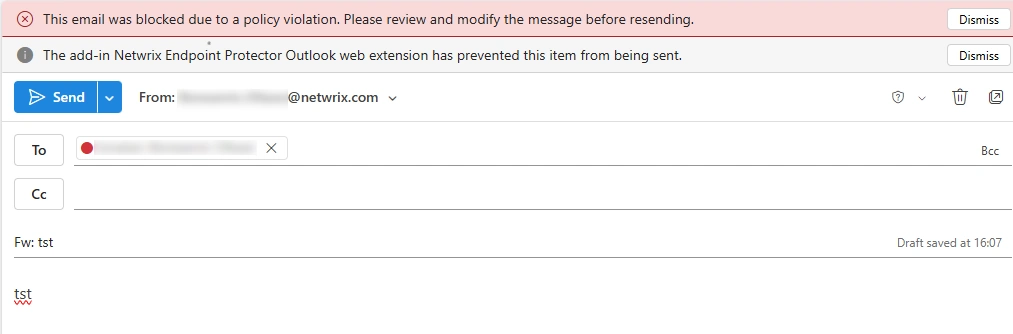
Manual Deployment Method
Netwrix doesn't recommend the manual deployment method because you must repeat it for each user account. Use this method for pilot phases, troubleshooting, or feature proofs of concept (PoCs).
This option is only available if your organization lets users add custom add-ins.
Refer to official Microsoft KB article: Use add-ins in Outlook
Steps:
- Host validators and icon files.
- Preconfigure manifest.xml as described in Pre-configuring add-in (manifest.xml).
- In your preferred browser, go to https://aka.ms/olksideload. This opens Outlook on the web and loads the Add-Ins for Outlook dialog after a few seconds.
- Select My add-ins.
- In the Custom Add-in's section, select Add a custom add-in, then choose Add from file.

- Select the XML file for the add-in.
- Select Open to install the add-in.
- After making changes, allow some time for them to propagate. According to Microsoft, this process can take anywhere from a few minutes to 24 hours.
Central Deployment Method
The central deployment method allows administrators to deploy the EPP New Outlook add-in in phases across global user populations. This approach helps minimize administrative effort and ensures a smooth implementation process. For detailed guidance, refer to the official Microsoft Knowledge Base (KB): Office add-ins.
To deploy the add-in through the Microsoft Admin Center (https://admin.microsoft.com/):
- Host validators and icon files.
- Preconfigure manifest.xml as described in Pre-configuring add-in (manifest.xml).
- Go to Settings → Integrated apps → Add-ins, select Deploy Add-in, and click Next.
- Choose Upload custom apps.
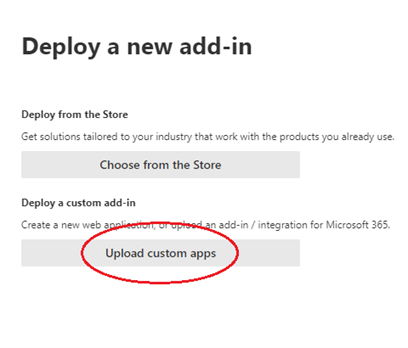
- Under Upload Apps to Deploy, choose the App type of Office Add-in, choose Upload manifest file (.xml) from device, and click Choose File.
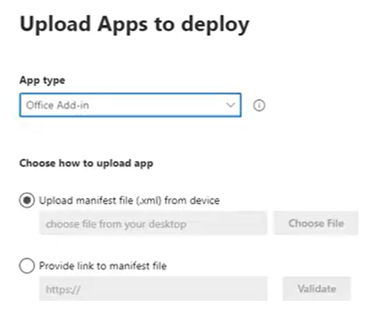
- After selecting the file and clicking Next, under Add users, choose Specific users/groups and use the search box to find the groups you want.

- When the list appears under To be added, click Next and then click Accept Permissions. Review the needed permissions and click Accept.
- Keep Deployment Method as Fixed (Default).
- Click Next and then Finish deployment.
- After making changes, allow some time for them to propagate. According to Microsoft, this process can take anywhere from a few minutes to 24 hours.
Upgrade scenario
If you need to apply an updated version of the New Outlook add-in provided by Netwrix, follow the steps described in Requirements.
Release notes for a given fix may indicate that only one of the component files has changed. In that case, repeat the configuration and hosting procedure only for that specific file. For example, New Outlook add-in version 1.1 requires updating only validator.js — reconfigure and rehost it by replacing the previous file.
After rehosting the updated New Outlook add-in, reboot the affected computers for the changes to take effect. Rebooting refreshes all cache and connections.