Denylists
Custom Content
Custom Content denylists are custom-defined lists of terms and expressions detected as sensitive content by Endpoint Protector, available for both Content Aware Protection and eDiscovery modules.
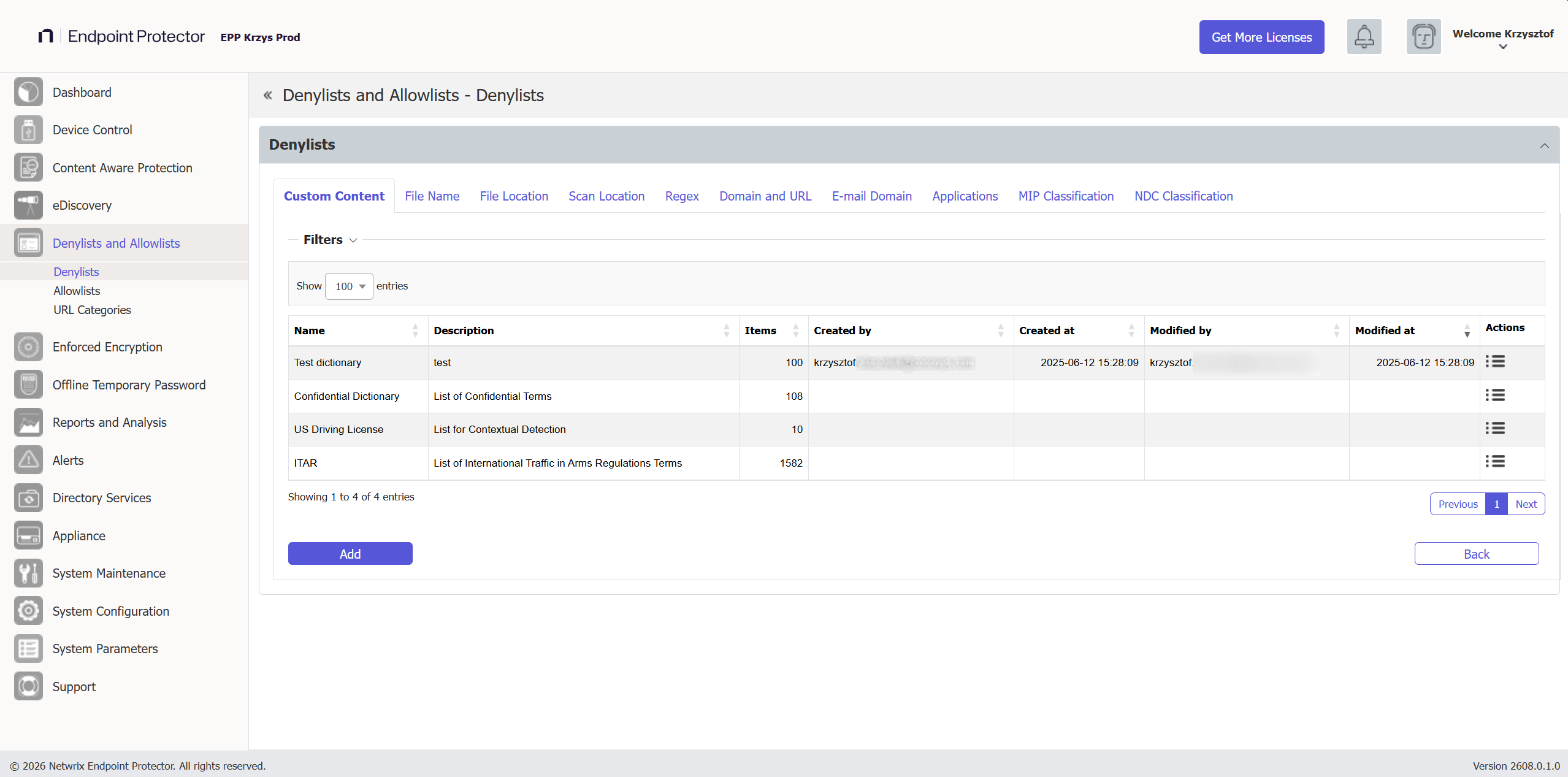
From this section, you can view and add e-mail custom content denylists and from the Actions column, you can edit, delete, or export an existing denylist.
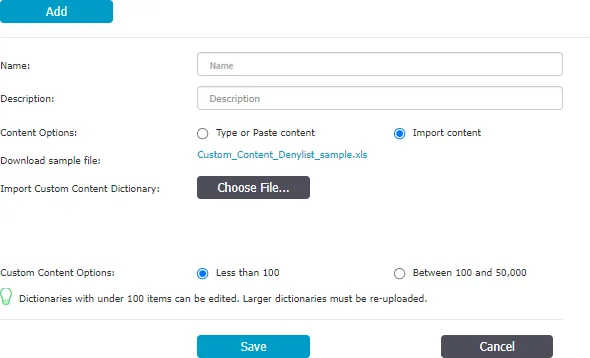
To create a new denylist, under the list of available denylists, click Add, provide a name and description and then type or paste items at least three characters separated by a new line, comma, or semicolon. You can import content using the sample file provided on the form and then select the option based on the number of uploaded items.
You can edit dictionaries of under 100 items, but you must upload larger dictionaries again.
After you create the denylist, it appears on the Custom Content list and is available when creating or editing a Content Aware Protection or eDiscovery policy.
Detecting Custom Document Classification Labels
Many third-party classification and labeling tools (such as Titus, Boldon James, Microsoft Purview Information Protection, or a custom in-house tool) write their classification labels as custom document properties in Office files (Word, Excel, PowerPoint). You can create a Custom Content dictionary that matches these labels, so Content Aware Protection detects and controls files based on their classification, even without native integration with the labeling tool.
To find the custom property value:
-
In the Office application, open the file, go to File → Info → Properties → Advanced Properties, and select the Custom tab. Note the property Name and Value you want to detect.
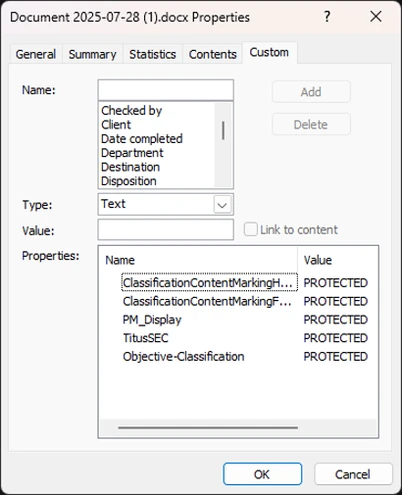
-
Alternatively, for a more detailed view, copy the file, rename its extension to
.zip, extract it, and opendocProps/custom.xml. The properties and their values appear as<property>entries.
To create the Custom Content dictionary:
- Navigate to Denylists → Custom Content.
- Click Add, provide a name and description, and enter the property value you identified (for example, the classification label text) as a dictionary entry.
- Save the dictionary and assign it to your Content Aware Protection policy.
This method matches the classification label as plain text content. For structured, native classification support, see Microsoft Information Protection or NDC Classification, which match specific document property fields directly.
File Name
File Name Denylists are custom-defined lists of file names detected by Endpoint Protector, available for both Content Aware Protection and eDiscovery modules.
From this section, you can view and add filename denylists and from the Actions column, you can edit, delete, or export an existing denylist.
To create a new denylist, under the list of available denylists, click Add, provide a name and description and then type or paste the file names separated by a new line, comma, or semicolon. You can import content using the sample file provided on the form.
You can define the content by adding the filename and extension, or just the extension.
Examples: Matching and Non-Matching for File Names like “example.pdf”:
- Matching – example.pdf, my_example.pdf
- Non-Matching – example.txt, myexample.txt, test.pdf, example.pdf.txt, test_example.pdf_test.zip
Examples: Matching and Non-Matching for File Extensions like “.epp”:
- Matching – test.epp, mail.epp, 123.epp
- Non-Matching – 123.epp.zip, mail.epp.txt
After you create the denylist, it appears on the File Name list and is available when creating or editing a Content Aware Protection or eDiscovery policy.
For Content Aware Protection, the File Name Denylists work only for Block & Report type Policies. The Case Sensitive and Whole Words Only features don't apply.

File Location
File Location Denylists are custom-defined lists of locations identified by Endpoint Protector. File transfers within this location are automatically blocked, regardless of the content inspection rules or permissions defined in various Policies.
File Location Denylists are available for both Content Aware Protection and eDiscovery modules.
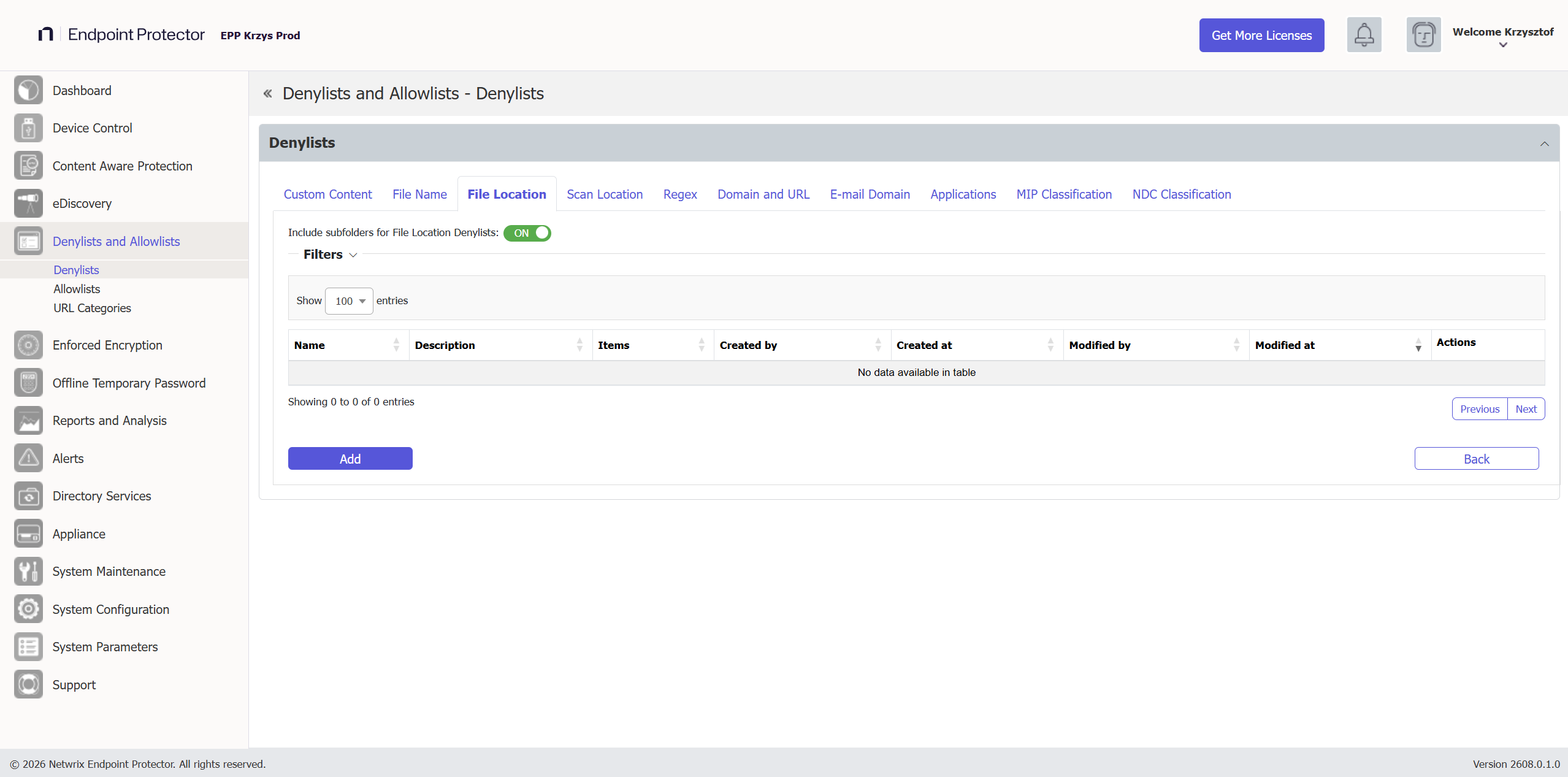
Enabling the option to Include subfolders for File Location Denylists will affect all other File Location Denylists and Allowlists throughout the system. By default, the File Location Denylists apply to all files located in the specific folder but also to any other files located in containing subfolders.
To use File Location Denylists, also select the browser or application for file transfers from within the Content Aware Protection Policy.
From this section, you can view and add file location denylists and from the Actions column, you can edit, delete, or export an existing denylist.
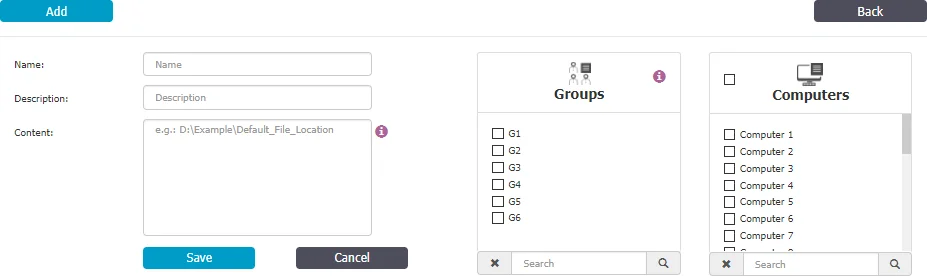
To create a new denylist, under the list of available denylists, click Add, provide a name and description, add the items separated by a new line, comma, or semicolon and then select the groups and computers.
File Location Denylist will not apply to groups of users, only to groups of computers. File Location Denylist will only apply for the selected computer groups after 15 minutes.
Known limitation: Location-based denylists and allowlists aren't reliable when Deep Packet Inspection (DPI) is active. DPI operates at the network level and identifies files by matching transferred data hashes against files on the local machine. If the same file exists in multiple locations, Endpoint Protector can't determine which copy was transferred, and location-based rules can't be applied.
You can use wildcard patterns in the File Location Denylists to specify wildcard matching. To match a desktop folder on Windows, use the pattern "?:\Users\*\Desktop".
Wildcards Usage Examples for File Location
| Wildcards Type | File Location | Results matched | Results not matched |
|---|---|---|---|
| Implicit | C:\temp | C:\temp\file.txt C:\temp\test\file2.txt C:\tempfile.txt | C:\temp1\file.txt C:\Windows\file.txt |
| Explicit | C:\Windows\* | C:\Windows\regedit.exe C:\Windows\system32\notepad.exe | C:\Windows.old\regedit.exe C:\Windows.old\system32\notepad.exe |
Scan Location
Scan Location Denylists are custom-defined lists of locations identified by the eDiscovery module. The eDiscovery module automatically inspects data at rest within this location for content, depending on the rules defined in various Policies.
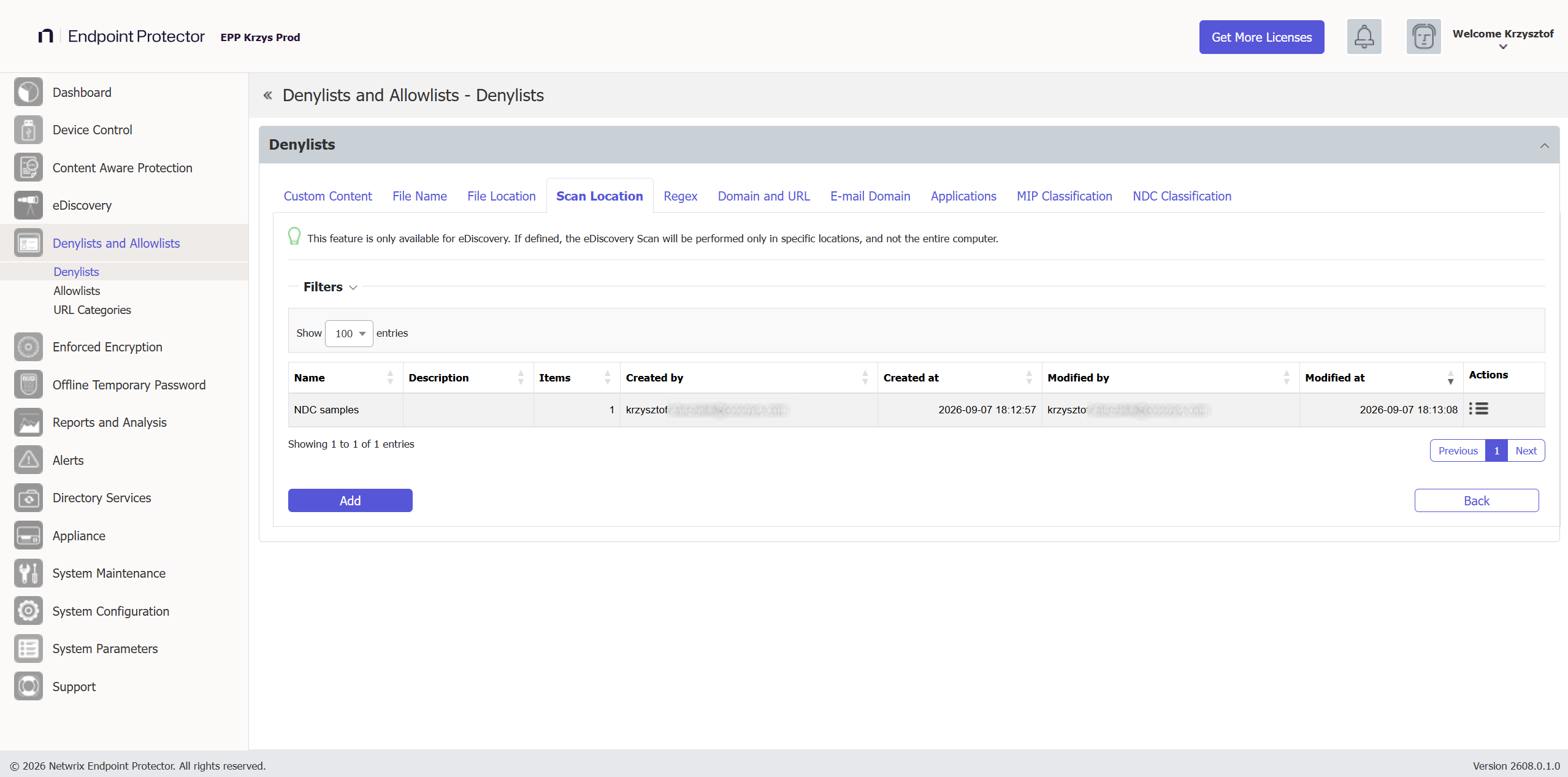
From this section, you can view and add scan location denylists and from the Actions column, you can edit or delete an existing denylist.
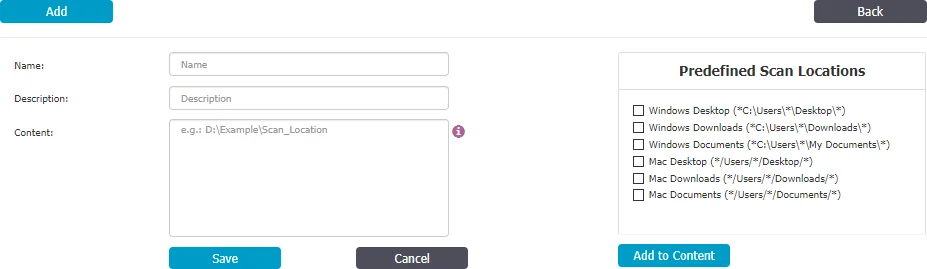
To create a new denylist, under the list of available denylists, click Add, provide a name and description, add the scan locations separated by a new line, comma, or semicolon or select from the Predefined Scan Locations and then Add to Content.
When defining a Scan Location, use these special characters to define the path:
- * - to replace any word
- ? - to replace any character
Regex
Regular Expressions are sequences of characters that form a search pattern, mainly for use in pattern matching with strings.
You can create a regular expression to find a certain recurrence in the data transferred across the protected network. Regex Denylists are available for both the Content Aware Protection and eDiscovery modules.
Avoid Regular Expressions when possible—their complexity increases resource usage and CPU load. Improper regex patterns can have negative effects.
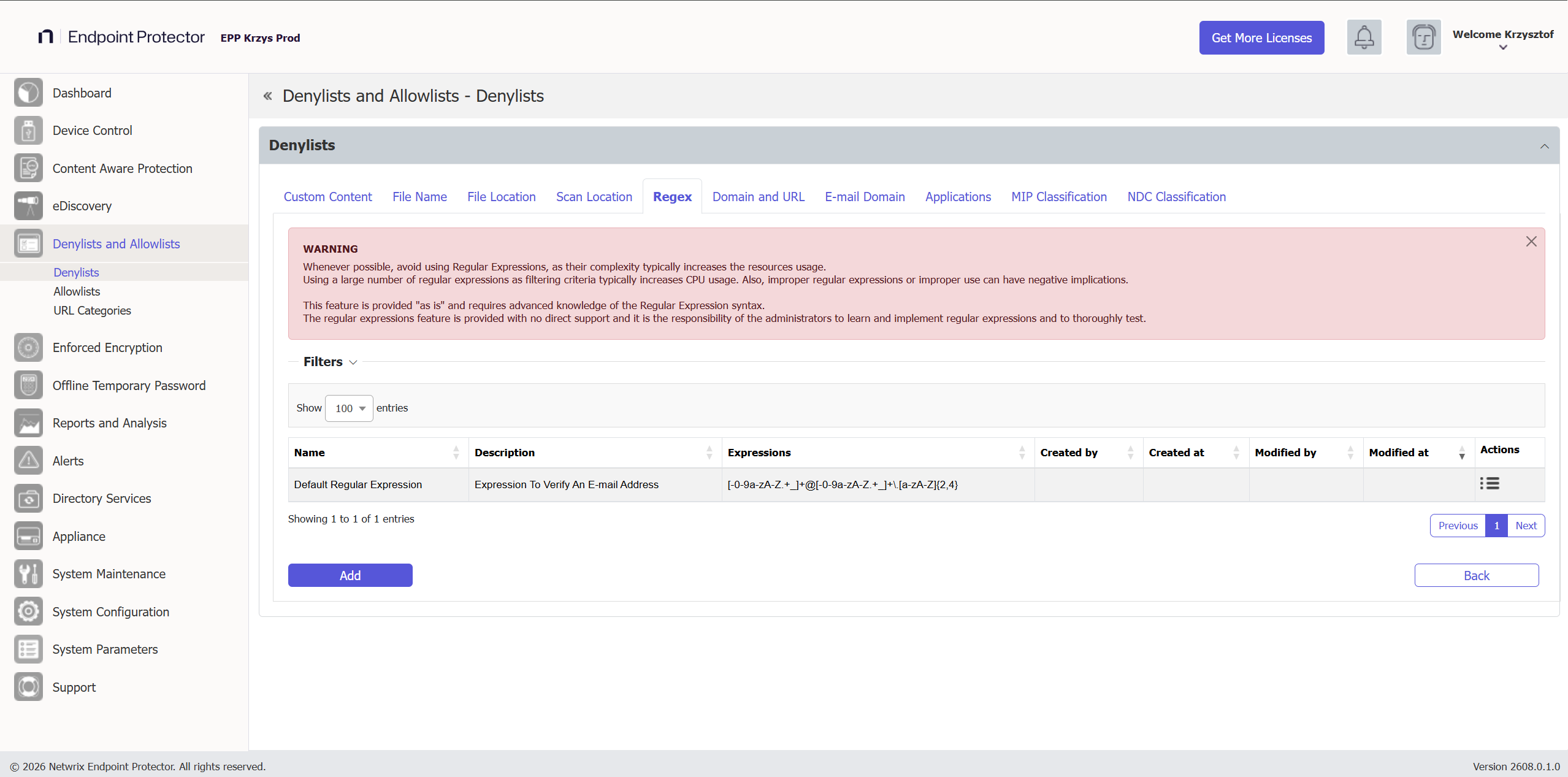
From this section, you can view and add regex expressions and from the Actions column, you can edit or delete an existing denylist.
To create a new denylist, under the list of available denylists, click Add, provide a name and description and then add the regex expression.
You can test a regular expression for accuracy using the right-side option. Add the content and then click Test. If the Regular Expression has no errors, then the same content should appear in the Matched content box:
- To match an E-mail –
[-0-9a-zA-Z.+_]+@[-0-9a-zA-Z.+_]+\.[a-zA-Z]{2,4} - To match an IP –
(25[0-5]|2[0-4][0-9]|[01]?[0-9][0-9]?)(\.(25[0-5]|2[0-4][0-9]|[01]?[0-9][0-9]?)){3}
Netwrix provides this feature “as is”, and it requires advanced knowledge of the Regular Expression syntax. Netwrix offers no direct support, and customers are responsible for learning, implementing, and thoroughly testing regular expressions.

Regex Supported Formats
Endpoint Protector supports both standard Regex syntax and Perl-Compatible Regular Expression (PCRE) extensions and modifiers. For example, you can use the (?i) modifier at the beginning of a regex pattern to make it case-insensitive during matching.
Case Sensitivity Options in Regular Expressions
Regular expressions let you control how text matching handles letter casing. Depending on your requirements, you can use case-sensitive, case-insensitive, or partially case-insensitive matching.
1. Case-Sensitive Matching (Default)
By default, Regex matching is case-sensitive. This means Endpoint Protector matches only text with the exact same casing.
Example:
Pattern: test@example\\.com
Matches: test@example.com
Doesn't match: TEST@EXAMPLE.COM or Test@Example.Com
2. Case-Insensitive Matching To make a Regex pattern case-insensitive, use the (?i) flag. This enables matching regardless of the case of letters in the input text.
Example:
Pattern: (?i)test@example\\.com
Matches: test@example.com, TEST@EXAMPLE.COM, Test@Example.Com
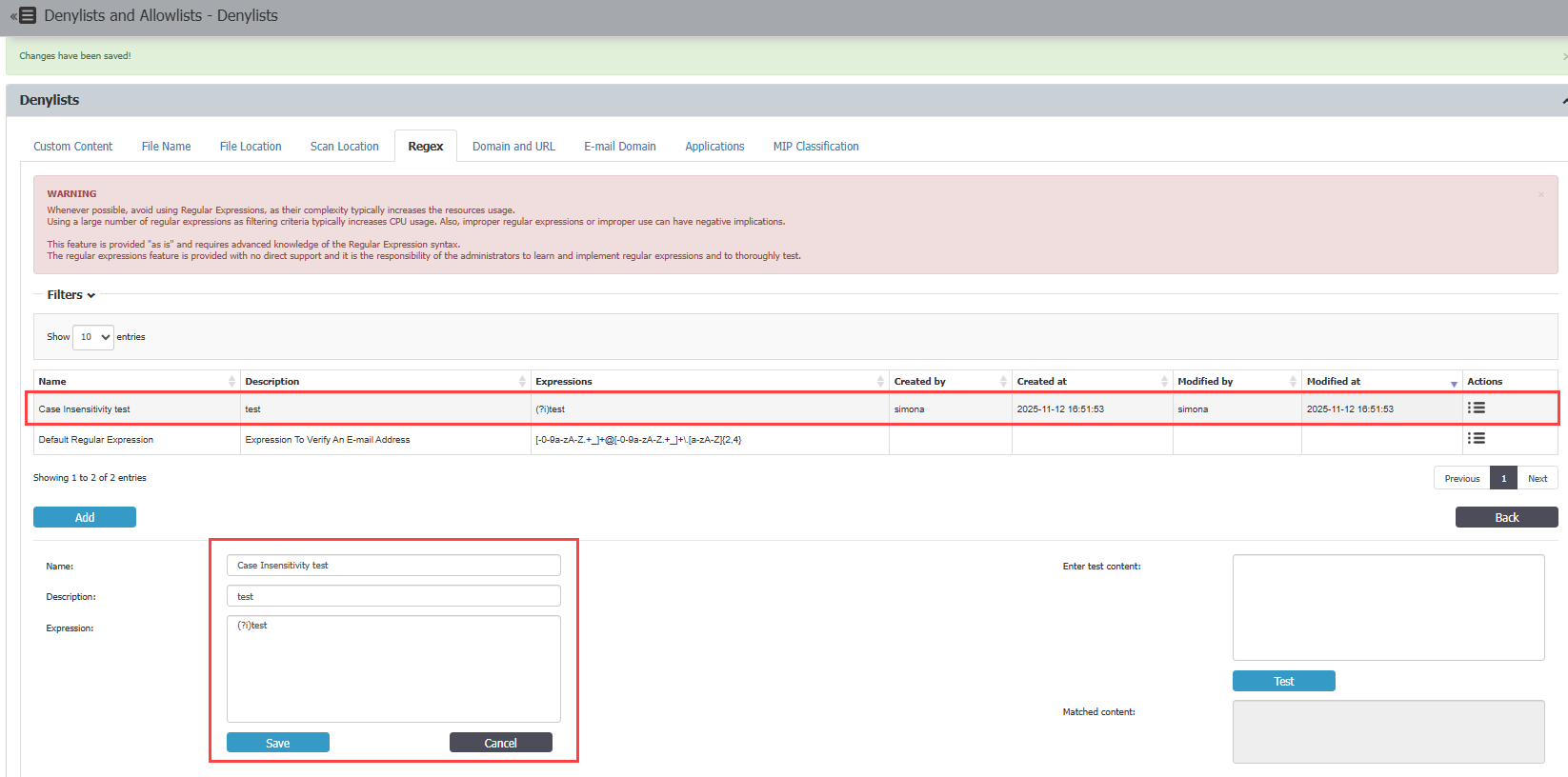
In the following example, the pattern '(?i)test' will match “test,” “Test,” “TEST,” and other variations, regardless of letter case, as follows:
- Define the Regex pattern, add it to the dictionary, and save it. Ensure the CAP Policy also includes it for proper application.
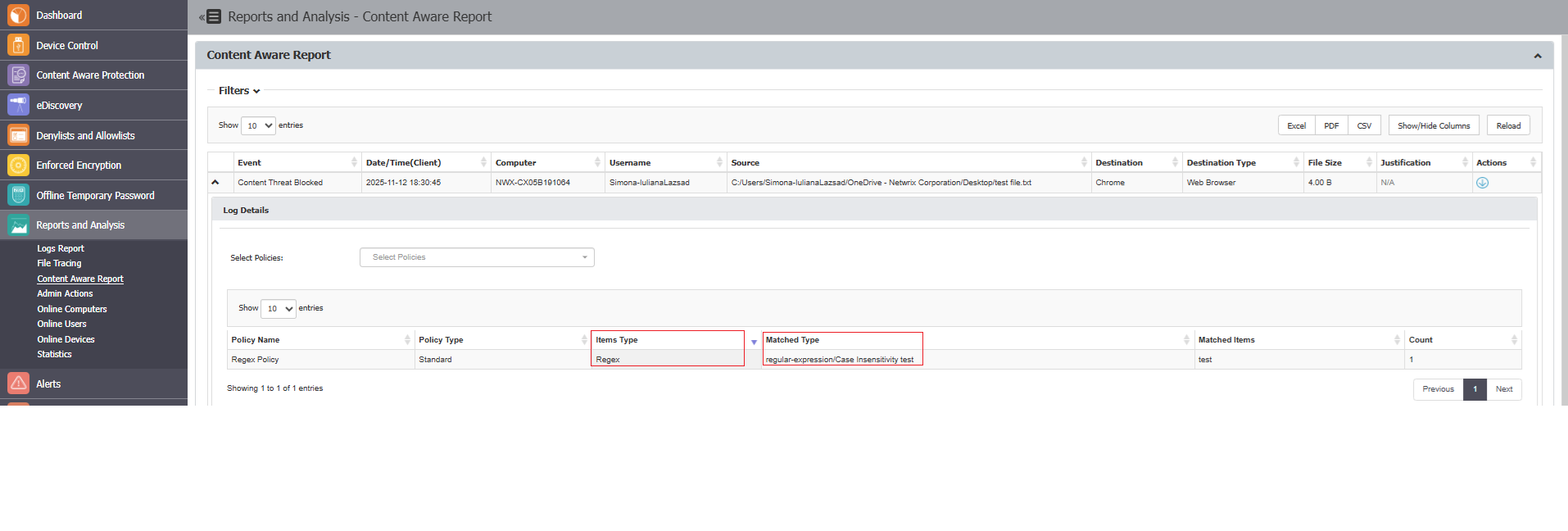
- The Content Aware Report confirms that the test has completed successfully and that case-insensitive matching is functioning as expected.
3. Partial Case-Insensitive Matching Regex also lets you apply case-insensitive matching only to specific parts of your pattern. You can enable and disable this mode using the following flags:
(?i)— enables case-insensitive mode(?-i)— disables case-insensitive mode
Example:
Pattern: (?i)confidential(?-i) document
Matches: "CONFIDENTIAL document", "Confidential document"
Doesn't match: "CONFIDENTIAL DOCUMENT"
Regex Operators
| Character | Description | Example |
|---|---|---|
| ˆ | Matches the start of a string or line. | ^abc matches “abc” only if it appears at the beginning of the line. |
| $ | Matches the end of a string or line. | abc$ matches “abc” only if it’s at the end of the line. |
| . | Matches any single character except newline (\n). | a.c matches “abc”, “axc”, etc. |
| * | Matches 0 or more occurrences of the preceding character or group. | bo* matches “b”, “bo”, “boo”, “booo”, etc. |
| [] | Defines a character class, matching any one of the enclosed characters. | [abc] matches “a”, “b”, or “c”. |
| [abc] | Any single character of a, b, or c | [abc] matches “a”, “b”, or “c”. |
| [ˆabc] | Any single character expect a, b, or c | It will match any single charact expect “a”, “b”, or “c”. |
| [a-z] | A character in range a-z | It will match single character in range of a – z. |
| [a-zA-Z] | A character in range a-z & A-Z | It will match single character in range of a – z & A - Z |
| \d | Any digit character | \d will match any digit 0-9 |
| | | Groups expressions together or captures them for backreferences. | (abc)+ matches one or more repetitions of “abc”. |
| () | Groups expressions together or captures them for backreferences. | (abc)+ matches one or more repetitions of “abc”. |
| \ | Used to escape special characters or indicate special sequences. | \. matches a literal period “.”; \d matches any digit. |
| (?i) | Enables case-insensitive matching. | (?i)abc matches “abc”, “ABC”, “AbC”, etc. |
| \s | Any whitespace character | |
| \S | Any non-whitespace character |
Domain and URL
Domain and URL Denylists are custom-defined lists of web addresses identified by Endpoint Protector. Endpoint Protector denies access to domains and URLs from these lists.
Domain and URL Denylists are available only for the Content Aware Protection module.
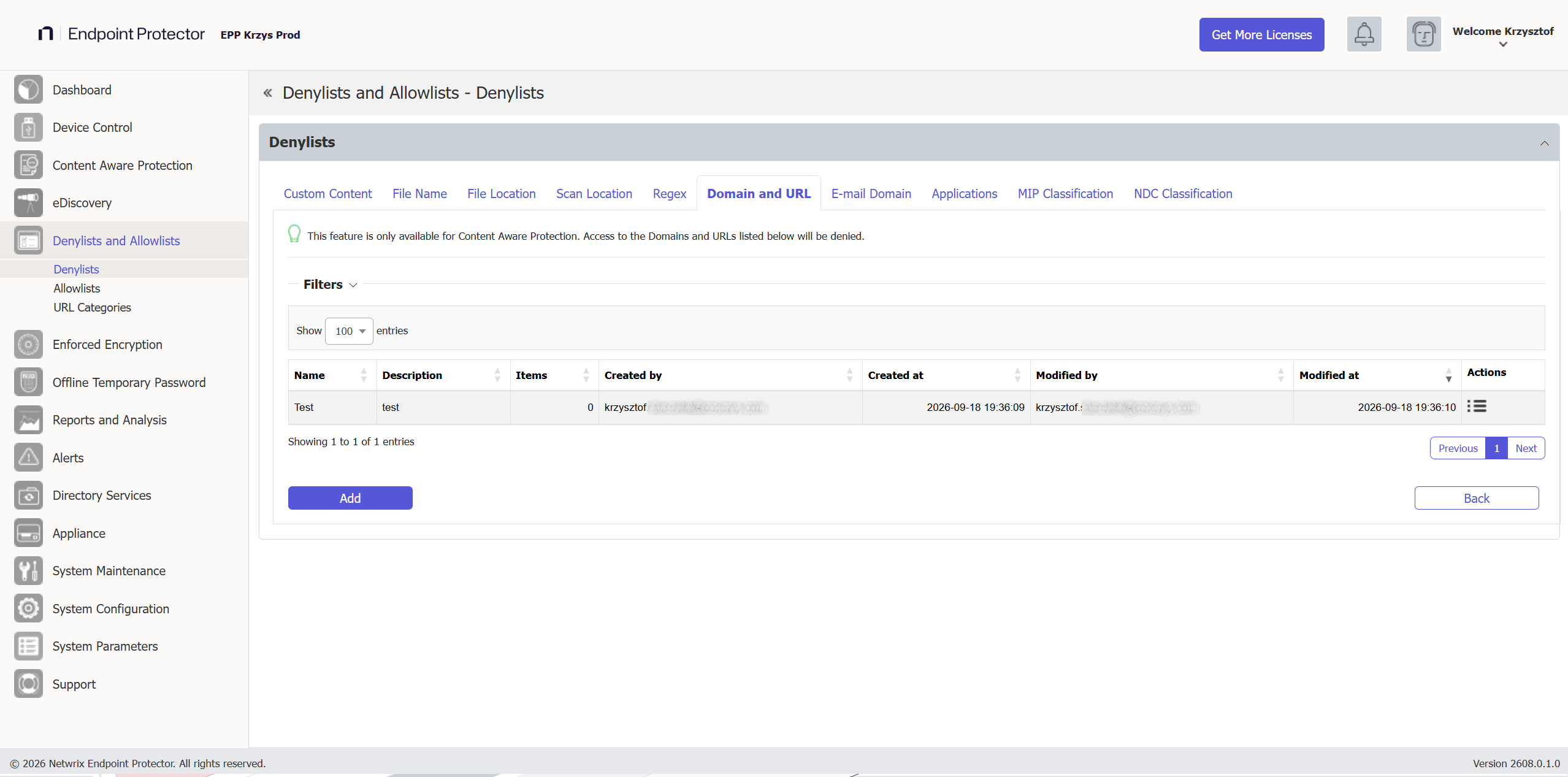
From this section, you can view and add domain and URL denylists and from the Actions column, you can edit, delete, or export an existing denylist.
To create a new denylist, under the list of available denylists, click Add, provide a name and description and then type or paste items separated by a new line, comma, or semicolon. You can import content using the sample file provided on the form.
You can create or import up to 100 lists of dictionaries, each dictionary comprising up to 50000 web domains.
You can edit dictionaries comprising up to 100 web domains, but you must import more extensive dictionaries again.
You can define the content by adding the file name, file name and extension, or just the extension - pdf, test1example.pdf. example.endpointprotector.com, *example.com, *example*example, https://website.com
After you create the denylist, it appears on the Domain and URL list and is available when creating or editing a Content Aware Protection policy.

E-mail Domain
E-mail Domain Denylists are custom-defined e-mail addresses and domains applicable to groups and computers that block the user from sending emails.
This feature blocks the user from sending emails regardless of content and type. As the denylist applies to the computer, not the policy, it blocks emails sent from the applications you select that have Report Only or Block and Remediate policies with no remediation possible.
This feature is only available for Content Aware Protection when Deep Packet Inspection is enabled and only impacts applications that retrieve the email recipients and are selected on Content Aware Protection Policy.
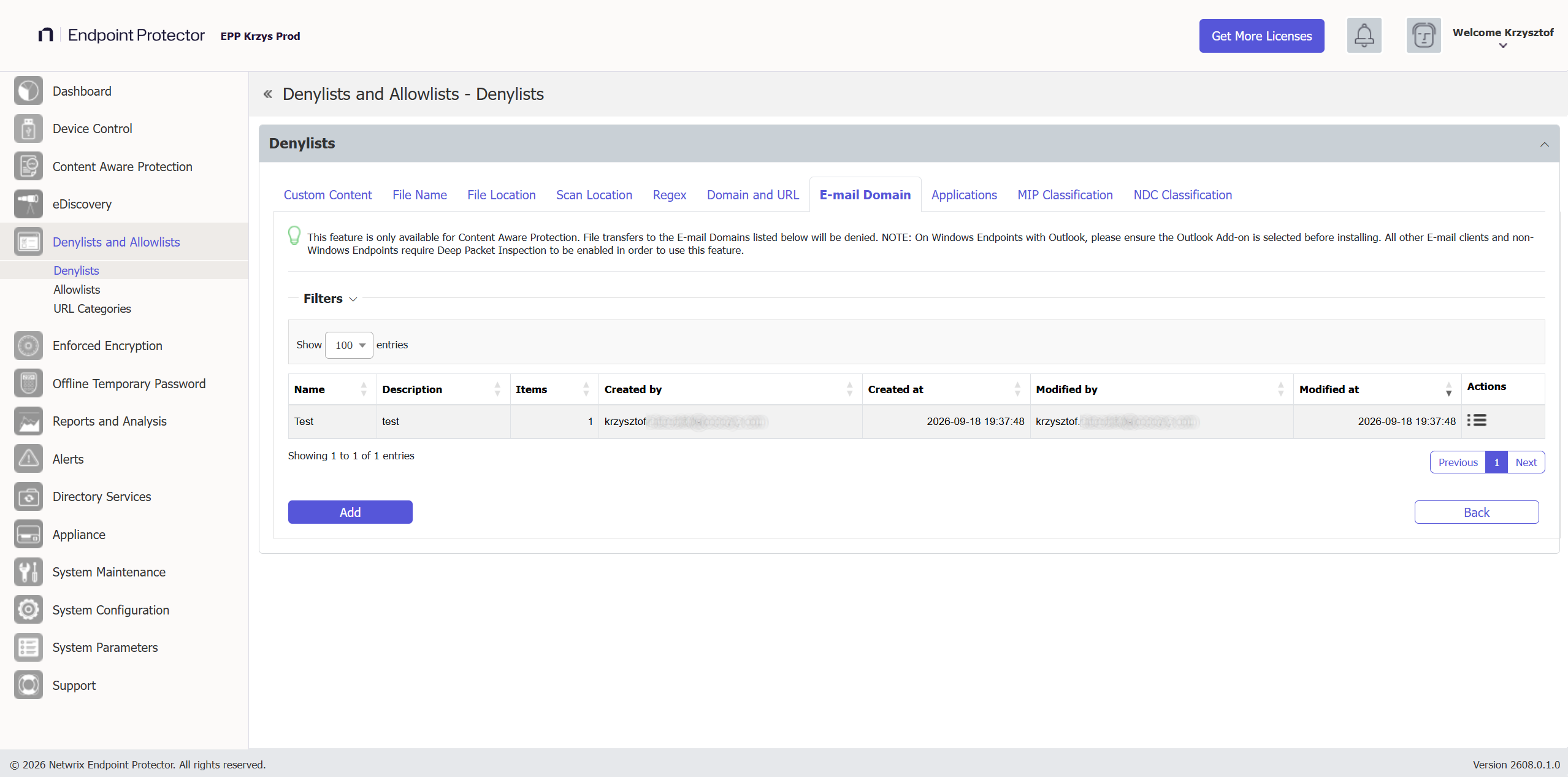
From this section, you can view and add e-mail domain denylists and from the Actions column, you can edit, delete, or export an existing e-mail domain denylist.
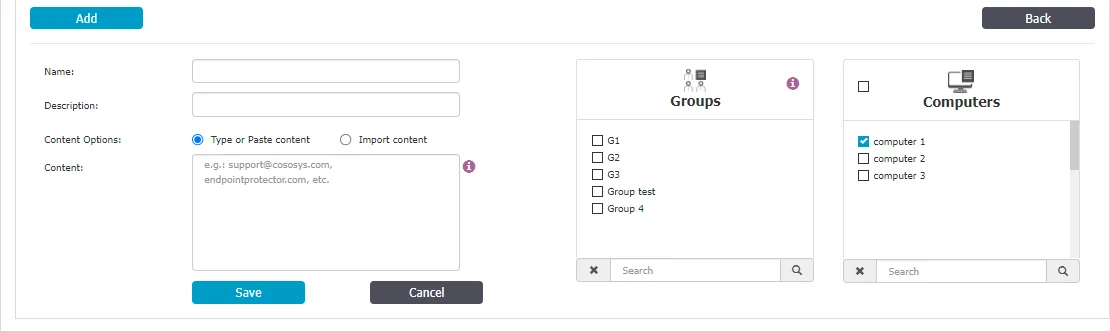
To create a new denylist, under the list of available denylists, click Add, provide a name and description, add the items separated by a new line, comma, or semicolon and then select the groups and computers. You can import content using the sample file provided on the form.
Applications
This section introduces the documentation related to CLI (Command Line Interface) commands denylists usage. CLI commands denylists give customers greater control over application start events and let them scrutinize the command line arguments used to launch specific applications. This functionality enhances the precision of CAP (Content Aware Protection) policies, enabling users to gain visibility and control over the usage of particular applications.
Example: Consider controlling the startup mode of an application, as illustrated by the following example for Google Chrome:
chrome.exe --incognito
With CLI commands denylists, you can define criteria for command line arguments that match specific application behaviors. This lets you create CAP policies tailored to your organization's needs, ensuring that the launch and behavior of applications align with your security and compliance requirements.
CAP visibility may not capture certain native command line utilities such as ls, md, and
cd, which are embedded in the Operating System Core. These commands are integral to the
functioning of the operating system, typically fall outside CAP policies, and aren't an
egress channel.
To define CLI command denylist policies:
Step 1 – Navigate to Denylists > Application tab in the Endpoint Protector Console.
Step 2 – Define your criteria based on the command line arguments used by the applications you want to control.
Step 3 – Incorporate these criteria into your CAP policies as arguments to ensure precise control and monitoring of application usage.
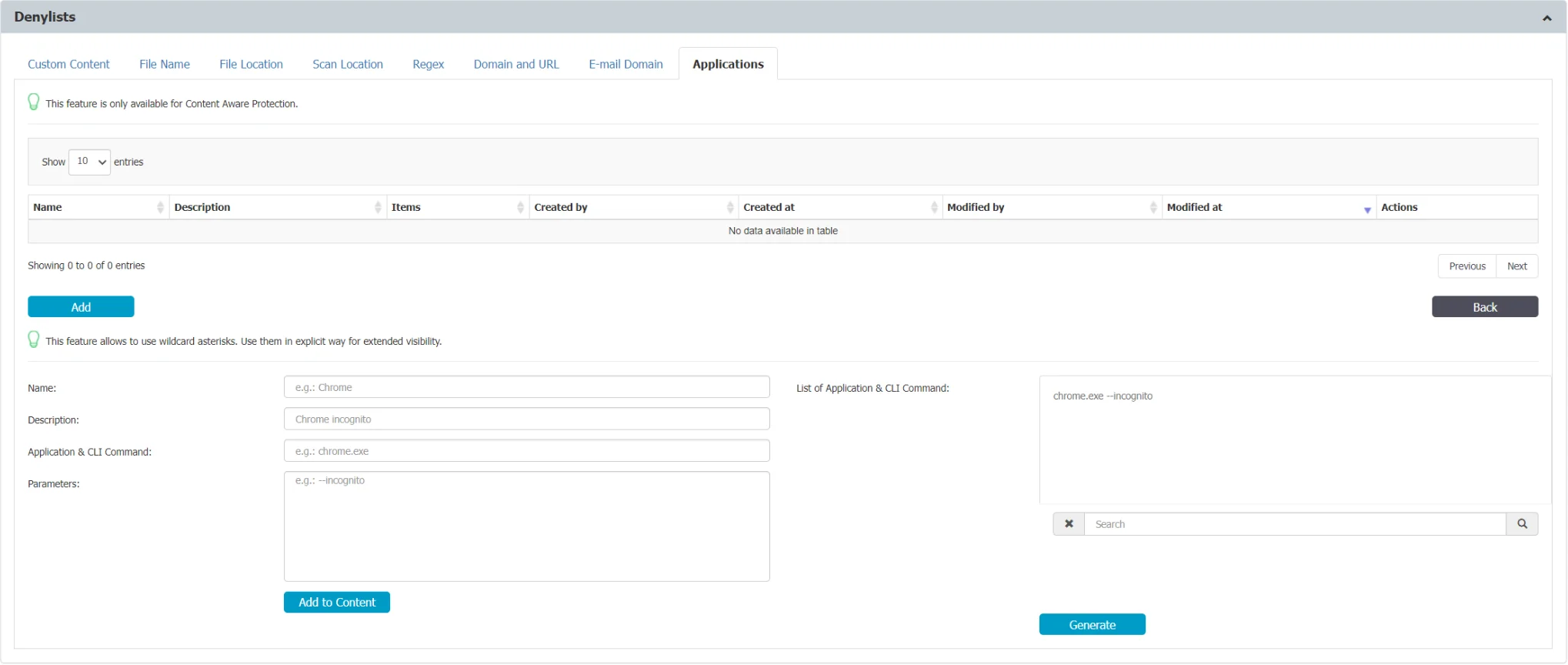
Follow these steps and use CLI commands denylists to enhance your organization's security posture and ensure applications comply with your policies and regulations.
The Endpoint Protector Client has limited visibility into activity within PowerShell and
PowerShell ISE environments, as well as basic command-line operations on macOS and Linux systems
(actions like touch, cp, cd, mv, and mkdir). To ensure Denylists entries match processes
with default parameters, use the wildcard character "*" at the end of the Application Name field
(e.g, notepad.exe *.
Microsoft Information Protection
This section covers the use of Microsoft Purview Information Protection (MPIP) (formerly known as Microsoft Information Protection (MIP) and Azure Information protection (AIP)), including classification within Endpoint Protector 5.9.4+ Content Aware Protection and eDiscovery policies.
MPIP is a Microsoft toolset enabling organizations to enforce data classification, file encryption, and Rights Management Services (RMS) on user data.
Since the 5.9.4 release, Endpoint Protector allows direct label definition for Content Aware Protection and eDiscovery policies via the Endpoint Protector Server interface.
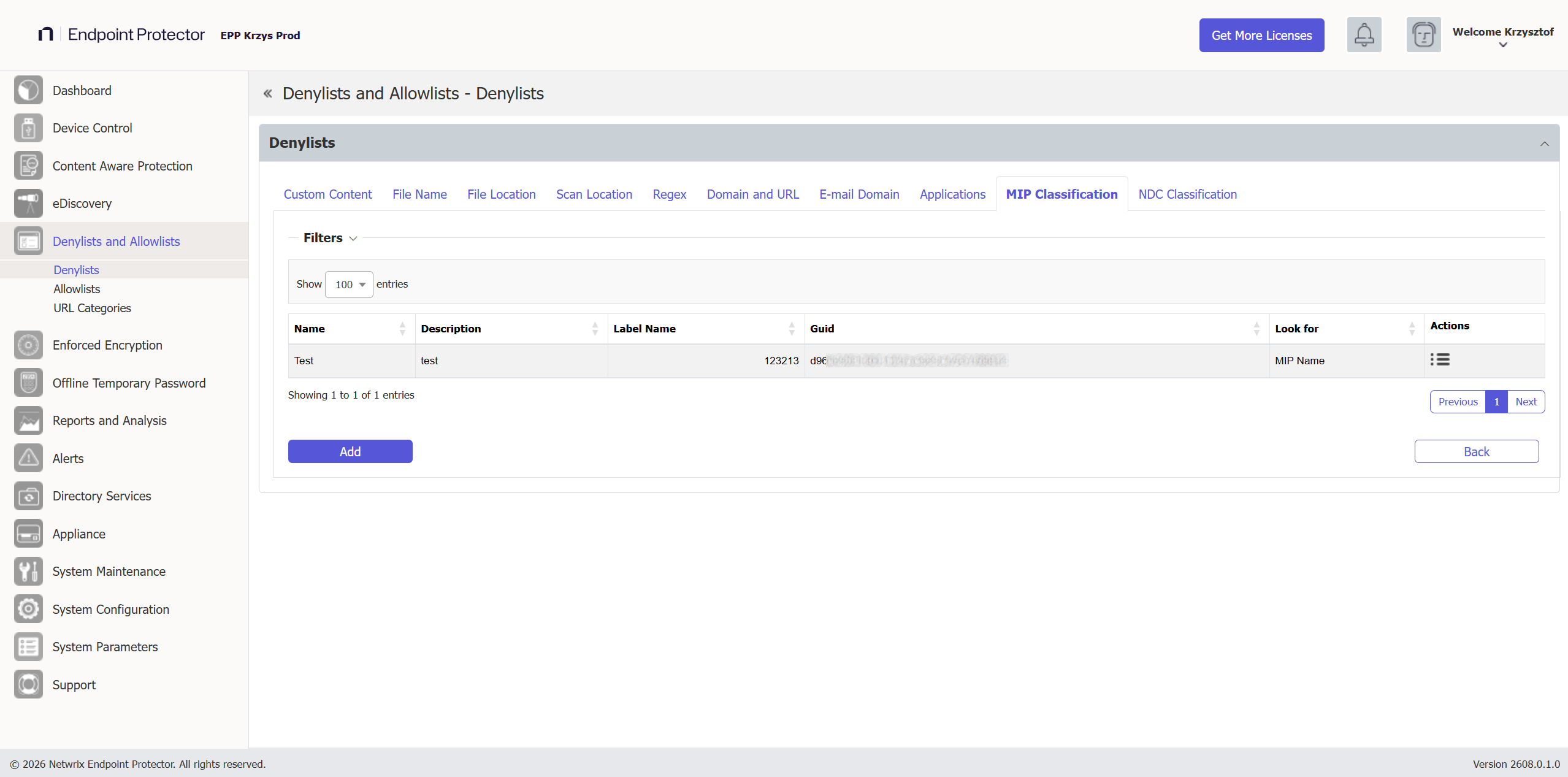
The Endpoint Protector Server offers three options for defining MIP labels:
- MIP Label Name – Specify the human-redable name of the MIP label.
- MIP GUID – use the unique identifier associated with the MIP label.
- Both – Combine both the label name and GUID for maximum accuracy.
This flexibility allows administrators to avoid creating custom dictionaries to recognize MIP-labeled files.
You can use MIP labels along with other CAP conditions, including content-aware and label-aware data scanning. This enables granular control over data protection based on MPIP classifications.
While Endpoint Protector can recognize MIP-encrypted files by their GUID (if they follow the latest MIP format used by office web tools labeling), Endpoint Protector doesn't yet support content-aware scanning for these files.
Endpoint Protector Server in Microsoft Entra (formerly Azure AD) applications is unnecessary. Endpoint Protector relies on information with labeled files. This might change in future releases.
NDC Classification
This section covers the use of and integration with Netwrix Data Classification (NDC), including classification within Content Aware Protection and eDiscovery policies.
Netwrix Data Classification helps organizations identify, categorize, and tag data based on predefined policies. With NDC, you can understand where sensitive data resides, how it is used, and who has access to it, which supports data security, regulatory compliance, and informed decision-making.
Starting with the 25.12 release, Endpoint Protector allows direct NDC label definition for Content Aware Protection and eDiscovery policies through the Endpoint Protector Server interface, so you don't need to build custom dictionaries to recognize labeled files.
Configure an NDC label
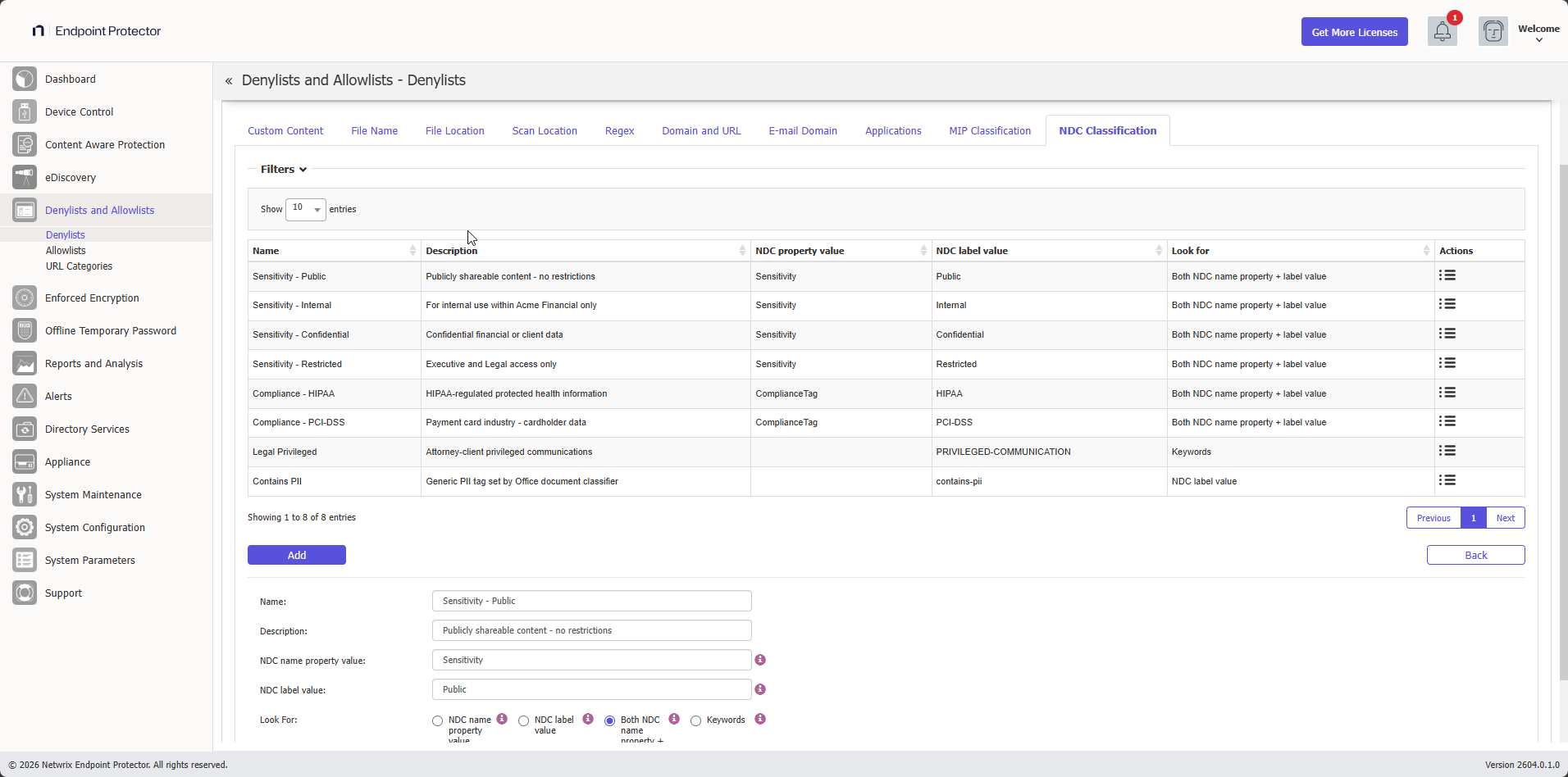
Each NDC entry in a denylist defines a single classification to match against Office document properties. Configure the following fields:
- Name — the name of the denylist entry.
- Description — an optional description of the entry.
- NDC name property value — the Field Name value defined in NDC. NDC stores this as a custom property name in the Office document. Obtain the value from your NDC administrator.
- NDC label value — the label value assigned in NDC. NDC stores this as a custom property value in the Office document. Obtain the value from your NDC administrator.
- Look for — controls which properties Endpoint Protector scans. See Look for options for the behavior of each choice.
Each NDC entry is uniquely identified by the combination of NDC name property value and NDC label value. You can configure multiple entries that share the same property name with different label values — for example, Sensitivity = Confidential and Sensitivity = Restricted.
Look for options
Use the Look for field to control how Endpoint Protector matches the classification on a scanned document:
- NDC name property value — scans only after you define the NDC name property value, and ignores all other properties. You can leave the NDC label value field empty.
- NDC label value — scans only after you define the NDC label value, and ignores all other properties. You can leave the NDC name property value field empty.
- Both NDC name property + label value — scans for both the NDC name property and the corresponding label value, as configured.
- Keywords — scans only for the NDC label in the Keywords document property, which supports alternative NDC label detection.
Only Endpoint Protector Client version 2605.x.x.x and later support the NDC labeling feature.