Administration and Access Control
Use this section to manage system administrators, their roles, and access permissions. It includes features for setting up account details, applying security measures such as Two-Factor Authentication (2FA), and overseeing administrator groups and system departments to ensure effective access control and system security. Administrator Groups and System Departments let you delegate administration by role, business unit, or region, so large, multi-location deployments can scope each administrator's access to only the entities they manage.
System Administrators
From this section you can view, create, manage, and delete administrators.
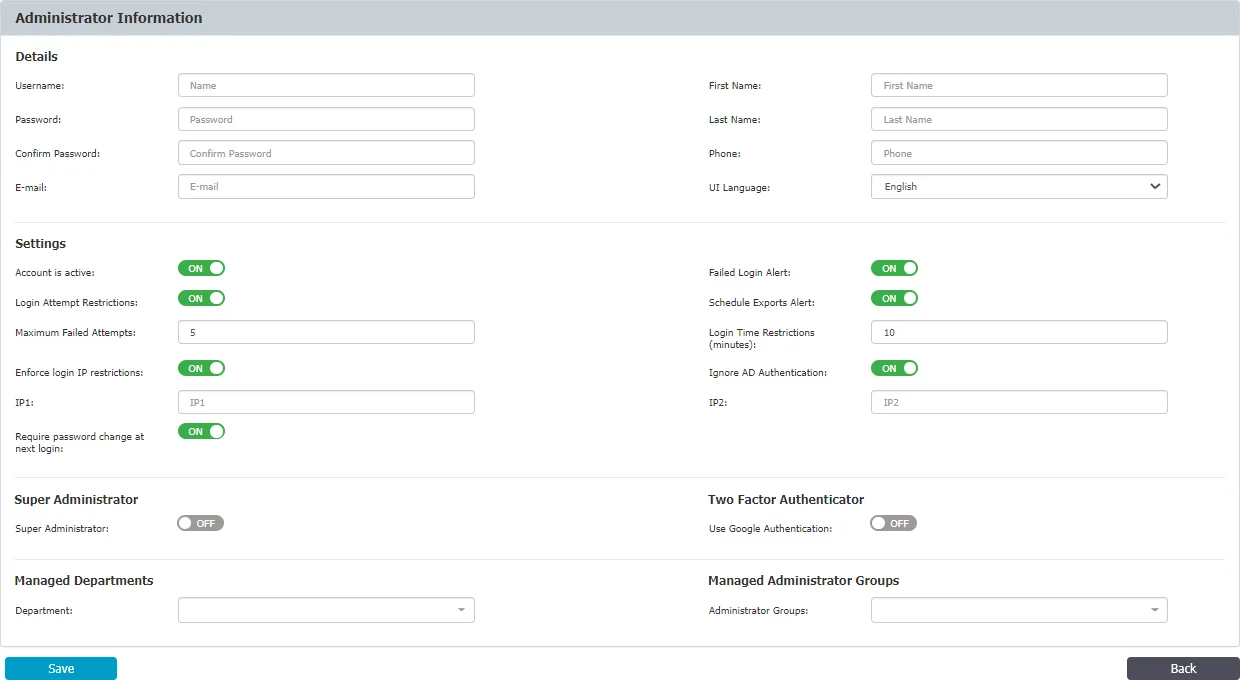
To create a new Administrator, under the table with existing administrators, click Create and then provide the following information:
Administrator Details
- Add the username, password, email, first name, last name, and phone number, and then select the UI language
Account Settings
- Account is active – manage the account status
- Login Attempt Restrictions – enforce a 5 to 10 minutes timeout for 5 to 10 unsuccessful login attempts before allowing another login attempt
- Enforce login IP restrictions – restrict login attempts from specific IP addresses
- Require password change at next login – request the administrator to change password at first login. After the administrator changes the password, Endpoint Protector automatically disables this setting.
Endpoint Protector ignores the Require password change at next login setting in the following situations:
- When you also enable the Enforce all administrator password security at next login setting from System Configuration, System Security, Endpoint Protector ignores and disables Require password change at next login after the administrator changes the password.
- For Active Directory imported users
- For SSO users (Azure and OKTA), the system hides the setting
- Failed Login Alert – receive alerts for any failed login
- Schedule Exports Alert – receive alerts on any scheduled exports
- Ignore AD Authentication – allow using AD credentials to login Endpoint Protector
Super Administrator Details
- Super Administrator – enable this section to grant the Administrator access to all Departments and Endpoint Protector sections
- Two Factor Authentication – enforce 2FA (Two-Factor Authentication) by using the Google Authenticator previously installed on your device
- Managed Departments – assign the Administrator to one or more departments
- Managed Administrators Groups – assign the Administrator to one or more Administrators Group
Administrator Types
The Super Administrator has complete control over the entire system. By enabling the Import users as super administrators settings in the Administration and Access Control section, you can grant Super Administrator privilege to all Azure Single Sign On imported users.
Super Administrators have access to:
- General Dashboard
- Effective Rights reports
- Device Control (manage)
- Content Aware Protection, including Deep Packet Inspection (manage)
- eDiscovery (manage)
- Denylists, Allowlists, and URL Categories (manage)
- Enforced Encryption (manage)
- Offline Temporary Password (manage)
- Reporting and Statistics (view)
- Administrative Actions (manage and view)
- Alerts (manage and view)
- Directory Services (manage and view)
- Appliance Configuration and SIEM Integration (manage and view)
- System Maintenance (manage and view)
- Systems Configuration (manage and view)
- Client Software, including Upgrade (download and view)
- System parameters (manage)
The Normal Administrator is a system user with normal privileges but some limitations. They can only manage entities belonging to the system departments for which they are responsible. You can allocate Normal Administrators to certain responsibilities inside Administrators Groups to further restrict access. For example, you can assign them to a Helpdesk group with specific duties such as Offline Temporary Password and Enforced Encryption, or restrict their permissions to specific modules such as Content Aware and Device Control.
Despite these restrictions, Normal Administrators have access to:
- Device Control (manage)
- Content Aware Protection, including Deep Packet Inspection (manage)
- eDiscovery (manage)
- Denylists (manage)
- Allowlists (manage)
- Offline Temporary Password (manage)
- Enforced Encryption (manage)
- Reporting and Statistics (view)
- Alerts (view and manage)
- Client Software, including Upgrade (download and view)
They can also control system parameters.
By assigning Normal Administrators specific roles and groups, an organization ensures that only those who need them can access sensitive data and tools, while still providing team members with the tools they need to manage the system efficiently.
Administrators Groups
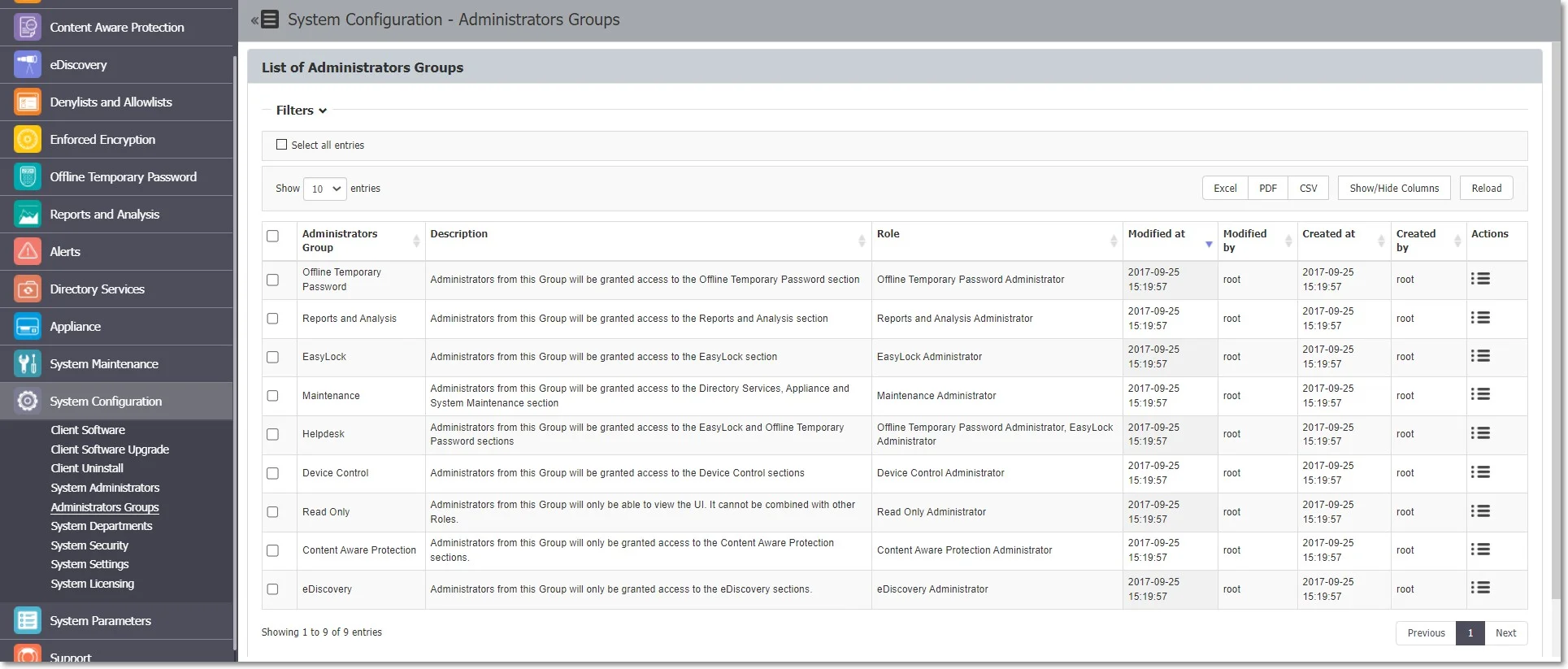
From this section you can create and manage Administrators Groups, granting Normal Administrators with access to specific Endpoint Protector sections.
Administrators added to these groups can only view and manage the sections the selected roles assign.
Endpoint Protector creates the following Administrators Groups by default:
- Offline Temporary Password Administrators – grants access only to the Offline Temporary Password section
- Reports and Analysis Administrators – grants access to the Reports and Analysis section
- Enforced Encryption Administrators – grants access only to the Enforced Encryption section
- Maintenance Administrators – grants access only to the Directory Services, as well as Appliance Configuration, SIEM Integration and System Maintenance.
- Helpdesk - grants access only to the Enforced Encryption and Offline Temporary Password sections
- Device Control Administrators – grants access only to the Device Control section
- Read Only Administrators – grants read only access to all Endpoint Protector sections
- Content Aware Protection Administrators – grants access to Content Aware Protection (including Deep Packet Inspection) as well as Denylists, Allowlists, and URL Categories.
- eDiscovery Administrators – grants access only to the eDiscovery section
To create a new Administrators Group, click Create and then provide the following information:
- Name – add a name for the new Administrators Group
- Roles – select one or more roles from the list
You can't combine the Read Only role with any other roles.
- Description – add a description of the new Administrators Group
- Select Administrators – add one or more Administrators to this group
You can also add Administrators to an Administrator Group when creating an Administrator from System Configuration, Systems Administrators section, on the Managed Administrators Groups field.
The Support section will always be available in Endpoint Protector regardless of the role you assign to the Administrator Group.
User Role Matrix
The Endpoint Protector User Role Matrix defines the many capabilities and permissions that Administrators have based on their role. This matrix ensures that users only have access to the features they need to fulfill their duties, boosting security and lowering the chance of unintentional changes or data breaches.
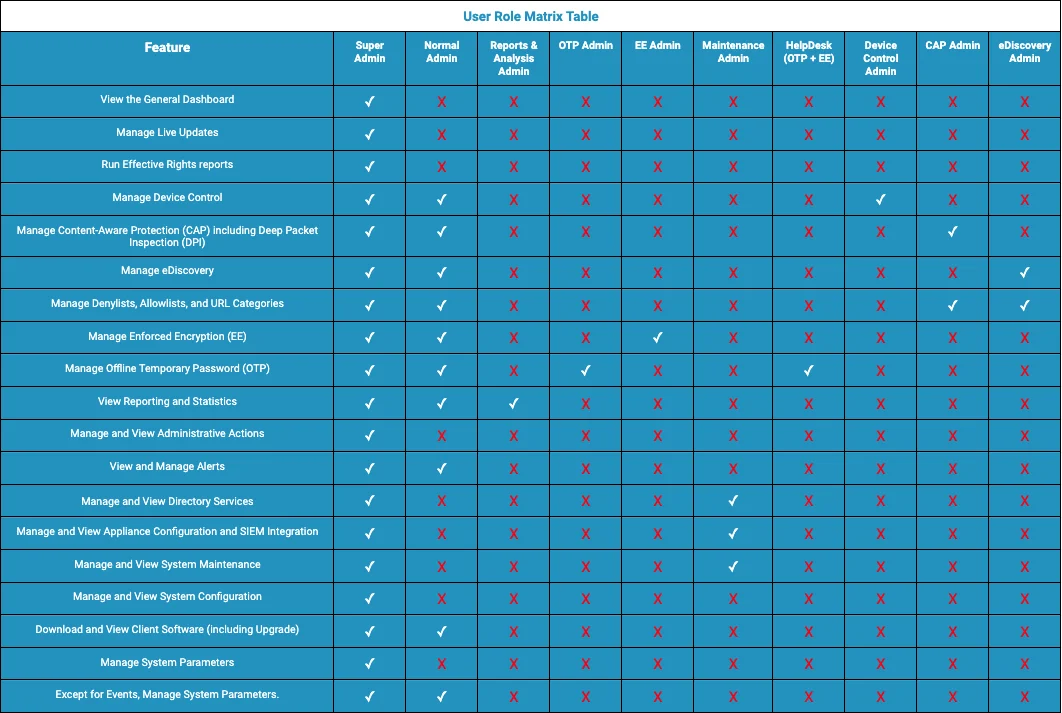
Endpoint Protector has several user roles, each with its own set of permissions. The Super Administrator role is the most powerful and has access to all features, whilst other roles have more restricted access based on their job tasks.
You can assign each role to a department. In read-only mode, users have viewing options only. This guarantees that they can obtain essential information but can't alter the system.
Two Factor Authentication
The Two Factor Authentication (2FA) allows the login process to include an extra step requesting a temporary code generated via the Google Authenticator app. With Two-Factor Authentication on, after you save the user creation or edit, Endpoint Protector redirects you to a verification screen.
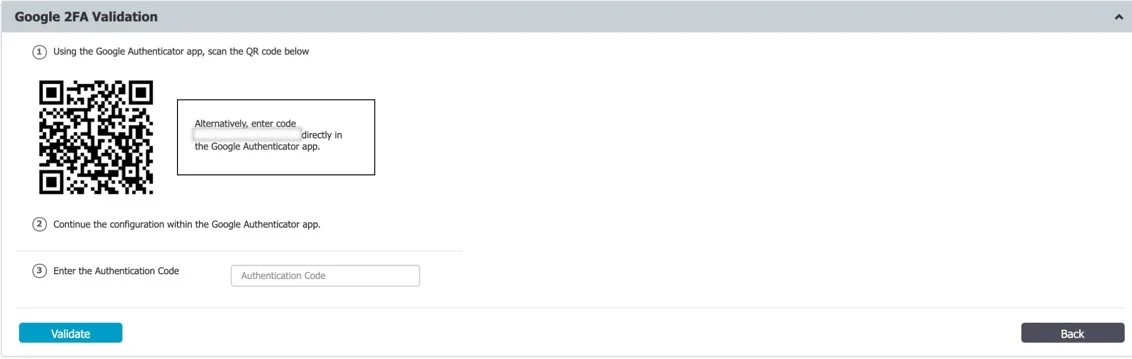
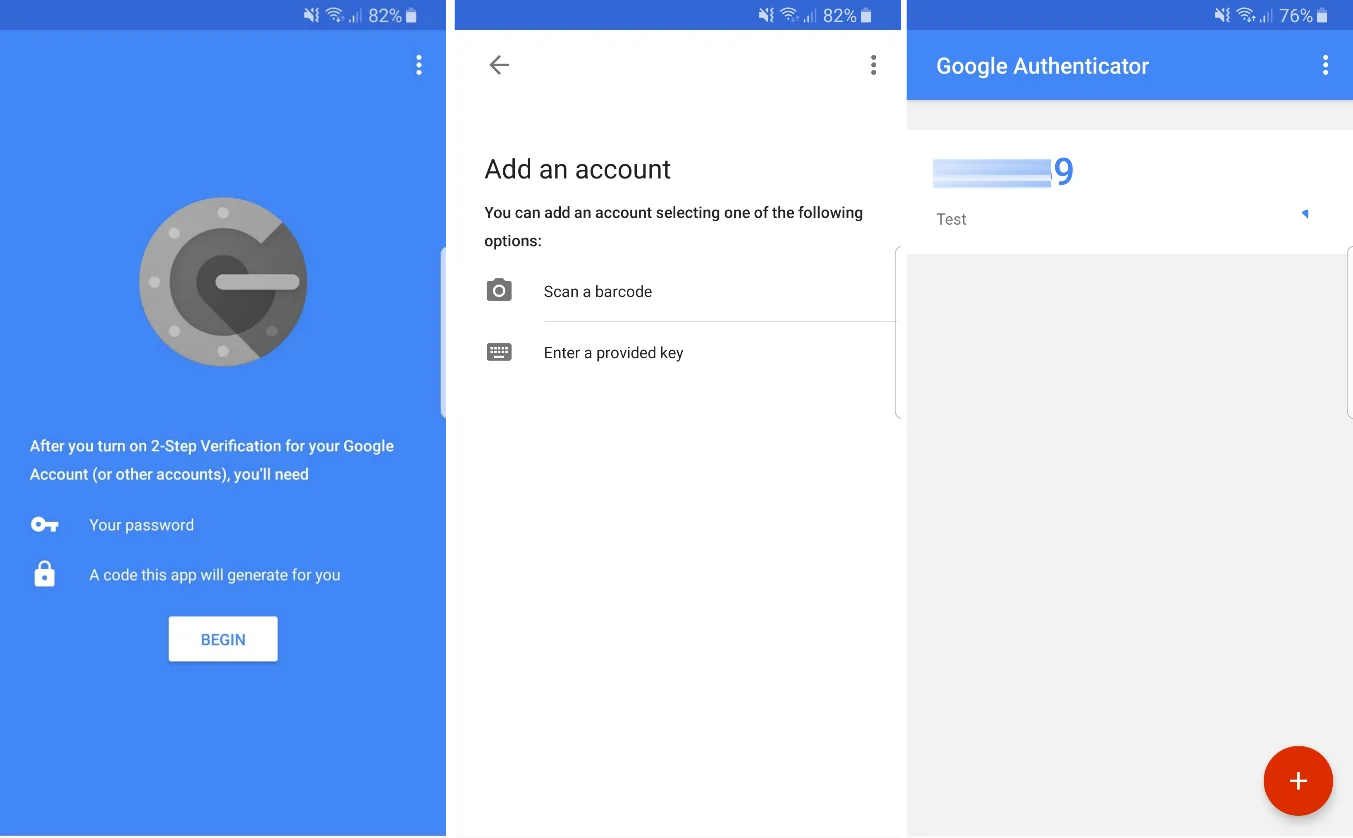
The Google Authenticator app will ask you to register using a unique code or QR Code. Following the registration process, Endpoint Protector adds your account to the list with a validity timer for the unique code it uses as the second authentication factor.
System Departments
Use this section to create and manage System Departments.
Using System Departments is optional. Endpoint Protector works well with only the Default Department (defdep). Moreover, using Devices, Computers, Users, and Groups (the entities also available in AD) covers most scenarios.
The functionality becomes useful mainly in large installations, with a high number of Administrators and, where strict regulatory compliance rules are in place. Under these circumstances, you can create departments, allowing each Normal Administrator to manage only their own entities.
Don't confuse this functionality with Groups of computers and users, or with administrators’ roles.
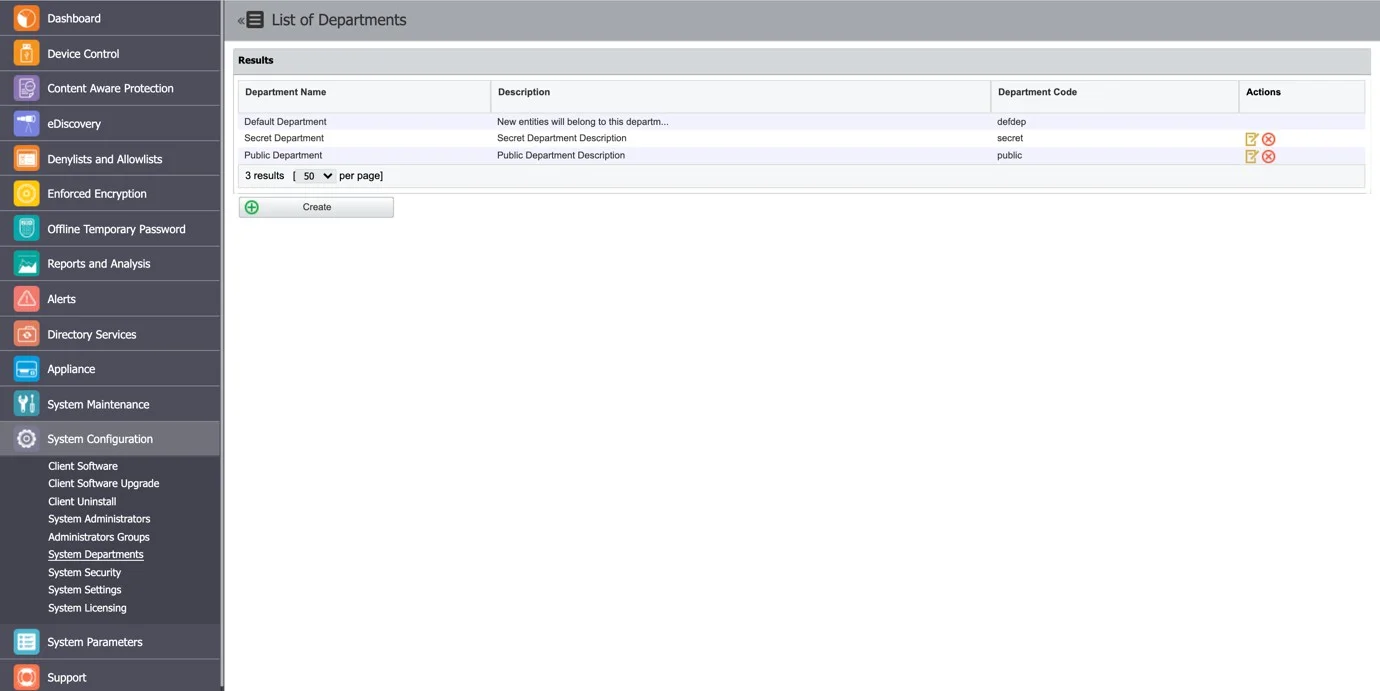
To create a new department click Create and then provide a name, description, and unique code.
If you provide a wrong department code or none at all, Endpoint Protector considers the department code invalid and assigns that computer to the default department (defdep).

In Endpoint Protector terminology, a Department is similar to an Organization Unit in Active Directory (or any other directory service software). The Organization Unit isn't identical to the Department, and Endpoint Protector leaves the power to the Super Administrator to virtually link one or more Organization Units to an Endpoint Protector Department.
Each entity (e.g.: computer) must belong to a department. When deploying the Endpoint Protector Client, if Endpoint Protector finds a department with the given code, the computer registers and belongs to that department.
Example: Computer Test-PC registers to the department “developers”. In this case, the user Test logged on that computer belongs to the same department, together with the devices connected on the computer Test-PC.
Super Administrators (e.g.: root) (see Administrator Types) will have access to all the main entities regardless of their departments. They will also be able to create departments, as well as Normal Administrators or Administrators with other roles. Super Administrators will also be responsible for assigning administrators to manage departments.
A regular administrator can only manage the departments a Super Administrator assigned to it. It can't see entities relating to other departments.