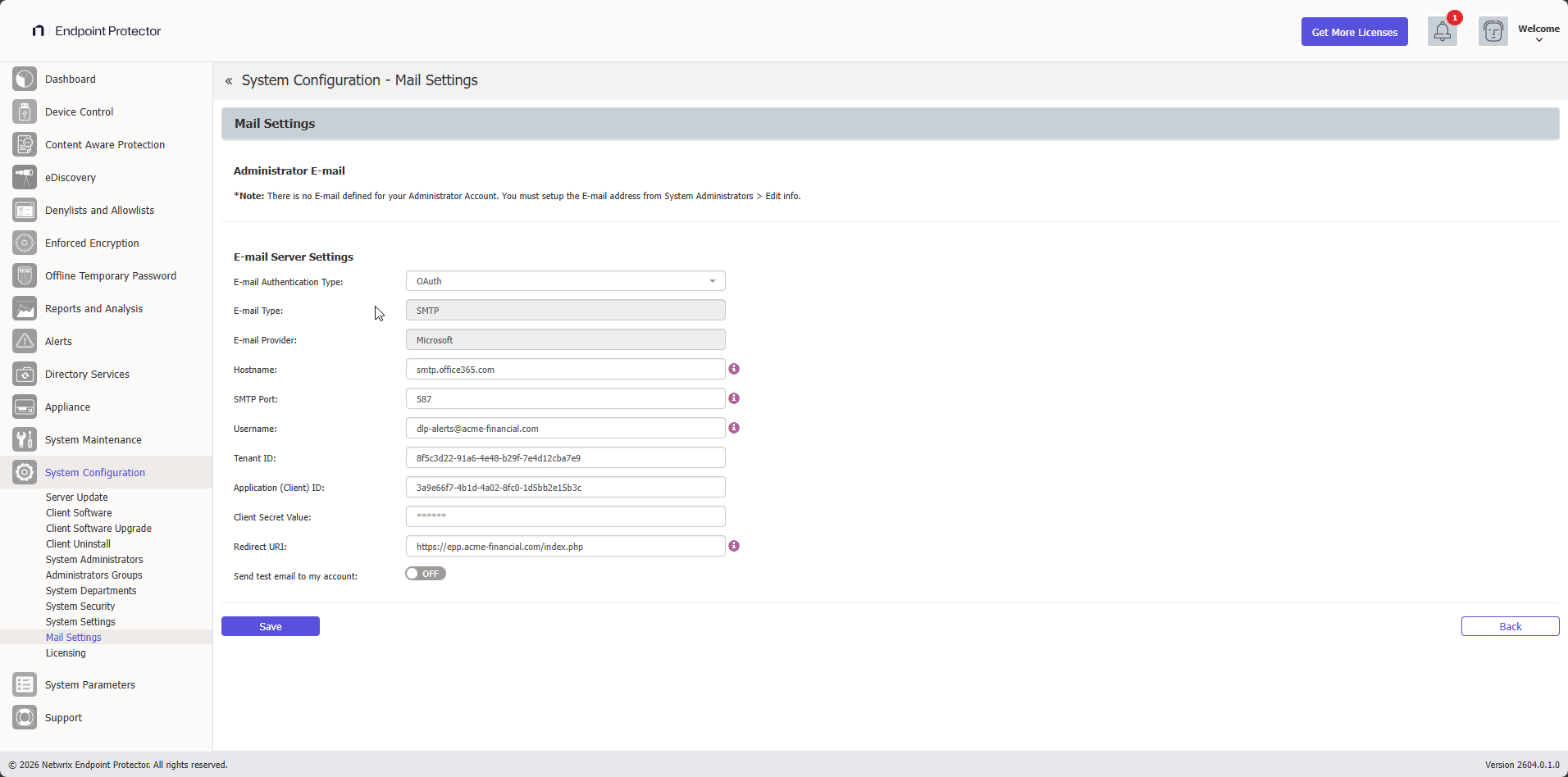
Mail Settings
From this section, you can configure the email server settings that Endpoint Protector uses to send notifications, alerts, and test emails.
E-mail Authorization Required
When OAuth is selected as the E-mail Authentication Type, authorization is required to complete the email setup. Click Sign In to grant Endpoint Protector access to send emails on your behalf.
Administrator E-mail
Endpoint Protector sends the test email to the address configured for your administrator account. If no email address is set, you see the message: "There is no e-mail defined for your Administrator Account. You must set up the e-mail address from System Administrators > Edit info".
To set an email address, go to System Configuration > System Administrators and select Edit info.
E-mail Server Settings
Configure the email server that Endpoint Protector uses to send notifications and alerts.
An active Internet connection is required to use this feature.
E-mail Authentication Type
Use the E-mail Authentication Type dropdown to select how Endpoint Protector authenticates with the email server:
- Basic — standard username and password authentication. Supports native and SMTP email types. Endpoint Protector negotiates TLS automatically, using TLS 1.3 where available and falling back to TLS 1.2 otherwise.
- OAuth — OAuth 2.0 authentication for Microsoft Exchange Online. Use this option to comply with Microsoft's deprecation of Basic Auth for SMTP AUTH.
Basic authentication
When Basic is selected, configure the following fields:
- E-mail Type — select Native or SMTP
- Hostname
- SMTP Port
- Username
- Password
OAuth authentication
When OAuth is selected, configure the following fields:
- E-mail Type — SMTP (read-only)
- E-mail Provider — Microsoft (read-only)
- Hostname — recommended:
smtp.office365.com - SMTP Port — recommended:
587 - Username
- Tenant ID
- Application (Client) ID
- Client Secret Value
- Redirect URI — must match the redirect URI registered in your Microsoft Azure application
After filling in all fields, click Sign In to complete OAuth authorization.
The redirect URI saved in Mail Settings must exactly match the redirect URI registered in your Microsoft Azure application.
Microsoft Azure prerequisites
OAuth is supported for Microsoft Exchange Online. Your subscription must be one of the following:
- Microsoft 365 Business Basic, Standard, or Premium
- Office 365 E1, E3, or E5
- Microsoft 365 E3 or E5
- Exchange Online Plan 1 or 2
Step 1 – In the Microsoft Admin Center, go to Users > Active Users, select the user, and then go to Mail > Manage email apps. Enable Authenticated SMTP.
Step 2 – In Microsoft Azure, go to your app Overview > Manage > Redirect URIs. Click Add a platform, select Web, and enter the redirect URI (for example, https://192.168.0.2/index.php).
Step 3 – Go to Client Credentials > Client Secrets. Create a new client secret and copy the value.
Step 4 – Go to API Permissions > Add a permission > Microsoft Graph > Delegated Permissions. Select SMTP.Send and offline_access, then click Grant admin consent for the selected permissions.
Mail Server Logs
From the Mail Server Logs tab you can review the errors captured when Endpoint Protector tries to send a message through the configured email server. Use this view to troubleshoot delivery failures directly from the UI instead of opening a shell on the appliance.
Access the logs from System Configuration > Mail Settings > Mail Server Logs tab.
Log columns
| Column | Description |
|---|---|
| Authentication Type | Whether the send attempt used Basic or OAuth authentication |
| Status | Status of the captured event (error for all entries) |
| Log Message | Human-readable error, including the SMTP return code or OAuth error code reported by the server |
| Registered at | Server timestamp when the error was captured |
| Mail Settings | Click the row to expand and review the mail server configuration in effect at the time of the error |
What gets logged
The tab captures the following error categories when encountered during a send attempt:
- DNS / hostname resolution failures — for example, Couldn't resolve hostname
smtp.office365.com - Connection timeouts — for example, Connection timed out after 30 seconds while connecting to
smtp.office365.com:587 - TLS/SSL handshake failures — for example, TLS handshake failed - peer certificate validation error
- SMTP server return codes — including authentication failures (
535), invalid recipients (550), service throttling (421), and policy rejections (554) - OAuth errors — Microsoft Azure error codes such as
AADSTS50011(redirect URI mismatch),AADSTS700082(refresh token expired), andAADSTS7000215(invalid client secret)
Row details
Click any row to expand it and review the Mail Settings snapshot that was active at the time of the error. The snapshot includes:
- Basic entries — Hostname, SMTP Port, Username, Encryption Type
- OAuth entries — Hostname, SMTP Port, Username, Tenant ID, Application (Client) ID, Redirect URI
The Client Secret and the OAuth access and refresh tokens are never written to the logs.
Supplemental log files
Errors are also written to log files on the appliance for additional context and for cases not captured by the UI:
| Scenario | Log file |
|---|---|
| OAuth errors and SMTP errors over SSL/TLS | /var/eppfiles/epp_logger/epp_mail.log |
| Basic authentication using SMTP with TLS 1.3 | /var/log/mail.log |
Basic authentication errors that occur over SMTP with TLS 1.3 are written only to /var/log/mail.log and aren't shown in the Mail Server Logs tab. To review those errors, open the file directly on the appliance.
UI messages
The following messages are displayed during email configuration and testing:
| Situation | Message |
|---|---|
| Test email sent successfully | A test e-mail was sent to <address> |
| No administrator email configured | There is no e-mail defined for your Administrator Account. You must set up the e-mail address from System Administrators > Edit info |
| Test email failed to send | Failed to send the test e-mail! verify if the E-mail Server Settings are correct! |
| OAuth authorization failed | Email authorization failed! check the provided credentials and try again! |
| Settings saved successfully | Changes have been saved! |
| OAuth authorization completed | Your email has been verified. Authorization complete! |
| Error saving settings | Can't execute command! An error occurred! |