System Settings
From this section, you can manage general settings that apply to the entire Endpoint Protector system. The Endpoint Protector Configuration Wizard pre-configures some of these settings during initial setup. You can adjust these settings to customize system behavior, security protocols, user access, and integrations to meet your organization’s needs.
Department Usage
Select an option to grant access for clients based on the Department Code. You can also view the Default Department code - defdep.
For more information, see the System Settings topic.

Session Settings
You can modify the following session timeout settings:
- Session Timeout – set the amount of time, between 5 and 60 minutes, that the user can remain inactive before the session expires
- Timeout counter – set the length of the session timeout countdown, between 5 seconds and Session Timeout minus one minute
Example: If you set the Session Timeout to 5 minutes and the Timeout counter to 60 seconds, after 4 minutes of inactivity a pop-up window notifies you that Endpoint Protector will log you out in 60 seconds.

After you remain idle for the defined amount of time, Endpoint Protector stops responding and displays a message that indicates the session will expire in the predefined countdown.
You can log out, or continue your session to reset the session timeout interval.

Endpoint Protector Rights Functionality
Set functionality rights for computer, user, or both, in which case you can prioritize user rights or computer rights.

Smart Groups
Manage settings related to Smart Groups, Default Groups for Computers or Users.
Smart Groups are dynamic groups whose membership you can define based on an element name pattern.
- Enable Smart Groups – when you disable this setting, Endpoint Protector converts Smart Groups to regular groups with no entities assigned and removes the Default Group for Computers and the Default Group for Users.
- Enable Default Group for Computers – creates a default group for computers containing all computers that aren't part of a Smart Group.
Disabling this setting deletes the Default Group for Computers.
- Enable Default Group for Users – creates a default group for users containing all users that aren't part of a Smart Group.
Disabling this setting deletes the Default Group for Users.
Smart Group sync job interval: the default configured time is 60 min. You can configure an interval between 15 and 1440 minutes.

Client Update Mechanism
Configure the client update settings to optimize update performance by specifying a custom hostname and port.
- Use custom hostname: Enter a custom hostname to tailor the client update URL.
- Use custom port: Specify a custom port for generating the client update download link, instead of using the default port 443.
Ensure that your specified hostname and port settings comply with your network policies and any security requirements.

Custom Settings
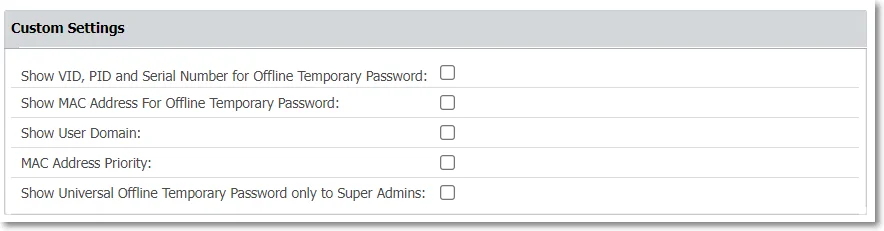
To display more information in Endpoint Protector, enable the following:
- Show VID, PID, and Serial Number for Offline Temporary Password
- Show MAC Address for Offline Temporary Password
- Show User Domain
- MAC Address Priority
- Show Universal Offline Temporary Password only to Super Admins
Log Settings
Manage the following log settings:
- Set the Maximum number of rows in millions to export the Logs Report in .csv format.
Setting the maximum number of rows to 1.0 exports 1 million logs in the Logs Report .csv export, since one row corresponds with one log.
If the server has partitions for logs, also select the dates when making the export.
- Reporting V2 – enabled by default, use this setting to modify the Content Aware Report log structure and display information in Destination details, Email sender, and Email subject columns.
For Endpoint Protector Server versions older than 5.7.0.0, Endpoint Protector doesn't enable the Reporting V2 setting by default.
SIEM also reflects the structure that this setting enables.
- Set the Maximum number of reported threats per event to display in the Content Aware Report log structure, expanded Log Details section, in the Count column.
You can set a number of reported threats between 100 and 1000.
- Enable Log Rotate After – sets how long Endpoint Protector keeps logs on the server, in months. The default is three months. Log rotation runs every five minutes and deletes Device Control, Content Aware Protection, and eDiscovery logs older than the retention period, together with their associated file shadows. For example, setting this option to 6 keeps six months of logs and removes anything older. Enter a value between 1 and 360 months. There's no option to turn log rotation off once it's active — 1 month is the shortest retention period you can configure, and Endpoint Protector rejects a value of 0.
Endpoint Protector 2608 enables this setting by default. Earlier server versions kept these logs indefinitely unless an administrator removed them manually or through Audit Log Backup, which can delete logs from the server as it archives them. The first rotation cycle runs within five minutes of the server starting, so Endpoint Protector deletes any logs already older than the configured period at that point — export anything you need to keep before you upgrade. Review this value as soon as you migrate and configure it to match your organization's retention needs. If you must retain log data for compliance beyond the configured period, export it regularly through Reports and Analysis > Export Logs and store the exports separately — don't rely on server-side log storage for long-term compliance evidence, since you can't disable log rotation to keep data on the server indefinitely.
- Show old logs structure – displays logs collected before the migration to the 2608 database structure. Enabling this option adds an Export Audit Logs tab and makes the legacy Audit Log Backup sections visible. Leave it disabled if the server holds no pre-migration logs.

Log Settings Use Case and Terminology
- Log request - sent by the Endpoint Protector Client
- Event - scan result of a scanned document
- Threat - matched item (e.g. US SSN)
Log request:
- event1.0 (scan result of a scanned document) => 1000 threats before splitting events
- event1.1 => 500 threats
- event2.0 => 200 threats
- up to 100 events
Example: Value set to 500. 3 documents containing 1,500; 600; and 200 threats are subject to Content Aware Protection policies.
The Endpoint Protector Client will send a single log request.
Log request:
- event1.0 (scan result of a scanned document) => 500 threats => splitting event
- event1.1 (scan result of a scanned document) => 500 threats => splitting event (second log entry in the reports)
- event1.2 (scan result of a scanned document) => 500 threats (third log entry in the reports)
- event2.0 (scan result of a scanned document) => 500 threats => splitting event
- event2.1 (scan result of a scanned document) => 100 threats (second log entry in the reports)
- event3.0 (scan result of a scanned document) => 200 threats
- up to 100 events
Content Aware Protection – Ignore Thresholds
Enable the Ignore Thresholds setting to log all sensitive information from scanned files with a threat count from 1 to 100,000, as limited in the Maximum number of reported threats field for Content Aware Protection Block policies.
This will increase the amount of logging and potentially affect client and server performance.
The Limit Reporting Content Aware Protection setting has priority over Ignore Thresholds setting. If you enable Limit Reporting Content Aware Protection, reporting stops when the threat count reaches the threshold.
Endpoint Protector automatically modifies the maximum number of reported threats as follows:
| User Input | Input Updated |
|---|---|
| 0 | 1 |

Limit Reporting Content Aware Protection refers to Report Only policies.
- When you enable this setting, the Endpoint Protector client stops reporting threats for a Report Only policy after it finds enough threats to satisfy the policy.
The "Content Aware Protection - Ignore Thresholds" toggle refers to Block & Report policies.
- When this toggle is On, scanning continues past a block verdict and reports further threats found in a transfer.
- To limit the number of reported threats in this case, set the "Maximum number of reported threats" setting to a value greater than zero. The value you set only indicates the number of reported threats; the actual number reported can be slightly larger.
The ‘Ignore Thresholds’ setting ignores and overrides the ‘Global/Threat Threshold’ values in Content Aware Protection policies when the Boolean logic of the Content Aware Protection policy contains at least one “AND” operator. A policy triggers when one or more matches per identifier satisfy the Boolean logic (see the following example).
Eg. ( E-mail AND SSN US) OR CC Visa
Example - Scenario 1
-
Content Aware Protection Policy:
- Block & Report
- Threat Threshold: 4
- Content Detection Rule: (E-mail AND SSN US) OR CC Visa
-
Ignore Thresholds: ON
- Maximum number of reported threats: 10
-
Limit Reporting: OFF
-
Test File contains
- E-mail: 2
- SSN US: 3
- CC Visa: 6
- IBAN: 22
In this example, the policy will trigger when the policy is satisfied (Boolean logic), regardless of the ‘Threat Threshold’, due to the ‘AND’ operator in the policy. Depending on the data structure in the test file, Endpoint Protector Client may report different 10 threats to Endpoint Protector Server
- 2 E-mails + 2 SSN US + 6 CC Visa
- or 1 E-mail + 3 SSN US + 6 CC Visa
- Etc.
Endpoint Protector doesn't report identifiers that aren't part of the Boolean logic in a Content Aware Protection policy.
Generally, a Content Aware Protection policy (Block & Report) will trigger when the Boolean logic of the policy is satisfied. However, with ‘Ignore Thresholds’ enabled and with 1+ ‘AND’ operators in the policy, the scan engine will ignore the ‘Threat Threshold’ setting and continue the scan until it reaches a total of 10 threats, regardless of whether you enable “Limit Reporting” (under DEVICE CONTROL - Global Settings).
Generally, a Content Aware Protection policy (Report only) will trigger when the Boolean logic of the policy is satisfied. However, with ‘Ignore Thresholds’ enabled and with 1+ ‘AND’ operators in the policy, the scan engine will ignore the ‘Threat Threshold’ setting. If you enable “Limit Reporting” (under DEVICE CONTROL - Global Settings), the scan continues until it reaches the total threat of 10 from the ‘Maximum number of reported threats’ setting under ‘Ignore Thresholds’.
Generally, a Content Aware Protection policy (Report only) will trigger when the Boolean logic of the policy is satisfied. However, with ‘Ignore Thresholds’ enabled and with 1+ ‘AND’ operators in the policy, the scan engine will ignore the ‘Threat Threshold’ setting. If you disable “Limit Reporting” (under DEVICE CONTROL - Global Settings), the scan engine will continue until it scans the entire file, but will only report 10 threats, as set with ‘Maximum number of reported threats’ under ‘Ignore Thresholds’.
Example - Scenario 2
-
Content Aware Protection Policy:
- Block & Report
- Threat Threshold: 4
- Content Detection Rule: (E-mail AND SSN US) OR CC Visa
-
Ignore Thresholds: ON
- Maximum number of reported threats: 4
-
Limit Reporting: OFF
-
Test File contains
- E-mail: 2
- SSN US: 3
- CC Visa: 6
- IBAN: 22
In this example, the policy will trigger when the policy is satisfied (Boolean logic), regardless of the ‘Threat Threshold’, due to the ‘AND’ operator in the policy. Depending on the data structure in the test file, Endpoint Protector Client may report different 4 threats to Endpoint Protector Server
- 1 E-mail + 1 SSN US + 2 CC Visa
- or 2 E-mails + 1 SSN US + 1 CC Visa
- Or 1 E-mail + 2 SSN US + 1 CC Visa
Generally, a Content Aware Protection policy (Block & Report) will trigger when the Boolean logic of the policy is satisfied. However, with ‘Ignore Thresholds’ enabled and with 1+ ‘AND’ operators in the policy, the scan engine will ignore the ‘Threat Threshold’ setting and continue the scan until it reaches the total threat of 4 from the ‘Maximum number of reported threats’ setting, regardless of whether you enable “Limit Reporting” (under DEVICE CONTROL - Global Settings).
Generally, a Content Aware Protection policy (Report only) will trigger when the Boolean logic of the policy is satisfied. However, with ‘Ignore Thresholds’ enabled and with 1+ ‘AND’ operators in the policy, the scan engine will ignore the ‘Threat Threshold’ setting. If you enable “Limit Reporting” (under DEVICE CONTROL - Global Settings), the scan continues until it reaches the total threat of 4 from the ‘Maximum number of reported threats’ setting under ‘Ignore Thresholds’.
Generally, a Content Aware Protection policy (Report only) will trigger when the Boolean logic of the policy is satisfied. However, with ‘Ignore Thresholds’ enabled and with 1+ ‘AND’ operators in the policy, the scan engine will ignore the ‘Threat Threshold’ setting. If you disable “Limit Reporting” (under DEVICE CONTROL - Global Settings), the scan engine will continue until it scans the entire file, but will only report 4 threats, as set with ‘Maximum number of reported threats’ under ‘Ignore Thresholds’.
Example - Scenario 3
-
Content Aware Protection Policy:
- Report Only
- Threat Threshold: 4
- Content Detection Rule: (E-mail AND SSN US) OR CC Visa
-
Ignore Thresholds: ON
- Maximum number of reported threats: 10
-
Limit Reporting: ON
-
Test File contains
- E-mail: 2
- SSN US: 3
- CC Visa: 6
- IBAN: 22
In this example, the policy will trigger when the policy is satisfied (Boolean logic), meaning that all identifiers reach a ‘Threat Threshold’ of at least 1, ignoring setting ‘Maximum number of reported threats’ under ‘Ignore Thresholds’. Depending on the data structure in the test file, Endpoint Protector Client may report the single threats to Endpoint Protector Server differently
- 1 E-mails + 1 SSN US
- or 1 CC Visa
Generally, a Content Aware Protection policy (Report only) will trigger when the Boolean logic of the policy is satisfied, meaning that all identifiers reach a ‘Threat Threshold’ of at least 1. The scan engine will ignore the ‘Maximum number of reported threats’ under ‘Ignore Thresholds’, when you enable “Limit Reporting” (under DEVICE CONTROL - Global Settings). Reporting stops as soon as the policy is satisfied.
Generally, a Content Aware Protection policy (Report only) will trigger when the Boolean logic of the policy is satisfied, meaning that all identifiers reach a ‘Threat Threshold’ of at least 1. The scan engine will consider the ‘Maximum number of reported threats’ under ‘Ignore Thresholds’, when you disable “Limit Reporting” (under DEVICE CONTROL - Global Settings). Reporting stops when the scan finds 10 threats.
Example - Scenario 4
-
Content Aware Protection Policy:
- Block & Report
- Threat Threshold: 4
- Content Detection Rule: E-mail OR SSN US OR CC Visa
-
Ignore Thresholds: ON
- Maximum number of reported threats: 10
-
Limit Reporting: OFF
-
Test File contains
- E-mail: 2
- SSN US: 3
- CC Visa: 6
- IBAN: 22
In this example, the policy will trigger when the policy is satisfied (Boolean logic), meaning when at least one identifier (eg. E-mail) reaches a ‘Threat Threshold’ of 4, but the scan engine will continue to scan until it reaches the total threat of 10 from setting ‘Maximum number of reported threats’ under ‘Ignore Thresholds’. Depending on the data structure in the test file, Endpoint Protector Client may report different 10 threats to Endpoint Protector Server
- 2 E-mails + 2 SSN US + 6 CC Visa
- or 1 E-mail + 3 SSN US + 6 CC Visa
- Etc.
Generally, a Content Aware Protection policy (Block & Report) will trigger when the Boolean logic of the policy is satisfied. However, with ‘Ignore Thresholds’ enabled and no ‘AND’ operators in the policy, the scan engine will search until it reaches the total threat of 10 from the ‘Maximum number of reported threats’ setting under ‘Ignore Thresholds’.
Virtual Desktop Clones
Enable the Virtual Desktop Clones Support setting to allow the Endpoint Protector server to identify the virtual desktop clone and interact accordingly with the Endpoint Protector client.

Deep Packet Inspection Certificate
Disable the Deep Packet Inspection certificate download to require the Endpoint Protector clients to use the legacy certificate. You can also download the Client CA Certificate.

Server Certificate Stack
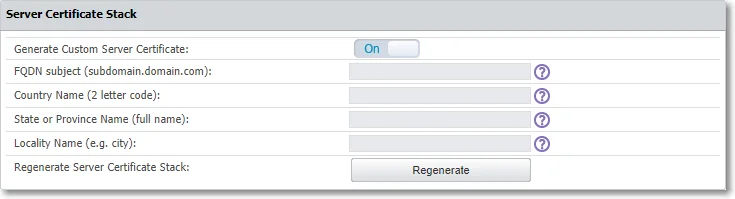
Use this section to regenerate a custom server certificate. Enable the option and then provide the following information:
- FQDN (Fully Qualified Domain Name) – used in certificates and Regenerate Server Certificate Stack and CA Certificate used for Deep Packet Inspection on macOS. Set it to the FQDN that your EPP Clients and single sign-on (SSO) integrations use to reach the server.
- Country name – add the first two letters of the country
- State or Province name – add the state or province name
- Locality Name – add locality name
After you’ve set all the mandatory information, scroll to the bottom of the settings page, click Save and then return to the Server Certificate Stack section and click Regenerate Server Certificate Stack.
Endpoint Protector regenerates the server certificate in a couple of minutes and logs the user out.
Download the Deep Packet Inspection certificate again on both macOS and Linux, and ensure that each system's keychain trusts it.
Regenerating the CA certificate requires manually adding it to the macOS keychain and to Linux systems.
Don't use this setting if the Endpoint Protector server has no registered instance of macOS 12.0 (or higher).
Single Sign On
Enable the Single Sign On Login setting to log into Endpoint Protector and then select a Failover Login User to use when single sign on isn't functional.

For more information, see Single Sign On.
Active Directory Authentication
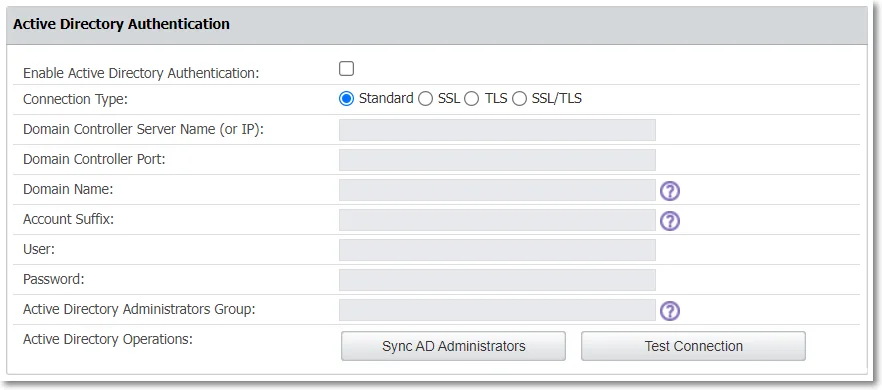
Enable the Active Directory Authentication setting to import an Active Directory group of administrators into Endpoint Protector as Super Administrators.
Enabling Active Directory Authentication lets administrators use their Active Directory credentials to log into Endpoint Protector.
To import an Active Directory group of administrators, follow these steps:
Step 1 – Fill in the fields with the required information, considering:
- In some cases, you need to add the domain in front of the username (domain\username)
- You can synchronize the Active Directory Administrators Group with any other groups of users except for "primary groups", which Microsoft limits from this action
Step 2 – Scroll to the bottom of the page and save the changes. A success message appears at the top of the page.
Step 3 – Return to the Active Directory Authentication section and click Test Connection to confirm the process was successful.
Step 4 – Click Sync AD Administrators.
After you define the Active Directory Administrators Group, Endpoint Protector syncs and imports only users that are part of this AD group as Super Administrators. You can create any additional administrators (with different access control levels) manually from the System Administrators section.
E-mail Server Settings
The E-mail Server Settings moved to a new section. Go to System Configuration > Mail Settings to configure email server settings and authentication.
Proxy Server Settings
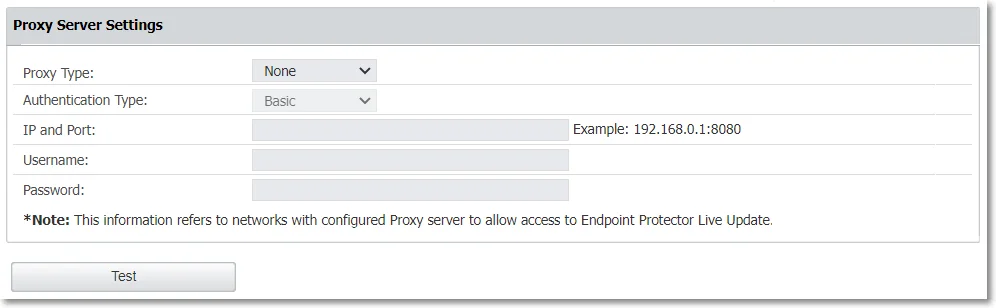
Configure Proxy server settings by managing the following:
- Proxy Type
- Authentication Type
- IP and Port
- Proxy access credentials (username/password)
After you provide all the information, click Test to confirm the settings work.
If you don't configure a Proxy Server, Endpoint Protector will connect directly to liveupdate.endpointprotector.com.
Main Administrator Contact Details
Edit contact details for the main administrator and then click Save to keep all modifications.

Server Display Name
Endpoint Protector users can visually differentiate environments within the Endpoint Protector console, ensuring precise identification and preventing unintended actions in the wrong environment. This customization feature lets users add custom text at the Endpoint Protector logo on the login page and alongside the logo in the console header. Users can also upload a custom logo.
Organizations managing multiple Endpoint Protector Server consoles (such as production and testing environments) can use distinct visual cues—custom text, icon markings, and extended legal banners—to differentiate between them. These elements help administrators identify the environment they are working in and ensure appropriate console usage.
To customize these elements, refer to the image in the Server Display Name section. You can enable custom login and header displays, enter your desired text, and choose colors to highlight your environment’s uniqueness. You can also upload a custom logo and configure legal banners for clarity and compliance. Using these visual indicators helps administrators distinguish between different operational contexts and enhance both security and workflow efficiency.
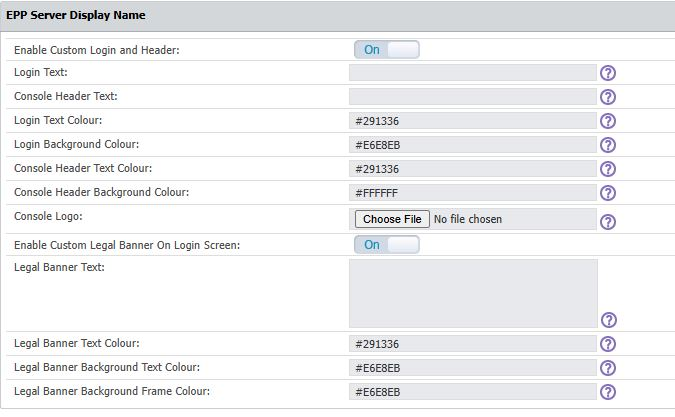
The legal banner placeholder can accommodate up to 5,000 characters.