System Maintenance
System Maintenance is crucial for ensuring the optimal performance and reliability of your server. This section covers essential maintenance tasks including file management, system snapshots, audit log backups, and external storage configurations. By effectively managing these components, you can maintain a well-organized system, facilitate recovery, and ensure data integrity.
File Maintenance
This module lets you retrieve, organize, and clean up files used by the Endpoint Protector Server.
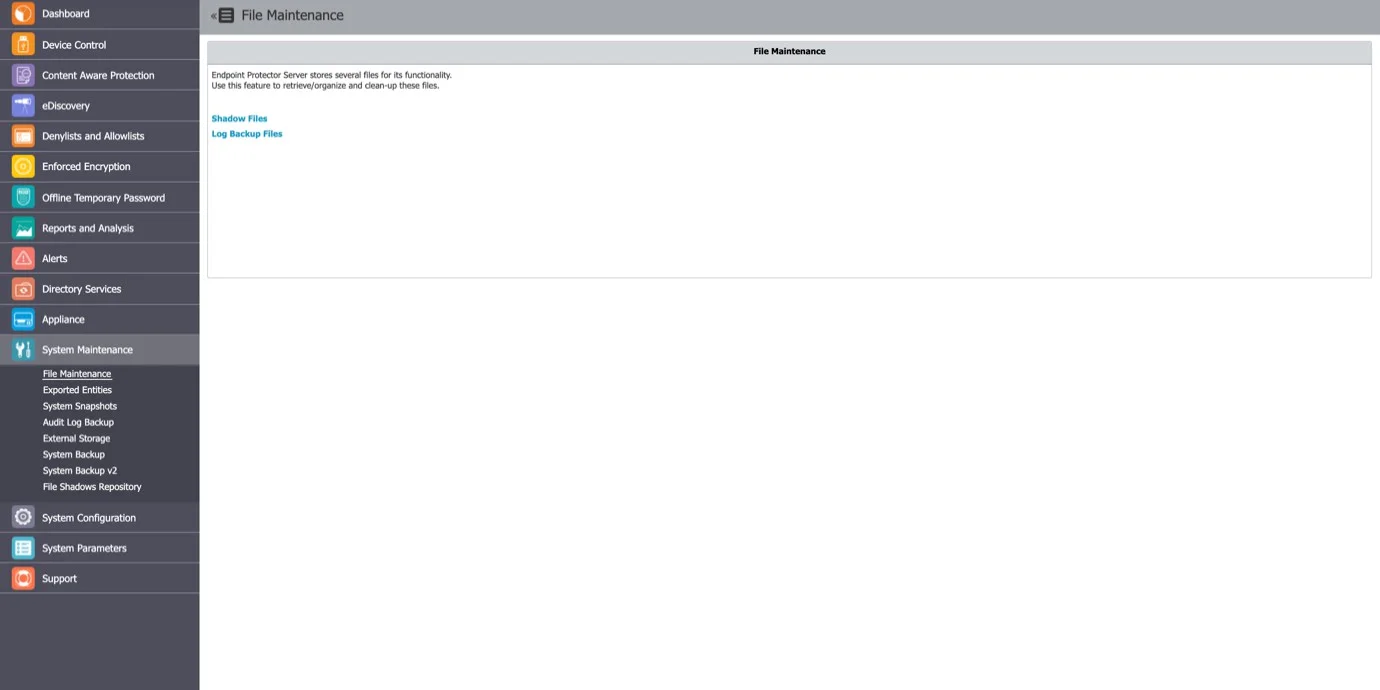
You have the following options:
- Shadow Files – allows archiving and deleting shadowed files from a selected client computer
- Log Backup Files – allows archiving and deleting previously backed up log files
To archive a previously selected set of files, click Save as Zip, and to permanently remove a set of files from the Endpoint Protector Server, click Delete.
Exported Entities
From this section, you can view the list of exported entities. You can also download or delete them, view the scheduled export in the system, and reschedule them accordingly.
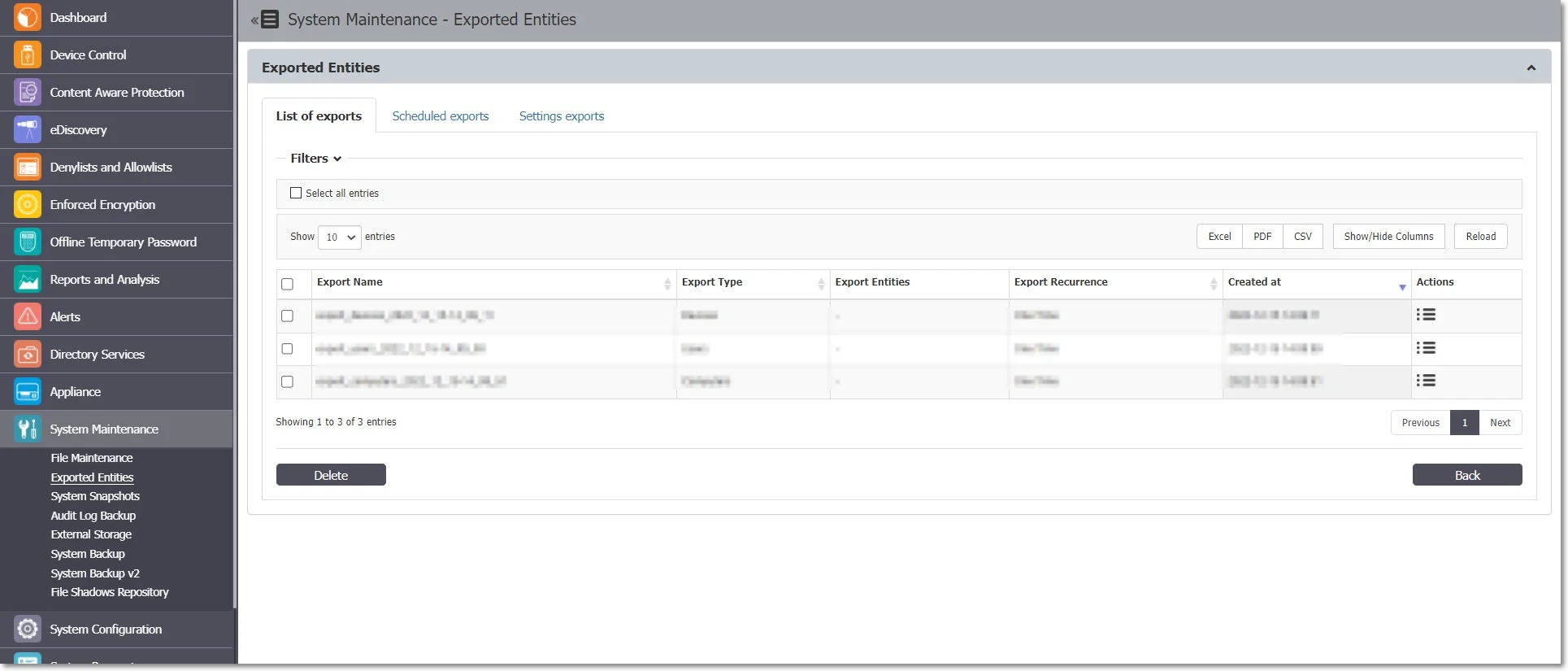
You can initiate the manual generation of the scheduled export from the Device Control, List of Devices / List of Computers / List of Users / List of Groups sections.
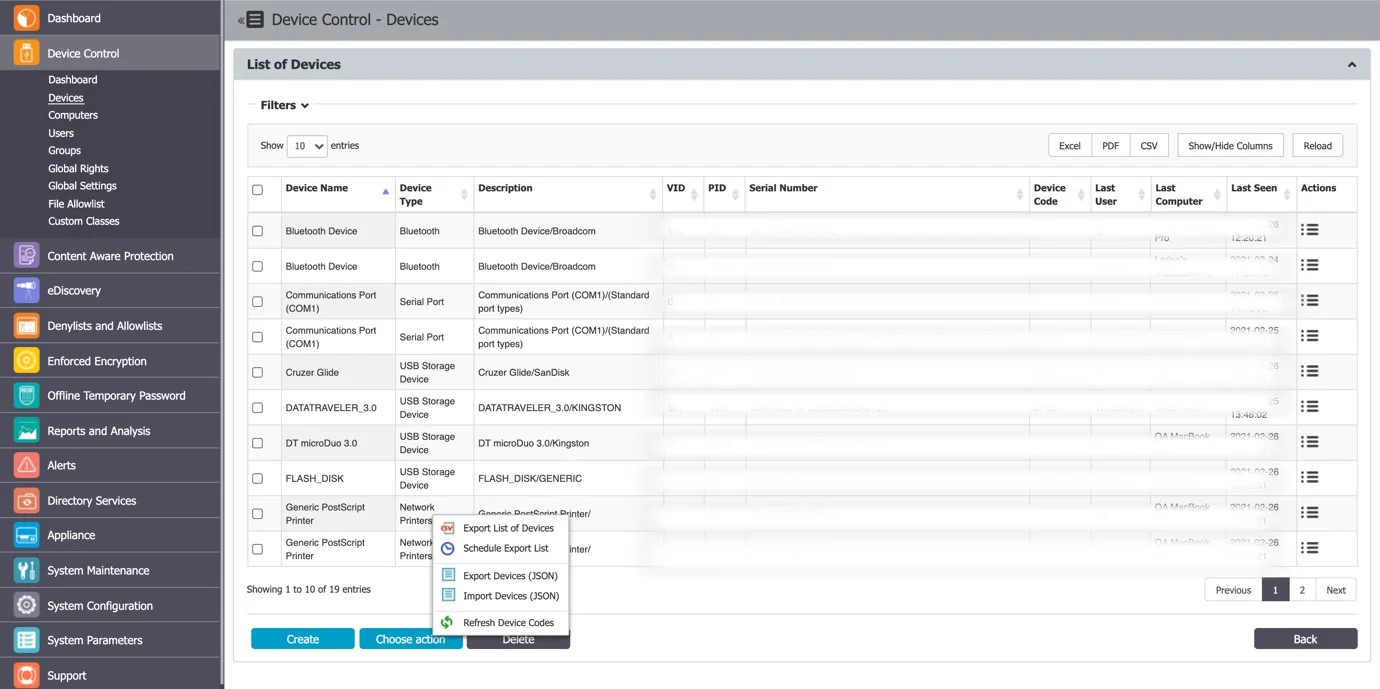
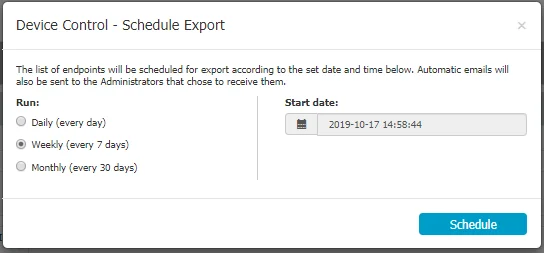
Endpoint Protector can send the scheduled exports automatically by e-mail to all the Administrators that have the Scheduled Export Alert setting enabled.
The Scheduled Exports are reoccurring (Daily / Weekly or Monthly), and so they take up progressively more storage on the Endpoint Protector Server.
To maintain performance—and because Endpoint Protector can also email scheduled exports to specific administrators—the server automatically deletes scheduled exports it has already generated after 14 days.
The Disable Logging option lets you keep logs on the Endpoint Protector Server or only in the SIEM Server.
System Snapshots
The System Snapshots module lets you save all device control rights and settings and restore them later if needed.
After installing the Endpoint Protector Server, create a System Snapshot before modifying anything. This way, you can revert to the original settings if you configure the server incorrectly.
Step 1 – Go to System Configuration and click Make Snapshot.
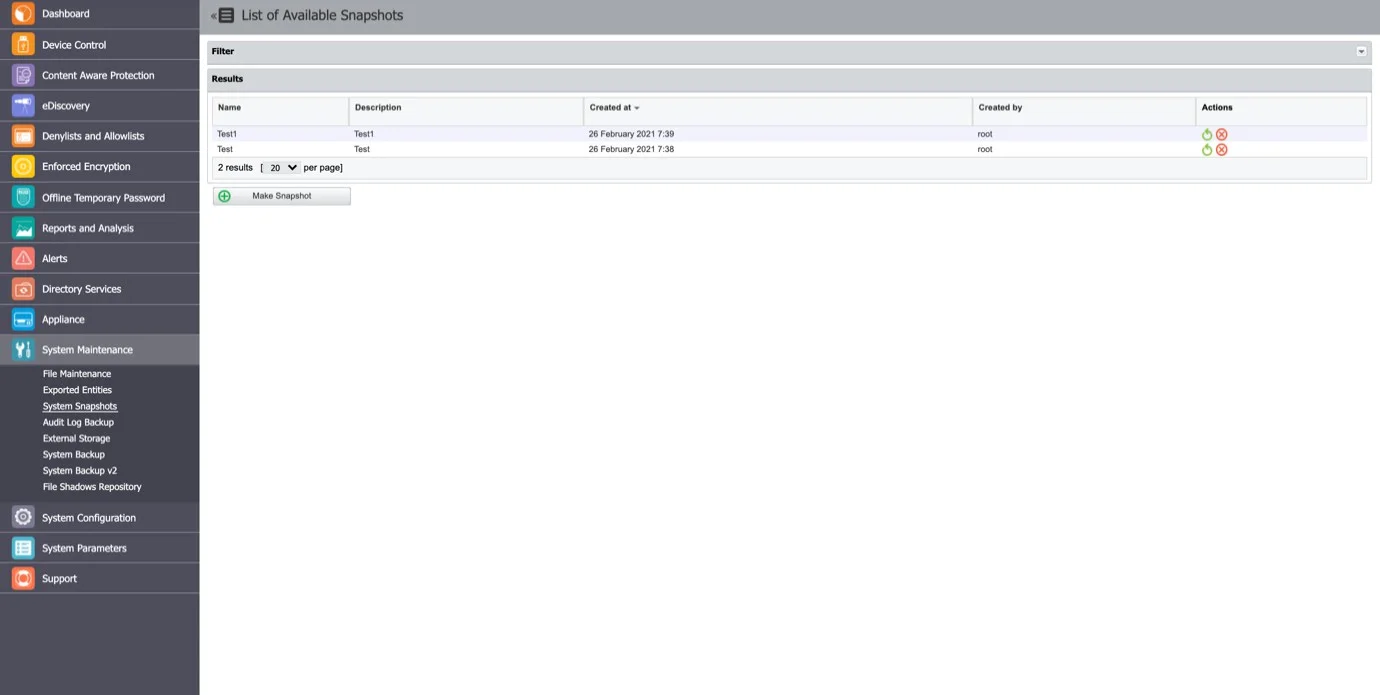
Step 2 – Enter a name for the snapshot and a description. Select the items to store in the snapshot, Only Rights, Only Settings, or Both and then click Save.
The snapshot will appear in the list of System Snapshots.
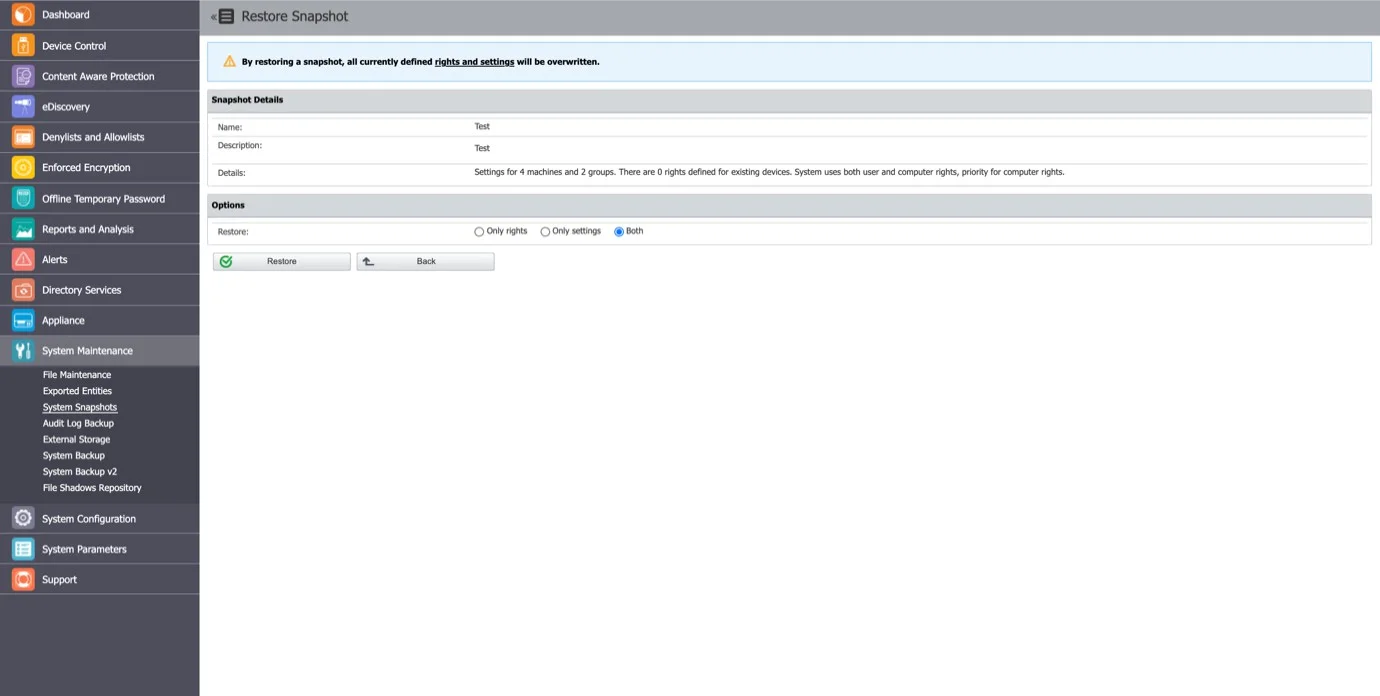
Step 3 – To restore a previously created snapshot, click Restore next to the snapshot, and then confirm your action.
Audit Log Backup
Audit Log Backup is a legacy feature. From Endpoint Protector 2608, it applies only to logs collected before the migration to the new database structure, and it receives no new log data. Endpoint Protector exports logs collected from 2608 onward through Reports and Analysis > Export Logs instead. Base any new log export process on Export Logs rather than Audit Log Backup.
To display this section, enable Show old logs structure under System Configuration > System Settings > Log Settings. Servers that hold no pre-migration logs don't need it.
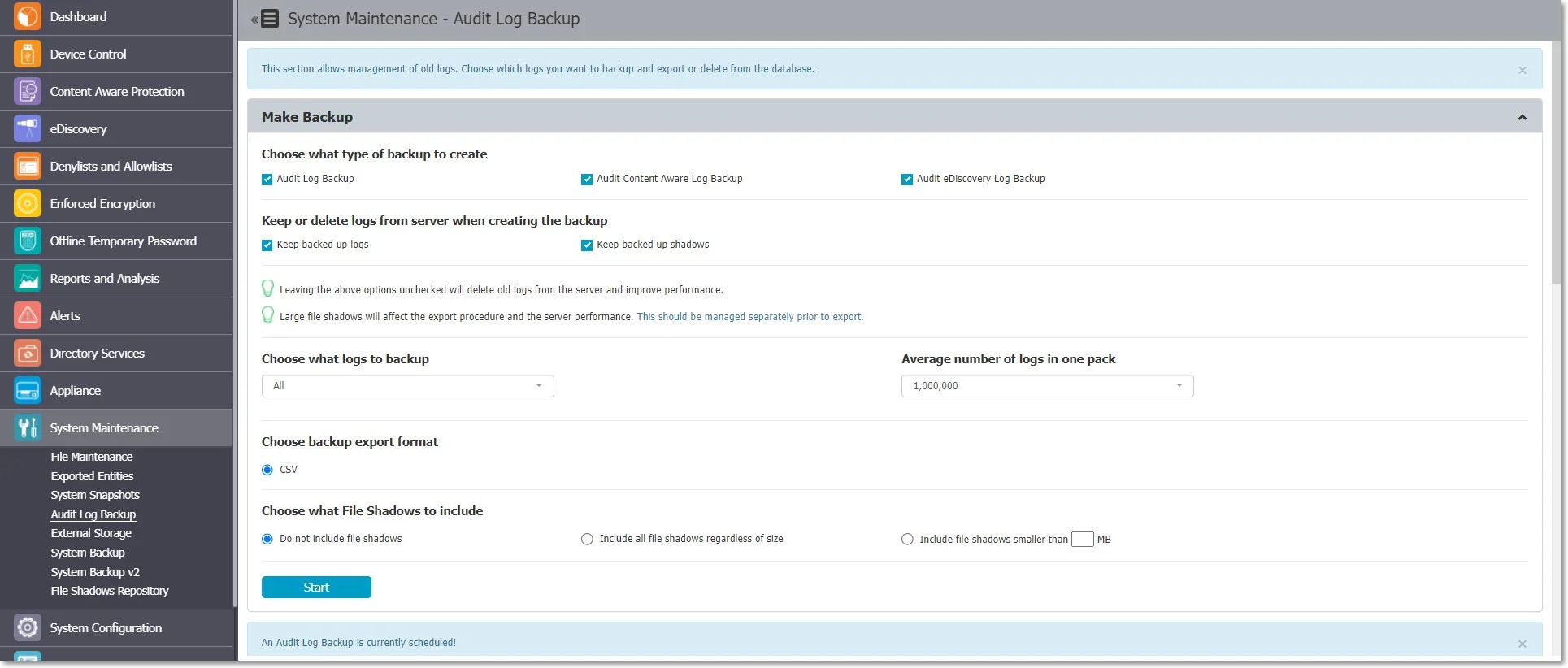
Like the Log Backup and Content Aware Log Backup sections, this area lets you save and export old logs. You can select the number of logs to export, specify the period, and set the file size. You can also view a Backup List or set a Backup Scheduler.
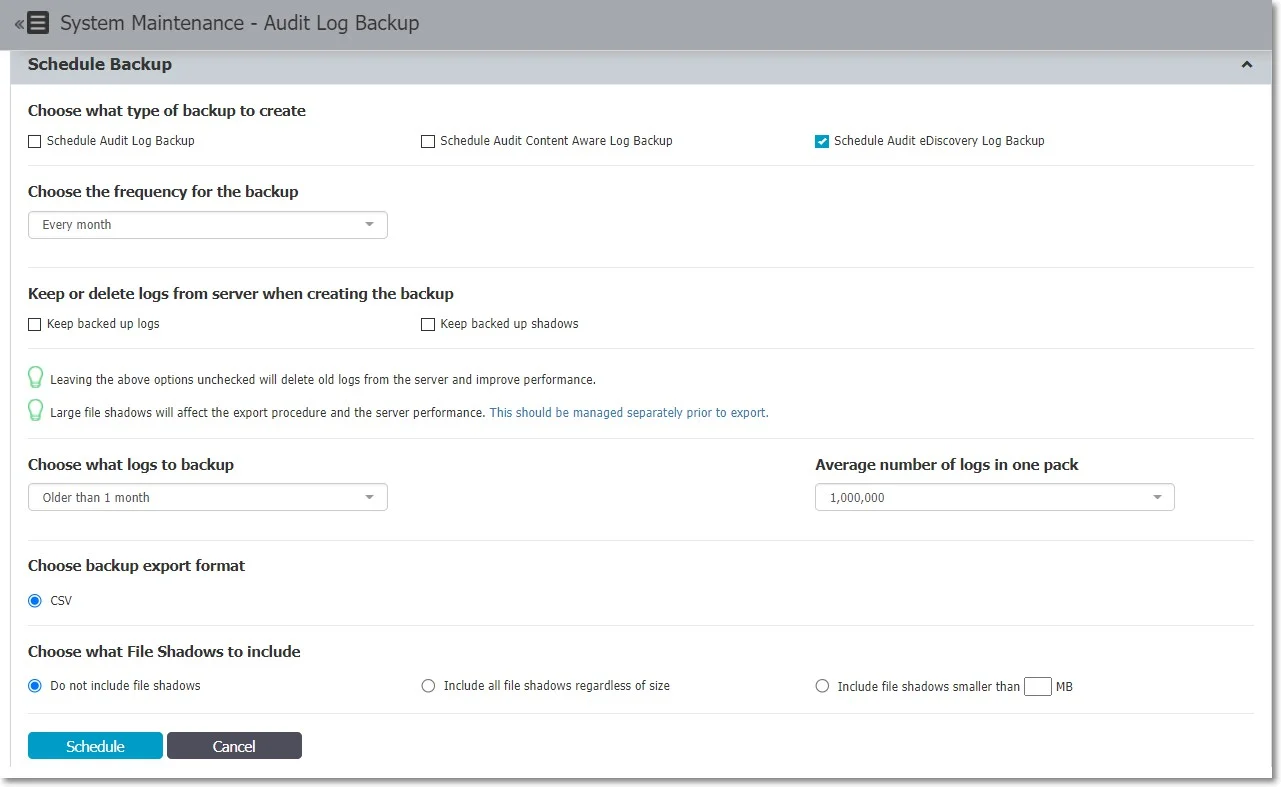
Both the Audit Log Backup and Audit Backup Scheduler offer several options, such as which types of logs to back up, how old the included logs must be, whether to keep or delete them from the server, and whether to include file shadows.
However, exported logs use an improved visual format that makes auditing simpler and report generation easier for executives.
The Backup export CSV file will differ based on the Endpoint Protector Server version used:
- For Endpoint Protector 5.6.0.0 or older, the CSV file reports a file for each threat discovered
- For Endpoint Protector 5.7.0.0, reports, only one file containing all threats discovered, separated by an underscore
When you back up Content Aware logs, the export includes the Date/Time(Client UTC) field.
The audit log backups feature lets you create copies and/or exports of logs and file shadows, either manually or on a scheduled basis. The initial storage location for export files isn't suitable for long-term storage. Download and store these files in secure locations. In SaaS environments, upgrades may delete export files, so download them regularly and store them securely.
Audit Log Backup Scheduler
The Audit Log Backup starts the backup immediately, while the Audit Log Backup Scheduler lets you set the time and frequency (daily, weekly, monthly, yearly, etc.).
External Storage
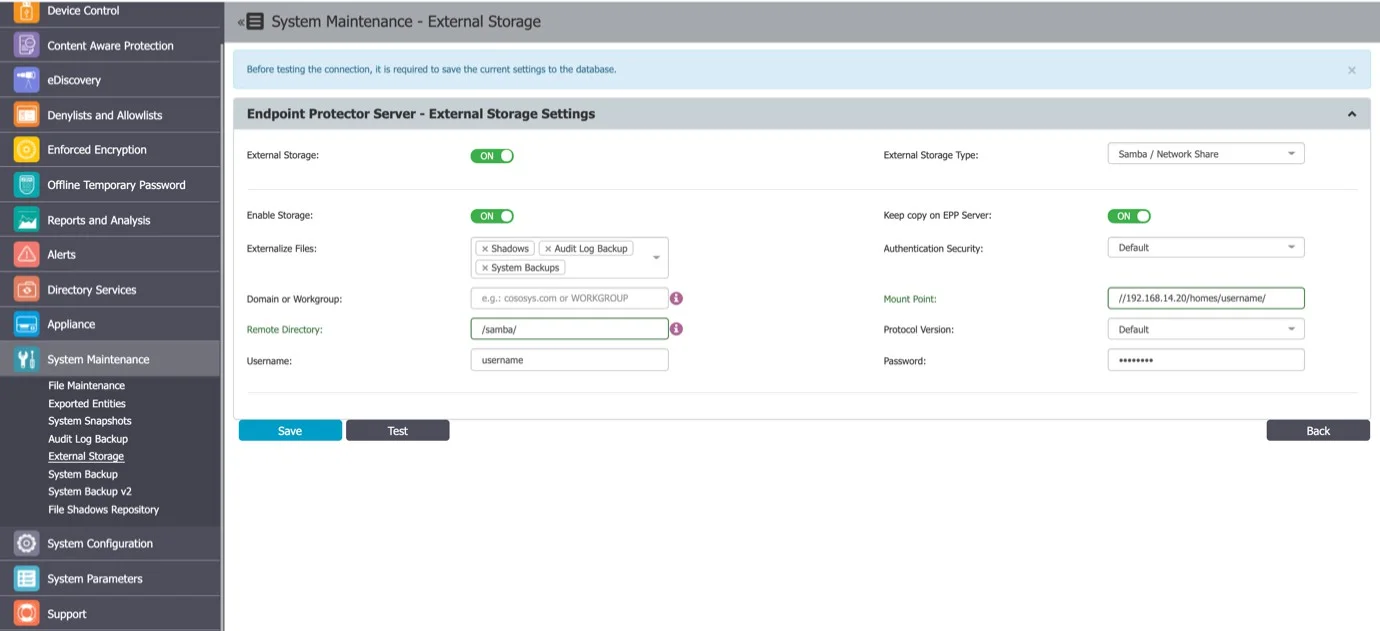
From this section, you can externalize files generated by Endpoint Protector to network storage. You can save Shadows, Audit Log Backups, and System Backups to FTP, SFTP, Samba, or Network Share servers.
The Audit Log Backup externalization option covers legacy pre-migration logs only, because Audit Log Backup itself receives no new log data from Endpoint Protector 2608 onward. Shadows and System Backups are unaffected.
You can enable the option to keep a copy of the files on the Endpoint Protector Server for all External Storage Types.
FTP Server
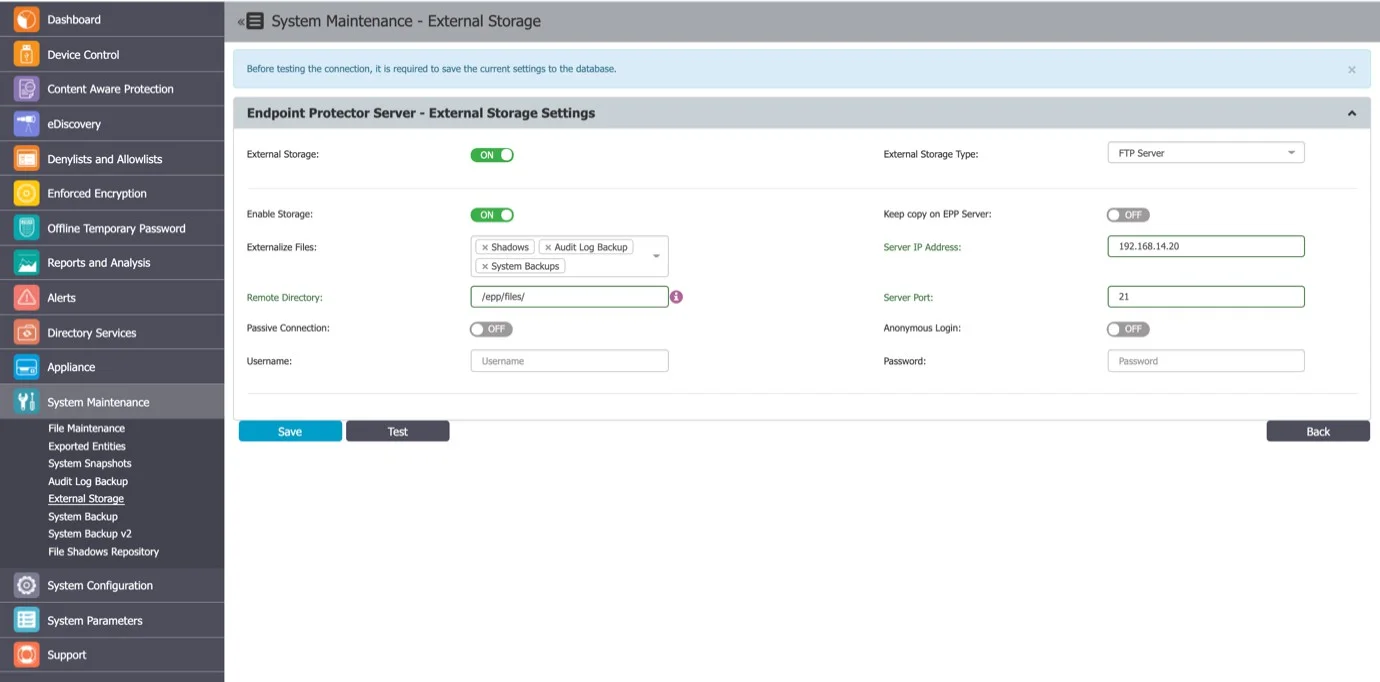
To configure an FTP Server, provide the following information:
- Externalize Files – the Endpoint Protector files: Shadows, Audit Log Backup or System Backups
- Server IP Address – the IP of the external server
- Remote Directory – a specific location on the external directory
- Username – the username of the external server
- Password – the associated password
- Enable Storage
- Server Port
- Passive Connection
- Anonymous Login
SFTP Server
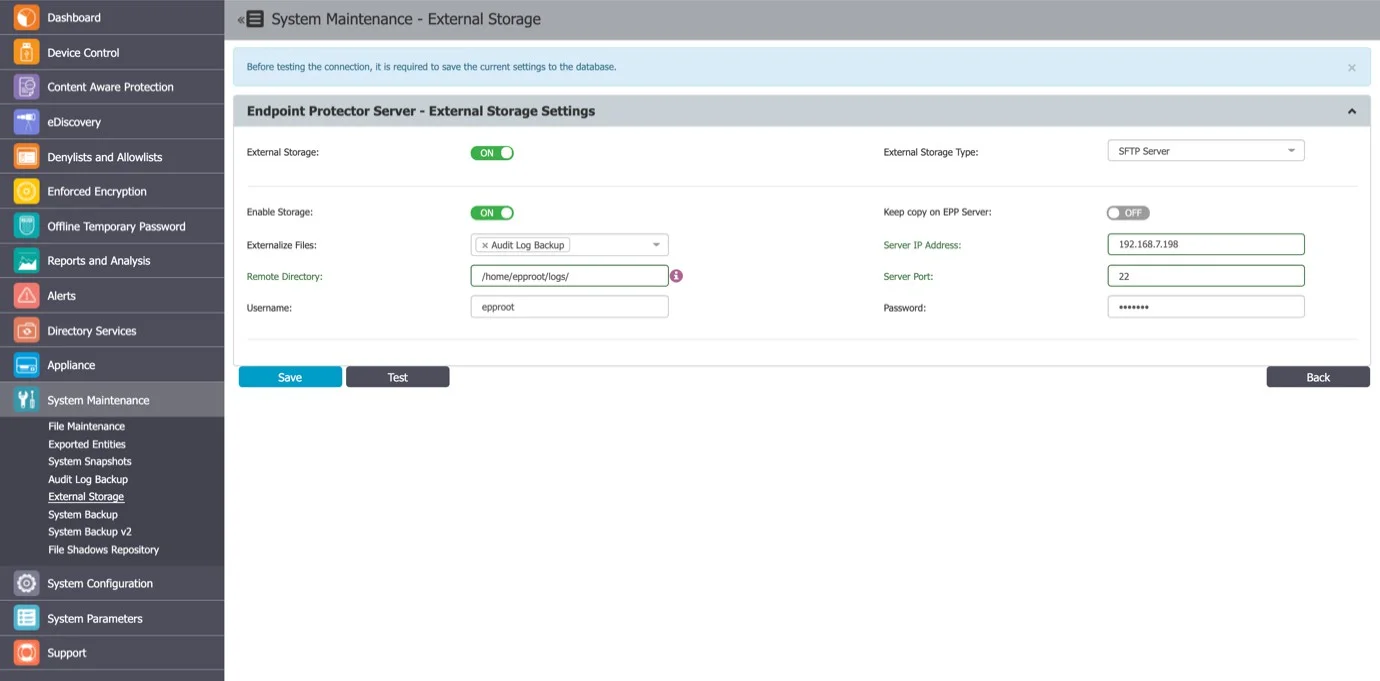
To configure an SFTP Server, provide the following information:
- Externalize Files – the Endpoint Protector files: Shadows, Audit Log Backups or System Backups
- Server IP Address – the IP of the external server
- Remote Directory – a specific location on the external directory
- Server Port – the port of the external storage server
- Username – the username of the external server
- Password – the associated password
- Enable storage
Samba / Network Share Server
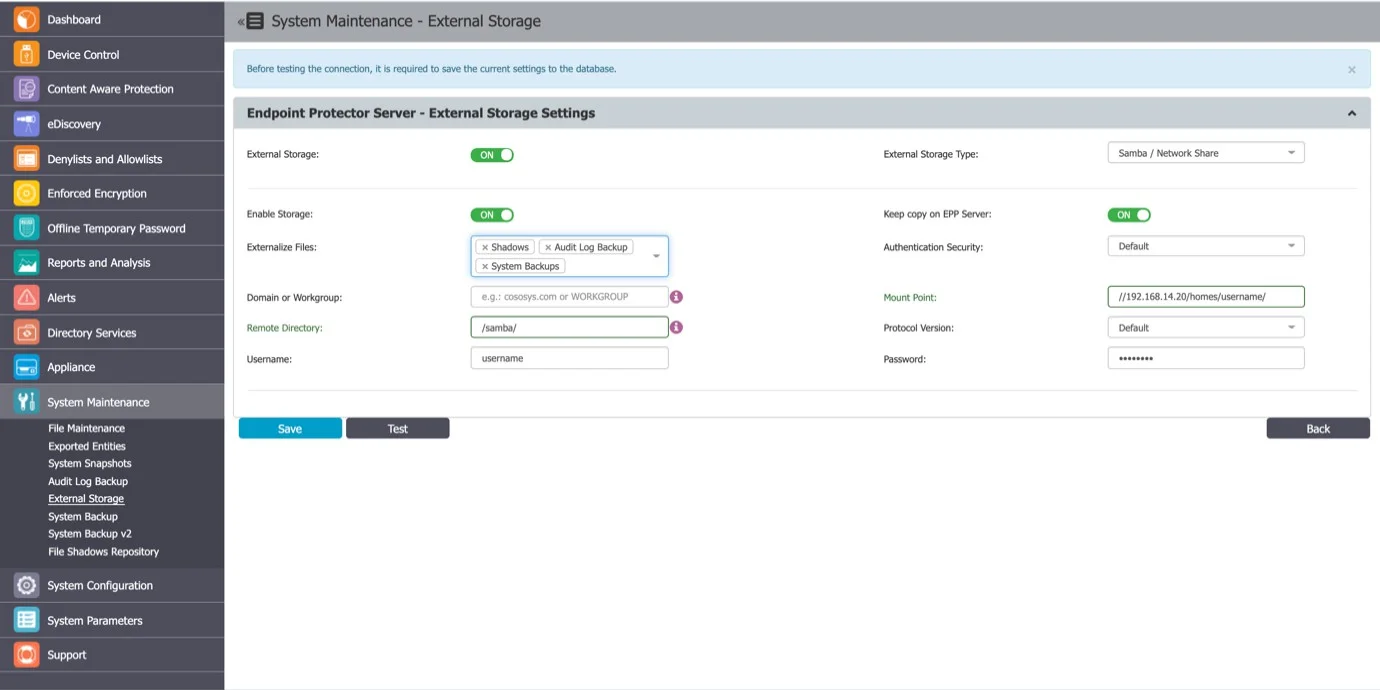
To configure a Samba / Network Share Server, provide the following information:
- Enable Storage
- Keep copy on Endpoint Protector Server – enable this setting to create a backup of the storage on the Endpoint Protector Server
- Externalize Files – select the Endpoint Protector files: Shadows, Audit Log Backup or System Backups
- Authentication Security – select the security protocol: Default, NTLM, NTLMv2, NTLMSSP
- Domain or Workgroup – only where applicable
- Mount Point
- Remote Directory – a specific location on the external directory
- Protocol Version
- Username – the username of the external server
- Password – the associated password