File Shadow Repository
File Shadowing is an optional feature that extends standard Content Aware Protection and Device Control event logging with an exact copy of the file involved in a policy event. Where a standard event log captures metadata about a transfer, a file shadow preserves the file itself, extending the evidence available for a forensic investigation and simplifying the forensics process.
Because retaining full file copies increases storage volume and can affect data-minimization, access-control, and legal obligations, you decide whether to enable File Shadowing — and for which departments, applications, or file types — based on your organization's compliance requirements and the data protection regulations that apply in your country.
From this section, you can enable the Endpoint Protector Client to send File Shadows directly and at a global level to an externalized location, the File Shadows Repositories.
You can create multiple File Shadow Repositories and define how each endpoint manages the File Shadows based on department and repository type.
In Endpoint Protector, the Department defines a collection of entities with the same attributes. It shouldn't be confused with the department from an organizational chart.
Starting with Endpoint Protector Server version 5.8.0.0, file shadowing is more reliable on macOS and Linux because it first relies on OS features to transfer the files.
On Mac/Linux:
- primary: LDAP (as-is)
- fallback: curl (as-is)
On Windows:
- primary: LDAP
- fallback: curl
To create a File Shadow Repository, click Add and then provide the following information:
- Department – assign one or more departments to the File Shadow Repository
- Repository Type – select the type of repository, FTP, Samba (smbv1), Azure File Storage and Samba (smbv2) or S3 Bucket
If you select S3 Bucket type, the information required to create a File Shadow Repository differs. See S3 Bucket File Shadow Repository for details.
The minimum permissions required for Samba shares is 750 (the owner has full access and the Group has only Read and Execute).
- Repository IP Address – add the File Shadow Repository IP address
- Port – add the port used by the File Shadow Repository
You aren't required to define the port for Samba (smbv1) or Azure File Storage and Samba (smbv2) repositories.
- Folder Path – add the folder path where Endpoint Protector saves File Shadows
- Username and Password – add the repository credentials
If you are using the Samba V1 protocol for File Shadows on Mac, set NTLMv1 authorization on the Samba server.
Test Connection
The Test button verifies FTP and S3 Bucket repositories. This functionality authenticates and executes a dummy file upload using the provided credentials.
- FTP Repository – the Test button verifies authentication and file upload.
- S3 Bucket Repository – the Test button checks the access key and secret access key, and validates the bucket region and name if the authentication response was successful.
Endpoint Protector doesn't support Test Connection for Samba v1, Samba v2, and Azure File Storage repositories, due to additional third-party requirements such as IP whitelisting and smbclient.
S3 Bucket File Shadow Repository
The Amazon S3 bucket is a public cloud object storage resource available from Amazon Web Services (AWS) Simple Storage Service (S3).
S3 Bucket type File Shadow Repository supports large files up to 5TB (AWS specification).
Endpoint Protector Server version 5.9.6.0 upgrades the AWS SDK. As a result, an S3 Bucket repository now supports all AWS S3 regions, and the separate Direct and Indirect artifact retrieval methods are no longer necessary. The Endpoint Protector Server retrieves shadows using the SDK, and S3 bucket IP whitelisting and bucket policy configuration aren't necessary.
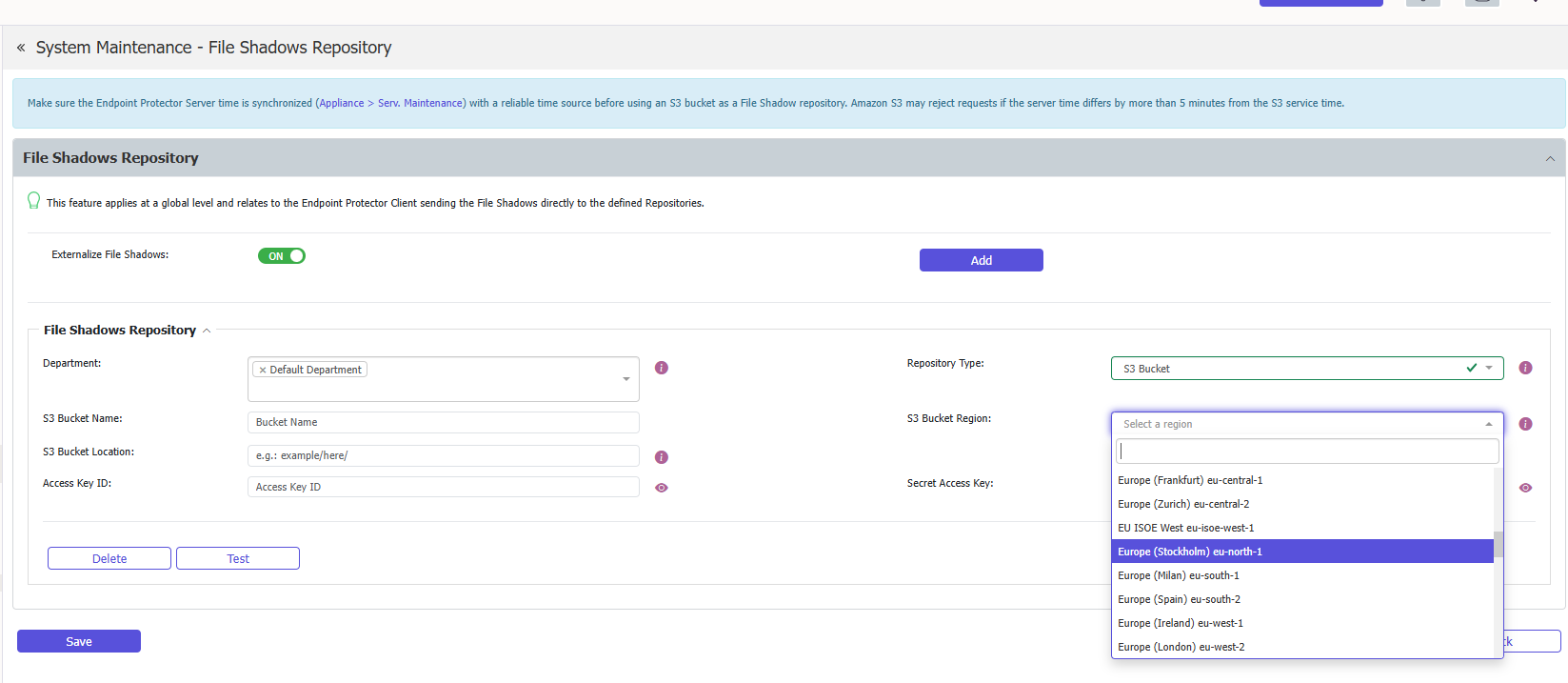
To create an S3 Bucket type File Shadow Repository on Endpoint Protector, provide the following information:
- Repository Type – select S3 Bucket as the type of repository
- Department – assign one or more departments to the File Shadow Repository
- S3 Bucket Region – select the region that corresponds with the AWS S3 Bucket settings. All AWS S3 regions are supported, including eu-central-1.
- S3 Bucket Name – add a name for the bucket repository corresponding with the AWS S3 Bucket settings
- S3 Location – add a specific sub-folder location in the AWS S3 Bucket
- Access Key ID – add the key for the S3 Bucket corresponding with the AWS S3 Bucket settings
- Secret Access Key – add the token key generated for a user corresponding with the AWS S3 Bucket settings
Synchronize the Endpoint Protector Server time (Appliance > Server Maintenance) with a reliable time source before using an S3 bucket as a File Shadow repository. Amazon S3 may reject requests if the server time differs by more than 5 minutes from the S3 service time.
When a shadow is downloaded, Endpoint Protector sends a request to AWS to verify that the file is present in the bucket. If the file isn't found, the server responds with the message "The object object_name doesn't exist in the S3 Bucket Repository." If the file exists, the Endpoint Protector Server retrieves the shadow using the SDK.
You can download or delete file shadows from the Reports and Analysis section, the Logs Report page, and the Content Aware Report page using the Actions column. After a file upload, Endpoint Protector displays an External Repository Upload log, which also provides the Download and Delete actions for the associated shadow.
For Content Aware Protection Remediation Session events, Endpoint Protector downloads the shadow from the first block event associated with the remediated file.
When you copy a file to a USB device, Endpoint Protector generates both a File Copy and a File Write event, and each may display the Download action. Endpoint Protector stores the shadow once and retrieves it from the File Copy event; the Download action on the File Write event doesn't return a shadow.
To set up the S3 bucket repository, specify the bucket name and generate the Access Key ID and Secret Access Key through AWS administration.
The Audit doesn't include file shadows stored in the S3 Bucket (File Shadow Repository).

On an unreliable network, the Client will attempt to upload the artifact 10 times before the guard-rail stops upload attempts. This will delete the File Shadow from the queue to ensure endpoint performance, disk space utilization, and mobile transfer limits aren't affected.
Internet Connectivity Requirements
When using S3 Bucket as the File Shadows Repository type, you will need a direct internet connection in the following situations:
- For the Endpoint Protector Client to deliver File Shadows to the AWS S3 Bucket repository
- For the Endpoint Protector Server to retrieve File Shadows from the AWS S3 Bucket repository
File naming and structure
File name convention
Endpoint Protector uploads file names to the S3 Bucket with URLs encoded to avoid issues with special characters. The Endpoint Protector Server then decodes them to display the original name.
Example:
File name
canada_&$@=;/+ ,?{^}%`]>[~<#|_山人é口ŏ刀ā木ù日ì月è女ǚ子ĭ馬/马鳥/鸟niǎ目ù水 .txt
File name displayed in AWS S3 Bucket
ln4w7yuqax-dev-client-bucket/2022-11-23/ComputerName/canada_%26%24%40%3D%3B%3A%2B%20%2C%3F%5C%7B%5E%7D%25%60%5D%3E%5B~%3C%23%7C_%E5%B1%B1%E4%BA%BA...%20.txt
Endpoint Protector also encodes the file name and special characters from the computer name and location.
File name structure
Default file name structure:
bucketName/CurrentDate/ComputerName
- bucket name (ln4w7yuqax-dev-client-bucket)
- current date in YYYY-MM-DD format (2022-11-23)
- computer name URL encoded
File name structure with S3 Bucket location field specified:
bucketName/location/CurrentDate/ComputerName