Troubleshooting Common Issues
EPP Server
High CPU Usage After Mass Client Reconnect
Symptom: Server CPU spikes to 100% and stays elevated for an extended period (commonly 60–90 minutes) following a mass client reinstall, redeployment, or resumption of communication after an outage.
Root cause: When many endpoints resume communication simultaneously, each one delivers any logs queued during the outage and requests its settings, rights, and policies. On environments with a large fleet or a short Policy Refresh Interval (see Client Settings), this creates a load spike proportional to the number of machines reconnecting at once.
Resolution:
- Confirm how many endpoints reconnected simultaneously and the configured Policy Refresh Interval — both directly affect spike severity and duration.
- Allow the spike to resolve on its own; it typically subsides within 60–90 minutes as the backlog clears.
- After the spike subsides, verify all endpoints are communicating properly (Device Control → Computers, sorted by Last Seen).
- For future mass reinstalls or outages, stagger reconnection in batches instead of restoring communication for the entire fleet at once.
A CPU spike following a mass reconnect event is expected behavior. It doesn't indicate an issue with SIEM, Audit, or other integrations, which operate independently of client check-in load.
Backup Restore Fails or Is Rejected by the Server
Symptom: The import wizard rejects the backup file or shows an error.
Root cause: The backup originates from a server version 2608 doesn't accept directly. 2608 accepts backups only from 5.9.4.2 (legacy path) or from 2509, 2510, 2601, 2602, 2604 (current-image path).
Resolution:
- Verify the source server version (Appliance → Server Information) against the accepted versions named in the root cause.
- If the source is an older 5.x version, complete the cumulative patch to 5.9.4.2 first — see Migrating from a Legacy 5.x Server to 2608.
- Create a new backup on the accepted source version and retry.
Network Settings Won't Save on 2509/Early 2510
Symptom: IP configuration changes don't save; error appears after clicking Save.
Root cause: Known bug in 2509/early 2510 where the settings page requires you to fill both DNS fields. Netwrix fixed this in patch 2604 — it only affects unpatched 2509/early 2510 environments.
Resolution: Enter a value in both DNS fields (use 8.8.8.8 and 8.8.4.4 if no secondary DNS is available).
Backup File Exceeds 200 MB Import Limit
Symptom: Backup upload fails due to file size limits.
Resolution:
- Clean up the database using the Audit Log Backup feature, if possible (see Audit Log Backup). This removes obsolete data and can reduce the backup file size below 200 MB.
- If the file is still over 200 MB, contact Netwrix Support and request the 5.9.4.2 backup export fix. This script trims the backup file by dropping legacy tables that migration doesn't require. This is the preferred resolution and requires no backend access on your part.
- If the fix script still doesn't bring the file below 200 MB, contact Netwrix Support for the manual upload limit adjustment procedure.
SIEM Not Receiving Events After Migration
Symptom: SIEM integration stops receiving events after restore.
Resolution: SIEM functionality may require reconfiguration after migration. If the SIEM integration appears down, verify that the underlying syslog-ng service is running on the server.
The following commands require backend (SSH) access to the EPP Server. If you don't have backend access, contact Netwrix Support and request that they perform this check.
dpkg -l | grep syslog-ng
syslog-ng --version
systemctl status syslog-ng
If syslog-ng isn't running, restart the service and confirm SIEM event delivery resumes. If it stays down or events still don't arrive after a restart, contact Netwrix Support.
SSO Login Fails After Migration When the Server Uses an IP Address Instead of an FQDN
Symptom: After restoring the backup on the new server, users can't log in via SSO. The identity provider returns an error, or the login redirect fails.
Cause: The SSO response/callback URL is tied to the server address configured before migration. If the administrator assigned a different IP address (Option B) rather than an FQDN to the new server, the previously configured SSO response URL no longer matches, and the identity provider rejects the authentication response.
Resolution: Reviewing the SSO configuration after restore is mandatory whenever the new server uses an IP address instead of an FQDN. Choose one of the following:
- Manually recreate the SSO configuration in System Configuration → SSO / Single Sign-On with the updated response/callback URL, and update the corresponding redirect URI registered in your identity provider.
- Raise a Netwrix Support case to have the SSO configuration updated on the backend.
Cleaning Up and Recreating an Audit Configuration
Symptom: The Audit Log Backup job is stuck, unresponsive, or you need to reset an Audit configuration after migration.
Resolution: Clean up the existing Audit configuration and set up a new one.
The following steps require backend (SSH) access to the EPP Server. If you don't have backend access, contact Netwrix Support and request that they perform this cleanup.
Before cleanup, back up any audit-related files so you don't lose any log data:
- If server disk space allows, move the audit export files under
/tmp(filenames starting withcflog_initial) to a secure, external location. - After confirming the backup, delete these files from
/tmpto free disk space. - To reclaim additional disk space, remove the oldest directories under
/var/eppfiles/logbackup/jsdata/(namedlogs_<timestamp>), keeping only what your retention policy requires. - Recreate the Audit configuration (System Maintenance → Audit Log Backups).
Back up files before deleting them from /tmp. Deleting cflog_initial* files without a backup permanently discards any log data they contain.
Predefined HIPAA Dictionaries Stop Working After Migration
Symptom: Predefined HIPAA (or other predefined) dictionary downloads fail, or the policy references a stale server address, after migration or after a server hostname/IP change.
Root cause: The server generates and caches the dictionary download link when you save the policy. The server reuses this cached link as-is on every subsequent request instead of regenerating it on each client check-in ("Ping"). If the server's hostname or IP changes after you last saved the policy — for example, during a migration — the cached link still points to the old address.
Resolution: Edit the affected HIPAA policy and save it again — any no-op change triggers regeneration. The policy's next Ping rebuilds the download link using the current server address.
This caching behavior is specific to the legacy communication flow. The 2608 server release fixes this by making these links independent of the server's hostname — you only need this workaround on servers still below 2608.
eDiscovery Scan Locations Ignored After Migration
Symptom: After restoring the backup, eDiscovery scans run against the full disk instead of the configured Scan Locations. No error is logged or displayed.
Cause: eDiscovery policies with Scan Locations don't fully re-apply when restored from a System Configuration Backup — the system silently ignores the Scan Locations setting.
Resolution: Edit and save each affected eDiscovery policy (no actual change required) to re-apply its Scan Locations. Verify with a test scan afterward.
CAP Policies Not Triggering After Migration
Symptom: After restoring the backup, one or more existing Content Aware Protection (CAP) policies don't trigger — content that should be detected or blocked passes through undetected. No error is logged or displayed.
Cause: In rare cases, a CAP policy restored from a System Configuration Backup doesn't fully redistribute to endpoints, so the policy silently stops enforcing.
Resolution: Edit and save each affected CAP policy (no actual change required) to redistribute it to endpoints. Verify with a test transfer afterward.
Can't Log In After Migration Due to Two-Factor Authentication
Symptom: After restoring the backup on the new 2608 server, an administrator with Two-Factor Authentication (2FA) enabled can't log in.
Cause: In some cases, a System Configuration Backup created while 2FA was enabled doesn't restore administrator access correctly on the new server.
Resolution: Contact Netwrix Support to regain access. To avoid this on future migrations, disable 2FA for all administrator accounts before you create the System Configuration Backup, and re-enable it only after you confirm the new server works correctly.
Denylists and Allowlists Not Working After Migration
Symptom: After restoring the backup, one or more Denylists or Allowlists dictionaries don't display correctly, or policies that rely on them don't apply as expected.
Cause: In some cases, a Denylists or Allowlists dictionary restored from a System Configuration Backup doesn't import correctly.
Resolution: Review each dictionary under Denylists and Allowlists to confirm it imported correctly, and test any policy that relies on it. If a dictionary doesn't display or apply correctly, export it from the old server (if still available) and re-upload it to the new server, then re-test.
Recurring HTTP 500 Errors Resolved Only by a Full Reboot
Symptom: The EPP Server UI intermittently returns HTTP 500 errors, recurring every 1–3 days. Server load average is very high (600+) even though CPU and RAM aren't fully used. Restarting individual services doesn't resolve the error — only a full server reboot restores UI access, until the issue recurs.
Resolution:
- Verify the server's assigned resources meet at least the minimum sizing in Server Requirements — undersized VMs are a common contributor to this pattern.
- If resources meet or exceed the sizing requirements and the issue persists, contact Netwrix Support to review and tune the EPP server configuration.
This is a recurring, ongoing issue distinct from the one-time 500 error that can occur during backup import. For that scenario, see Backup Import Returns a 500 Error in the FAQ.
Verifying the php_els License Entitlement (2509–2604 Only)
This applies only to the 2509–2604 image line. 2608 no longer uses the php_els entitlement — if your license still contains that field, 2608 ignores it, and this section doesn't apply.
Symptom: On a 2509–2604 server, the underlying OS components don't receive updates, or ELS for PHP doesn't show as Active in Appliance → Server Information.
Root cause: The 2509–2604 image line requires a license that includes a php_els field to unlock OS patch updates. Without it, the server can't receive OS and patch updates.
How to verify your license contains the field:
- Open the EPP Server console.
- Navigate to System Configuration → System Licensing.
- Download or view the license file content.
- Verify that the license file contains a field ending with:
"php_els":"your-unique-value", as shown in the following example.

If the php_els field is missing:
- Licenses issued after January 1, 2025 typically include the
php_elsfield. - Contact Netwrix Support or your account team to request a refreshed license.
How to verify ELS for PHP is active after import:
- Navigate to System Configuration → System Licensing → Import License and upload the license file that contains the
php_elsfield. - After import, go to Appliance → Server Information.
- Confirm that "ELS for PHP = Active" appears.
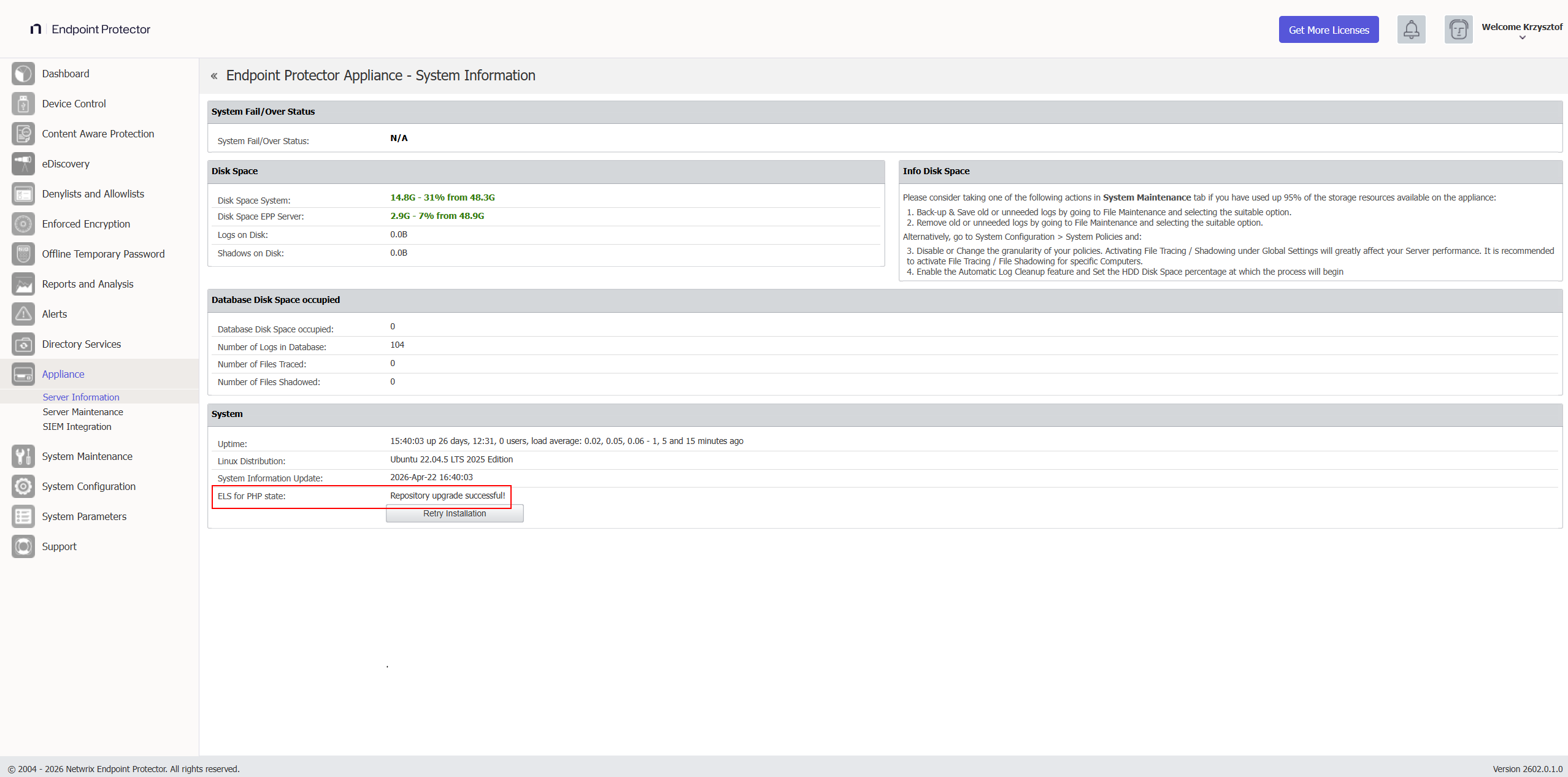
If you imported the license successfully, the Server Information page shows:

If errors appear instead:
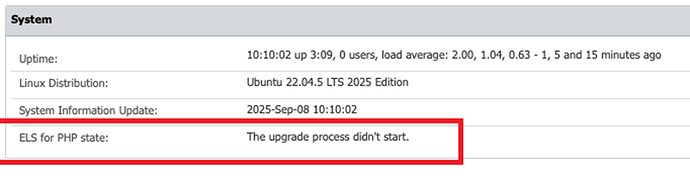
Resolution: If ELS for PHP isn't Active after import, contact Netwrix Support or your account team for a refreshed license — the server can't receive OS and patch updates without it.
EPP Client
EE Clients Can't Connect After Migration
Symptom: Enforced Encryption clients fail to connect or show as untrusted.
Most likely cause: The new server IP/FQDN is different from the old server, or the EE client is outdated.
Resolution:
- If you used the same IP/FQDN: verify that the backup restored the certificates (check System Configuration → Certificates).
- If you used a different IP/FQDN: users must decrypt their drives, reconnect to the new server, and re-encrypt.
- Verify the EE client is on the latest version. Since the 2509 release, Enforced Encryption changed its communication logic with the server, so you must update EE clients immediately after migration rather than leaving them on an older version. See Enforced Encryption Client Requires Immediate Update in Client Upgrade Management.
Endpoints Not Checking In After Migration
Symptom: Endpoints show as offline; Last Seen timestamps are old.
Checklist:
- Verify that you've reversed whatever mechanism you used to block client connectivity to the new server (firewall rule, routing block, disconnected network cable, and so on).
- Confirm the new server is reachable on the expected IP/FQDN from endpoints.
- Check that you uploaded the 2608 client package to the server.
- Verify the old server is no longer running on the same IP if using same-IP strategy.
- Check endpoint firewall rules allow outbound on ports 443 and any other configured EPP ports.
- Test with a clean install of the latest EPP Client to eliminate potential issues caused by a corrupted existing client.
If clients were on 5.9.4.1 or older, they also require the 5.9.4.3 Hotfix 1 signature bridge before they can receive the 2608 client package — any client already on 5.9.4.3 Hotfix 1 or later can go straight to 2608. See EPP Clients Not Communicating After Migration in the FAQ for the full checklist, including the signature bridge requirement.
Endpoints Not Upgrading via EPP Server Client Upgrade tool
Symptom: Endpoint upgrades appear stuck in pending status.
Checklist:
- Verify you're running the latest EPP Server.
- Clean up all old Client Upgrade tasks on the EPP Server.
- Check the EPP Client version used in the upgrade process against the Client version you want to upgrade, to rule out the Certificate Bridge issue.
- Create a new task.
- Ensure the affected endpoint with current EPP Client is communicating, and refresh policy.
- Restart the affected Windows endpoint; the installer uses msiexec, which any previous failed installation can block.
Policies Update Fails on Windows 11 EPP Client (Code Signature Verification Error)
Symptom: After a clean EPP Client install on a Windows 11 endpoint, the client shows as online in Device Control → Computers, but updating policies on the local client returns "Policies update failed!". Client logs show entries similar to:
WARN EPPNotifier.exe is not signed [isPeerAuthorized ServerCommandDispatcher.cpp:1663]
ERROR code signature verification failed (0x800B010A) for: ...\Wow64ProcHelper.exe [cf::testFileIntegrity ApiDetourDllInjector.cpp:59]
Root cause: Windows 11 enforces code signature verification more strictly than Windows 10. On networks with internet access, Windows automatically fetches any missing root or intermediate certificates from Microsoft's trusted root program. In air-gapped or otherwise offline environments, this automatic fetch can't happen, and the endpoint may be missing part of the DigiCert certificate chain that signs EPP binaries — causing signature verification to fail.
Resolution: Import the following DigiCert certificates into the endpoint's certificate store one at a time, and retest policy updates after each. The first certificate is often already present on the machine — in most cases, adding the Trusted Root G4 and the intermediate code signing certificate resolves the issue.
Codesign certificates:
| Subject | Issuer | Thumbprint |
|---|---|---|
| DigiCert Assured ID Root CA | DigiCert Assured ID Root CA | 0563B8630D62D75ABBC8AB1E4BDFB5A899B24D43 |
| DigiCert Trusted Root G4 | DigiCert Assured ID Root CA | A99D5B79E9F1CDA59CDAB6373169D5353F5874C6 |
| DigiCert Trusted G4 Code Signing RSA4096 SHA384 2021 CA1 | DigiCert Trusted Root G4 | 7B0F360B775F76C94A12CA48445AA2D2A875701C |
Timestamping certificates:
| Subject | Issuer | Thumbprint |
|---|---|---|
| DigiCert Trusted G4 TimeStamping RSA4096 SHA256 2025 CA1 | DigiCert Trusted Root G4 | 07894D00FC194A17DB273AEB5CF8FACEF14423A4 |
| DigiCert SHA256 RSA4096 Timestamp Responder 2025 1 | DigiCert Trusted G4 TimeStamping RSA4096 SHA256 2025 CA1 | DD6230AC860A2D306BDA38B16879523007FB417E |
If policy updates still fail after importing all certificates, contact Netwrix Support.