Enable Two-Factor Authentication for System Admins with Google Authenticator App
Overview
This article explains how to enable two-factor authentication (2FA) for system administrators with the Google Authenticator App in Endpoint Protector to enhance account security.
Instructions
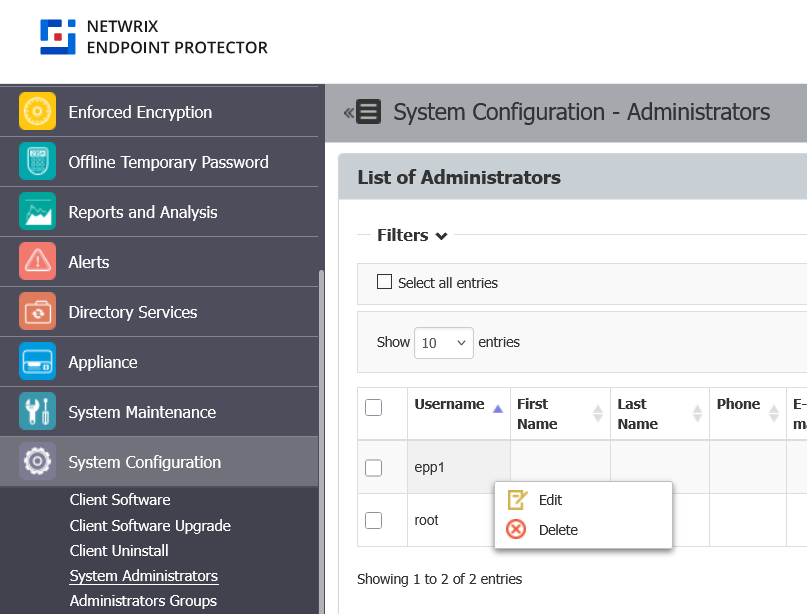
- Navigate to System Configuration > System Administrators in Endpoint Protector.
- Find the system administrator and toggle the switch labeled Two Factor Authenticator to On.
- Scan the QR Code with the Google Authenticator app or enter the provided code into the app to configure the authenticator app.
- Enter the authentication code from the app into the Google 2FA Validation field in Endpoint Protector after importing the account.
- Click Validate and then Save the changes for the system administrator.
- Confirm the changes by locating the Two-Factor Authentication activated successfully! notification. The 2FA column displays Yes to verify that the system administrator has two-factor authentication enabled.
- Log out and log back in with the system administrator account for which you enabled two-factor authentication. After you enter the password, Endpoint Protector prompts for the authentication code before granting access to the server interface.