How to Set Up SMTP With Gmail
Overview
This article explains how to configure SMTP settings in Endpoint Protector to use Gmail as your e-mail provider. It includes the required configuration values, steps for generating an app password, and instructions for sending a test e-mail.
For the full list of e-mail server configuration options, see Mail Settings.
Instructions
Configure Mail Settings
Before you configure the e-mail server, set an e-mail address for your administrator account (System Configuration > System Administrators > Edit info). Endpoint Protector sends test e-mails to this address.
-
Open the Endpoint Protector Web Console.
-
Go to System Configuration > Mail Settings.
-
Set the E-mail Authentication Type to Basic. Gmail doesn't support the OAuth authentication type, which applies only to Microsoft Exchange Online.
-
In the E-mail Server Settings section, select SMTP from the E-mail Type field.
-
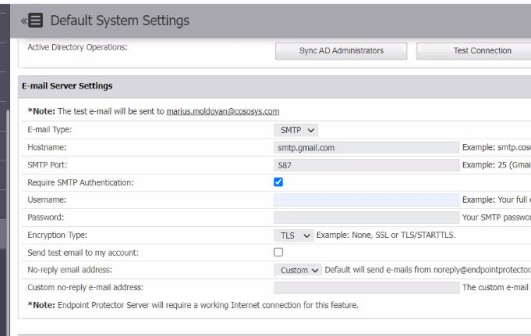
Fill in the fields as follows:
- E-mail Type: SMTP
- Hostname: smtp.gmail.com
- SMTP Port: 587
- Username: Enter your Gmail e-mail address
- Password: Enter the app password generated in your Google Account (see steps below)
- Encryption Type: TLS
- Send test email to my account: Enabled
- No-reply email address: Default
-
To use a custom no-reply e-mail address, select Custom and enter your preferred e-mail address, or leave the default.
IMPORTANT: When using Gmail as your SMTP provider, you must use an app password instead of your account password.
Configure App Password
- Navigate to Google Account – App Passwords.
- Sign in with your Gmail address, if prompted.
- Ensure 2-Step Verification is enabled on the account — Google requires this before it displays the App Passwords option.
- Enter a name that corresponds with where you will use the app password.
- Select Generate.
- Follow the on-screen instructions to enter the app password. The app password is the 16-character code generated on your device.
- Select Done.
- Once all fields are complete, click Save in Endpoint Protector.
- Select Send test email to my account and click Save again. If the configuration is correct, a green banner will confirm that a test email was sent.
If the test e-mail fails to send, review the Mail Server Logs tab under System Configuration > Mail Settings for detailed error messages.