Enable Deep Packet Inspection for Instant Messaging Applications
Overview
The Netwrix Endpoint Protector (EPP) Client can inspect text written in instant messaging applications by using Deep Packet Inspection (DPI). This article explains how to enable DPI and configure text inspection for supported instant messaging applications.
For the full Deep Packet Inspection reference, including Text Inspection, DPI Applications, and Google/webmail-specific settings, see Deep Packet Inspection.
Instructions
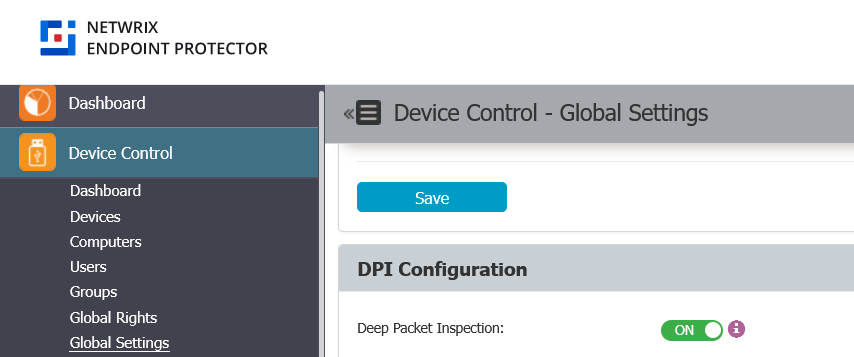
Enable DPI Globally
- Go to Device Control > Global Settings.
- Enable Deep Packet Inspection.
- Save the setting.
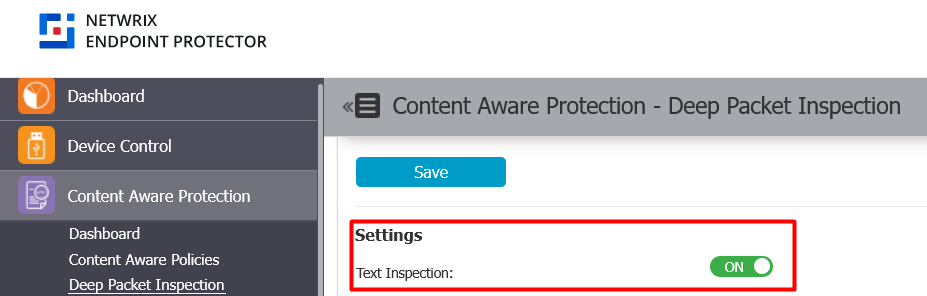
Enable Text Inspection
- Go to Content Aware Protection > Deep Packet Inspection.
- Enable Text inspection.
- Save the setting.
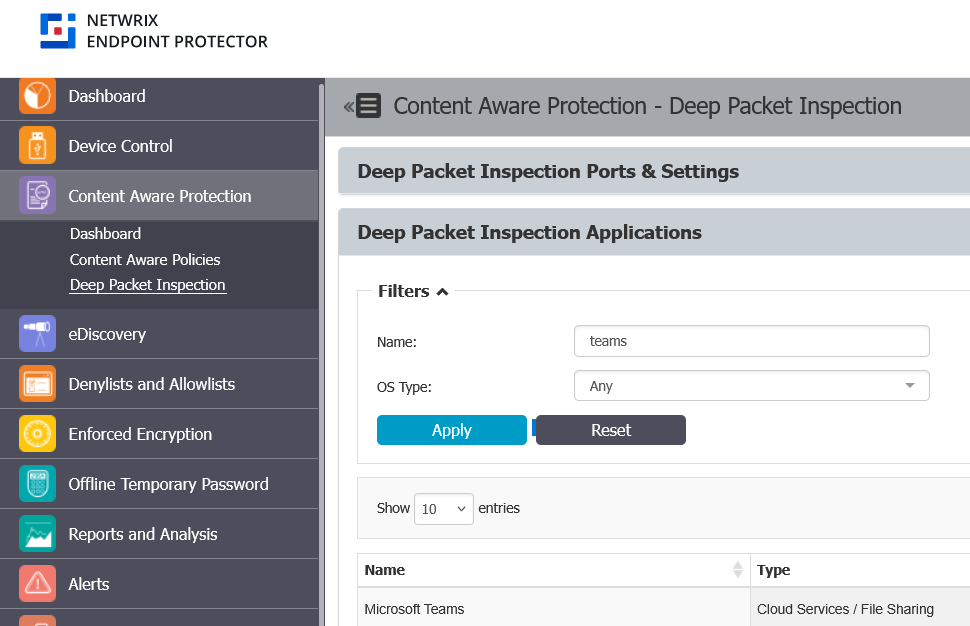
Enable DPI for Instant Messaging Applications
- Go to Content Aware Protection > Deep Packet Inspection.
- Scroll to Deep Packet Inspection Applications.
- Filter for the instant messaging applications you want to use with text inspection. Supported apps include Teams, Skype, Slack, Mattermost, and Google Chat.
- Click the Actions button and select Enable DPI for each application.
You must enable DPI for each application on every operating system where the EPP Client is installed (Windows, macOS, Linux).
In blocking mode, platforms such as Slack and Google Chat might generate Instant Messaging events multiple times. This is expected behavior — it results from these tools' retry mechanisms when a message is blocked, and Endpoint Protector blocks each retry attempt for enhanced security.
Configure Content Aware Policies for Instant Messaging Applications
- Go to Content Aware Protection > Content Aware Policies.
- Create or edit a policy.
- Select the instant messaging applications you want to monitor.
- Save the policy.
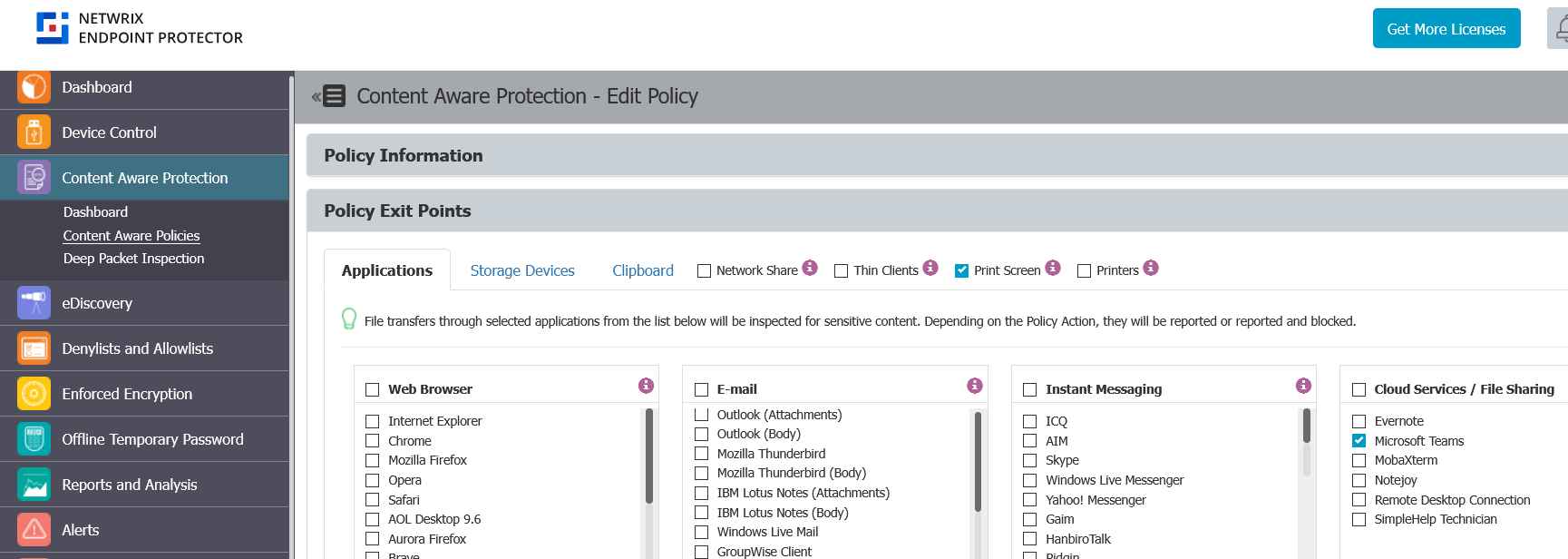
For comprehensive visibility into Teams over web in Microsoft Edge, also enable Edge under Policy Exit Points > Applications > Web Browser in the Content Aware Policy.