Enabling User Remediation in Content Aware Protection Policies
Overview
User Remediation allows end users to justify or remediate blocked actions when a Content Aware Protection policy is triggered. It is recommended to enable User Remediation after configuring a blocking policy for Content Aware Protection in Netwrix Endpoint Protector.
For the full reference, see Block and Remediate Policies.
Instructions
- In the Netwrix Endpoint Protector Console, navigate to the Content Aware Protection Policy where you want to enable User Remediation.
- Edit the policy and locate the Policy Action field.
- Select Block and Remediate from the available actions.
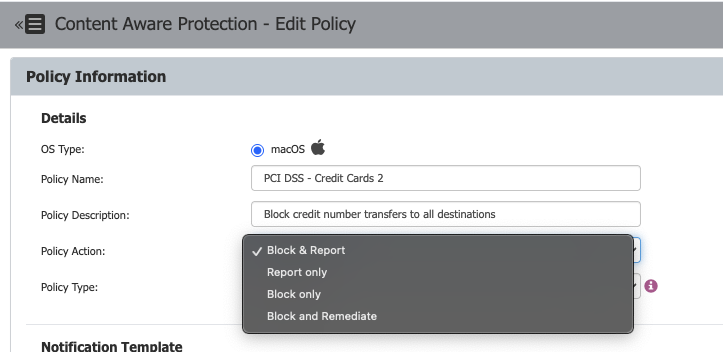
- Click Save to confirm the changes. This will enable the User Remediation feature the next time the endpoint connects to the Netwrix Endpoint Protector Server.
You can manage additional Self Remediate settings, such as available justifications and the maximum remediation time interval, from System Parameters > User Remediation.
Scope: Deep Packet Inspection Enabled vs. Disabled
Whether Deep Packet Inspection (DPI) is enabled changes what User Remediation actually unblocks:
- DPI enabled: User Remediation applies to a specific web domain. For example, remediating an upload on
uploadsite.comonly allows further uploads touploadsite.com, not to other domains. - DPI disabled: User Remediation applies to the entire application. For example, remediating an upload in Chrome allows uploads to any URL from Chrome.
DPI is enabled by default for browsers and desktop e-mail applications once turned on globally (Global/Computers/Users/Group settings). To extend it to other applications, go to Content Aware Protection > Deep Packet Inspection and enable it manually in the Actions column for each application.
How End Users Remediate a Blocked Action
When a Block and Remediate policy triggers, the threat appears in the EPP notifier's Content Aware Protection tab (and as a pop-up notification, if enabled). To remediate:
- Open the EPP notifier and go to the Content Aware Protection tab.
- Select the file to remediate and click Self Remediate.
- In the Self Remediate section:
- Select a justification from the dropdown list.
- Add a reason for the justification, if required.
- Enter credentials if Require Credentials is enabled.
- Set the number of minutes needed to remediate the device.
- Click Authorize.
You can view the web domains remediated by users in the EPP Client's Content Aware Protection tab, under the Web Domains column.