How to Add Specific Devices to the Allow List
Overview
This article explains how to add specific devices to the allow list using the web console interface.
Instructions
- Open the Endpoint Protector web console and navigate to the Device Control menu.
- Select the Global Rights sub-menu.
- Scroll to the bottom of the page and click the Add button.
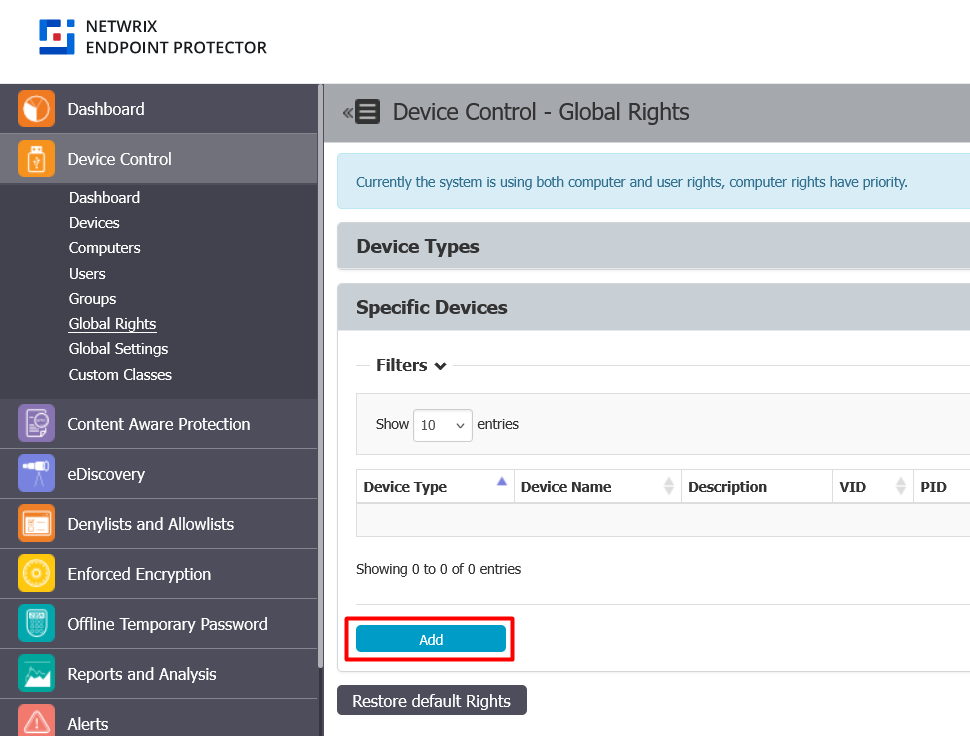
- In the new window that appears, add the specific device to the allow list.
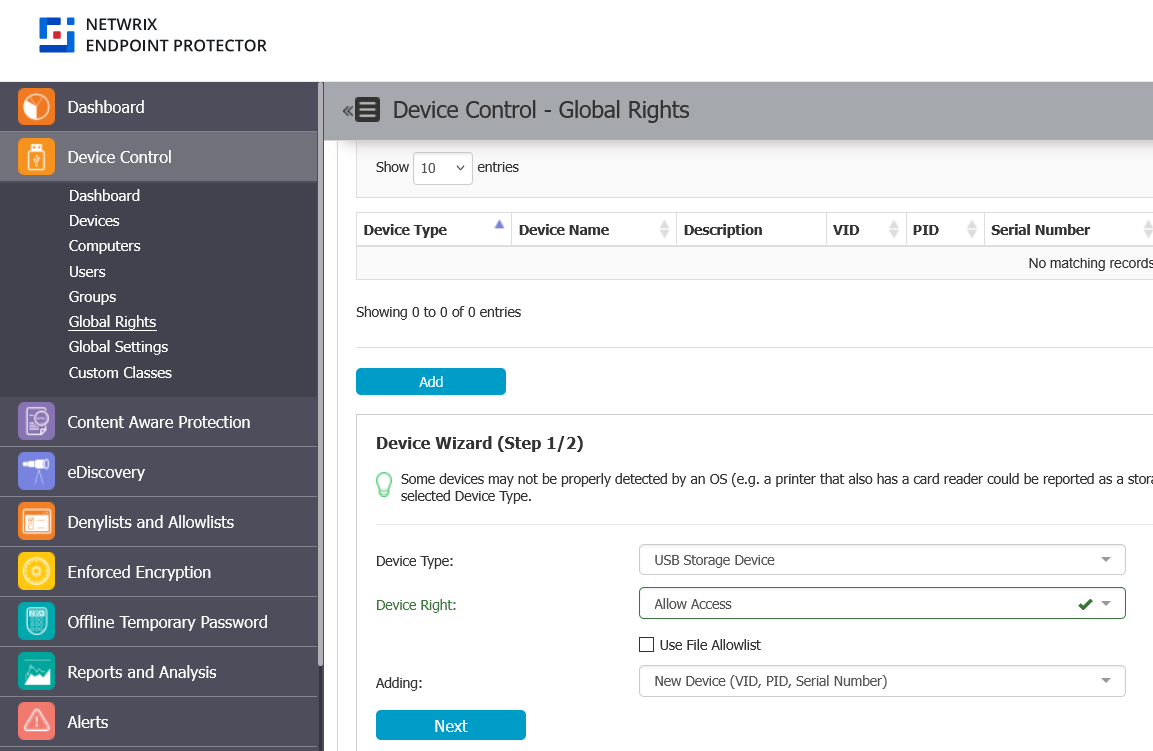
- Fill in the requested details for your device and click Next. You will be prompted to add the device as a new device.
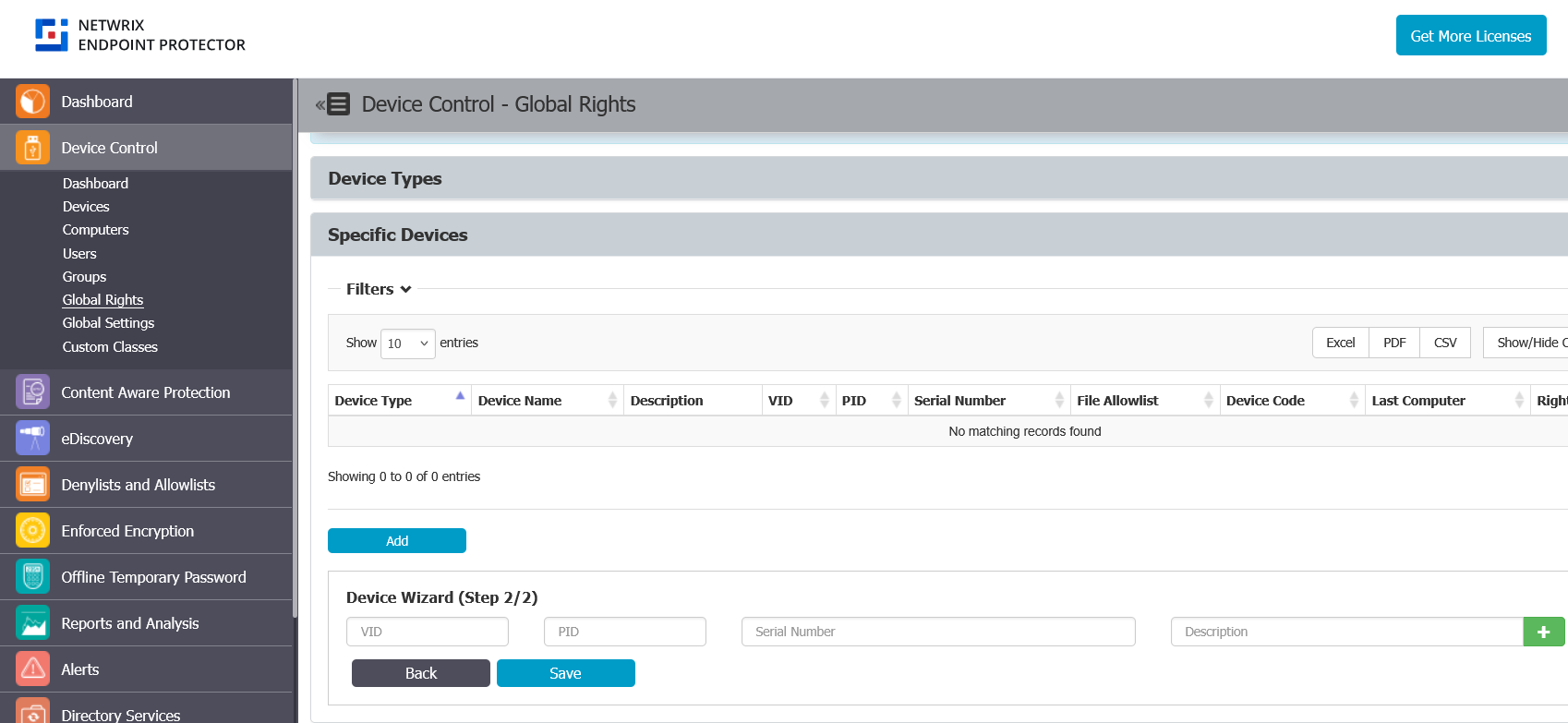
- After filling in the device details, click Save and you should see the entry in the Allow list.