Run the Banking Demo Application
This guide shows how to set up and run the Banking demo application.
Banking Application Description
The Banking application is a demo application that represents a web based external system. The Banking application contains:
-
A main page.
-
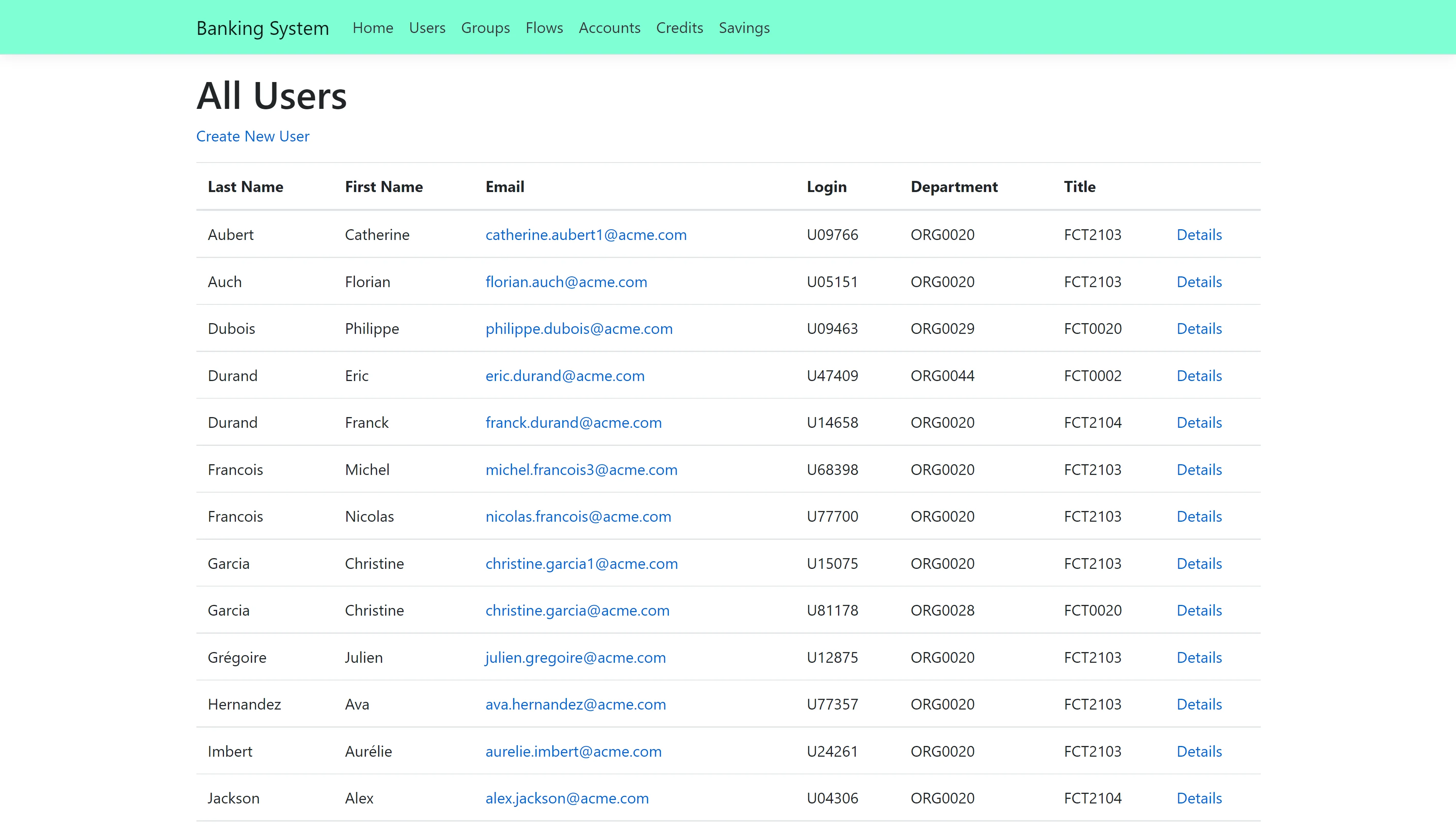
A list of users, accessible by clicking on Users at the top of the page. It is possible to add a user by clicking on Create New User.
-
A list of groups, accessible by clicking on Groups at the top of the page. Clicking on Details on a group shows the users belonging to that group.
-
A user's details page for each user, accessible by clicking on Details on a user in the users list.
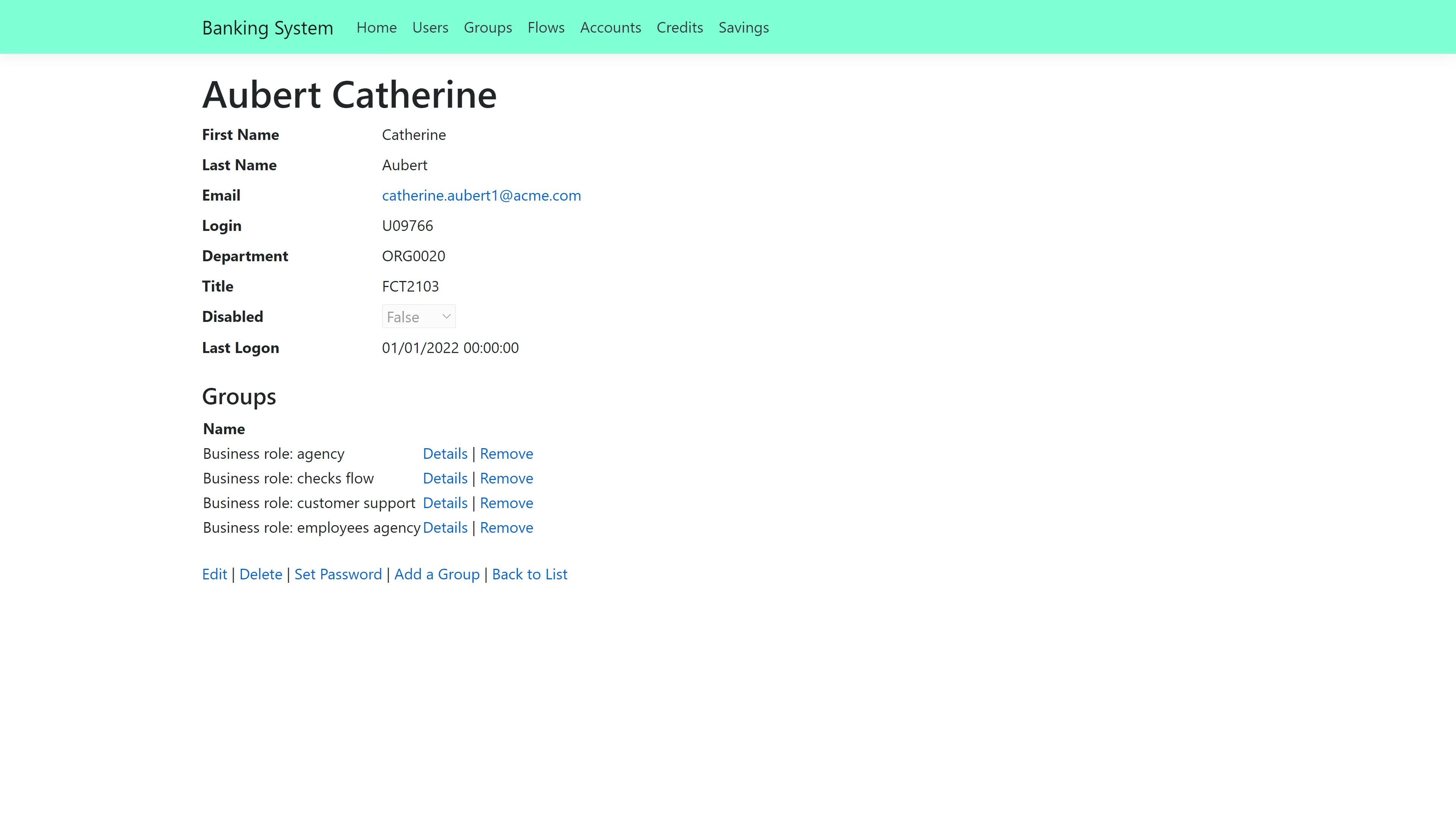
The most interesting part of the Banking application is a user's page. On a user's page, it is possible to:
- Edit the user's information
- Delete the user
- Add the user to a group
- Remove the user from a group
- Set the user's password
The Banking application uses a database named BankingSystem as a data source. The changes made to
a user are applied to the database, and will be saved.
Running the Banking Application
The Banking Application is part of the Usercube SDK, and comes with prefilled sources. To run the Banking application:
- Download the Usercube SDK.
- Download the Usercube runtime.
- Create a database named
BankingSystem. - Go to the
Runtimefolder. - Run
./identitymanager-FillBankingDatabase.exe --connection-string {connection string} --sources-path {sources path} --banking-sql-path {banking sql path}, replacing{connection string}with theBankingSystemdatabase connection string,{sources path}with the path toSDK/DemoApps/Sources, and{banking sql path}with the path toSDK/DemoApps/Banking. - Go to the
SDK/DemoApps/Bankingfolder. - Run
./Banking.exein a command prompt. - In a web browser, enter the URL
localhost:5000.
The Banking application is running, and the web browser is on the Banking home page.
To set the Banking application to another port, run
./Banking.exe --urls http://localhost:{port number}. To access the application, enter the URL
localhost:{port number} in a web browser.
Some ports are not recognized by web browsers, or may already be used. Choose a port wisely.