Create the Entity Type
How to create the technical container of an Entity Type.
Overview
Here, you will learn how to create an Entity Type: the shell that harbors the (scalar and navigation) properties which describe a given set of resources related to one managed system.
Create the Entity Type
Create the entity type by proceeding as follows:
-
Access the connector's page by clicking on the Connectors button on the home page in the Configuration section, then on the relevant connector.

-
On the connector's page, in the Entity Types frame, click the addition button.

-
Fill in the information fields.
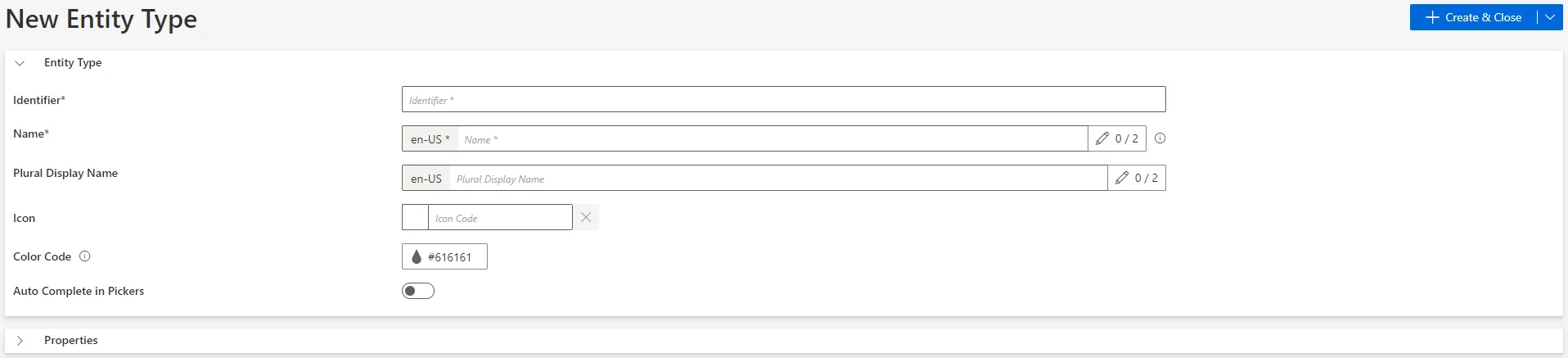
Identifier: must be unique among entity types, without any whitespace, and be C#-compatible. See Microsoft lexical structure. NETWRIX recommends using<connector>_<notion>in the singular.Name: will be displayed in the UI to identify the entity type.Icon: can be chosen from Microsoft's list and will be displayed with the entity type in the left menu of the home page.Auto Complete in Pickers: can be set once properties are created (and saved) so that, when using a searchbar for selected properties, Identity Manager suggests existing entries.
-
In the entity type's Properties section, choose a source so that the connection provides the source's data structure.

Consider the example of an AD connector. This entity type
AD - Entrygathers the valuable information from the AD, i.e. all the AD entries (groups and accounts) to classify, with the properties that are useful for assignment management.
The AD connector uses as a source
Connection Active Directory - entries. Its structure was retrieved when the schemas of theActive Directorywere refreshed > Create a Connection, thus retrieving the attributes from the Active Directory and storing them temporarily on the agent side, inside CSV files.
Next Steps
To continue, Define Scalar Propertiesfor this entity type.
Troubleshooting
If there are no connection tables available in the Source dropdown list of an entity type, then:
Ensure that there are existing connections:
- if this is the case, then click Refresh all schemas on the connector page, and verify that there is no error. See the Create a Connection topic for additional information.
- if not, then you must create at least one connection.
If there is a message stating to refresh the connection's schema, then:

Start by making sure that the connection's schema is refreshed by clicking on Refresh all schemas on the connector page, and verify that there is no error.
If the message is still displayed, then it means that the previously selected connection table no longer exists in the managed system. In this case, either the table's name changed, or the table isn't relevant anymore. Then you should find a relevant table in the Source dropdown list.