Execute a Certification Campaign
How to execute access certification campaigns, i.e. review specific entitlement assignments and deprovision inappropriate access.
Overview
The aim of an access certification campaign is to review specific entitlement assignments for specific identities, to certify them and express an audit opinion that justifies their necessity.
Once certification campaigns are scheduled, the assigned reviewers must decide whether to keep or delete each relevant assignment.
Participants and Artifacts
The execution part should be performed in cooperation with the staff who review access in the campaign scheduling.
The monitoring part should be performed in cooperation with the staff in charge of campaign scheduling.
| Input | Output |
|---|---|
| Schedule a Certification Campaign (required) | Certified access |
Execute Certification
To execute certification:
- Access the ongoing campaigns by clicking the Access Certification section on the home page (legacy). Or navigate to Certify Permissions in the left navigation bar.
This page lists all assignments to review.
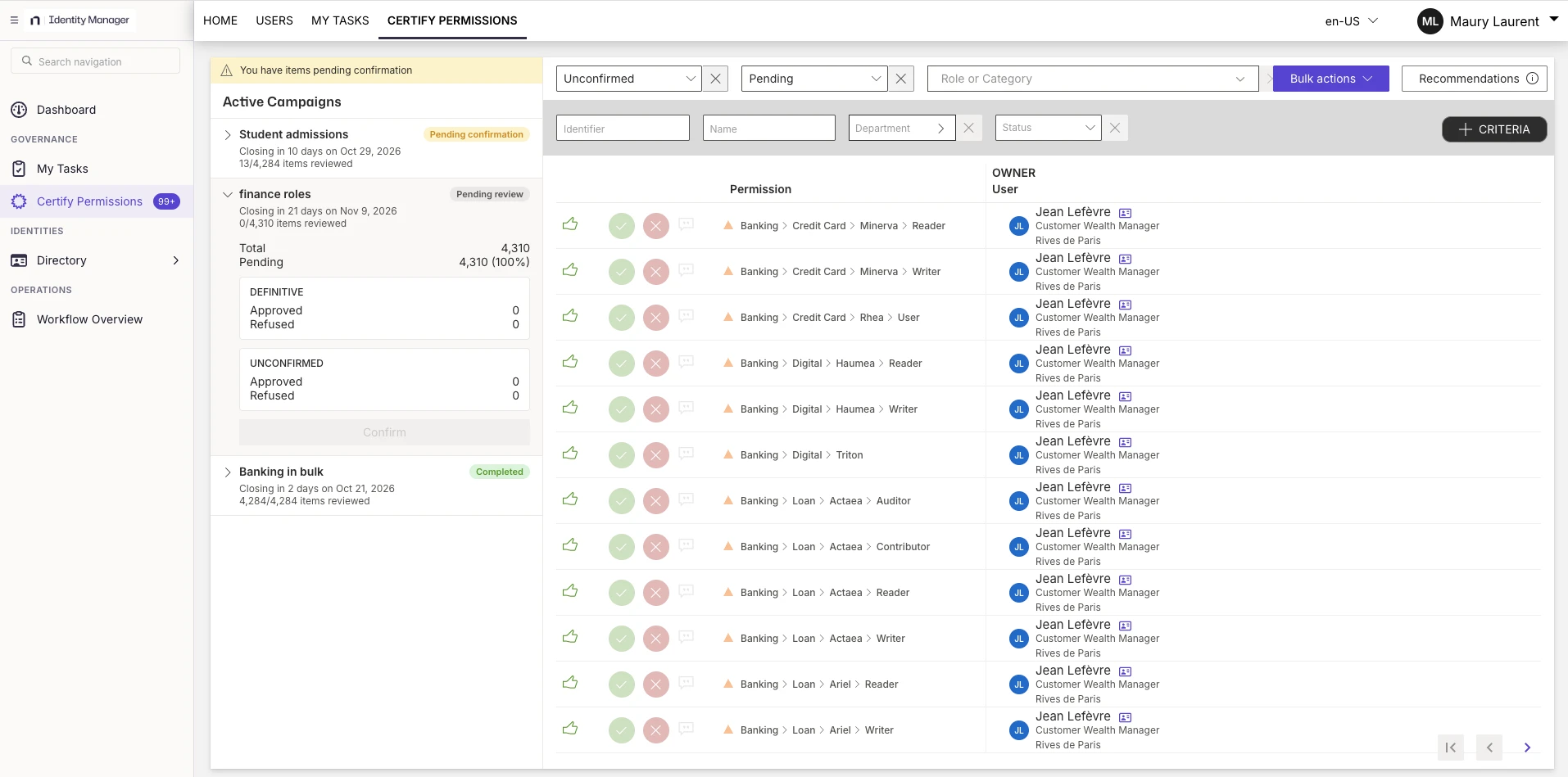
You may see several campaigns open at the same time. They are listed under Active Campaigns on the left of the page. Click a campaign to expand it and switch to it: the assignments to review on the right are those of the selected campaign. Each campaign shows how many of its items have been reviewed and its closing date.
Each campaign displays a status that tells you what is expected from you:
| Status | Description |
|---|---|
| Pending review | Some items of the campaign have not been reviewed yet. This is the status of a campaign you have not started or have only partly reviewed. |
| Pending confirmation | You have made decisions that you have not confirmed yet. A message at the top of the list warns you that you have items pending confirmation. Decisions only take effect after you confirm them (see step 3). |
| Completed | All the items of the campaign have been reviewed. |
Campaigns are sorted by status: those pending confirmation come first, then those pending review, and completed campaigns come last. Campaigns with the same status are sorted by closing date, the soonest first.
Review the items of a campaign
After you select a campaign, review its items one by one, or several at once with bulk actions. Each row is an assignment you must decide on.
Check the recommendation
To help reviewers decide, each assignment shows a recommendation icon that indicates whether the assignment complies with the role model.
 The Recommended icon indicates that the entitlement has been automatically granted according to the security policy. You can approve it because it is compliant.
 The Not Recommended icon indicates that the entitlement doesn't comply with the security policy. Refuse it unless the user needs it.
An absence of any icon indicates that the entitlement doesn't comply with the security policy. However, it has been manually granted or denied. Thus there is no recommendation, review this entitlement carefully.
Approve or refuse an item
- Click approve on a permission to confirm that this access will be kept for this identity.
- Click refuse on a permission to confirm that this access isn't necessary for this identity and should be removed. At the next provisioning order, this access will be removed.
Your decision is saved as unconfirmed and only takes effect when you confirm your decisions (see step 3). Until then, you can change it. When you reset a decision, you are asked whether the comment must be deleted too.
Add a comment
Click the comment icon on an item to add a comment to your decision.

Forward, delegate or flag an item
Depending on how the campaign was set up, more actions may be available on an item:
| Action | What it does |
|---|---|
| Forward | Transfers the item to another reviewer, who then owns the decision. Use it when the item is not part of your scope of responsibility. A forwarded item can only be forwarded to one person, and the action can't be undone. |
| Delegate | Asks another person for a recommendation. You remain responsible for the decision. The item moves to the Delegated to others tab until you decide. |
| Indicate "Not for me" | Removes the item from your scope. It can't be forwarded or delegated afterward. |
If an action isn't shown, it wasn't enabled for the campaign.
View the activity history of an item
The Activity History of an item lists the actions performed on it, such as when it was forwarded or delegated, with the date, the people involved and the comment.
Campaigns with mulitple reviewers
In a campaign with multiple reviewers, the list includes a Reviewer column. It shows the name of the reviewer who made the most recent decision on the item.
- Any reviewer assigned to the item can approve or refuse it, and can change a decision made by another reviewer until it is confirmed.
- Once a reviewer confirms their decisions, they can no longer be changed.
- Forward, Delegate and Indicate "Not for me" aren't available on campaigns with multiple reviewers.
Filter the items
Use the filters above the list to narrow down the items displayed:
- The confirmation status filter, to show unconfirmed or definitive items.
- The decision filter, to show pending, approved, or refused items.
- Role or Category, to show only the items of specific roles or categories (feature in preview, may not be available. Contact your administrator for details)
- The search fields and the Criteria button, to look for items by identifier, name, or other properties of the owner.
Apply a decision to several items with bulk actions
If the campaign allows it, the Bulk actions button lets you apply an action to many items at once instead of one by one.
- Filter the list so that it shows only the items you want to change.
- Click Bulk actions and choose an action.
- Review the panel. It lists the active filters and tells you how many items will be changed and how many already have the requested state and will be left as they are.
- Add a comment if needed. It is saved on every item that is changed. A comment is required to refuse an item or to indicate "Not for me".
- Enter the confirmation text shown in the panel, then confirm.
When the action completes, a summary shows how many items were changed and how many were skipped. An item is skipped when it already has the requested state, so the action leaves it unchanged. For example, if you bulk approve 100 items and 20 of them are already approved, the summary shows 80 items approved and 20 skipped.
A bulk action applies to every item matching the active filters, including the items on other pages. If no filter is active, it applies to every item of the selected campaign. Check the active filters before you confirm.
Each item changed by a bulk action shows by bulk action in its Activity History, followed by your comment.
- Click Confirm Decisions on the left of the page.
If you've made an erroneous decision, exiting the page before confirming lets you quit without saving and start over from the last confirm.
Monitor a Certification Campaign
Existing certification campaigns are listed on the page accessible via the Access Certification Campaigns button on the home page in the Administration section, or under Configuration > System Setup > Access Certification Campaigns in the left navigation bar.
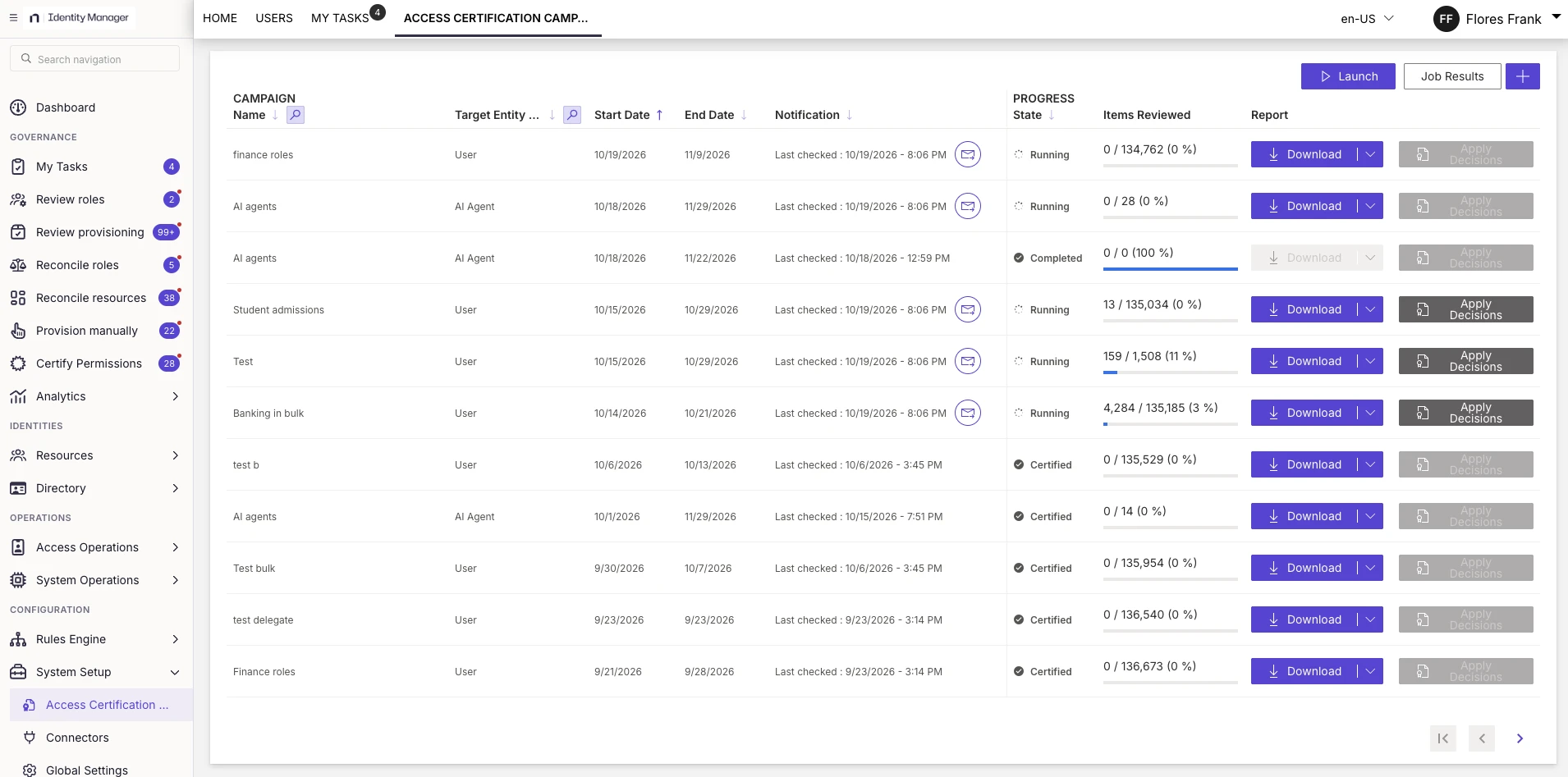
Get reports
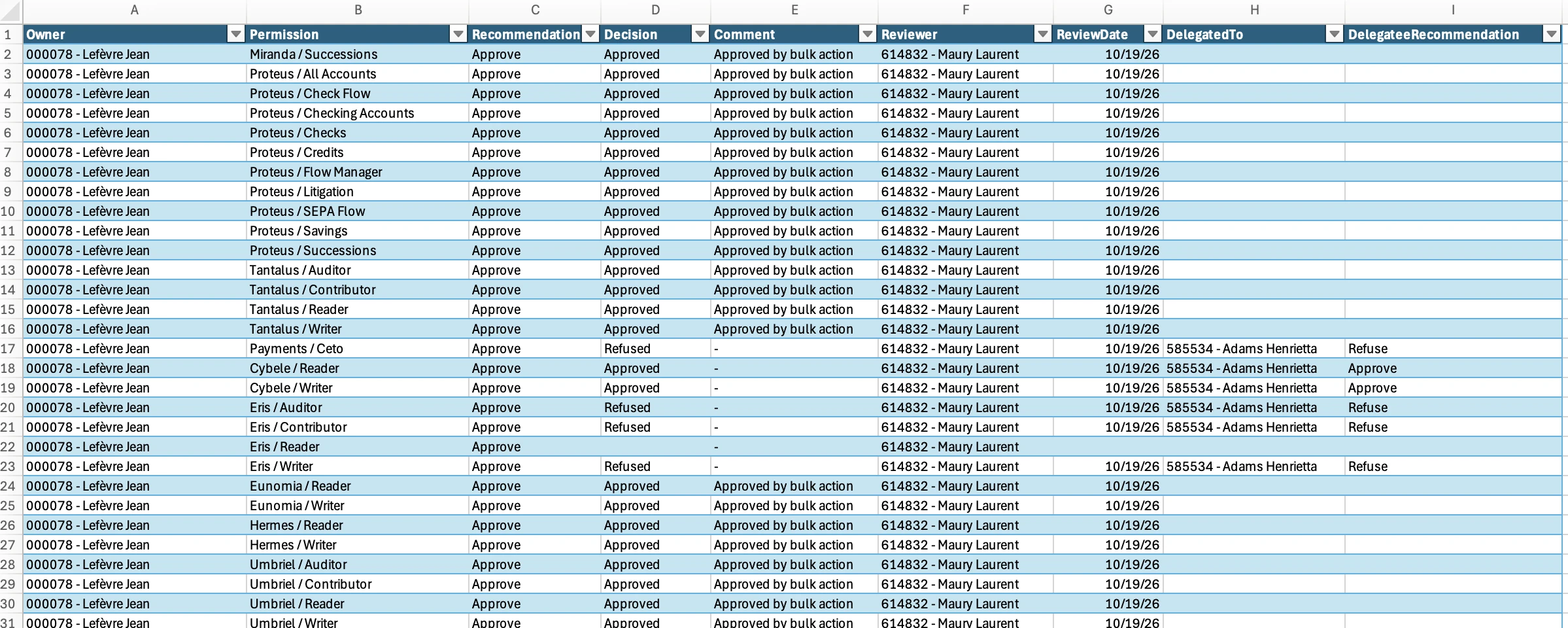
A Download button is available for each campaign. It downloads a CSV report that lists all the entitlement assignments to be reviewed, the corresponding reviewers and their decisions.
Bulk actions in the report
Items changed by a bulk action appear in the report like any other reviewed item, with these particularities:
- Decision: the decision applied by the bulk action, for example
ApprovedorRefused. - Comment: the action followed by
by bulk action, for exampleApproved by bulk action. If the reviewer entered a comment, it is added after a dash. A-means that no comment was recorded. - Reviewer and ReviewDate: the reviewer who ran the bulk action and the date it was applied.
Delegated items in the report
Two columns give the details of delegated items. They are empty for items that weren't delegated.
| Column | Contents |
|---|---|
| DelegatedTo | The delegatee's display name. |
| DelegateeRecommendation | The delegatee's recorded decision: Approve or Refuse. Blank if the delegatee has not recorded one. |
The Decision column always shows the reviewer's decision. If the reviewer overrides the delegatee's recommendation, both decisions are kept in the report. When a delegation is revoked, both columns are cleared.
Send notifications
The notification icon on the line of a given campaign lets you send reminder notifications to the staff who haven't finished processing the campaign.
Generate provisioning orders
Once entitlement assignments have been reviewed, the final step is to apply these decisions.
An Apply Decisions button is available for each campaign. It shows all the decisions made in the campaign. The campaign administrator can then apply these decisions and generate the appropriate provisioning orders for deprovisioning unjustified entitlements. The next provisioning job processes these orders.
