Schedule a Certification Campaign
Learn how to create and schedule access certification campaigns, and how to define their scope.
Overview
A certification campaign is used to review specific access permissions and entitlements for specific identities. Its goal is to certify that access as remains appropriate and to record an audit opinion justifying each identity's continued need for it.
Scheduling a campaign means defining:
- Scope — which permissions, roles, or entitlements are in scope.
- Reviewers — who reviews them.
- Time window — when the review takes place.
Once scheduled and launched, the campaign appears to its reviewers on their Access Certification screen, where they approve or reject each item. Depending on the Reviewer Mode, a campaign can be reviewed by a single reviewer per item or by multiple reviewers. Single-reviewer campaigns can also optionally allow delegation — see Allowed Actions.
This topic explains how to create and schedule a campaign, and how to define its scope using filters that determine who reviews the access (the reviewers) and what gets reviewed (the items).
Participants and Artifacts
Set up certification campaigns together with your auditing team — they're best positioned to know which entitlements need review.
| Inputs | Identity Repository (required) Roles created in the Role Catalog (optional) Managed risks (optional) |
| Output | One or more scheduled certification campaigns |
For details on setting up the Identity Repository, see Create the Workforce Repository.
Create a Certification Campaign
Step 1: Open the Access Certification Campaigns page
From the home page, click Access Certification Campaigns in the Administration section.
Step 2: Add a new campaign
Click the + button in the top right, then fill in the campaign details.
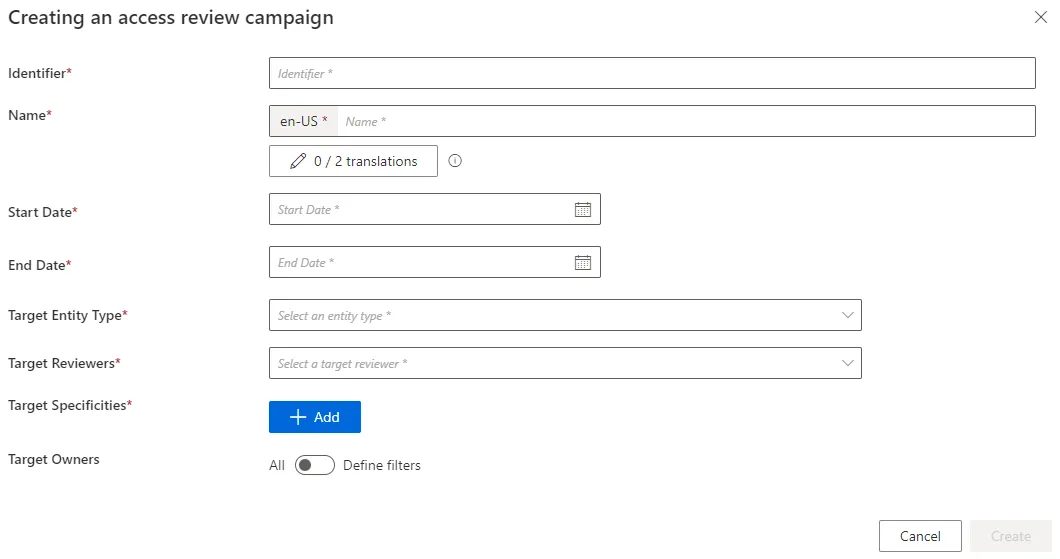
Configure the campaign
| Field | Description |
|---|---|
| Identifier | A unique code for the campaign. Must not contain whitespace. |
| Name | The display name shown to reviewers in the UI. |
| Description | Additional context about the campaign, included in the email notifications sent to reviewers and delegatees. |
| Start Date | The date the campaign becomes visible to reviewers on their Access Certification screen. The campaign reviews access as it existed at this date and time — any access granted afterward is excluded. Once you pick a date, a time picker appears so you can refine the cutoff to an exact time. |
| End Date | The date the campaign closes. |
| Target Entity Type | The type of entity the campaign will review. |
| Target Reviewers | The identities responsible for performing the review. Reviewers are configured separately via Access Certification policies. |
| Reviewer Mode | Determines how reviewers act on each certification item — see below. |
Reviewer Mode
- Single — each item is reviewed by exactly one reviewer.
- Multiple — several reviewers can act on the same item. Any of them can approve or refuse it, and decisions stay editable until confirmed. "Delegation", "Forward" and "Not for me" actions are not available in this mode.
Multiple Reviewer Mode
Review Workflow
- Notification — all assigned reviewers receive a notification when a campaign item requires review.
- Decisions remain visible — even after an item has been reviewed, other reviewers can still find it by filtering on
ApprovedorRefused. The name of the reviewer who made the most recent decision is shown in the Reviewer column. - Editing before confirmation — as long as decisions have not been confirmed, any authorized reviewer can edit and change a decision made by another reviewer.
- Confirmation locks decisions — once a reviewer confirms decisions, the decision can no longer be modified.
note
On simultaneous conflicting decisions: in rare cases where two reviewers submit conflicting decisions at the same moment, the system resolves the conflict by applying the last received decision, consistent with how conflicts are handled in role reviews elsewhere in the product.
Confirming Decisions
When a reviewer clicks Confirm Decisions:
- Only the decisions that the reviewer has personally made are finalized.
- Decisions made by other reviewers are confirmed independently when those reviewers confirm their own decisions.
- Confirmed decisions cannot be modified.
In the Confirm Decisions tab, each reviewer can see a summary that includes:
- Items approved by me
- Items approved by others
- Items refused by me
- Items refused by others
Allowed Actions
This section groups optional behaviors that can be enabled for a campaign. Currently, this includes Delegation.
Delegation
For campaigns using Single reviewer mode, the Delegation checkbox is available under Allowed Actions during campaign creation. This lets reviewers hand off individual items to another reviewer. Note that:
- This setting cannot be changed once the campaign is created.
- It is not available for
Multiplereviewer mode campaigns. - To make this checkbox available, the Delegation feature must first be activated in the Features section of the settings.
Reviewer Experience
When delegation is enabled, reviewers see a tab on the Access Certification screen Delegated to me. If they have delegated items to other reviewers, they will also see a tab Delegated to others.
| Tab | Contents |
|---|---|
| My Items | The standard certification tab. |
| Delegated to Me | Items delegated to the logged-in user by another reviewer. |
| Delegated to Others | Items the logged-in user has delegated to someone else. |
A Delegate action is available on any undelegated item in My Items (items with an active delegation or a recorded decision don't show this action). Clicking Delegate opens a side panel to select a recipient and add an optional comment; the item then moves to Delegated to Others.
To revoke a delegation, use Revoke Delegation on an item in Delegated to Others. This returns the item to My Items, removes it from the delegatee's view, and clears the delegatee's comment and decision.
Delegatee Experience
The delegatee gets an immediate email notification with the campaign name and description, and the item appears in their Delegated to Me tab. The delegatee can record:
- Approve or Refuse — a recommendation visible to the reviewer in Delegated to Others.
- Not For Me — sends the item back to the reviewer's My Items tab with an activity indicator; the delegatee's comment is preserved in the audit trail.
Delegatees cannot delegate or transfer items further.
Confirming Delegated Decisions
When a reviewer clicks Confirm Decisions and delegated items have recorded recommendations, a confirmation popup appears with two options:
- Confirm All Decisions
- Cancel, to review Delegated to Others first.
If the reviewer overrides a delegatee's recommendation, the reviewer's decision is the one that's used. Delegated items with no recorded recommendation are treated as undecided.
Audit Trail
The Certification Report includes two columns for delegated items:
| Column | Contents |
|---|---|
| DelegatedTo | The delegatee's display name. |
| DelegateeRecommendation | The delegatee's recorded decision (Approve, Refuse, Not For Me, or blank if none recorded). |
If a reviewer overrides a delegatee's recommendation, both decisions are captured. Revoking a delegation clears both columns.
The Activity History popup includes an Action column distinguishing Forwarded and Delegated events.
Defining the scope
Two more filter groups control exactly what gets reviewed. Understanding how they combine matters, because it changes what actually shows up in the campaign:
| Filter | What it does | How multiple values combine |
|---|---|---|
| Target Specificities | An AccessCertificationDataFilter defining the campaign's scope by object type, category, approval state, etc. | Multiple specificities are combined with OR (the campaign includes the union of all of them). Within a single specificity, criteria are combined with AND. Role tags are the exception: listing several tags matches roles with any of them (OR). |
| Target Owners | Filters based on identity attributes, to select whose access gets reviewed. | Multiple owner filters are combined with AND (an identity must match all of them to be included). |
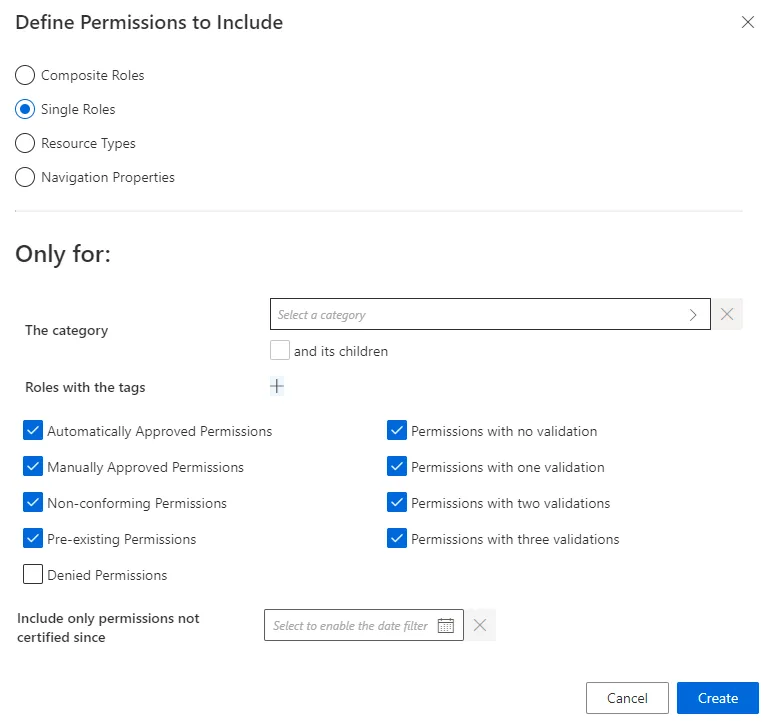
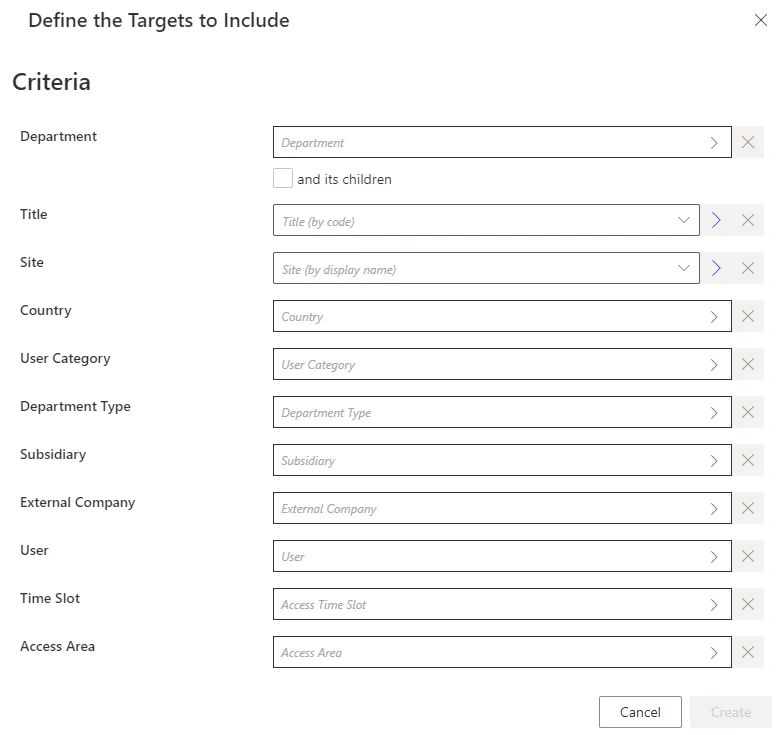
Depending on the target entity type you chose, extra filters may appear here as well.
Other targeting options
-
Individual Owner — target a single specific identity whose access should be certified.
-
Active Target — target identities whose properties (from
Directory_UserRecord) have changed since a given date.Only properties that Identity Manager doesn't calculate itself can be used for this filter.

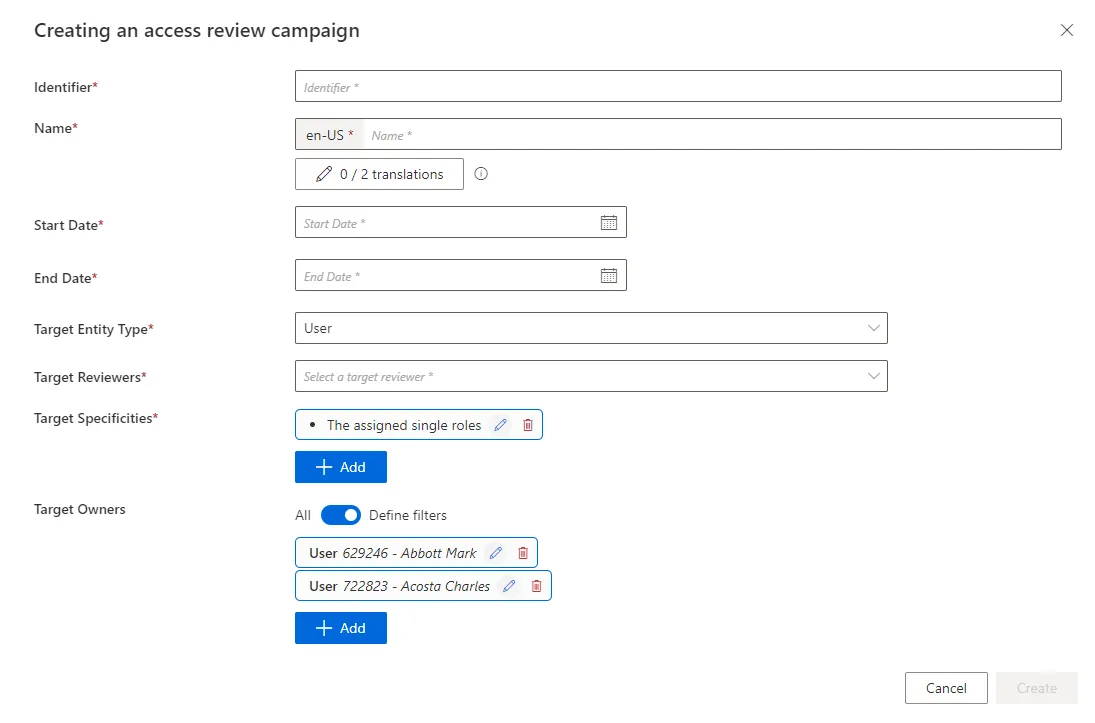
Example: the campaign below targets all assigned single roles for two specific users.
Step 3: Save the campaign
Click Create to add the campaign to the list.
Step 4: Launch the campaign
Click Launch to run the access certification job and apply your changes.

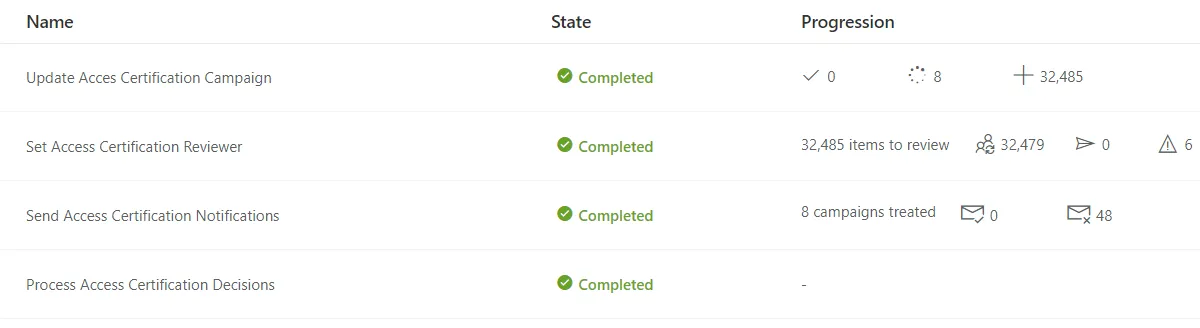
You can check the job's progress and results via the Job Results button.
Example:
Impact of Modifications
- Before the start date: any field of a campaign can be edited.
- After the start date: only the name, identifier, and end date can still be changed.
- At any time: a campaign can be deleted.
Verify Campaign Scheduling
To confirm everything was set up correctly, open the Access Certification Campaigns page and check that the new campaign's parameters match what you configured.