Active Directory Page
On the Active Directory page, you can access all the domains that you have configured through the Domains Page.
Click Active Directory in the left pane to open the Active Directory page.
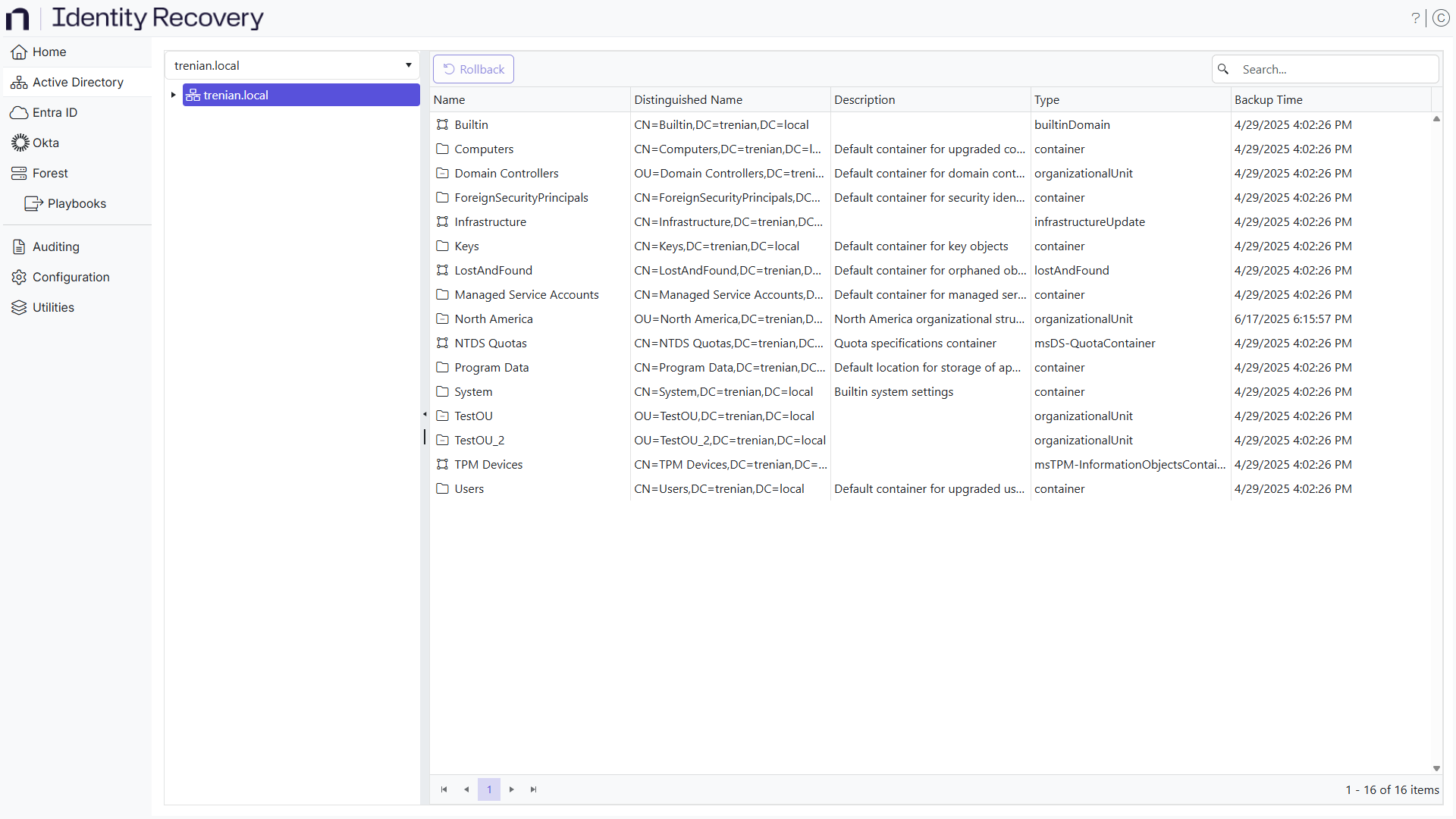
Select a domain from the dropdown menu and expand it to view the domain tree and container structure, which is exactly the same as you get in Active Directory Users and Computers. Objects in the domain are also available in the same hierarchical structure.
The page displays the following information:
- Name – The display name of the object
- Distinguished Name – The unique name identifying the object in the directory
- Description – A description of the object
- Type – The object type, showing whether it is a container, organizational unit, computer, group, user, etc.
- Backup Time – The date and time of the last the backup
You can perform the rollback and recover operations for objects.
Search for an Object
There are several ways to find an object:
- Column Filters – Click a column header to organize the table alphabetically by the column header. An arrow appears by the column name. Use it to arrange the entries by ascending or descending order.
- Search box – Enter a text string in the search box to filter the table for results that contain the text.
Rollback an Object
Select and expand a domain in the left pane and locate the object you want to rollback. Right-click this object and select Rollback on the menu. See the Rollback Objects topic for additional information.
Recover Deleted Objects
On expanding a domain in the left pane, you will notice that Recycle Bin is in blue, indicating that this is a virtual container specific to Identity Recovery. Use the Recycle Bin to recover deleted objects in Active Directory. See the Recover Objects topic for additional information.
Integration with Threat Prevention
When you right-click an object in a domain on the Active Directory page, the right-click menu is displayed as:
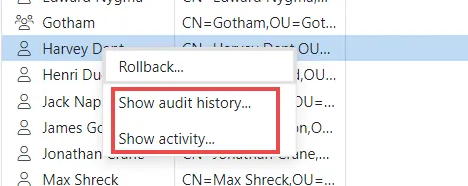
Identity Recovery enables the Show audit history and Show activity options only when both the following conditions are met:
- Threat Prevention data is tied with Identity Recovery data
- The user is logged in with an account that is specified in the Account section of the Netwrix Integrations Page
These options display data from Threat Prevention.
View the Audit History for an Object
You can view the changes made to an object by other users.
On the Active Directory page, expand a domain in the left pane and locate the object you want to view the audit history for. Right-click this object and select Show audit history on the menu. The Audit History window opens.
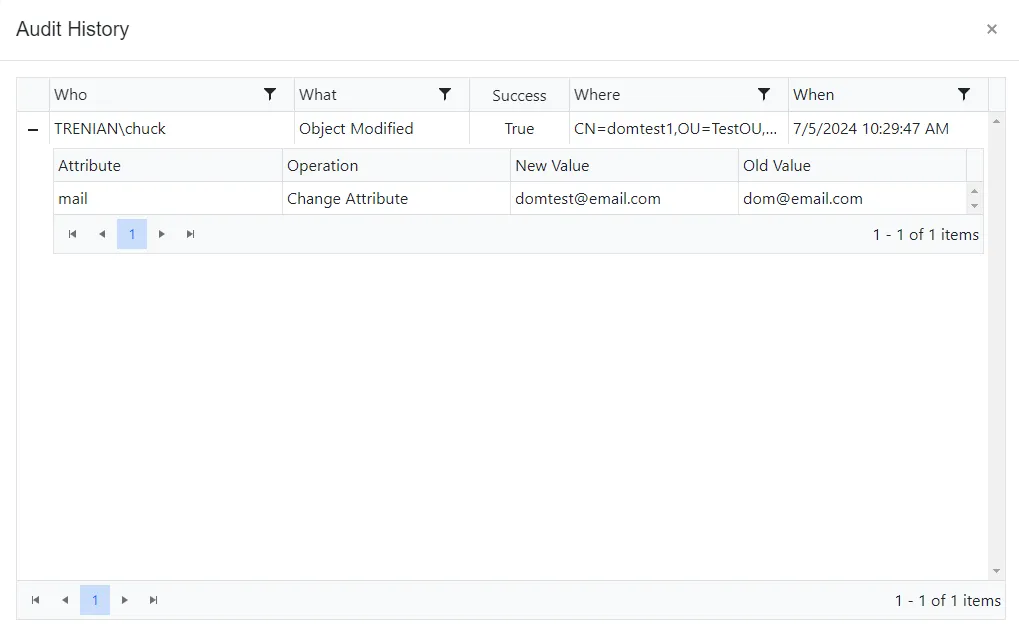
The Audit History window shows the following information for every action performed on the object:
- Who – The user who performed the action
- What – The action someone performed
- Success – Whether the action succeeded; True indicates success and False indicates failure
- Where – The object that someone acted on
- When – The date and time of the action
To view the details of an action, click the plus sign in the respective row to expand it. Information includes the object attribute that was affected, the type of change made, and the old and new values.
View the Activity by an Object
You can view actions the object performed in the environment.
On the Active Directory page, expand a domain in the left pane and locate the object whose activity you want to view. Right-click this object and select Show activity on the menu. The Audit Activity window opens.
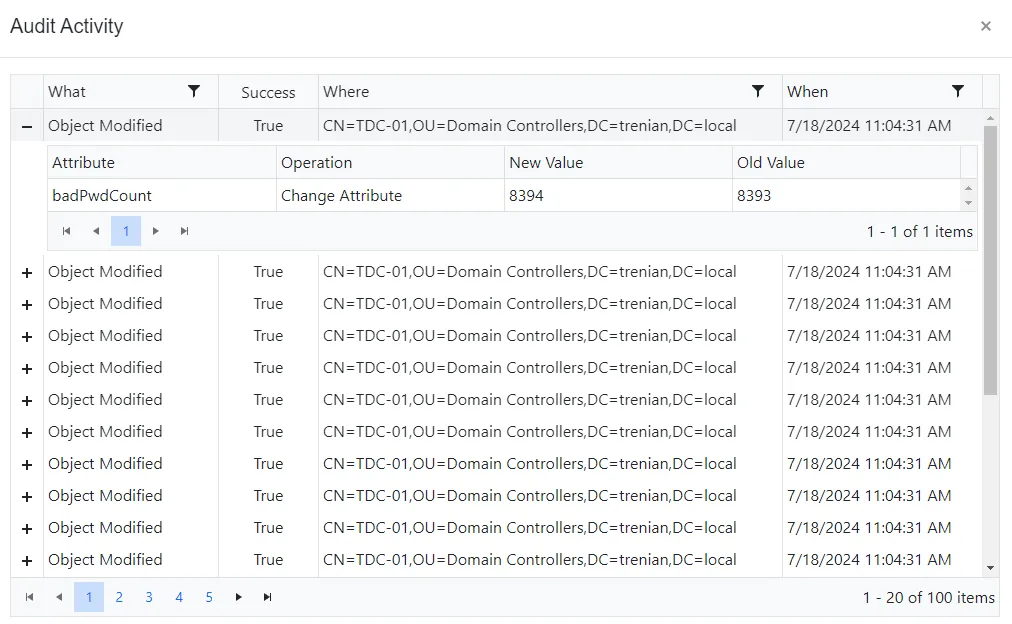
The Audit Activity window shows the following information for actions the object performed:
- What – The action the object performed
- Success – Whether the action succeeded; True indicates success and False indicates failure
- Where – The object that the action affected
- When – The date and time of the action
To view the details of an action, click the plus sign in the respective row to expand it. Information includes the object attribute that was affected, the type of change made, and the old and new values.
For objects in the Recycle Bin, the Show activity option isn't available.