Recover Objects
The Recycle Bin lets you view the objects deleted in domains monitored by Identity Recovery. You can recover these deleted Active Directory objects from the Recycle Bin.
Click Active Directory in the left pane to open the Active Directory Page. Select and expand a domain in the left pane and click Recycle Bin to get a list of deleted objects in the domain.
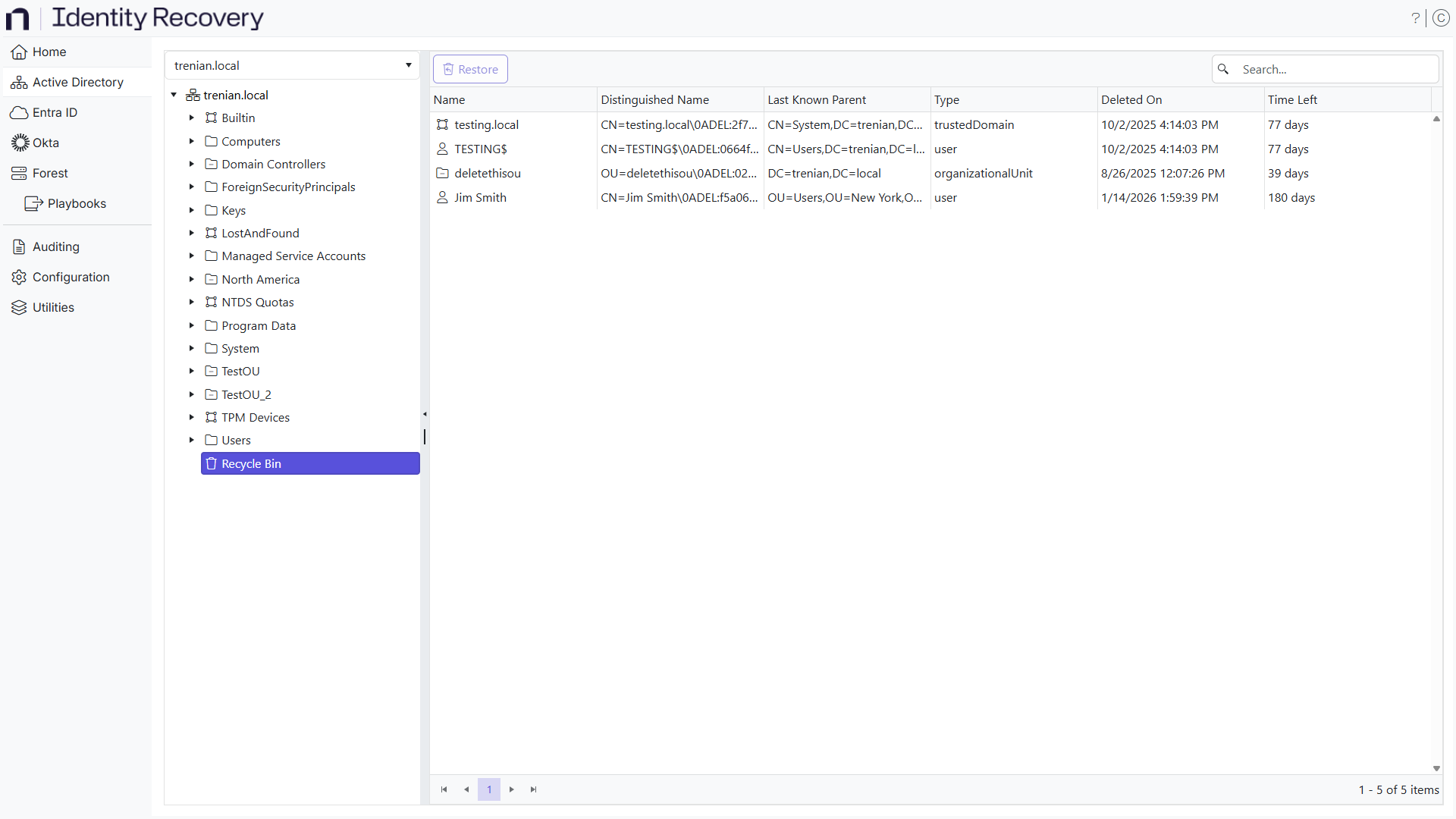
You can recover deleted objects.
The page displays the following information:
- Name – The display name of the object
- Distinguished Name – The unique name identifying the object in the directory
- Last Known Parent – The path of the parent of the object
- Type – The object type, showing whether it is a container, organizational unit, computer, group, user, etc.
- Deleted On – The time and date when the object was deleted
- Time Left – The time remaining until the object is no longer recoverable
Search for an Object
There are several ways to find an object:
- Column Filters – Click a column header to organize the table alphabetically by the column header. An arrow appears by the column name. Use it to arrange the entries by ascending or descending order.
- Search box – Enter a text string in the search box to filter the table for results that contain the text.
Recover an Object
Step 1 – Click Active Directory in the left pane to open the Active Directory Page.
Step 2 – Select and expand a domain in the left pane and click Recycle Bin.
Step 3 – Do one of the following
- Select the object to restore and click the Restore button.
- Right-click the object and select Restore on the shortcut menu.
The Object Restore wizard opens.
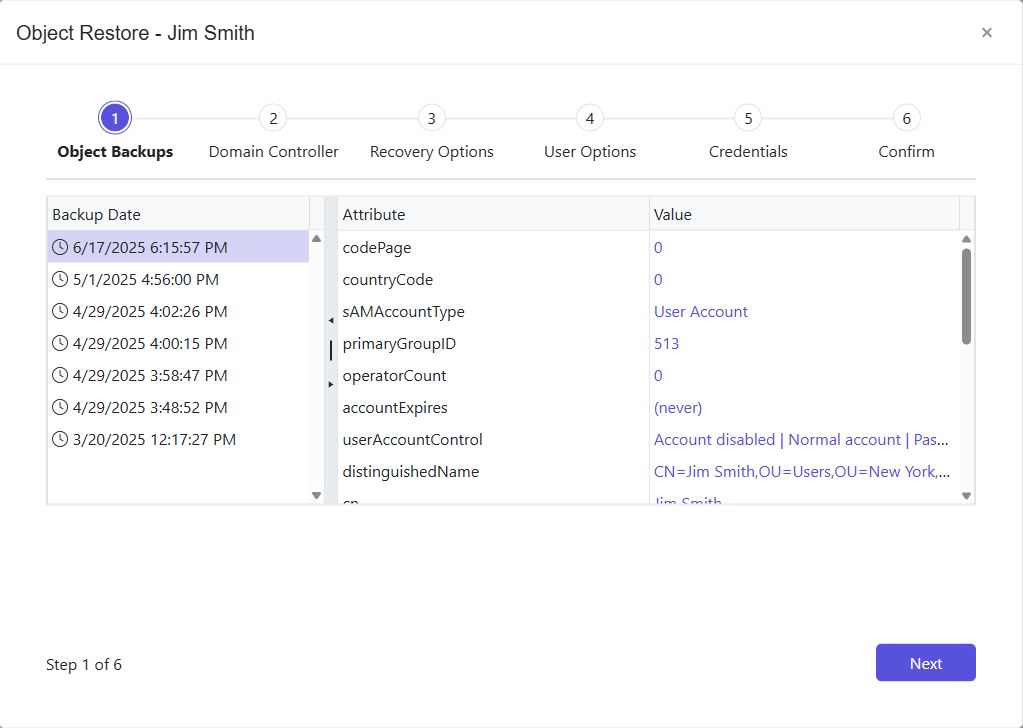
Step 4 – In the Backup Data section, select a backup date to restore from. Then click Next.
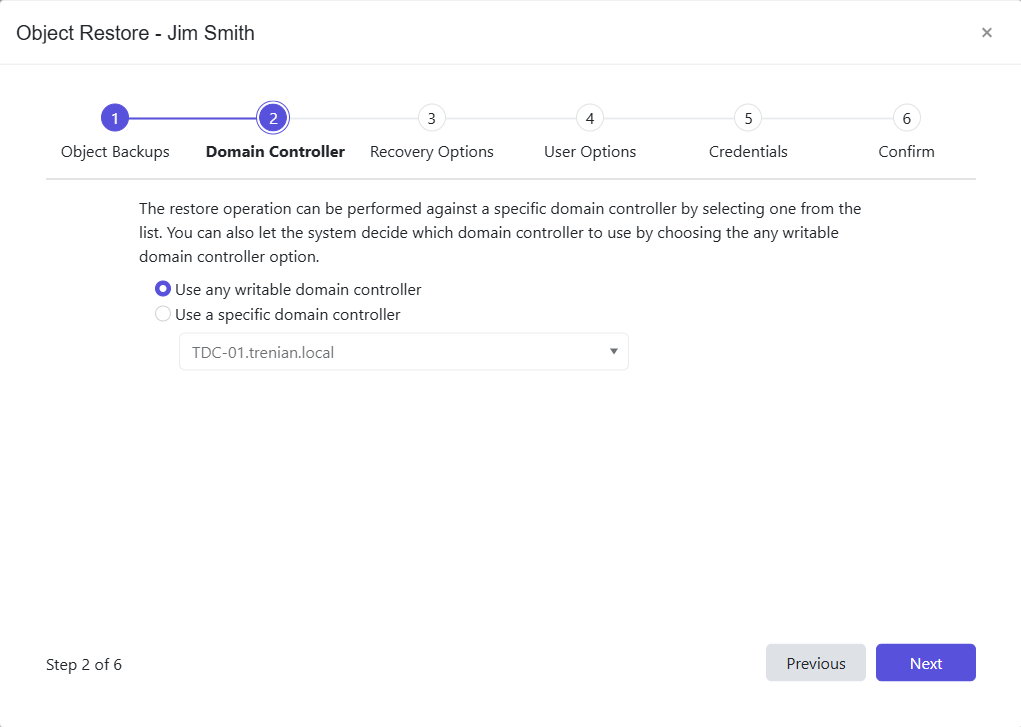
Step 5 – Select a domain controller where the restore operation will take effect. Options are:
- Use any writable domain controller – The system picks any writable domain controller in the domain for the restore operation
- Use a specific domain controller – Select a domain controller from the dropdown menu for the restore operation
Step 6 – Click Next.
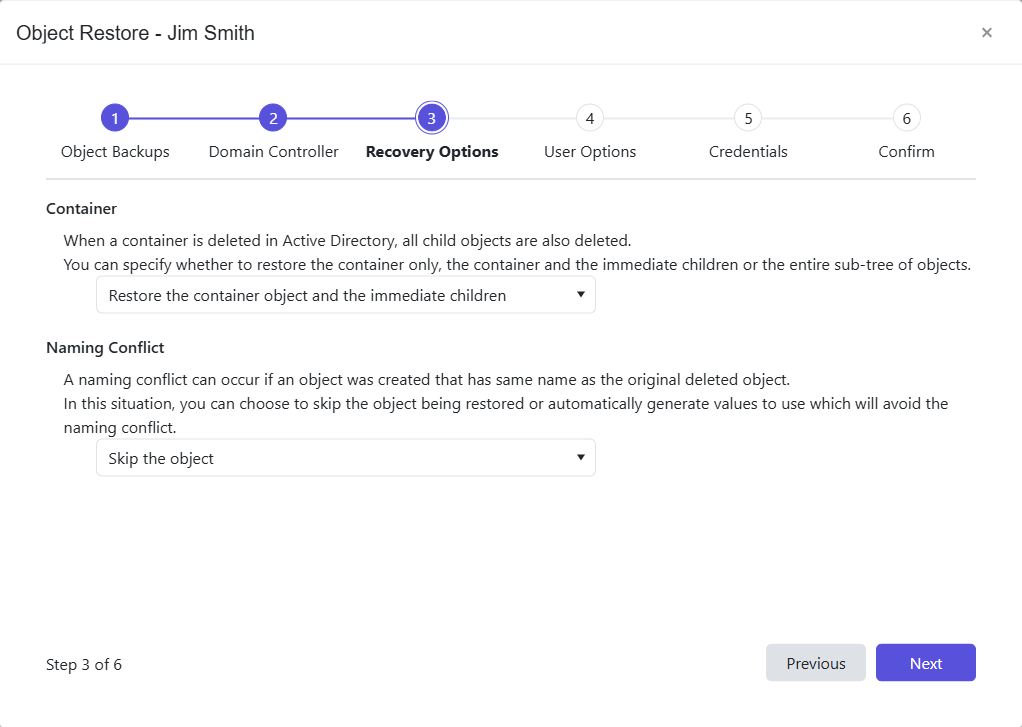
Step 7 – On the Recovery Options page, select the Container and Naming Conflict actions for the recovery process.
-
Container – When a container is deleted in Active Directory, all child objects are also deleted. Select a container restore option from the dropdown menu:
- Only restore the container object – Restores the container object but no children
- Restore the container object and the immediate children – Restores the container object and its immediate children
- Restore the entire sub-tree – Restores the container object and all children
noteSelecting the Restore the container object and the immediate children or the Restore the entire sub-tree option enables the User Options page.
-
Naming Conflict – A naming conflict can occur if an object was created post-deletion that has identical values to the original object. From the dropdown menu, select an option to implement if a naming conflict occurs:
- Skip the object – If there is a conflict with naming, don't restore and skip the object
- Automatically use alternative values – If there is a conflict with naming, Identity Recovery appends a numeric value to the name of the object being restored to create a unique name
Step 8 – Click Next.
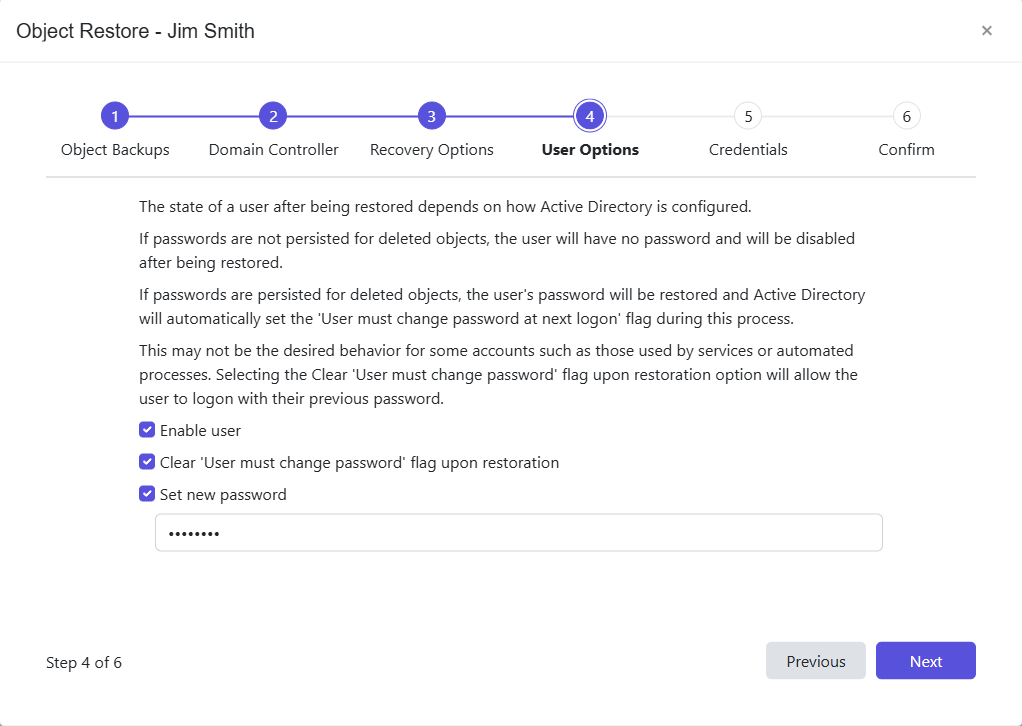
Step 9 – The User Options page appears when you restore user objects. When a user object is included as a child object being restored, this page also appears. Select the check boxes to configure the necessary options for the user.
-
Enable user – Enables the user in Active Directory
-
Clear 'User must change password' flag upon restoration – Restored users don't receive an alert to change their password upon first login after a recovery. Instead, their old password before deletion is still active.
-
Set new password – Implement a new password upon recovery. Enter the new password in the text box.
tipRemember, when a new password is created, the user needs it to login the first time. The password should be copied and given to the restored user.
Step 10 – Click Next.
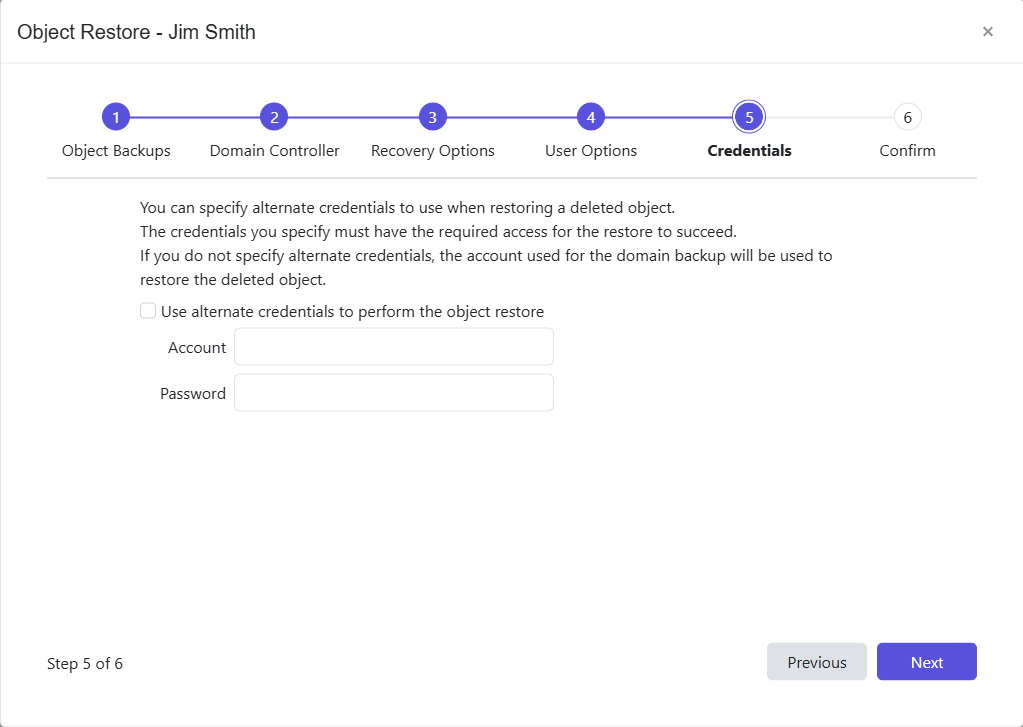
Step 11 – The account performing the operation must have Domain Admin privileges to access the domain tree area where the object resides. On the Credentials page:
- If the account specified during domain configuration has Domain Admin privileges, click Next.
- If the domain account doesn't have Domain Admin privileges, select the Use alternate credentials to perform the object restore checkbox and enter an account with Domain Admin privileges, then click Next.
For a Least Privilege Access Model to provision an Active Directory security group with the permissions that are necessary to perform backups, rollbacks, and recovery, see the Least Privilege Access Model topic.
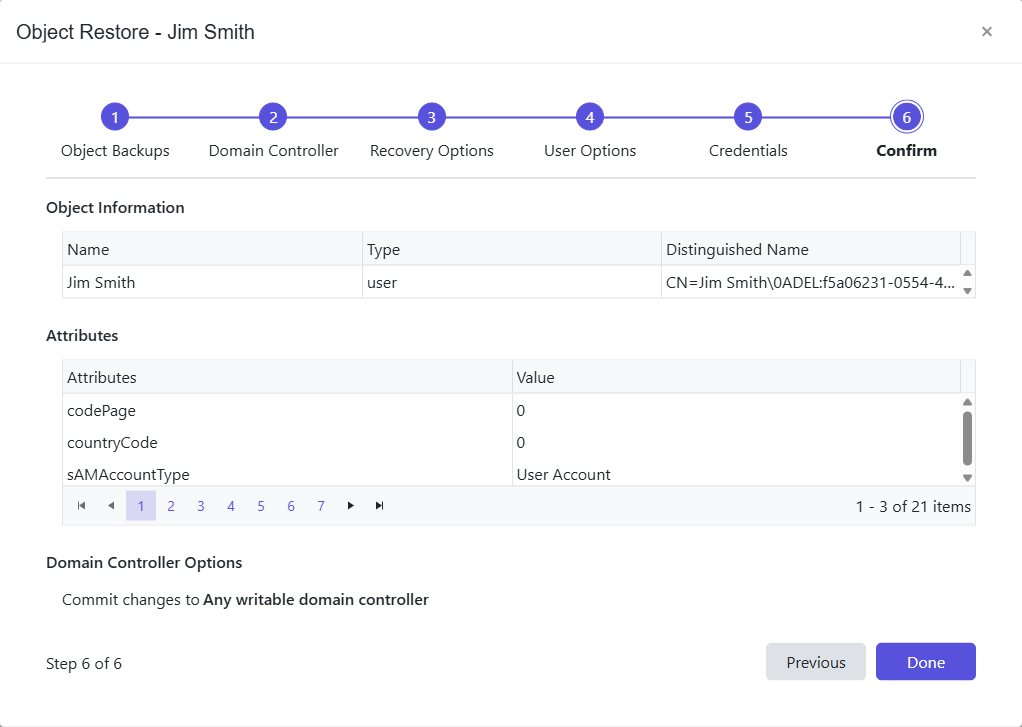
Step 12 – The Confirm page displays a summary of the settings you provided on the pages of the wizard. Use the Back button to return to a previous page and change any setting. Click Done to finish the wizard.
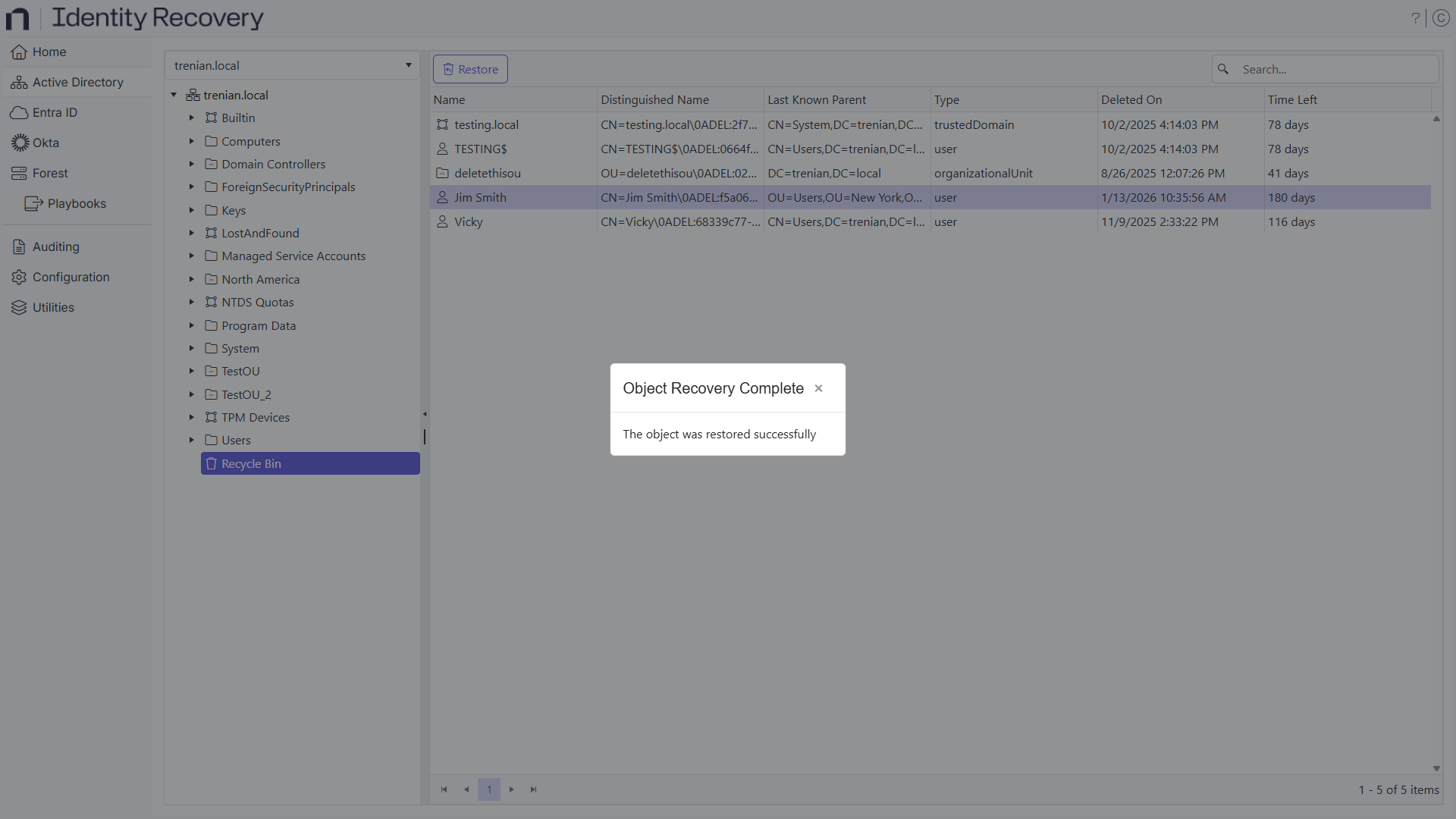
Step 13 – A completion message appears when the restore succeeds. Click OK.
Identity Recovery has now restored the deleted object.