Notifications Page
The Notifications page lets you configure notifications to send emails when a collection (backup) job completes. Only a user with the administrator role can configure notifications.
Click Configuration in the left pane. Then click the Notification tab on the Configuration page to open the Notification page.
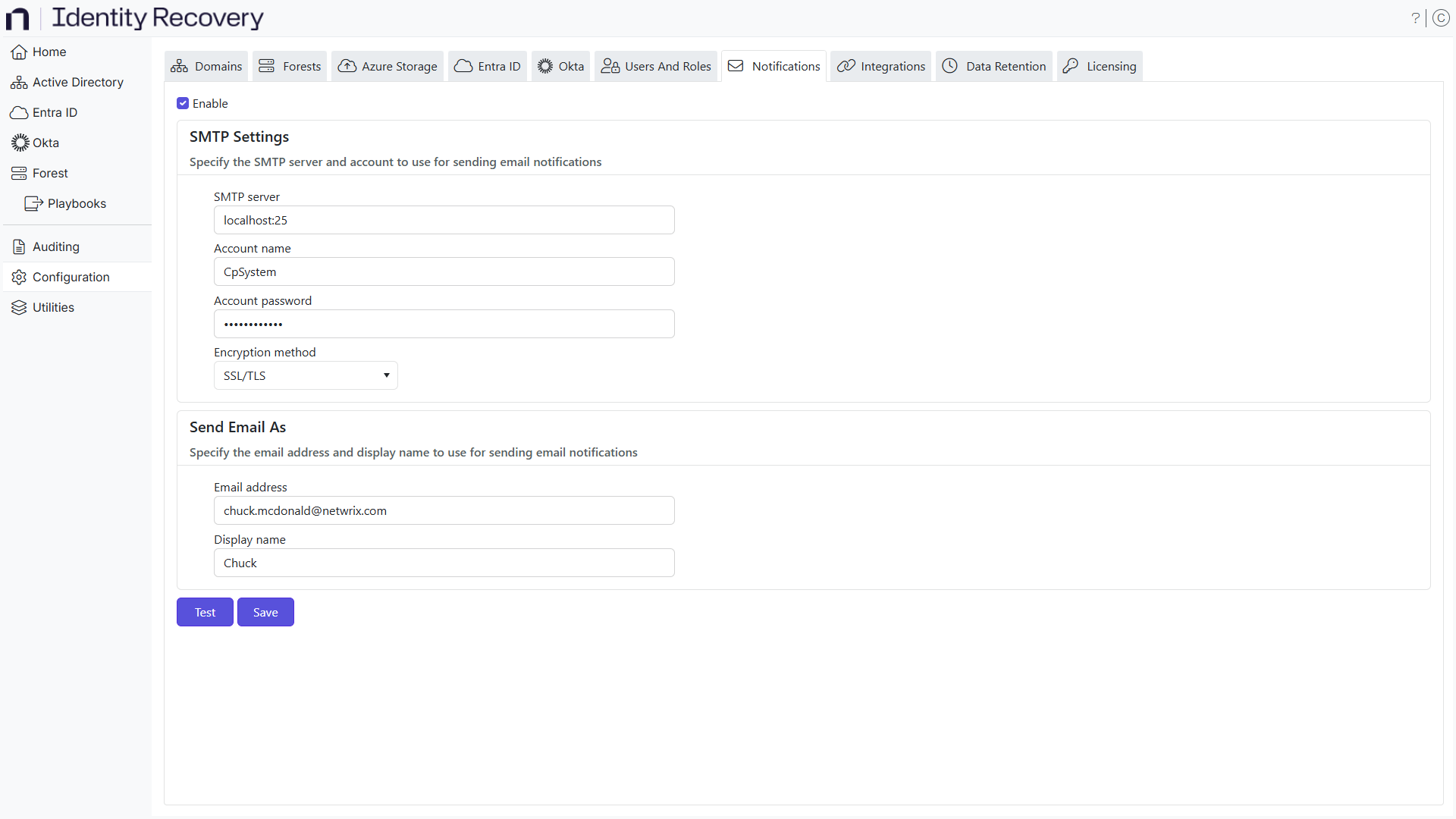
Step 1 – Select the Enable checkbox to configure email notifications.
Step 2 – In the SMTP Settings section, configure the SMTP server. If the SMTP server doesn't require authentication, you can leave the Account name and Account password fields blank.
- SMTP Server – The server and port information
- Account Name – Name of the account to use for accessing the mail server
- Account Password – Password for the account
Step 3 – Select an encryption protocol to encode the email notifications from the Encryption method dropdown menu.
Step 4 – In the Send Email As section, configure the email address and display name to use for sending email notifications.
- Email address – Create an email address to be used, for example: noreply@companyname.com
- Display name – Name to be displayed on the email notifications
Step 5 – Click the Test button to verify that the system has configured your notifications correctly.
Step 6 – Click the Save button to save the configurations.
The system has configured your notifications.
You can add notification recipients from the Domains page. See the Add a Domain topic for additional information.