Navigate the Console
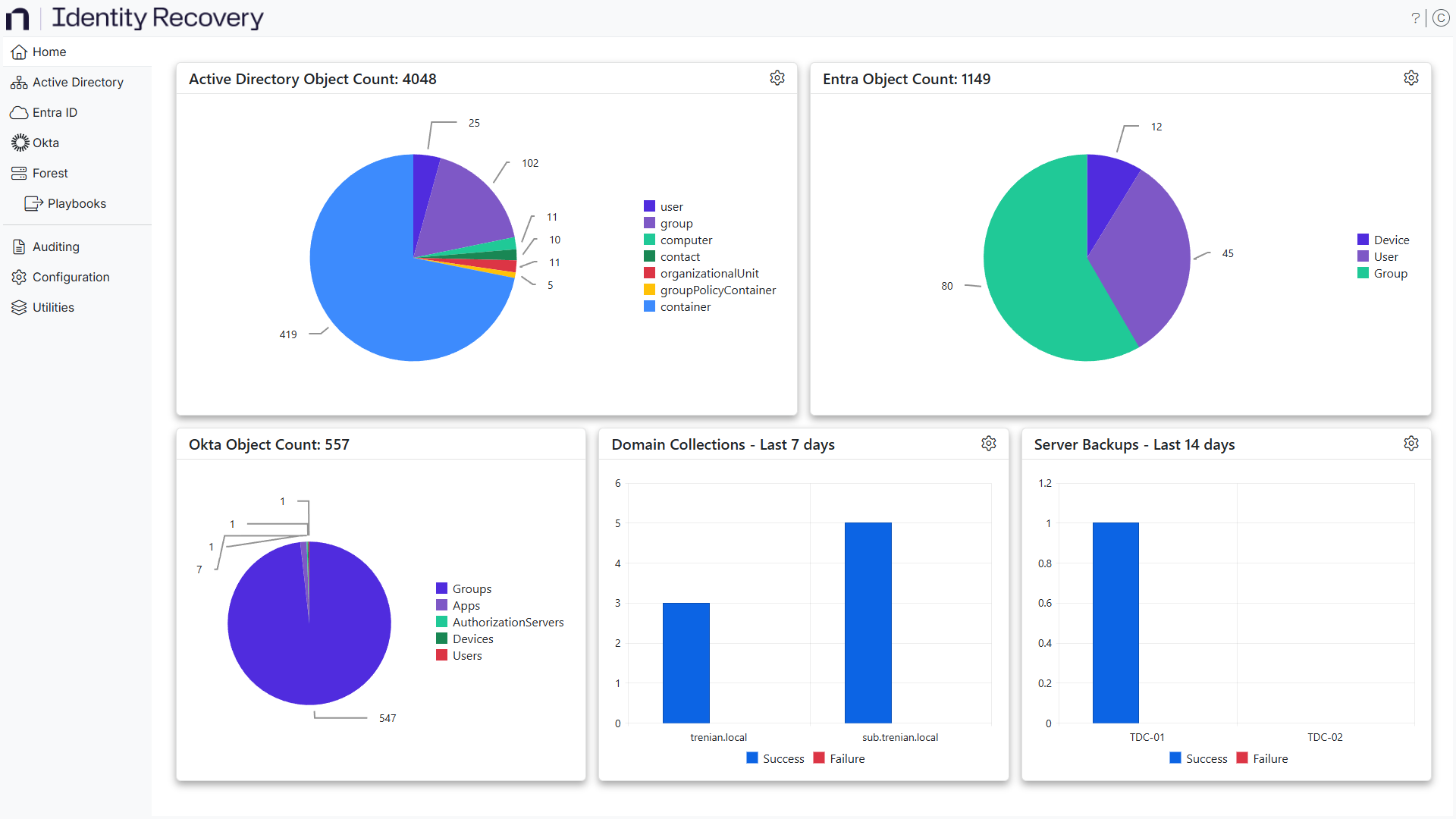
The Recovery Console displays navigation options in the:
- Application header
- Left navigation pane
Application Header
The application header contains the following icons in the top right corner:
-
Help Center – Click the ? icon to open the Netwrix Technical Knowledge Center for the Identity Recovery documentation
-
User Profile – Click the profile icon to display the following options:
- Manage – Click it to open the MFA page, where you can set up multi-factor authentication for your Identity Recovery account. See the Configure Multi-Factor Authentication topic for additional information.
- Log out – Click it to sign out of the Recovery Console
Navigation Pane
The navigation pane contains the following links:
-
Active Directory Page – The Active Directory page lists the domains configured in Identity Recovery. You can roll back and recover objects on this page.
-
Entra ID Page – The Entra ID page lists the Entra tenants configured in Identity Recovery. You can roll back and recover objects on this page.
-
Okta Page – The Okta page lists the Okta tenants configured in Identity Recovery. You can roll back objects on this page.
-
Forest Page – The Forest page displays your Active Directory forest with its domains and domain controllers. Administrators can set up backup configurations for domain controllers as well as recover the forest from those backups.
-
Audit Logs Page – The Audit Logs page provides an audit trail of the actions performed by users in Identity Recovery.
-
Configuration Interface – The Configuration interface lets you configure domains, forests, Entra ID and Okta tenants, Azure Storage, user access, notifications, integrations, data retention policy, and licensing for Identity Recovery. Each tab is documented in its own topic.
noteOnly users with Administrator rights have access to the Configuration interface.
- Domains Page – The Domains tab lists the domains that Identity Recovery backs up. It displays the backup schedule settings for each added domain. You can also add and configure new domains.
- Connect a Forest – The Forest tab lets you add a forest so that Identity Recovery can back it up and recover it.
- Azure Storage Page – The Azure Storage tab lists the storage containers in Azure Storage.
- Connect Entra ID – The Entra ID tab lets you add Entra tenants for Identity Recovery to back up and view their backup schedules.
- Connect Okta – The Okta tab lets you add Okta tenants for Identity Recovery to back up and view their backup schedules.
- Users and Roles Page – The Users and Roles tab displays the accounts with access to Identity Recovery.
- Notifications Page – The Notifications tab lets you configure notifications, which are required to send an email when a collection (backup) job completes.
- Netwrix Integrations Page – The Netwrix Integrations tab lets you configure access to the data in other Netwrix products. Identity Recovery supports only Netwrix Threat Prevention.
- Data Retention Policy Page – The Data Retention Policy tab provides settings for deleting backup data for domains and domain controllers older than X days, and for deleting backup data for tombstone objects that have been purged.
- Licensing Page – The Licensing tab provides an overview of the organization's license status and the ability to import a license file.
-
Utilities Page – The Utilities page lets you download the Netwrix RSAT Extension, the Recovery Server Backup Installer, and the Netwrix Forest Recovery standalone application.