Rollback Objects
You can revert an Okta object to its previous state.
Step 1 – Click Okta in the left pane to open the Okta Page.
Step 2 – Select and expand a tenant in the left pane and locate the object you want to rollback.
Step 3 – Do one of the following:
- Select the object to rollback and click the Rollback button.
- Right-click the object and select Rollback on the shortcut menu.
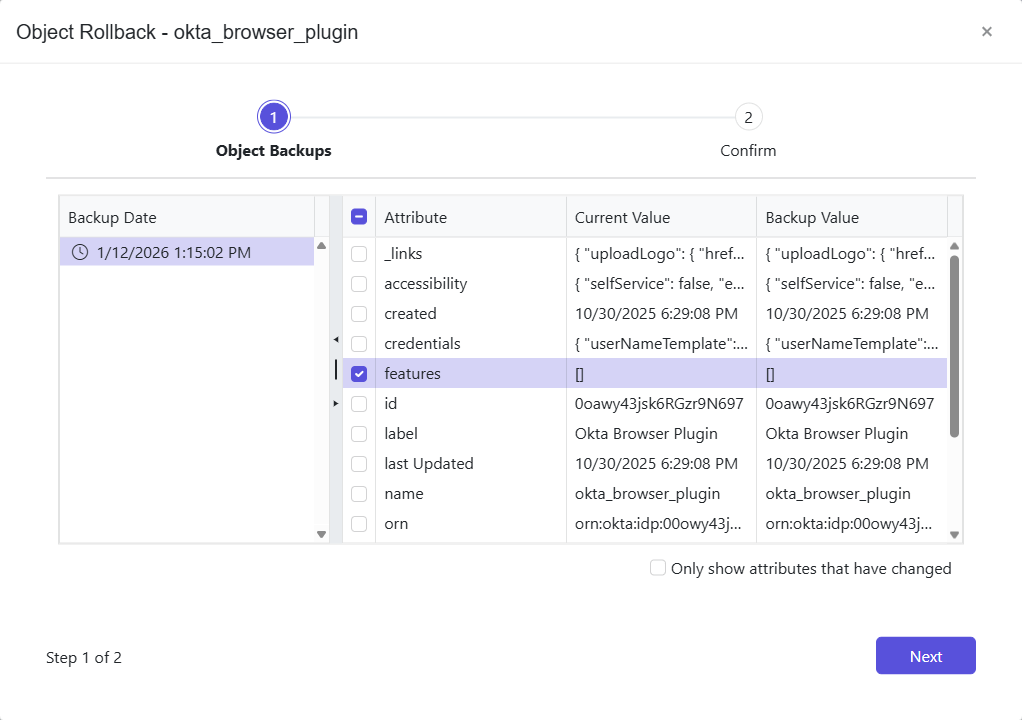
The Object Rollback wizard opens.
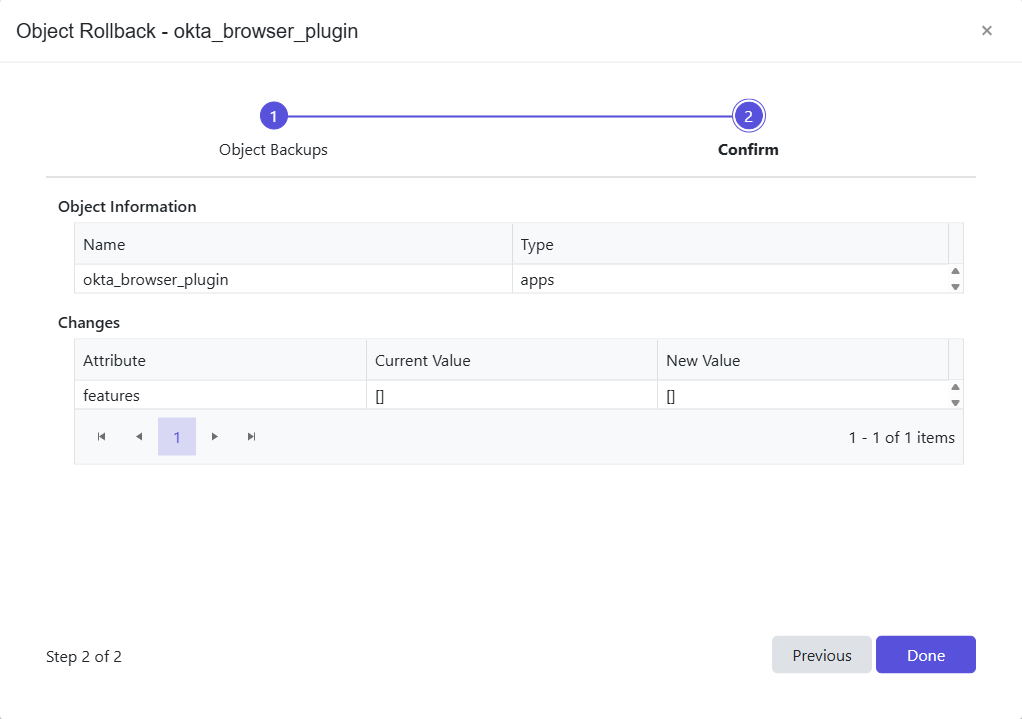
Step 4 – The Confirm page displays a summary of the settings you provided on the pages of the wizard. Use the Back button to return to a previous page and change any setting. Click Done to finish the wizard.
Step 5 – The system displays a message confirming the rollback is complete. Click OK.
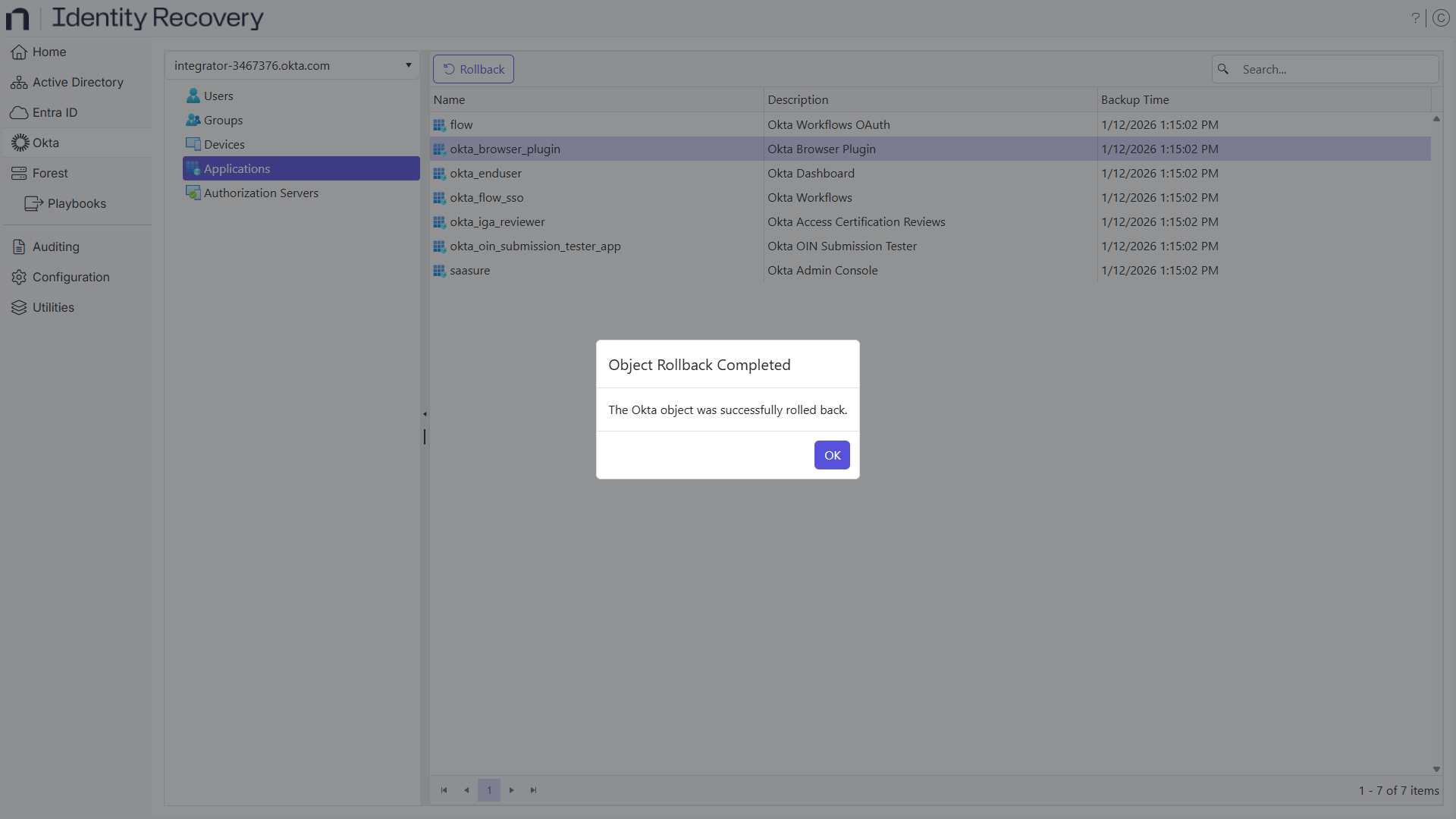
The rollback is complete.