Connect a Forest
Use the Forest tab of the Configuration interface to add an Active Directory forest so that Identity Recovery can back it up and recover it.
Click Configuration in the left pane, then click the Forest tab.
Add a Forest
You must add a forest before you can back it up or recover it.
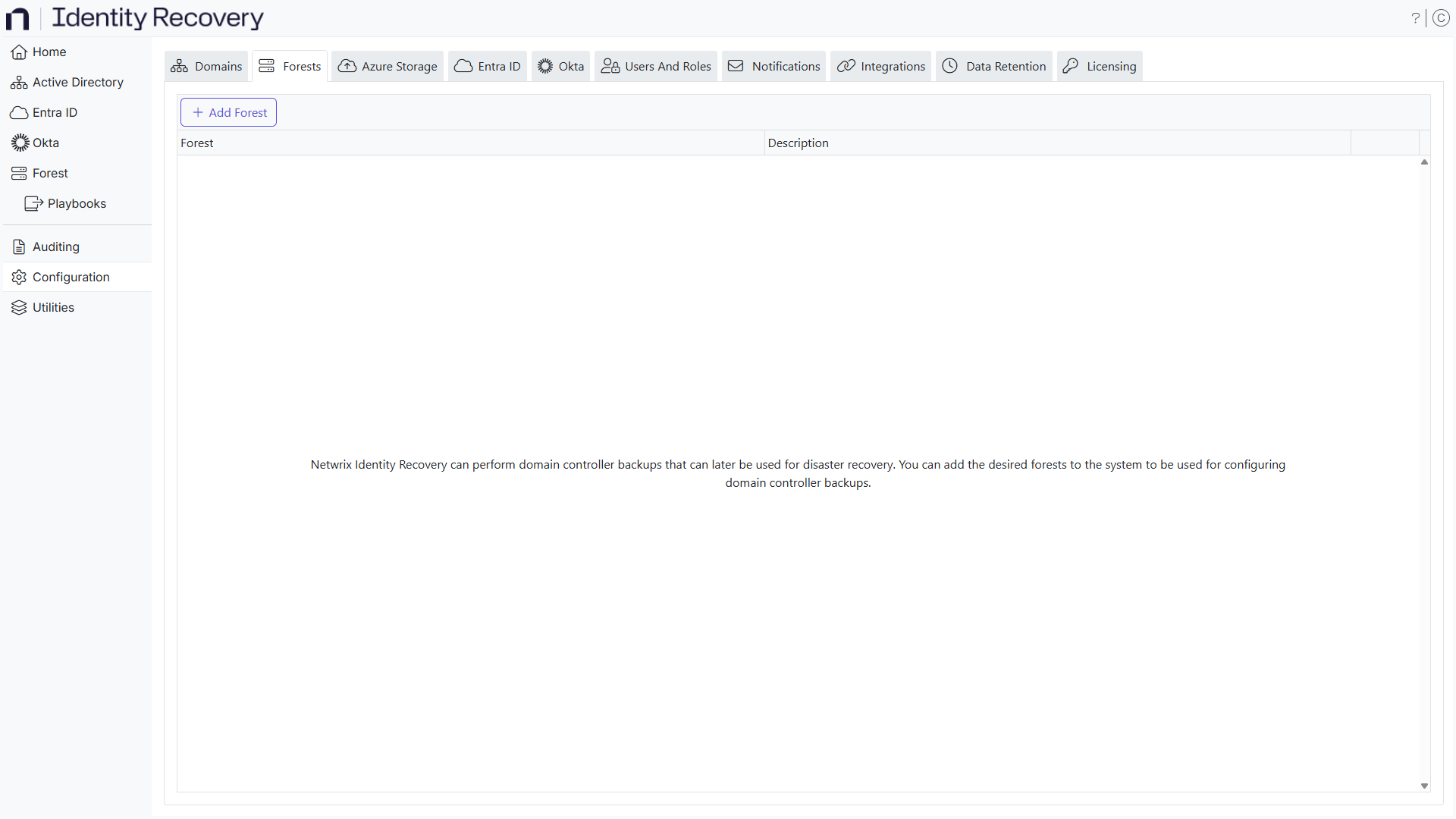
Step 1 – On the Forest tab, click the Add Forest button. The Add Forest window opens.
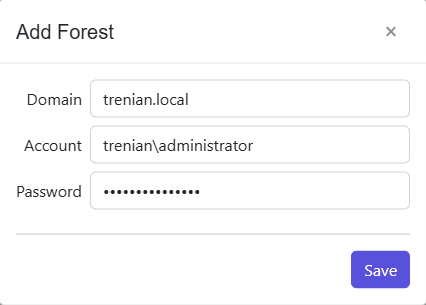
Step 2 – In the Domain field, enter the name of the root domain in the forest, for example
example.domain.com.
Step 3 – In the Account field, enter the username of the account that connects to the forest,
in the <DOMAIN>\<username> format. Ensure that the account has privileges to access the domain.
Step 4 – Enter the password for the account in the Password field.
Step 5 – Click Save.
Identity Recovery adds the forest to the system. Next, configure backups for the domain controllers in the forest. See the Forest Page topic for additional information.