Troubleshooting
This topic provides steps for troubleshooting common issues for the following Identity Recovery components:
- RSAT Extension Recovery Diagnostics
- RSAT Extension Rollback Diagnostics
- RSAT Extension Registration Diagnostics
- Recovery Application Server Diagnostics
RSAT Extension Recovery
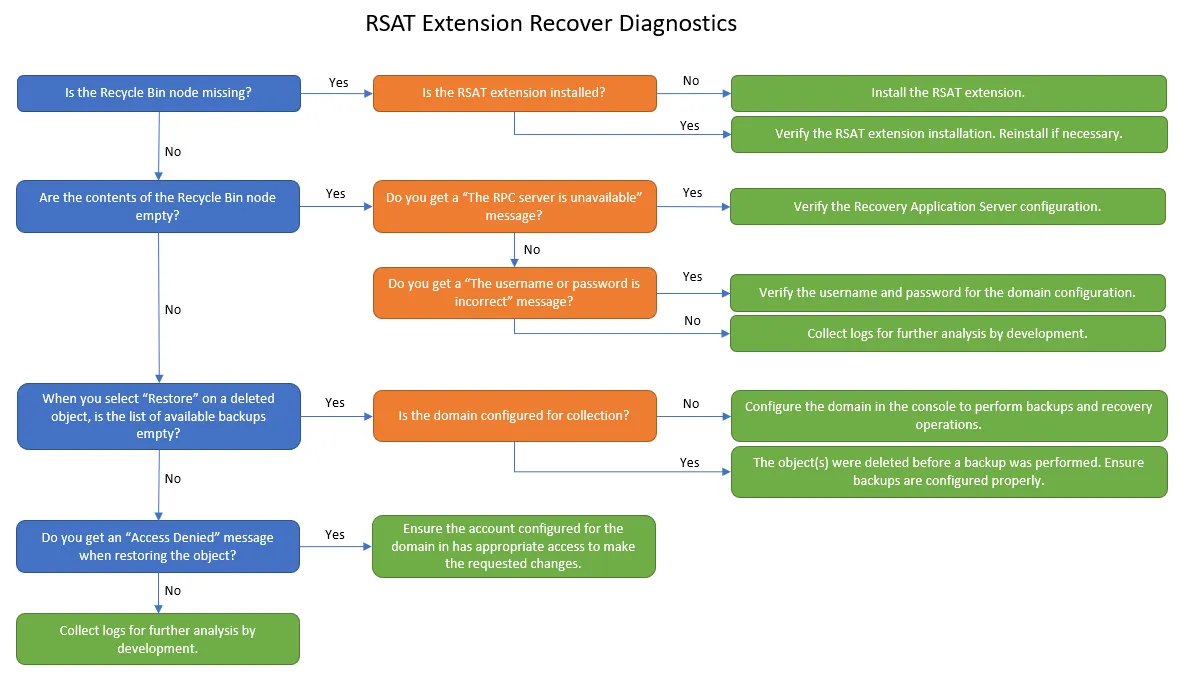
The RSAT Extension Recovery Diagnostics flow chart helps diagnose issues when the Recycle Bin is missing or empty in Active Directory Users and Computers (ADUC).
RSAT Extension Rollback
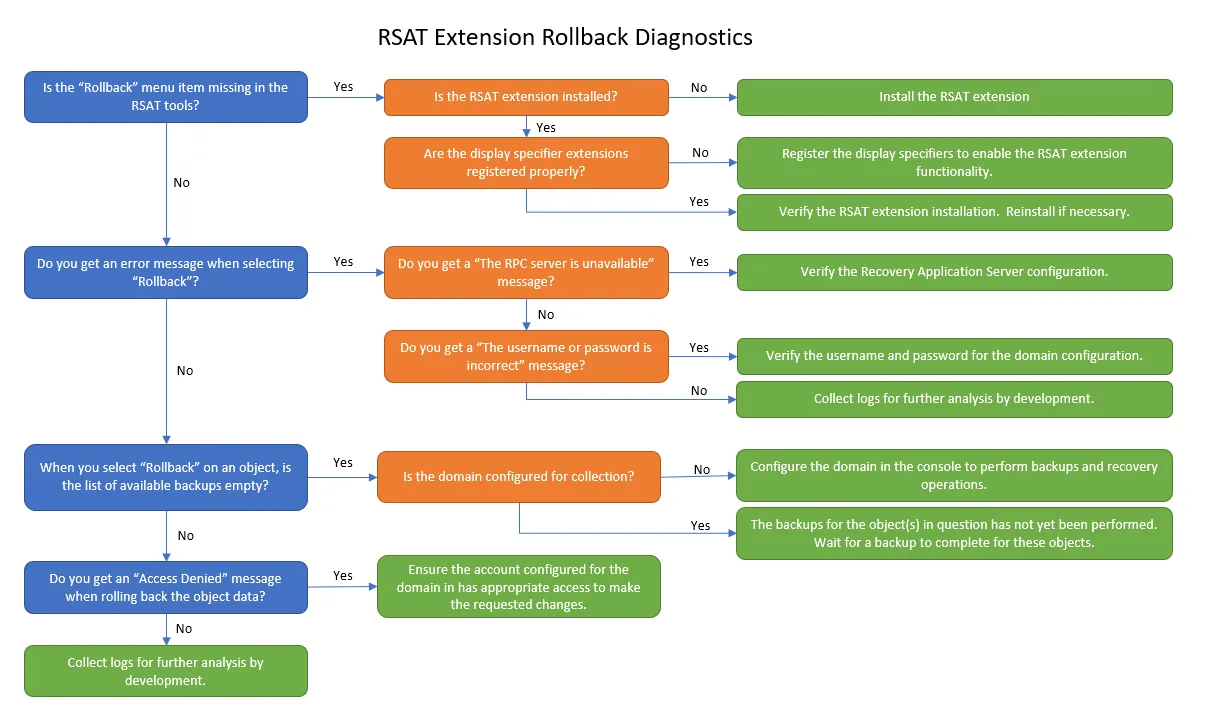
The RSAT Extension Rollback Diagnostics flow chart helps diagnose issues when the rollback right-click menu option is missing in ADUC.
RSAT Extension Registration Validation
In the Recovery Configuration Utility, you use the RSAT Extension Register/Unregister button to activate the new right-click menu options in ADUC. You do this once per domain. The registration status appears as either Registered or Unregistered.
To validate the registration status of the RSAT Extension by finding the presence of a specific GUID in ADSI Edit:
Step 1 – On the domain joined machine or domain controller, ensure the user is logged in as a Domain Administrator.
Step 2 – Open ADSI (Active Directory Services Interfaces Editor) by navigating to C:\ProgramData\Microsoft\Windows\Start Menu\Programs\Administrative Tools. The ADSI Edit window opens.
Step 3 – If the Configuration naming context doesn't display automatically, navigate to Action > Connect to... and the Connection Settings window opens.
Step 4 – On the Connection Settings window, select Configuration under the Select a well known Naming Context radio button. Click OK. The Connection Settings window closes and the AD Configuration Partition (also called naming context) opens on the left hand pane.
Step 5 – Navigate from the AD Configuration Partition folder until CN=DisplaySpecifiers is selected. In this folder, select either CN=409 which is the code for English (United States) or another code for the active locale of the operating system if not using English (United States).
Step 6 – Double-click the proper locale (such as CN=409). A list appears in the middle pane. Right click any of the Display Specifiers and select Properties from the menu. The Properties window appears. Select the adminContextMenu attribute or click Edit to show the Multi-valued String Editor listing known GUIDs. In the list, the RSAT Extension GUID entry is:
{50fb3a3c-5700-4232-ae3b-c6d49a6a97ab}
The adminContextMenu attribute of every object in the active locale (i.e. CN=409 for English (United States)), should have the GUID above.
Step 7 – Verify the GUID.
If the GUID matches the number above, the RSAT Extension has been successfully registered.
Recovery Application Server
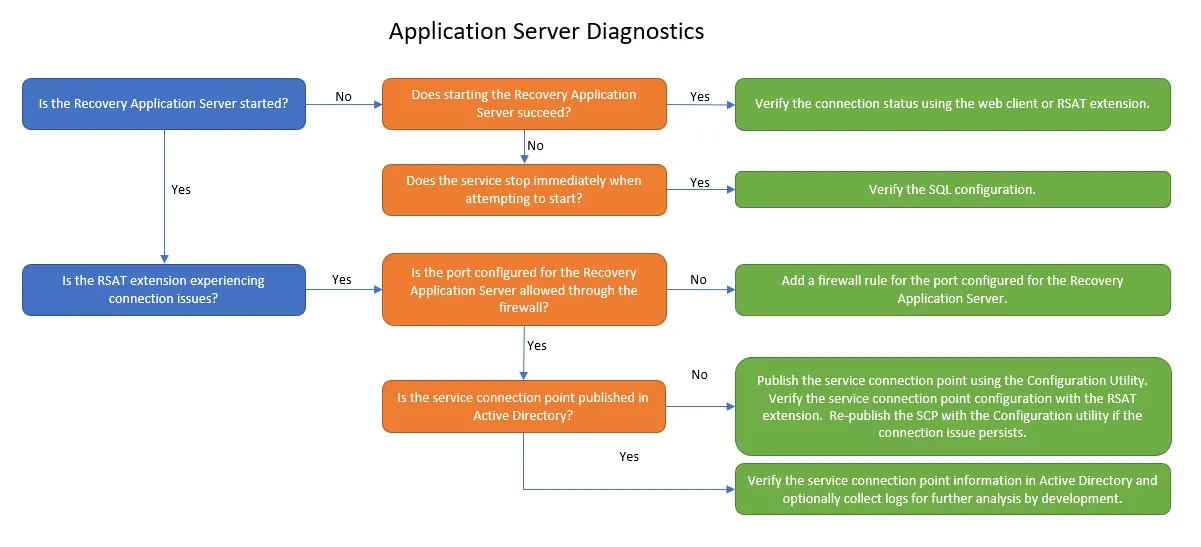
The Recovery Application Server Diagnostics flow chart helps diagnose issues when the Netwrix Recovery Server service isn't running.
Log Files
Log files are available at the following locations:
On the Identity Recovery server
- ...\Netwrix\Recovery for Active Directory\Logs
- ...\Netwrix\Recovery for Active Directory\ModuleEngine.exe.log
- ...\Netwrix\Recovery for Active Directory\TaskServer.exe.log
On the domain controllers for backups
- ...\Netwrix\Netwrix Recovery Server Backup\Logs