Update SQL Server Service Account Password
Step 1 – To launch the Recovery Configuration Utility, double-click the Recovery_Config.exe
executable at the following location in the Identity Recovery installation directory:
...Netwrix\Identity Recovery\Recovery_Config.exe
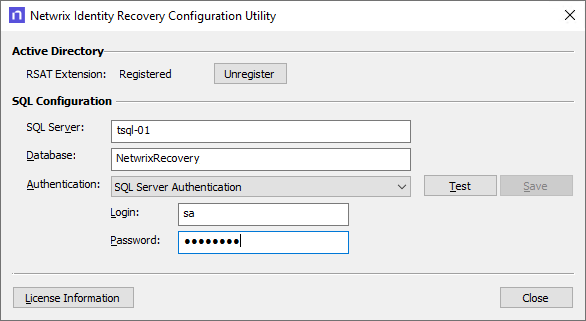
Step 2 – Update the account password for SQL Server Authentication in the Login and Password fields.
Step 3 – Click the Test button to validate the connection. On success, the following message is displayed:

Step 4 – Click OK.
Step 5 – After the connection has been established, click Save to update the account.

Step 6 – Click OK.
You have updated and saved the SQL Server service account password.