Active Directory Permissions Analyzer reports are outdated
Symptoms
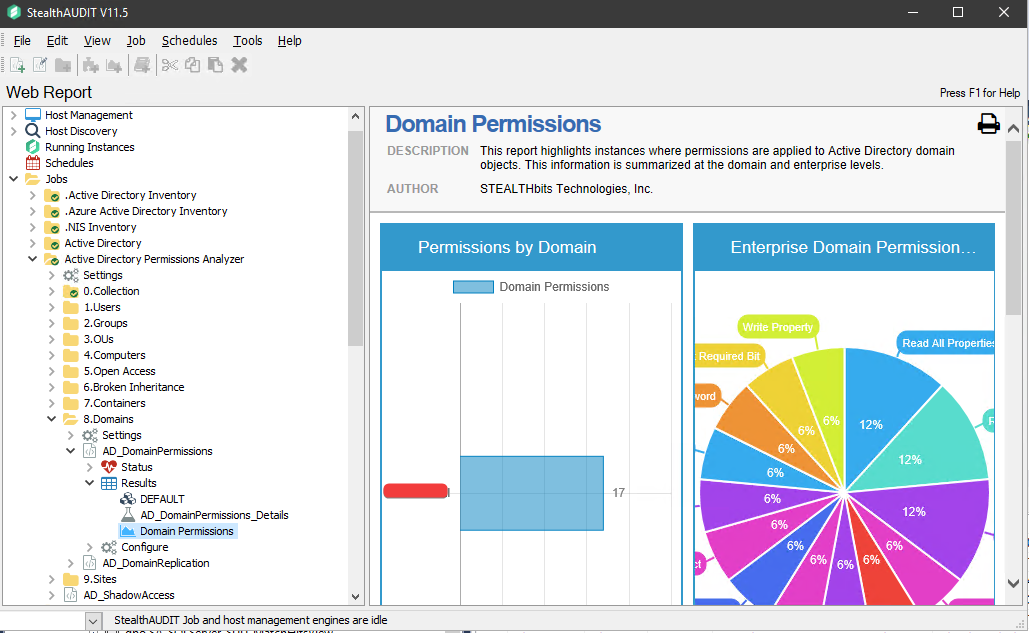
Old data in the Active Directory Permissions Analyzer (ADPA) reports from deprecated Domains.
Example of the incorrect data:
Cause
ADPA Data is not cleared when running only the ADInventory (ADI): Category >> Drop Domain – Remove host domain related data from SQL server option seen under the following:
Remove Domain Audit Data from Reports − Drop Domains
Resolution
We will need to create a new Job to work with the APDA data in question.
To do so you can follow the steps below.
-
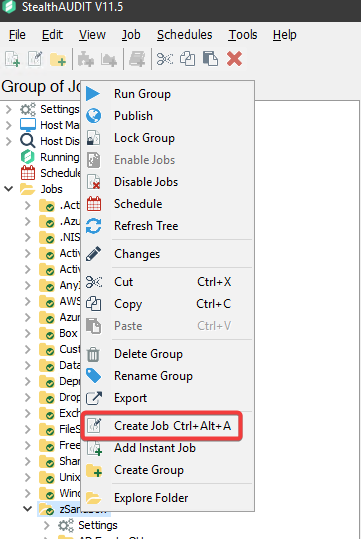
Create a new Job in the Netwrix Access Analyzer console: right click the Jobs Node in the left-hand window and select Create Job:
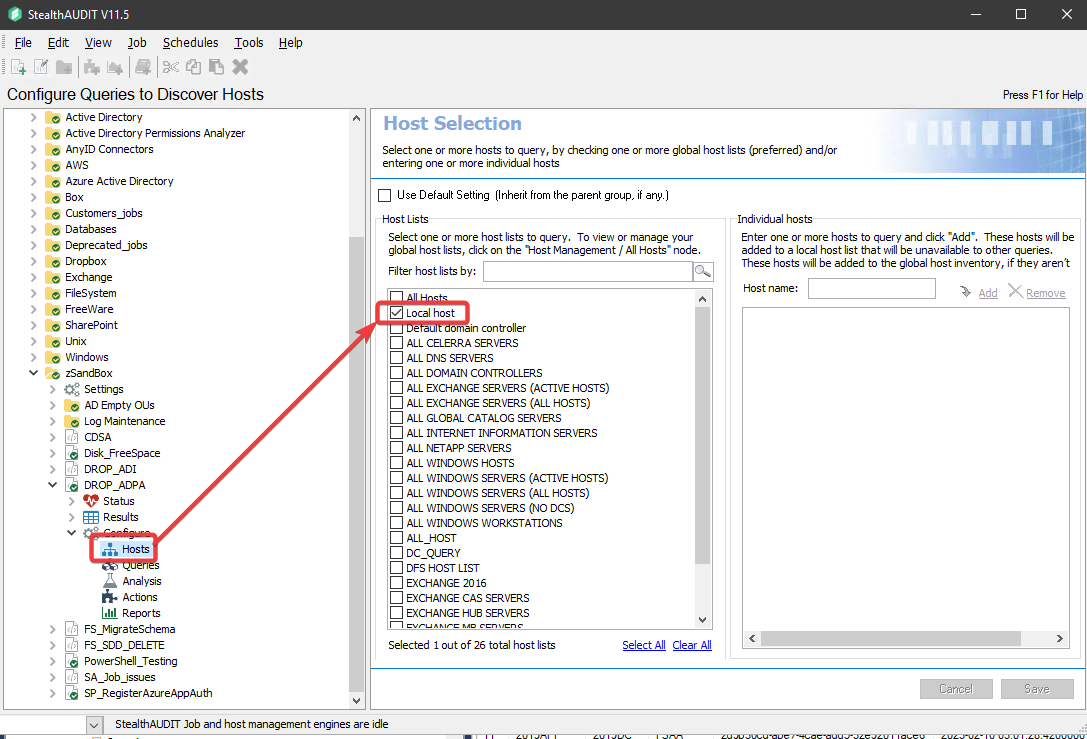
Select the Local host in the jobs host list:
-
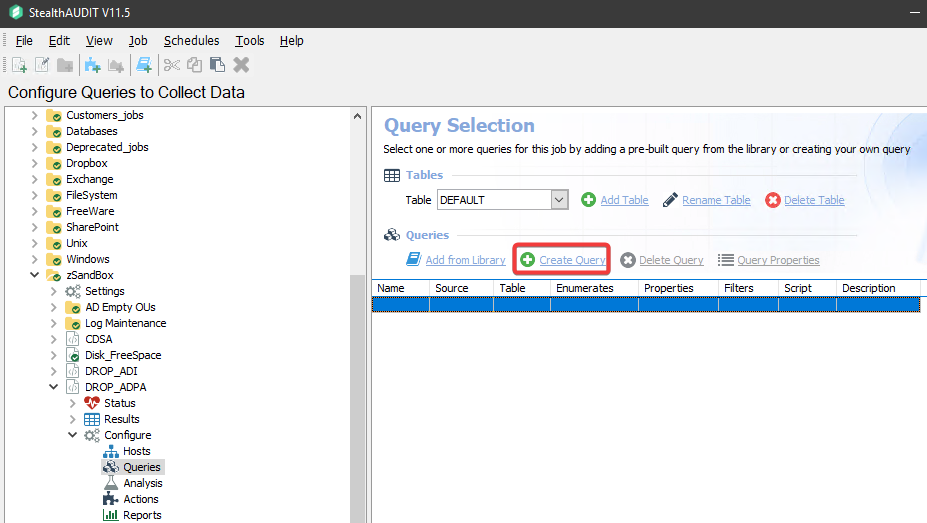
Click on the Create Query:
-
Configure the jobs query Properties.
Under the Data Sources tab, select the ADPERMISSIONS option from the dropdown menu then click on Configure.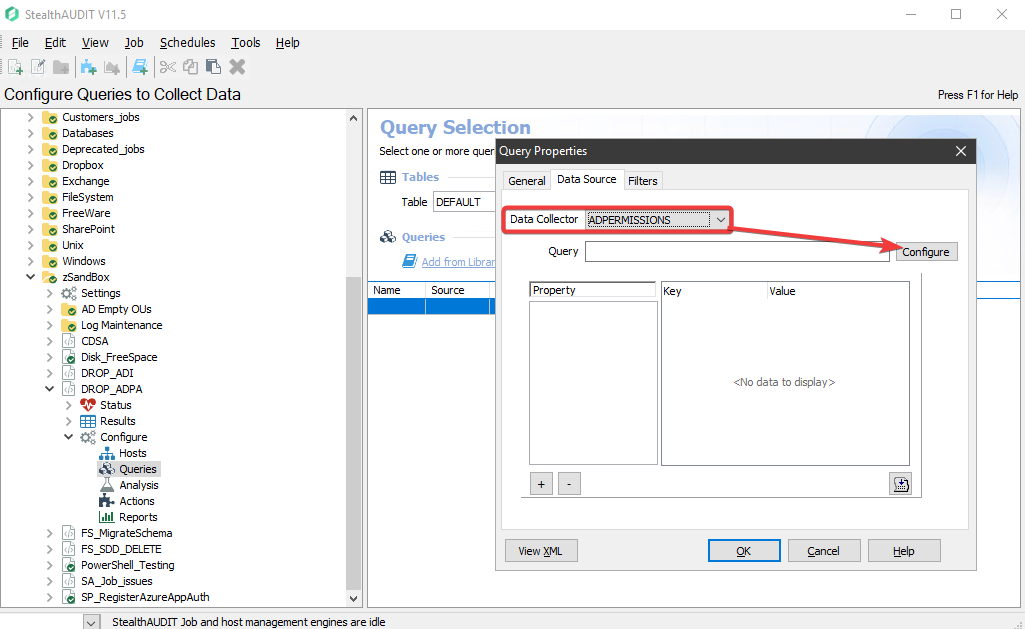
Select Remove Tables and click Next:
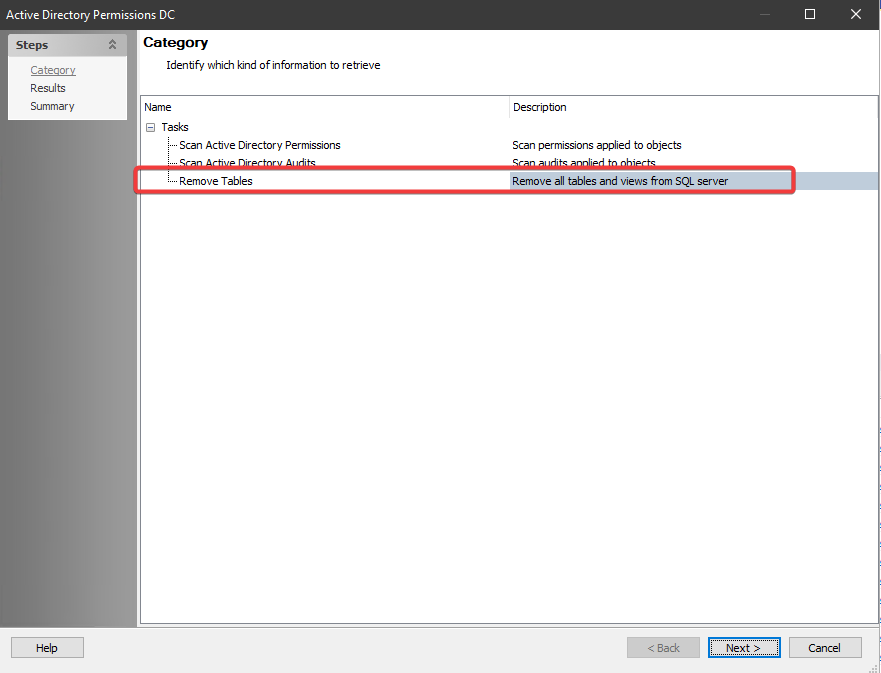
Check the Results option: Click Next → Finish → Ok.

-
Now run the new Job.
-
Once the job completes run the ADPA report; it should complete with an error.
Examples:Invalid object name 'dbo.SA_ADPerms_PermissionsView'.
Invalid object name 'dbo.SA_ADPerms_Permissions*View'.
Now you can run the Active Directory Permissions Analyzer Job Group to repopulate for the active Domains.
This will recreate the needed ADPA Tables and Views needed for the Reports.