How to Drop Data Collected from SQL Servers Using the Databases Module
Overview
This article explains how to drop data collected from SQL Servers using the Databases Module. Follow the instructions below to drop data for all SQL Servers or for specific hosts/instances.
Instructions
Drop All Data for SQL Servers
NOTE: You can create a separate folder (e.g., Sandbox) for custom jobs.
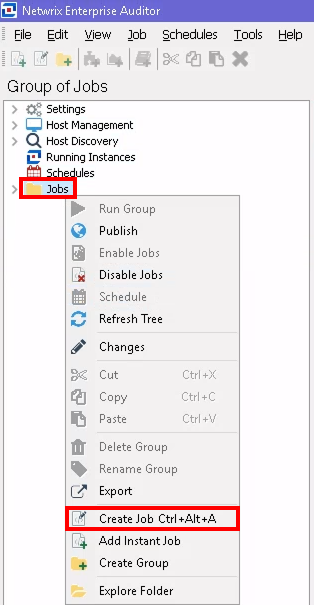
- Right-click the custom or Jobs folder and select Create Job
Ctrl+Alt+A.
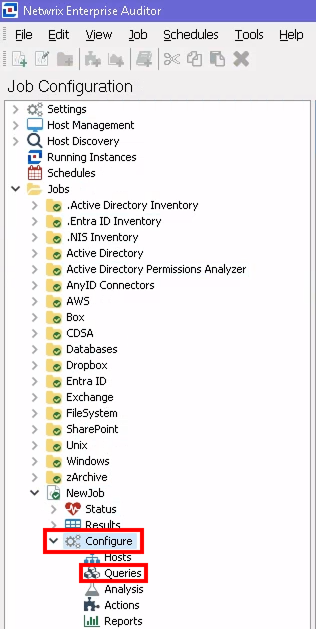
- Navigate to the Configure node of the NewJob and select the Queries node.
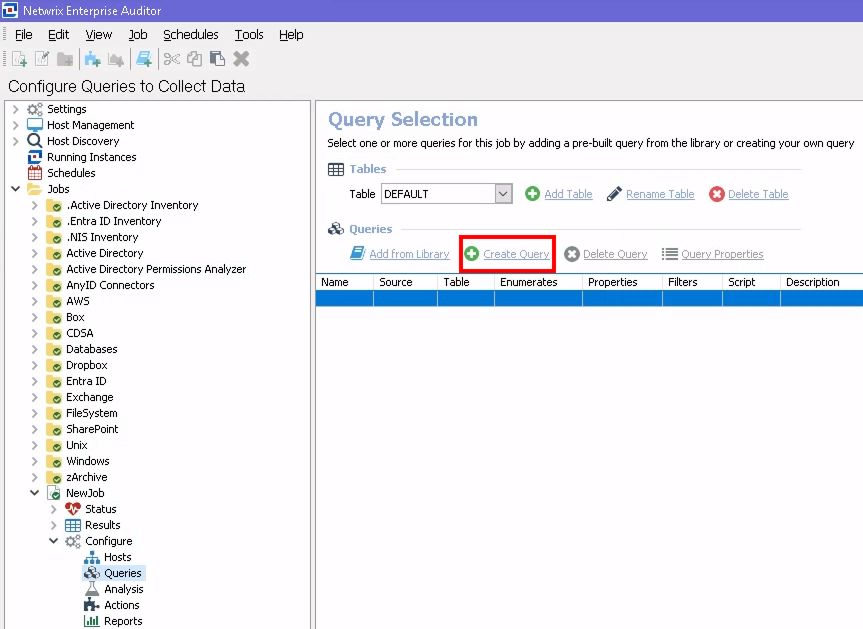
- Click the Create Query button.
- In the General tab, designate a clear Name and Description (e.g.,
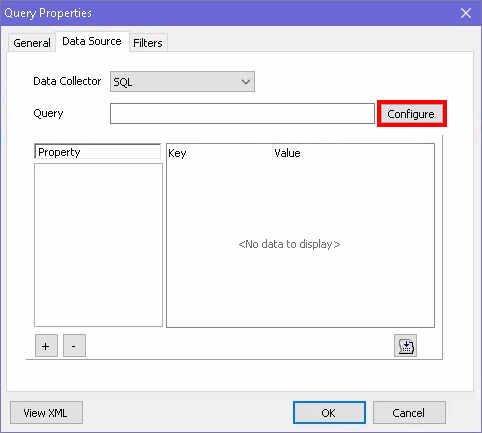
DropSQLHostData). - In the Data Source tab, select SQL from the Data Collector dropdown menu.
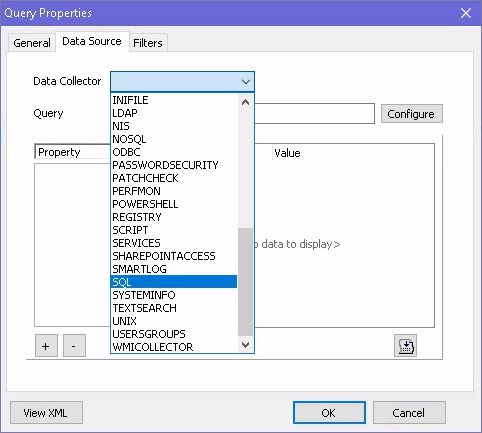
- Click Configure to launch the SQL Data Collector Configuration Wizard.
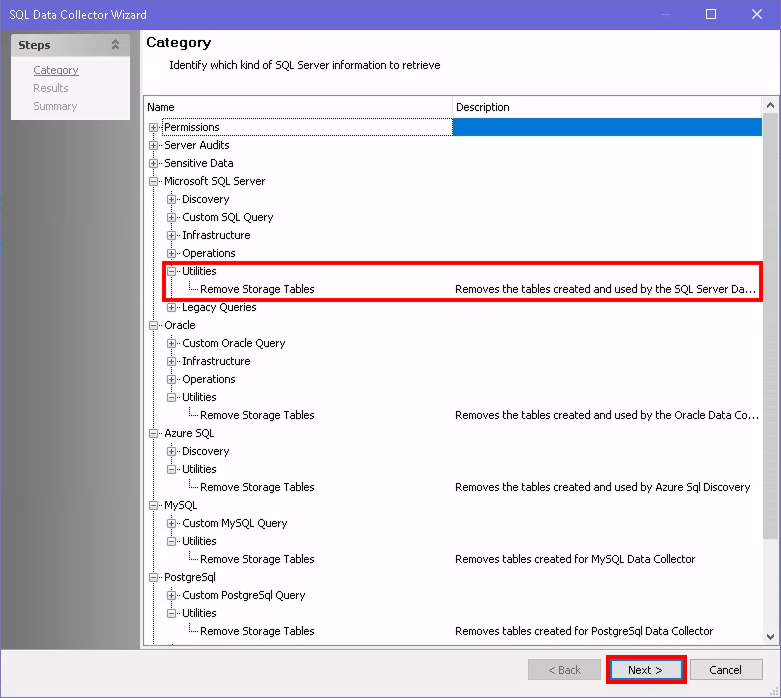
- On the Wizard Category page, select the Utilities > Remove Storage Tables option under the appropriate database type and click Next to drop all collected SQL data for SQL Servers.
- To complete the query, ensure you have selected the desired Available Properties, click Next, and then Finish. Last, click OK.
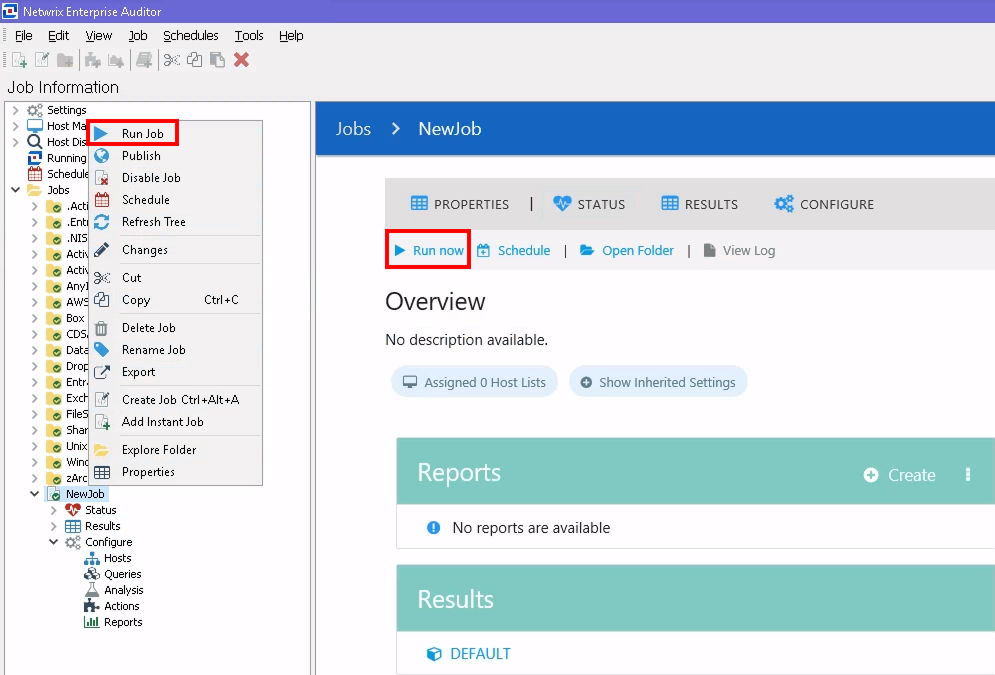
- To run the job, you can either select Run now from the job windowpane or right-click the job and select Run Job.
Drop Data for Specific Hosts/Instances for SQL Servers or Drop Specific Data for SQL Hosts/Instances
- Follow steps 1–6 detailed above.
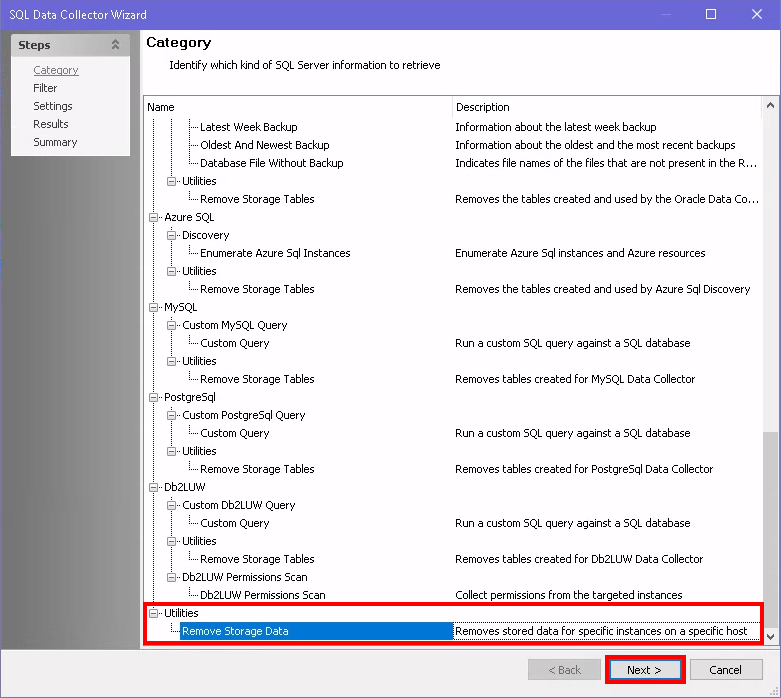
- On the SQL Data Collector Configuration Wizard Category page, select the Utilities > Remove Storage Data option and click Next.
- On the Filters page, select the databases/instances via the Filter Options drop-down menu:
- All database objects
- Only select database objects
- When using this option, select the database objects you want to delete in the Available database objects pane, then click Add.
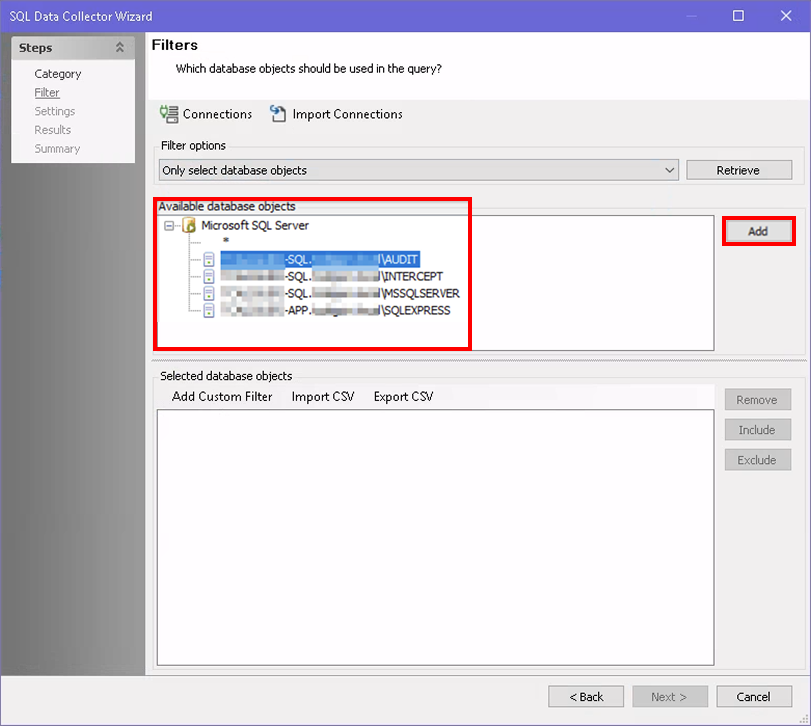
- When using this option, select the database objects you want to delete in the Available database objects pane, then click Add.
- On the Settings page, select the type of data you would like to remove for your specified hosts:
- Permissions
- Audits
- Sensitive Data
- Orphaned Rows
- On the Results page, enable all of the available properties.
- Run the job.