Manually Setting Up Entra ID Auditing for Netwrix Access Analyzer
Question
How do I set up Entra ID Auditing without using the AZ_RegisterAzureAppAuth instant job?
Answer
While it is always recommended to use the AZ_RegisterAzureAppAuth instant job to set up the Entra app for auditing, it can be done manually if necessary (e.g., when MFA cannot be temporarily disabled for a Global Admin account).
Entra ID Inventory Scans & Entra ID Reports
-
Open the Microsoft Entra admin center: https://entra.microsoft.com/#home.
-
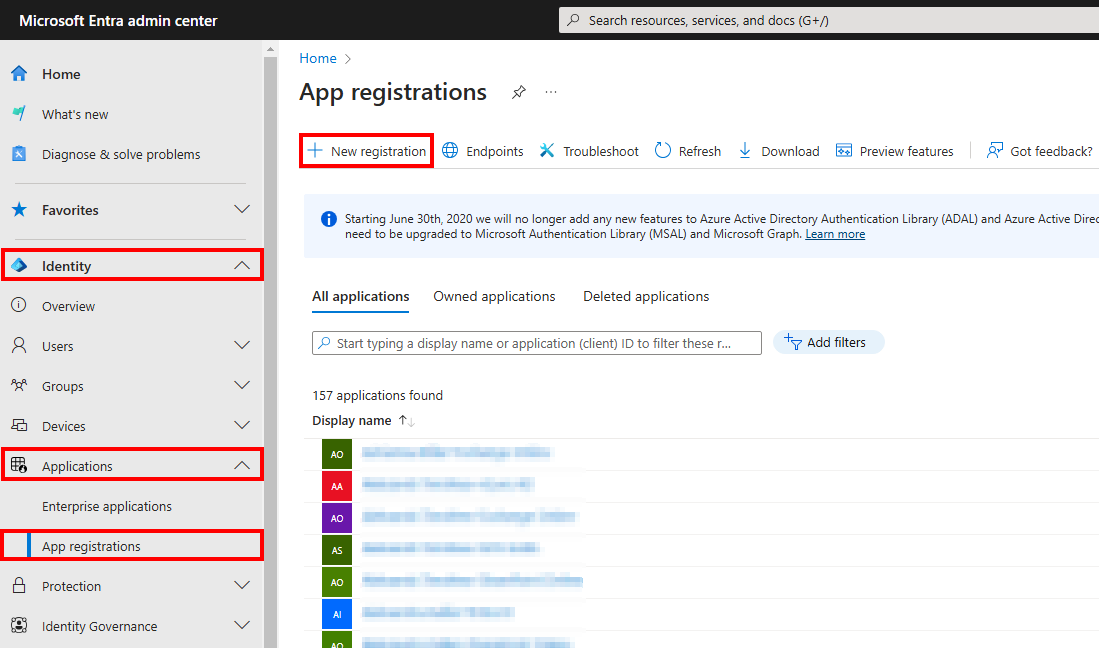
Navigate to Identity > Applications > App registrations and select + New registration.
-
On the Register an application page, set the following:
- Name: Something meaningful, e.g.,
NEA_EntraID. - Support account types: Accounts in this org. directory only.
- Name: Something meaningful, e.g.,
-
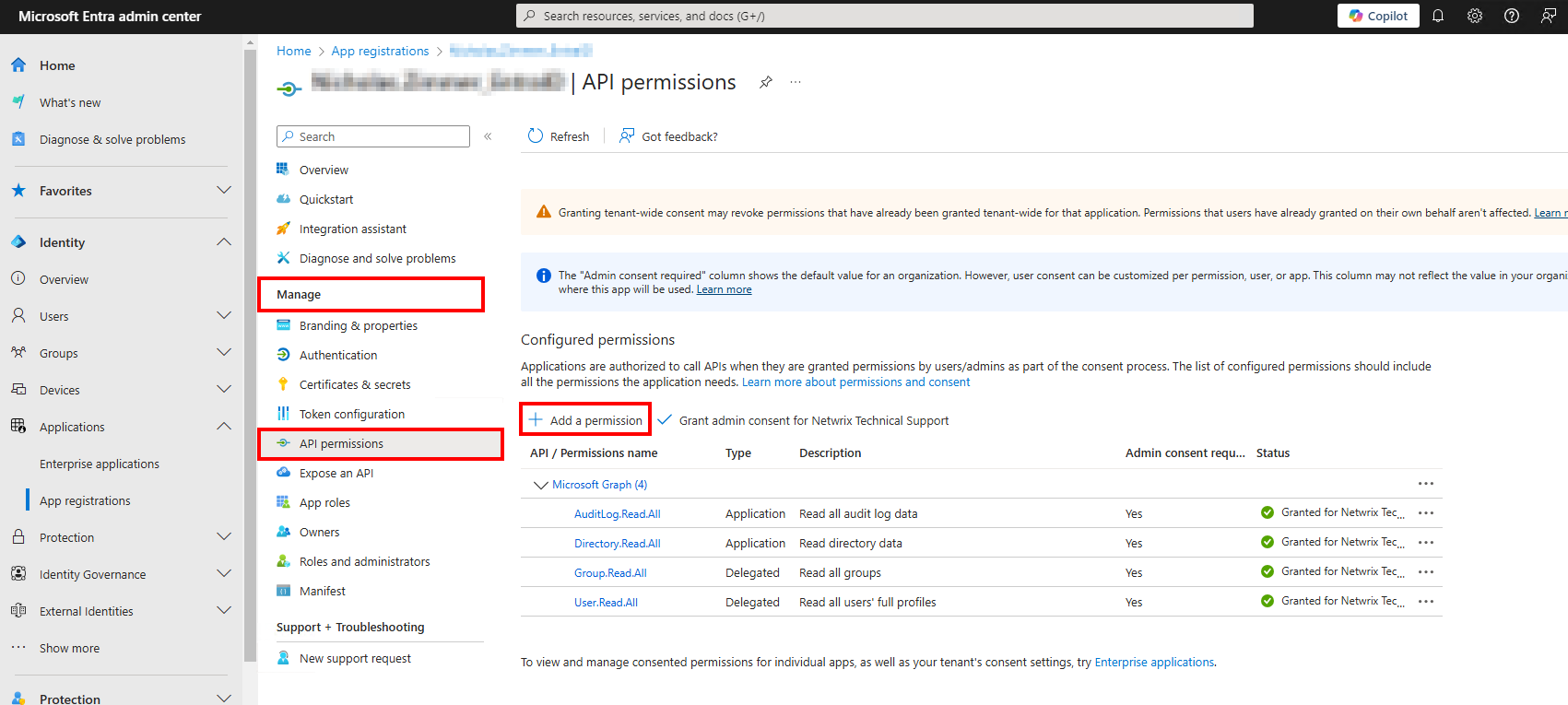
From the Application Overview page, navigate to Manage > API Permissions and select Add a permission.
-
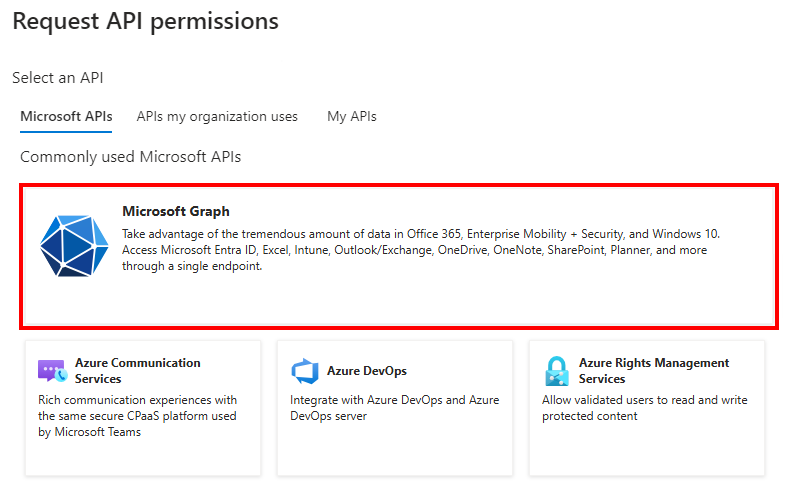
From the Request API permissions page, select Microsoft Graph.
- Add the following Delegated Permissions:
Group.Read.All– Read all groupsUser.Read.All– Read all users' full profiles
- Add the following Application Permissions:
AuditLog.Read.All– Read all audit log dataDirectory.Read.All– Read directory data
- Add the following Delegated Permissions:
-
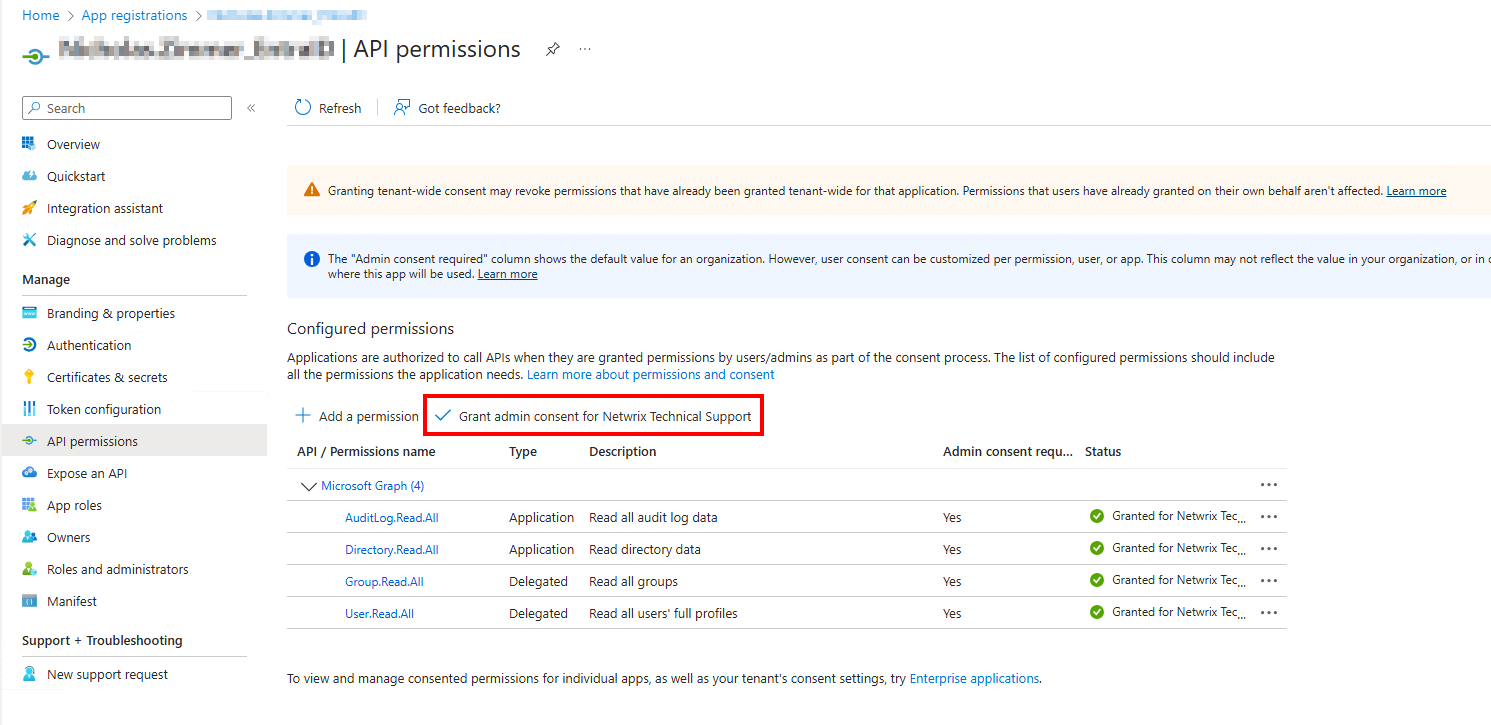
After adding the aforementioned permissions, grant them admin consent by selecting Grant admin consent for
\{TENANT NAME\}.
-
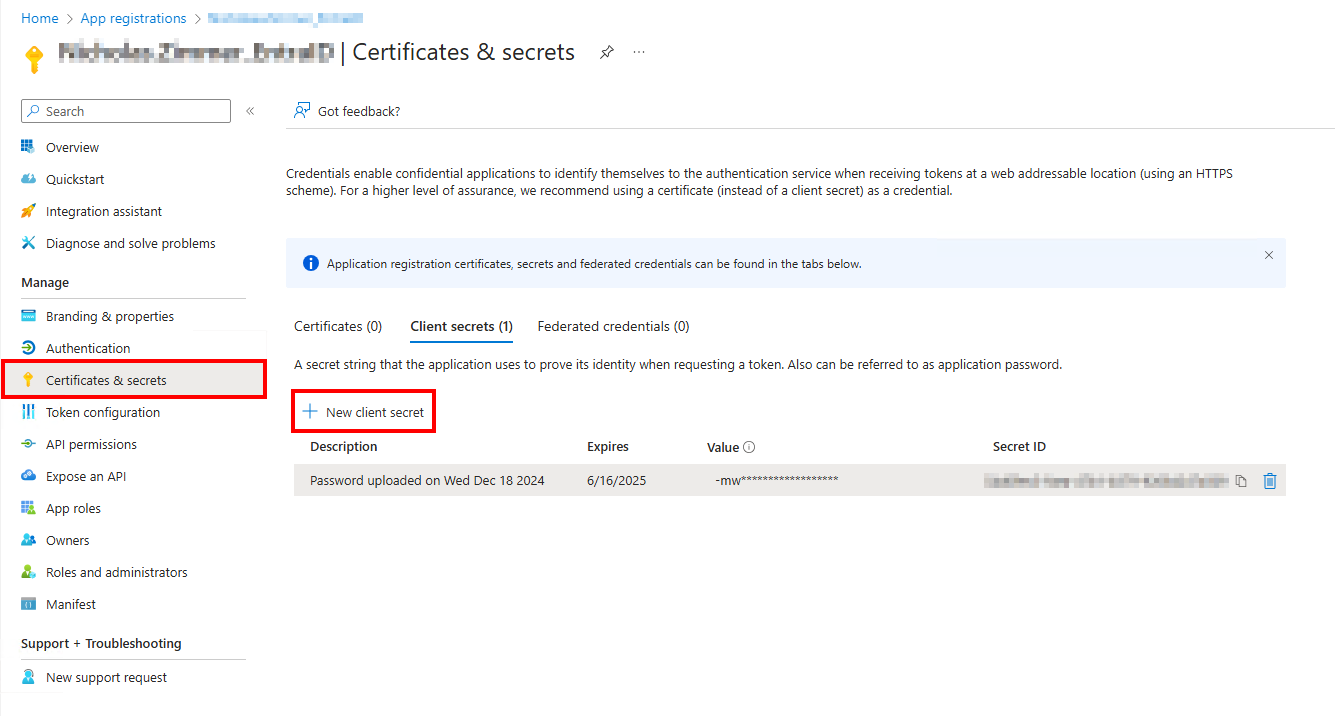
Navigate to the Entra app registration and on the Certificates & secrets page, select + New client secret.
-
On the Add a client secret page, add the following:
- Description: Something meaningful, e.g.,
Access Analyzer Entra ID. - Expires: Usually recommended to set this to the longest option OR per the organization’s internal certificate expiration timeframe.
- Description: Something meaningful, e.g.,
-
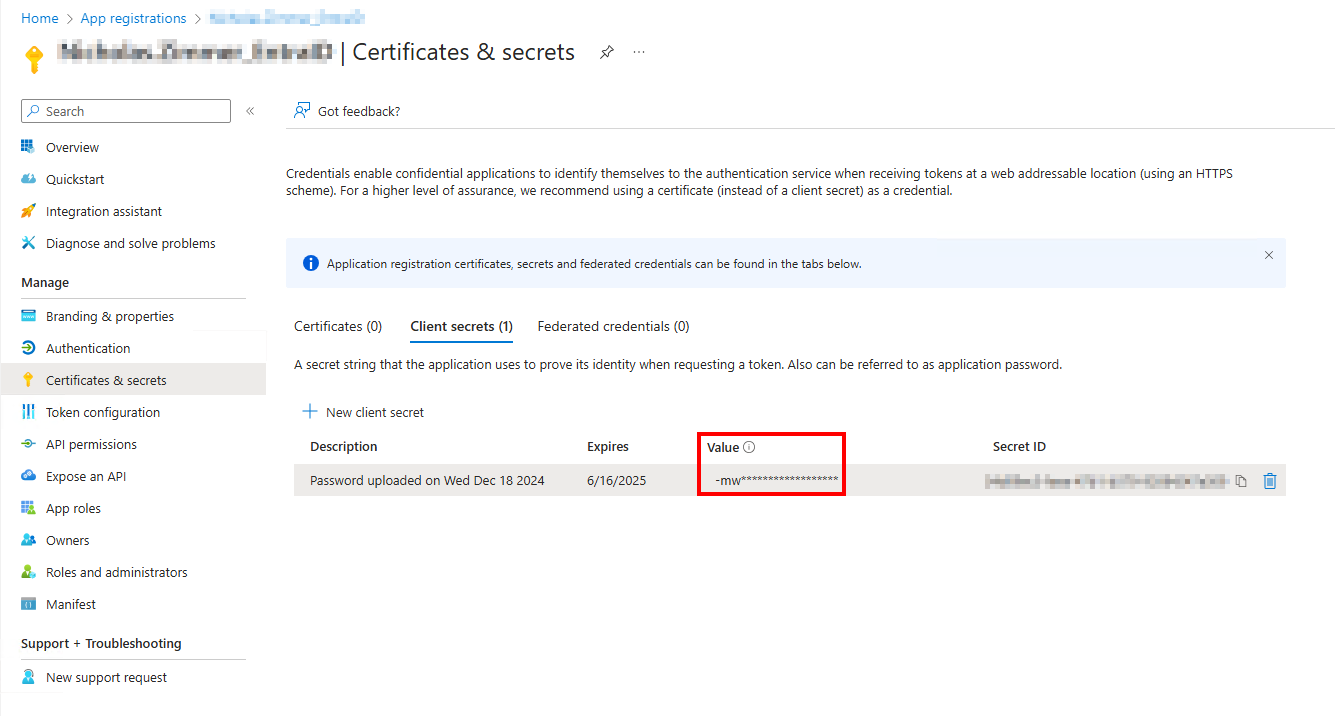
After creating the client secret, copy the secret Value to a notepad.
-
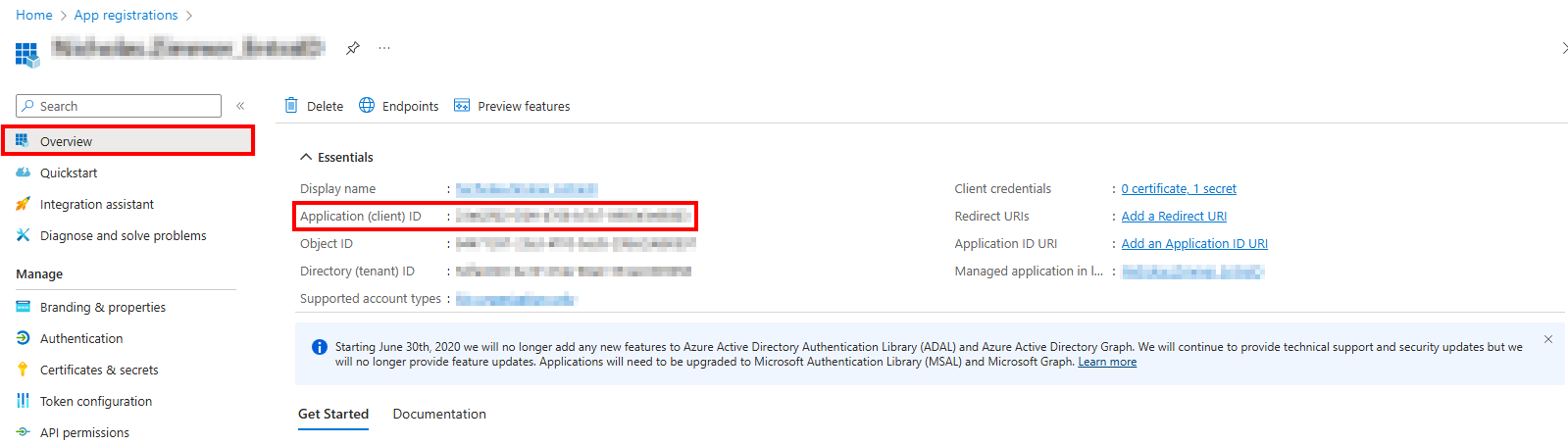
Next, navigate to the Overview tab and copy the Application (client) ID which is needed for the Netwrix Access Analyzer Connection Profile.
Netwrix Access Analyzer Connection Profile
-
In Netwrix Access Analyzer, navigate to Global Options > Connection and create a connection profile with the same name as the Entra app registration, using the following:
- Account Type: Azure Active Directory
- Client ID: Application (client) ID from Entra App Registration
- Key: Secret Value
-
Create a host list with the Entra site, e.g., https://nwxsupport.sharepoint.com/.
-
Set the Entra ID Inventory job group to run against the Entra host list.
-
Set the Entra ID Inventory job group to use the Entra Connection Profile.
-
Schedule the Entra ID Inventory job group to run every day, or at least before the Entra ID job group.
NOTE: This job is also required in order to run Exchange Online & SharePoint Online modules.