How To Add the Jobs for a Newly Licensed Solution to an Existing Application Installation
Overview
This article explains how to add jobs for a newly licensed solution to an existing Netwrix Access Analyzer installation. You can use one of the two methods described below after applying the new license file.
NOTE: For instructions on how to apply a new license key to Netwrix Access Analyzer, please visit: How to Update the License Key in Access Analyzer.
Instructions
Add Solution via Instant Solutions
-
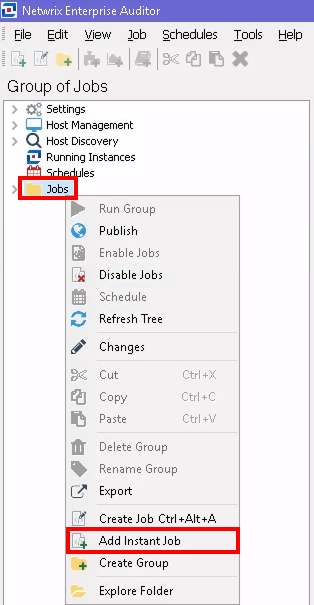
Open the Netwrix Access Analyzer console, right-click the Jobs folder, and select Add Instant Job.
-
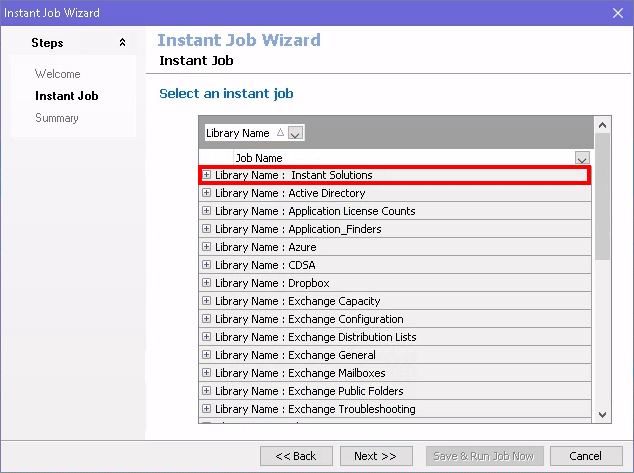
In the Instant Job Wizard, expand Library Name: Instant Solutions by clicking the + icon.
-
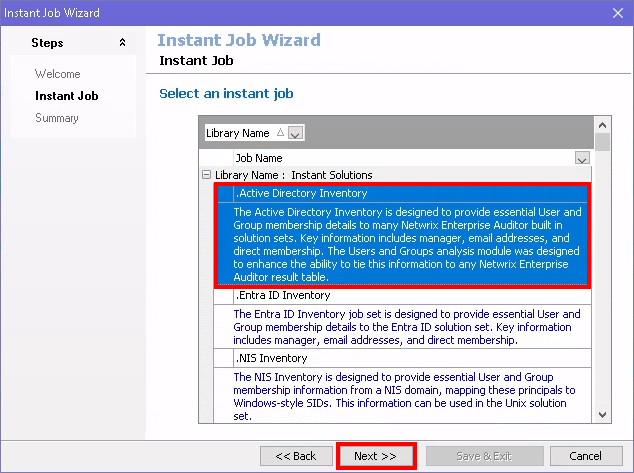
Select the newly licensed module (e.g.,
.Active Directory Inventory), then click Next.
-
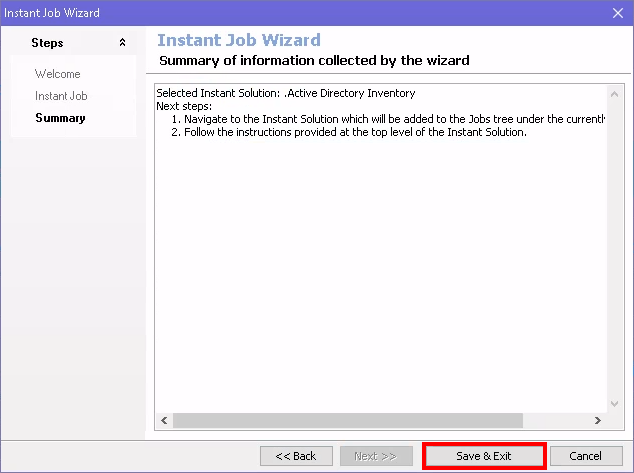
On the Summary page of the Instant Job Wizard, select Save & Exit.
-
Your newly licensed module should now appear in the Netwrix Access Analyzer Job Tree.
Add Solution via File Explorer
-
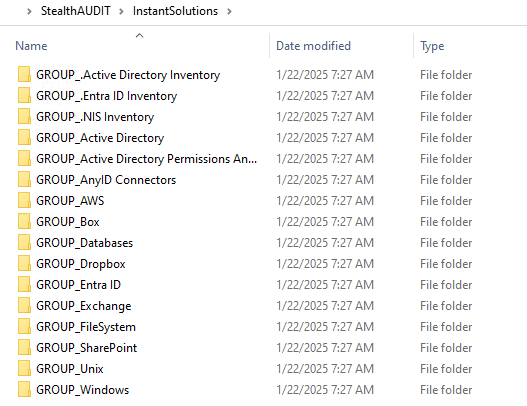
With the Netwrix Access Analyzer console closed, navigate to the Instant Solutions folder in Netwrix Access Analyzer's installation directory (
%SAInstallDir%InstantSolutions).
-
Locate the GROUP_ folder for the new solution and copy it to the Jobs folder (
%SAInstallDir%Jobs).- Example: Adding the Windows Solution
- From:
%SAInstallDir%InstantSolutions\GROUP_Windows - To:
%SAInstallDir%Jobs\GROUP_Windows
- From:
- Example: Adding the Windows Solution
-
Launch Netwrix Access Analyzer, and your newly licensed module should now appear in the Netwrix Access Analyzer Job Tree.
NOTE: For further details on job configuration, see Netwrix Access Analyzer Solutions Overview.
Related Articles
- How to Update the License Key in Access Analyzer
- Netwrix Access Analyzer Solutions Overview