Support for Historical Data Retention in Access Analyzer Jobs
Overview
Depending on the needs, the historical data retention option can be set up in Netwrix Access Analyzer to allow an in-depth analysis of historical data in your environment. This article lists solutions and Jobs that do and do not support data retention.
Supported solutions
IMPORTANT: Enabling the data retention option in unsupported solutions may cause issues related to data analysis and reporting.
-
Exchange Solution
-
HUB Metrics Job Group − 0.Collection Job Group
The default History Retention setting is set to 6 months for both
EX_MetricsCollectionandEX_MetricsDetailJobs. To adjust it, modify the SET HISTORY RETENTION analysis task for the corresponding job. This can be configured for months or days.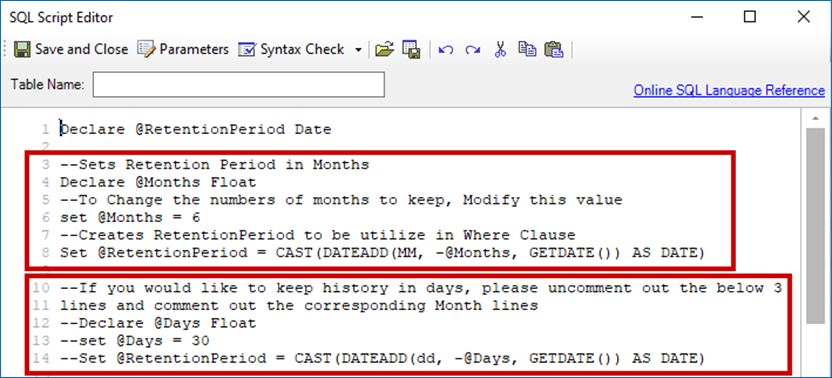
-
CAS Metrics Job Group − ActiveSync Job Group − EX_ActiveSync Job
The default History Retention setting is set to 6 months. To adjust it, modify the SET HISTORY RETENTION analysis task for the job.
-
CAS Metrics Job Group − Outlook Web Access Job Group − EX_OWATraffic Job
The default History Retention setting is set to 6 months. To adjust it, modify the SET HISTORY RETENTION analysis task for the job.
-
Databases Job Group − EX_DBSizing Job
The default History Retention setting is set to 6 months. To adjust it, modify the SET HISTORY RETENTION analysis task for the job.
-
Mailboxes Job Group − Logons Job Group − EX_MailboxLogons Job
The default History Retention setting is set to 6 months. To adjust it, modify the SET HISTORY RETENTION analysis task for the job.
-
Mailboxes Job Group − Sizing Job Group − EX_MailboxSizes Job
The default History Retention setting is set to 6 months. To adjust it, modify the SET HISTORY RETENTION analysis task for the job.
-
Public Folders Job Group − Growth and Size Job Group − PF_FolderSize Job
The default History Retention setting is set to 6 months. To adjust it, modify the SET HISTORY RETENTION analysis task for the job.
-
Exchange Online Job Group > Mailflow Job Group > EX_Mailflow Job
The default History Retention setting is set to 6 months. To adjust it, modify the SET HISTORY RETENTION analysis task for the job.
-
-
File System Solution
IMPORTANT: To adjust the retention period for the File System Activity (FSAC) historical data, use the Activity Settings page of the 1-FSAC System Scan Job. Refer to the following article for additional information: https://docs.netwrix.com/docs/auditor/10_8
-
4.Content Job Group
The historical data retention is optional for Jobs in the group. Turning the History option on or off will not affect analysis tasks or reporting. To adjust the retention settings, right-click Job > select Properties > select the History tab.
-
6.Probable Owner Job Group
The historical data retention is optional for Jobs in the group. Turning the History option on or off will not affect analysis tasks or reporting. To adjust the retention settings, right-click Job > select Properties > select the History tab.
-
-
SharePoint Solution
To adjust the retention period for the SharePoint Activity historical data, use the Activity Date Scope page of the SPAC System Scan. Refer to the following article for additional information: https://docs.netwrix.com/docs/auditor/10_8
-
Databases Solutions
To adjust the retention period for the Database Activity historical data, use the Options page of the corresponding ActivityScan Job. This option is currently available only in SQL and AzureSQL instances. Refer to the following articles for additional information:
Solutions not yet supported
IMPORTANT: Enabling the data retention option in unsupported solutions may cause issues related to data analysis and reporting.
The following solutions do not yet support any historical data retention:
- Inventories (Active Directory, Entra ID, NIS).
- Active Directory.
- Active Directory Permissions Analyzer.
- AnyID Connectors.
- AWS.
- Box.
- Dropbox.
- Entra ID.
- Unix.
Related articles
- https://docs.netwrix.com/docs/auditor/10_8 0.Collection Job Group − 1-FSAC System Scans Job · v11.6
- https://docs.netwrix.com/docs/auditor/10_8 — SharePointAccess Data Collector − Activity Date Scope · v11.6
- https://docs.netwrix.com/docs/auditor/10_8 0.Collection > SQL Job Group − 3-SQL_ActivityScan Job · v11.6
- https://docs.netwrix.com/docs/auditor/10_8 0.Collection > Azure SQL Job Group − 3-AzureSQL_ActivityScan Job · v11.6