Error: Request for Downloading Published Reports Failed
Symptoms
Either of the following symptoms is present in your environment:
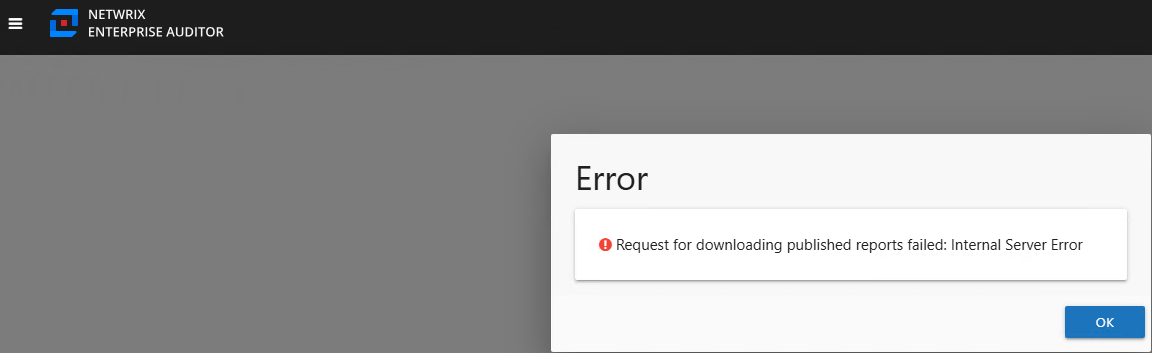
- Upon opening the Reporting web page, you receive the following error:
! Request for downloading published reports failed: Internal Server Error
- If the file is corrupted, the following error could appear when opening the Netwrix Access Analyzer console.

- Log entry example:
DEBUG Netwrix Enterprise Auditor IsGroupPublished "Data at the root level is invalid. Line 1, position 1."
%sainstalldir%\SADatabase\Logs\Application\SADebug-20250306124900-10776.TSV
Cause
The issue is caused by a corrupted Reports.xml.
Resolution
To resolve these errors, follow the steps below.
-
Rebuild the Reports folder under the install path. If you want to back up the folder, archive it prior to deleting the original.
NOTE: To find the install path, enter the following environmental variable into the application server's Windows File Explorer:
%sainstalldir%. Then, right-click the Reports folder to archive and/or delete it. -
Close and reopen the Access Analyzer Console to rebuild the folder.
-
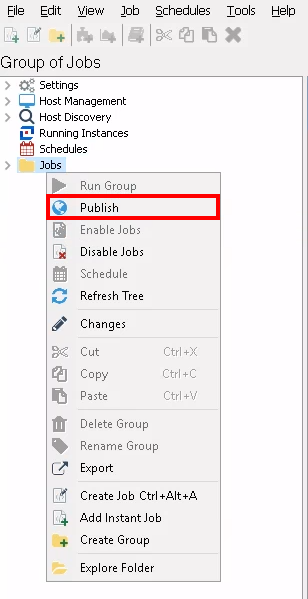
To publish the report(s) again, right-click a needed Job Group (for example, Jobs), and select Publish to publish the reports from the selected job group or job without regenerating the report.
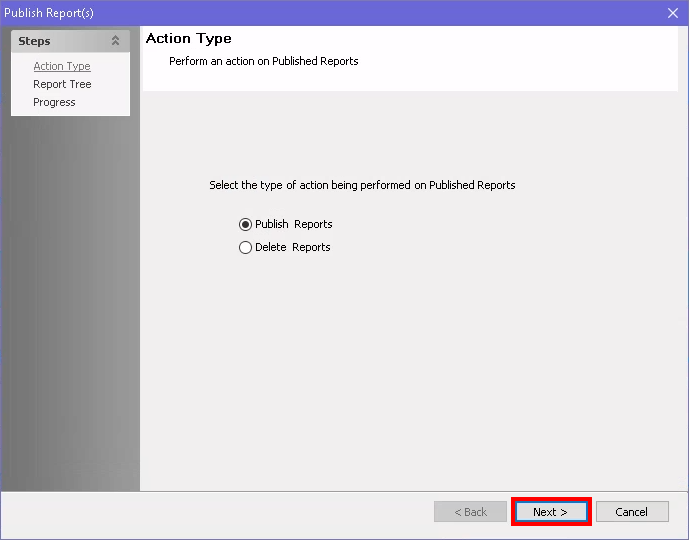
- Select Publish Reports and click Next.
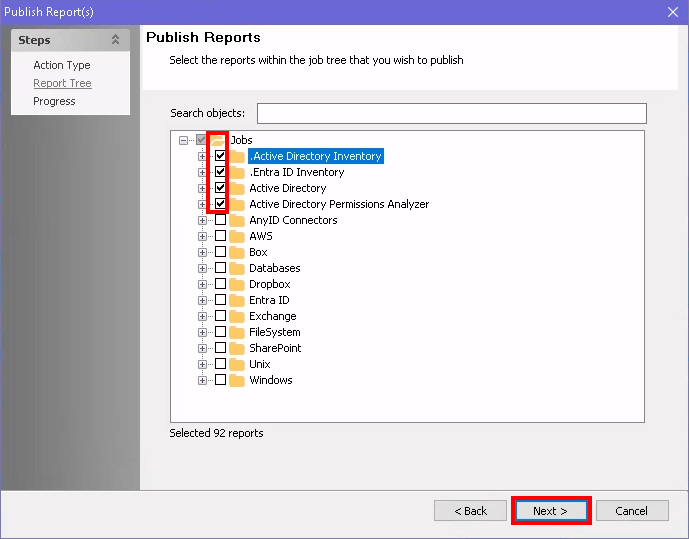
- Select objects as needed. Then, click Next to run the report.
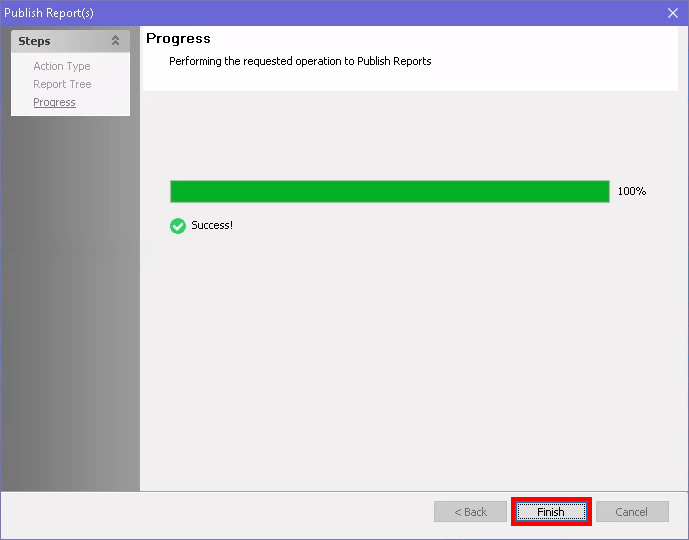
- Once the report has run successfully, click Finish to close out of the Reporting web page.
NOTE: Additionally, reports will be rebuilt when the related job completes its next run.